Can You Watch Downloaded Netflix Movies On A Plane
Yes, you can watch downloaded Netflix movies on a plane as long as you download them before you lose internet access. Netflix allows offline viewing on its mobile app, which works perfectly during flights. You just need to set up your downloads in advance, manage storage space, and understand expiration rules. This guide covers everything you need to know about watching Netflix offline on a plane without any surprises.
There is nothing worse than boarding a long flight and realizing you forgot to load up your entertainment. You settle into your seat, open your phone, and then it hits you. No WiFi. No streaming. Just hours of boredom ahead. But what if you could have your favorite Netflix movies ready to go? The good news is that you can watch downloaded Netflix movies on a plane, and it is easier than most people think. This guide will walk you through every step, from downloading content before your trip to enjoying it mid-air. Whether you are a frequent flyer or planning a vacation, this information will save you time and keep you entertained at 30,000 feet.
Many travelers rely on Netflix for in-flight entertainment, but the process is not always obvious. Netflix has built a solid offline viewing feature over the years. However, there are rules, limits, and quirks you need to know about. You cannot just download anything and expect it to work forever. Some titles expire quickly. Some devices support downloads while others do not. This article breaks it all down so you can travel with confidence. By the end, you will know exactly how to set up Netflix offline viewing for travel and avoid common mistakes.
Key Takeaways
- Netflix supports offline downloads: You can download movies and shows to your phone or tablet before a flight.
- Downloads expire after a set time: Most titles expire after 48 hours once you start playing them.
- You need the Netflix mobile app: Offline viewing is not available on laptops or desktops through the browser.
- Download limits exist: The number of devices and titles you can save depends on your plan.
- Airplane mode is your friend: Once downloaded, you do not need WiFi to watch your content.
- Storage matters: Downloads can take up significant space, so plan ahead.
- Not all content is downloadable: Some titles are restricted by licensing agreements.
📑 Table of Contents
- How Netflix Downloads Work for Air Travel
- Step-by-Step: Downloading Netflix Movies Before Your Flight
- Watching Downloaded Netflix Movies During Your Flight
- Limitations and Things to Know About Offline Netflix
- Tips for the Best Offline Netflix Experience on Planes
- Common Mistakes People Make With Netflix Offline Viewing
- Expert Insights on Netflix Offline Viewing for Travelers
- Frequently Asked Questions About Watching Netflix on a Plane
- Final Thoughts
How Netflix Downloads Work for Air Travel
Netflix allows you to download select movies and TV shows directly to your device. This feature is called offline viewing, and it is built into the mobile app. Once downloaded, the content lives on your phone or tablet. You can watch it anytime, anywhere, without an internet connection. This makes it perfect for flights, trains, or road trips.
The way it works is simple. You open the Netflix app, find a title you want, and tap the download button. Netflix then saves the video file to your device storage. When you are ready to watch, you just open the app and tap play. No buffering. No loading screen. No internet needed. This is why downloading Netflix movies before a flight has become a go-to strategy for travelers.
Which Devices Support Netflix Offline Downloads?
Not every device can download Netflix content. Here is a quick breakdown of what works:
- Smartphones: Both Android and iOS devices support downloads through the Netflix app.
- Tablets: iPads and Android tablets work great for offline viewing.
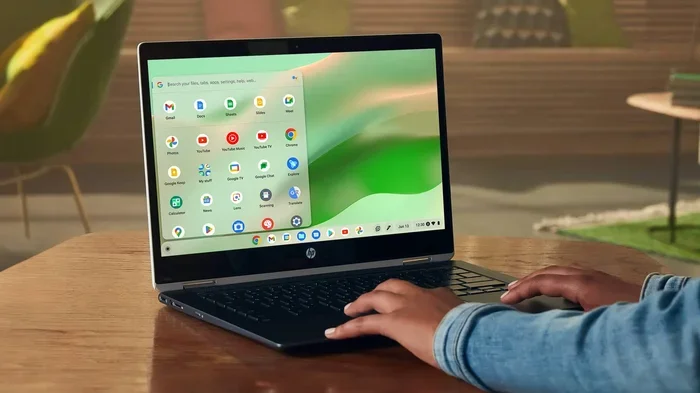
- Laptops and Desktops: You cannot download Netflix content through a web browser on a computer. The download feature is mobile-only.
- Gaming Consoles: Consoles like PlayStation and Xbox do not support offline downloads.
- Smart TVs: Downloading is not available on smart TV apps.
If you want to watch Netflix on a plane, your best bet is a phone or tablet. Make sure your device has enough storage space before you start downloading. A single movie can take up anywhere from 300 MB to over 1 GB depending on the quality you choose.
Why Airplane Mode Matters
Once you are in the air, you will likely need to switch your device to airplane mode. This disables all wireless connections, including WiFi and cellular data. But here is the good news. Airplane mode does not stop you from watching downloaded content. Your Netflix downloads are stored locally on your device. They do not need a live internet connection to play. So go ahead and enable airplane mode. Your movies will still work perfectly.
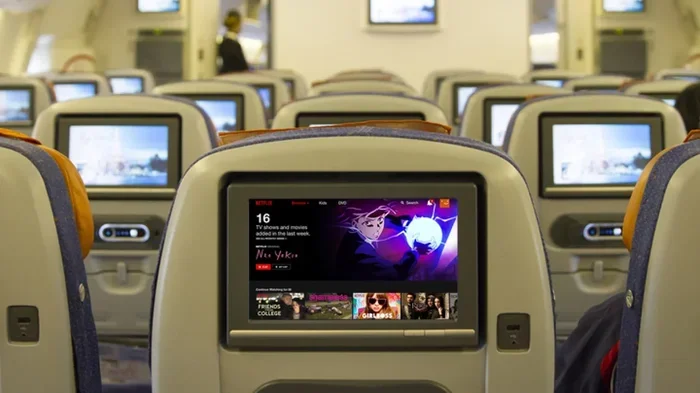
Some planes now offer in-flight WiFi, but it is usually slow and expensive. Streaming Netflix through in-flight WiFi is not practical. That is exactly why downloading before your flight is so important. You get reliable, high-quality entertainment without depending on spotty airplane WiFi.
Step-by-Step: Downloading Netflix Movies Before Your Flight
Getting your Netflix content ready for a trip takes just a few minutes. Follow these simple steps to make sure everything goes smoothly.
- Open the Netflix app on your phone or tablet.
- Sign in to your Netflix account.
- Search for the movie or show you want to download.
- Tap the download icon. It looks like a downward-pointing arrow. You will find it on the movie or show details page.
- Choose your download quality. Netflix offers standard and high-quality options. Higher quality uses more storage but looks better on larger screens.
- Wait for the download to finish. This depends on your internet speed and the size of the file.
- Find your downloads in the app. Go to the “Downloads” section to see all your saved content.
That is it. You are ready to watch offline. It is a good idea to start this process while you still have a strong WiFi connection at home or in the airport lounge. Downloading over weak cellular data can be slow and frustrating.
How to Choose the Right Download Quality
Netflix gives you control over download quality in the app settings. Here is how to adjust it:
- Open the Netflix app.
- Go to Settings.
- Tap “App Data Usage.”
- Choose between “Wi-Fi Only,” “Save Data,” or “High Quality.”
For flights, “High Quality” is usually the best choice. You want your movies to look sharp on a screen that might be close to your face. But if storage is tight, “Save Data” mode will use less space. Keep in mind that Netflix download storage can fill up quickly if you download several movies. Always check your available space first.
Watching Downloaded Netflix Movies During Your Flight
Once you are airborne and your downloads are ready, watching is effortless. Open the Netflix app, go to your Downloads section, and pick a movie. Tap play and enjoy. There is no need to worry about buffering or connection drops. The video plays directly from your device storage.
You can also download multiple titles before your trip. Netflix allows you to save several movies and shows at once. This is great for long flights. You can create a whole entertainment lineup before you leave the ground. Some travelers download three to five movies for a cross-country flight. Others grab entire TV show seasons for extended trips.
One thing to keep in mind is that you can only download content to a limited number of devices. Netflix plans allow downloads on a specific number of devices. Standard plans typically support two devices. Premium plans support four. Make sure you download to the right device before your trip.
Managing Your Downloads While Traveling
It helps to stay organized with your downloads. Here are a few practical tips:
- Delete watched content: Free up space by removing movies you have already finished.
- Check expiration dates: Some downloads expire sooner than others. Watch the expiration notice in the app.
- Re-download before trips: If a download expires, you can re-download it as long as your subscription is active.
- Use the Downloads folder: Keep all your offline content in one place for easy access.
These small habits make a big difference. They ensure you always have fresh content ready for your next trip. Managing your Netflix offline downloads properly saves you from running out of things to watch.
Limitations and Things to Know About Offline Netflix
While offline Netflix viewing is incredibly useful, it comes with some limitations. Understanding these ahead of time saves you from disappointment.
Download Expiration Rules
Netflix downloads do not last forever. Most titles expire 48 hours after you start watching them. If you do not start a movie within a certain period, the download may expire even sooner. This is because of licensing agreements between Netflix and content providers.
Here is what you need to know about expiration:
- Some downloads expire within 7 days of downloading.
- Others expire 48 hours after you press play.
- You can renew expired downloads by connecting to the internet and tapping download again.
- Expiration dates are shown in the Downloads section of the app.
This is why it is smart to download content close to your travel date. If you download a movie two weeks before your flight, it might expire before you board. Plan your downloads wisely to avoid this issue.
Not All Content Is Downloadable
You cannot download every title on Netflix. Some movies and shows are not available for offline viewing. This restriction comes from licensing deals. Content owners sometimes do not allow Netflix to offer offline copies of their shows.
Here is how to check if a title is downloadable:
- Look for the download icon on the movie or show page.
- If the icon is missing, the title is not available for offline viewing.
- Netflix updates its downloadable library regularly.
Before your trip, browse the Netflix catalog and identify which titles you can download. Do not wait until you are already offline to find out a movie is not available. This is one of the most common mistakes travelers make with Netflix offline viewing for travel.
Storage Space Constraints
Downloading Netflix movies takes up real storage space on your device. A single HD movie can use over 1 GB of storage. If you download several movies, that adds up fast. Before you start downloading, check how much free space you have.
Here are some general storage estimates:
- Standard quality: About 300 MB to 500 MB per hour of content.
- High quality: About 700 MB to 1 GB per hour of content.
- A typical 2-hour movie: Between 600 MB and 2 GB depending on quality.
If your phone or tablet is running low on space, consider deleting old downloads or unused apps before your trip. You can also adjust the download quality setting to save space. Just remember that lower quality means a less sharp picture.
Tips for the Best Offline Netflix Experience on Planes
A little preparation goes a long way when it comes to watching Netflix on a plane. Follow these tips to make the most of your offline library.
Download Over WiFi Before You Leave
Always download your content while connected to WiFi. Downloading over cellular data can eat through your data plan quickly. It is also slower and less reliable. Set up your downloads the night before your trip or while you are at the airport using free WiFi.
Charge Your Device Before Boarding
Watching videos drains your battery. A two-hour movie can use a significant amount of power. Make sure your phone or tablet is fully charged before you board. If possible, bring a portable charger or a car charger for the ride to the airport.
Download a Variety of Content
Do not rely on just one or two movies. Download a mix of genres so you do not get bored. Grab a comedy, a thriller, and a documentary. This way, you have options no matter what your mood is during the flight.
Use Netflix’s “Download More Like This” Feature
Netflix suggests similar titles based on what you have watched and downloaded. Use this feature to discover new content you might enjoy offline. It is a great way to build a personalized offline library for your travels.
Keep Your Netflix App Updated
Outdated app versions can cause download issues or playback errors. Always make sure your Netflix app is up to date before your trip. Updates often fix bugs and improve offline performance. Check for updates in your app store the day before you fly.
Set Up Your Profile in Advance
Netflix allows multiple profiles on one account. If you share your account with family, make sure each person’s profile has its own downloads. This way, everyone can watch their own content without interfering with someone else’s downloads. You can also set up Kids profiles with age-appropriate downloads for younger travelers.
Common Mistakes People Make With Netflix Offline Viewing
Even with the best intentions, travelers often make mistakes when preparing Netflix downloads for a flight. Here are the most common ones to avoid.
Mistake 1: Waiting too long to download. If you download content days before your trip, it might expire before you fly. Always download close to your departure date.
Mistake 2: Forgetting to check storage space. Nothing is worse than starting a download and running out of room halfway through. Check your storage first.
Mistake 3: Assuming everything is downloadable. Not every Netflix title supports offline viewing. Always look for the download icon before assuming a movie is available.
Mistake 4: Not downloading enough content. A short flight might only need one movie. A long international flight needs several. Plan your downloads based on the length of your trip.
Mistake 5: Ignoring download quality settings. Default settings may not give you the best experience. Adjust the quality based on your storage and screen size.
Avoiding these mistakes ensures a smooth and enjoyable Netflix offline experience on your next flight. A little planning prevents a lot of frustration at 30,000 feet.
Expert Insights on Netflix Offline Viewing for Travelers
Frequent travelers and tech experts agree that offline Netflix viewing is one of the best features for air travel. Streaming services have improved their offline capabilities significantly over the past few years. Netflix, in particular, has made it easy to save and watch content without an internet connection.
Travel bloggers and digital nomads often recommend downloading content the night before a flight. They also suggest creating a dedicated “travel” profile on Netflix. This profile can hold all your downloaded movies and shows, keeping them separate from your regular viewing history. It is a simple trick that keeps your offline library organized.
Another expert tip is to download content in batches. Instead of downloading one movie at a time, set up all your downloads at once. This saves time and ensures you have a full library ready to go. Some travelers even create a playlist of downloaded content so they can queue up their movies in advance.
The rise of in-flight entertainment alternatives has not made Netflix offline viewing less relevant. While many airlines offer their own streaming systems, those options are often limited. Having your own personal Netflix library gives you more control and choice. You get to pick exactly what you want to watch, when you want to watch it.
Frequently Asked Questions About Watching Netflix on a Plane
Can you watch downloaded Netflix movies on a plane without WiFi?
Yes, absolutely. Once you have downloaded Netflix content to your device, you do not need WiFi to watch it. The downloads are stored locally on your phone or tablet. Airplane mode will not affect your ability to play downloaded movies. This is the whole point of Netflix offline viewing. Just make sure your downloads are complete before you turn off your WiFi or enable airplane mode.
How many movies can you download on Netflix at one time?
The number of downloads you can hold depends on your Netflix plan and device storage. Netflix allows you to download a set number of titles per device, but the exact limit varies. Most users can download between 100 and 200 titles per device. However, you can only download on a limited number of devices at once, usually two to four depending on your plan. You can always delete old downloads to make room for new ones.
Do Netflix downloads expire while on a plane?
Yes, Netflix downloads can expire while you are on a plane. Most titles expire 48 hours after you start watching them. Some expire within 7 days of downloading. If a download expires mid-flight, you will not be able to continue watching it. This is why it is important to check expiration dates before your trip and download fresh content close to your departure time.
Can you download Netflix on a phone and watch on a tablet?
No, Netflix downloads are tied to the device they were downloaded on. You cannot download a movie on your phone and then transfer it to your tablet to watch offline. Each device needs its own separate downloads. If you want to watch on multiple devices, you will need to download the same content on each one. Keep this in mind when sharing a Netflix account with family members.
What happens if your Netflix subscription expires while traveling?
If your Netflix subscription expires, you will lose access to all downloaded content. You will not be able to watch any downloaded movies or shows until you renew your subscription. Even re-downloading expired content requires an active subscription and an internet connection. Make sure your subscription is current before your trip to avoid this problem.
Is Netflix offline viewing available on all plans?
Yes, Netflix offline downloads are available on all subscription plans, including the Basic, Standard, and Premium tiers. However, the number of devices you can download to varies by plan. The Basic plan allows downloads on one device, Standard on two, and Premium on four. The quality of downloads is also the same across all plans, so you get the same offline experience regardless of which plan you choose.
Final Thoughts
Can you watch downloaded Netflix movies on a plane? The answer is a clear yes. Netflix offline viewing is a powerful tool for travelers who want entertainment without relying on airplane WiFi or in-flight entertainment systems. With a few simple steps, you can download your favorite movies and shows before your trip and enjoy them seamlessly during your flight.
Remember to plan ahead. Download content close to your departure date. Check your storage space. Understand the expiration rules. And always have backup content ready. These small preparations make a huge difference in your travel experience.
Watching Netflix offline on a plane is not just convenient. It is a game-changer for long flights and delayed connections. You get to control your entertainment, avoid buffering, and enjoy your favorite content without interruptions. So next time you book a flight, take a few minutes to set up your Netflix downloads. Your future self, sitting in a middle seat with nothing to watch, will thank you. Safe travels and happy streaming.