How Do I Send A Qr Code Everything You Need To Know
Sending a QR code is simpler than most people think. Whether you want to share a QR code via text, email, WhatsApp, or AirDrop, this guide walks you through every method. You will learn how to create, send, and troubleshoot QR codes like a pro.
Have you ever needed to send a QR code to someone and just felt stuck? Maybe you wanted to share your WiFi password, a website link, or your business card. The good news is that sending a QR code is way easier than it sounds. This guide covers everything you need to know about how to send a QR code from any device, using any method. Let us dive right in.
A QR code is a square barcode that stores information. When someone scans it with their phone camera, it opens a link, displays text, or performs an action. People use QR codes for everything from sharing contact details to making payments. But knowing how to create one is only half the battle. The other half is actually getting it to the person you want to share it with. That is where this guide comes in.
Key Takeaways
- Multiple Methods Exist: You can send a QR code using text messages, email, social media, cloud links, and more.
- It Works on All Devices: Whether you use an iPhone, Android, or computer, there is a way to share your QR code.
- Creating a QR Code Is Free: Many free QR code generators let you make shareable codes in seconds.
- File Size Matters: Always use high-resolution images so the QR code scans correctly when sent.
- Test Before Sending: Always scan your QR code before sharing it to make sure it works.
- Privacy Matters: Be careful about what data you put in a QR code, especially when sharing publicly.
📑 Table of Contents
- What Is a QR Code and Why Do People Send Them?
- How to Create a QR Code You Can Send
- Different Ways to Send a QR Code
- Sending a QR Code on Different Devices
- Common Problems When You Send a QR Code and How to Fix Them
- Best Practices for Sharing QR Codes
- Key Takeaways
- Frequently Asked Questions
- Conclusion
What Is a QR Code and Why Do People Send Them?
A QR code stands for Quick Response code. It was invented in Japan back in 1994 for tracking car parts. Today, QR codes are everywhere. Restaurants use them for menus. Stores use them for payments. Event organizers use them for tickets. And regular people use them to share all kinds of information instantly.
People send QR codes because they are fast and convenient. Instead of typing out a long URL, you just share the code. The recipient scans it and gets the information immediately. This makes QR codes perfect for sharing links, contact info, WiFi passwords, and more. The whole process takes just a few seconds once you know how.
Common Uses for Shared QR Codes
Here are some of the most popular reasons people want to share a QR code:
- WiFi Networks: Sharing your home or office WiFi password without typing it out.
- Website Links: Directing someone to your business website or portfolio.
- Business Cards: Sharing your contact details instantly through a digital vCard.
- Payment Links: Sending a payment request through platforms like PayPal or Venmo.
- Event Tickets: Sharing tickets or invitations for events and gatherings.
- Menu Sharing: Restaurants sharing digital menus with customers.
- Social Media: Directing someone to your Instagram, TikTok, or LinkedIn profile.
How to Create a QR Code You Can Send
Before you can send a QR code, you need to create one. The good news is that this step is free and takes less than a minute. You do not need any special software or technical skills. Let us walk through the process.
Step-by-Step QR Code Creation
Follow these simple steps to create a shareable QR code:
- Choose a QR Code Generator: Go to a trusted free tool like QRCode Monkey, Beaconstac, or GoQR.me. These sites let you create codes without signing up.
- Select Your Data Type: Decide what kind of information you want to encode. Options include URLs, plain text, WiFi credentials, email addresses, or phone numbers.
- Enter Your Information: Type in the data you want to share. For example, if you are sharing a website, paste the full URL.
- Customize If You Want: Many generators let you change colors, add a logo, or adjust the design of your QR code.
- Generate the Code: Click the generate button and wait a few seconds.
- Download the Image: Save the QR code as a PNG or SVG file. SVG files are better for printing because they stay sharp at any size.
Once you have your QR code image saved on your device, you are ready to send it. The next sections will show you exactly how to do that using different methods.
Quick Tips for Creating Great QR Codes
- Always test your QR code before sending it to anyone.
- Use a high-resolution image so it scans clearly.
- Keep the QR code simple. Too much customization can make it hard to scan.
- Make sure the data you encode is accurate and up to date.
- Use dynamic QR codes if you want to change the destination link later without creating a new code.
Different Ways to Send a QR Code
Now that you have your QR code ready, it is time to share it. There are many ways to send a QR code, and the best method depends on who you are sending it to and what device you both use. Let us explore every option.
Method 1: Send a QR Code via Text Message
Sending a QR code through a text message is one of the simplest methods. Here is how you do it:
- Save the QR code image to your phone’s photo gallery.
- Open your messaging app.
- Start a new message or open an existing conversation.
- Tap the attachment or image icon.
- Select the QR code image from your gallery.
- Add a quick message if you want, like “Here is my WiFi QR code.”
- Hit send.
The person on the other end will receive the image and can save it or scan it right away. This method works on both iPhone and Android devices. It is especially handy for quick, casual sharing.
Method 2: Send a QR Code via Email
Email is a great option when you need to send a QR code professionally. Here is what to do:
- Attach the QR code image to your email just like any other photo.
- Write a brief description in the email body so the recipient knows what the code does.
- Send the email.
One advantage of email is that you can include instructions alongside the QR code. For example, you might write “Scan this code to visit my portfolio website.” This adds clarity and makes the experience smoother for the recipient.
Method 3: Share a QR Code Using Cloud Links
If you want to send a QR code without attaching a large file, cloud sharing is the way to go. You can upload your QR code image to Google Drive, Dropbox, or iCloud and then share the link. Here is how:
- Upload the QR code image to your preferred cloud service.
- Set the sharing permissions so anyone with the link can view it.
- Copy the shareable link.
- Send the link through text, email, or any messaging app.
This method is great for sending high-resolution QR codes. It also lets you update the file later without sending a new one. The recipient just clicks the link and downloads the image.
Method 4: Send a QR Code Through Social Media or Messaging Apps
You can also share QR codes through apps like WhatsApp, Facebook Messenger, Telegram, or even Instagram. The process is basically the same across all of them:
- Save the QR code image to your phone.
- Open the app and start a chat or post.
- Attach the image and send it.
WhatsApp is especially popular for this because it works on both iPhone and Android. You can even send QR codes in group chats, which is useful for events or team projects.
Method 5: Use AirDrop or Nearby Share for Quick Transfers
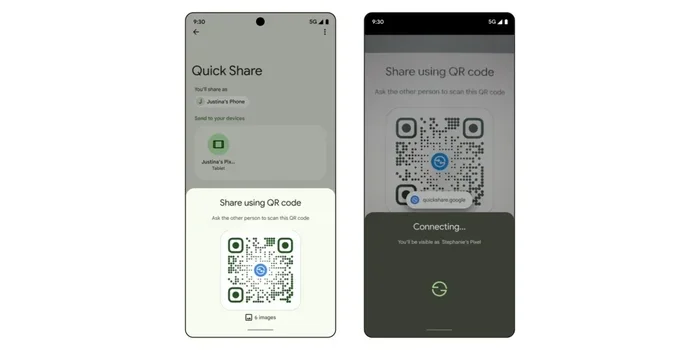
If both you and the recipient are nearby, you can use wireless transfer tools. iPhone users can use AirDrop to send the QR code instantly. Android users can use Nearby Share or Google Quick Share. These methods are super fast and do not require internet access.
Here is how AirDrop works:
- Make sure AirDrop is turned on in your Control Center.
- Open the Photos app and find your QR code image.
- Tap the share button.
- Select the recipient from the AirDrop list.
- They accept the transfer, and the QR code appears on their device.
Sending a QR Code on Different Devices
The method you use to send a QR code can vary depending on what device you are using. Let us break it down by device type so you can find the exact steps you need.
How to Send a QR Code from an iPhone
iPhone users have several easy options. You can use the built-in Photos app to share a QR code image through Messages, Mail, or AirDrop. You can also use WhatsApp or other messaging apps directly. If you created the QR code in a browser, you can long-press the image and choose “Share.” iPhones make sharing QR codes really seamless thanks to AirDrop and the built-in camera scanner.
How to Send a QR Code from an Android Phone
Android phones work similarly but with some differences. You can save the QR code image and share it through the Google Photos app or your file manager. Android also supports Nearby Share for quick transfers. Most Android messaging apps let you attach images easily. The Google Camera app on many Android phones can also scan and share QR codes directly.
How to Send a QR Code from a Computer
Sending a QR code from a desktop or laptop is straightforward too. You can attach the image file to an email or upload it to a cloud service. If you use a messaging app like WhatsApp Web or Telegram Desktop, you can share the file directly. Some people also screenshot the QR code on their computer and share the screenshot through Slack or Teams for work purposes.
Comparison of Sharing Methods by Device
| Device | Best Methods | Speed | Requires Internet |
|---|---|---|---|
| iPhone | AirDrop, Messages, Mail, WhatsApp | Very Fast | No for AirDrop |
| Android | Nearby Share, Messaging Apps, Email | Very Fast | No for Nearby Share |
| Windows PC | Email, Cloud Links, WhatsApp Web | Fast | Yes |
| Mac | AirDrop, Mail, iCloud Links | Very Fast | No for AirDrop |
| Tablet | Messaging Apps, Email, Cloud Links | Fast | Yes |
Common Problems When You Send a QR Code and How to Fix Them
Even though sending a QR code is usually simple, things can go wrong sometimes. Here are the most common issues and how to solve them.
QR Code Image Is Too Small or Blurry
If the person you send the QR code to cannot scan it, the image might be too small or low quality. Always download the highest resolution version available. PNG files work well for digital sharing, and SVG files are best if you need to scale the image. Avoid sending QR codes that are compressed or resized by messaging apps, as this can reduce quality.
The QR Code Does Not Scan Properly
Sometimes a QR code just will not scan, even when the image looks fine. This can happen for several reasons:
- The QR code has too much design customization that blocks the scanner.
- The image is corrupted or partially downloaded.
- The data encoded in the code is incorrect.
- The recipient is using an outdated camera app.
To fix this, try regenerating the QR code with simpler settings. Make sure the image downloaded completely before sending it. And always test the code yourself before sharing it.
The Recipient Cannot Find the QR Code in Their Messages
Sometimes QR code images get lost in a long conversation or get compressed by the messaging app. If this happens, try sending the file through email or a cloud link instead. These methods preserve the full image quality and make it easier for the recipient to find and save the file.
Privacy and Security Concerns
Be careful about what you put inside a QR code. Free QR code generators may track your data or add unwanted redirects. Always use reputable generators. Also, be cautious about sharing QR codes that contain personal information publicly. A QR code that links to your home address or private data should only be shared with trusted people.
Best Practices for Sharing QR Codes
To make sure your QR codes work perfectly every time you send them, follow these best practices. They will save you time and prevent frustration for both you and the person receiving the code.
- Always Test Before Sending: Scan your own QR code first to confirm it works correctly.
- Use High-Resolution Images: Download the PNG or SVG version for the clearest result.
- Include a Brief Description: Tell the recipient what the QR code does so they know what to expect.
- Keep It Simple: Avoid over-designing your QR code. Too many colors or logos can make it unscannable.
- Consider Dynamic QR Codes: These let you update the destination link without creating a new code. This is great for business use.
- Send Multiple Formats: If possible, send both the image file and a direct link so the recipient has options.
- Respect Privacy: Never put sensitive personal data in a publicly shared QR code.
Expert Insights on QR Code Sharing
Digital marketing experts agree that the way you share a QR code matters just as much as the code itself. According to industry professionals, the best approach is to always provide context. When you send a QR code, include a quick note explaining what will happen when the person scans it. This small step dramatically improves the user experience and reduces confusion. Experts also recommend using dynamic QR codes for business purposes because they offer tracking and editing capabilities that static codes do not.
Another pro tip from QR code specialists is to always check the scanning environment. If you are sending a QR code for a physical location, make sure it will be printed at a size that is easy to scan from a reasonable distance. A code that is too small on a flyer or poster will frustrate users and hurt engagement.
Key Takeaways
- Multiple Methods Exist: You can send a QR code using text messages, email, social media, cloud links, and more.
- It Works on All Devices: Whether you use an iPhone, Android, or computer, there is a way to share your QR code.
- Creating a QR Code Is Free: Many free QR code generators let you make shareable codes in seconds.
- File Size Matters: Always use high-resolution images so the QR code scans correctly when sent.
- Test Before Sending: Always scan your QR code before sharing it to make sure it works.
- Privacy Matters: Be careful about what data you put in a QR code, especially when sharing publicly.
Frequently Asked Questions
Can I send a QR code through WhatsApp?
Yes, you absolutely can. Simply save the QR code image to your phone, open WhatsApp, start a chat, and attach the image like you would any photo. WhatsApp compresses images slightly, so for the best quality, consider sending the QR code through email or a cloud link instead.
Is it free to create and send a QR code?
Yes, creating and sending a QR code is completely free. Many reputable websites and apps let you generate QR codes at no cost. Some premium services offer extra features like analytics and dynamic codes, but the basic sharing functions are always free to use.
Can I send a QR code from my computer to someone’s phone?
You can. The easiest way is to email the QR code image as an attachment. You can also upload it to a cloud service like Google Drive or Dropbox and share the link. Messaging apps like WhatsApp Web and Telegram Desktop also support file sharing from computers.
What file format is best for sending a QR code?
PNG is the most common and widely supported format for digital sharing. SVG is the best choice if you need to print the QR code because it stays sharp at any size. Avoid sending QR codes as JPG files because compression can reduce scan quality.
Why won’t my QR code scan after I send it?
This usually happens because the image was compressed by the messaging app or the file did not download fully. Try sending the QR code through email or a cloud link instead. Also make sure the image resolution is high enough and that the code was not stretched or distorted during the transfer.
Can I track who scans my QR code?
Yes, if you use a dynamic QR code service. Platforms like Beaconstac, QR Code Generator PRO, and Bitly offer tracking features that show you scan data like location, device type, and scan times. Static QR codes do not offer tracking capabilities.
Conclusion
Sending a QR code does not have to be complicated. Whether you use text messages, email, WhatsApp, AirDrop, or cloud links, the process is quick and straightforward once you know the steps. The key is to create a high-quality QR code, choose the right sharing method for your situation, and always test before you send.
With the methods covered in this guide, you can confidently share QR codes with anyone, anywhere, on any device. Remember to keep your codes simple, your images sharp, and your data secure. Now that you know exactly how to send a QR code, go ahead and try it out. You will be surprised how easy and useful this little square code can be.