Can You Use the 8bitdo Ultimate Controller on Your PC
Yes, you can use the 8bitdo Ultimate Controller on your PC. This versatile wireless gamepad works seamlessly with Windows via Bluetooth or USB, offering full compatibility with Steam and most PC games. Setting it up is simple, and the controller delivers a premium gaming feel with customizable buttons, low input lag, and a rechargeable battery that lasts for hours.
Gaming on PC has come a long way, and the right controller can make all the difference. If you have been eyeing the 8bitdo Ultimate Controller, you might be wondering whether it works well with your computer. The short answer is yes. The 8bitdo Ultimate Controller is one of the most versatile gamepads available today, and it connects to PCs with ease.
Whether you are playing retro classics through emulation or diving into modern AAA titles, this controller delivers a solid experience. It supports both Bluetooth and wired connections, so you can choose what works best for your setup. In this guide, we will walk you through everything you need to know about using the 8bitdo Ultimate Controller on your PC, from setup to troubleshooting.
The 8bitdo Ultimate Controller has earned a strong reputation among PC gamers. Its ergonomic design, responsive buttons, and wireless freedom make it a top choice. Let us dive into the details and see why this controller is worth your attention.
Key Takeaways
- Full PC Compatibility: The 8bitdo Ultimate Controller connects to Windows PCs via Bluetooth or USB receiver with no extra software needed.
- Easy Setup: Pairing the controller takes just a few minutes using Bluetooth or the included USB cable.
- Steam Support: The controller works natively with Steam, giving you access to controller configuration tools and game compatibility.
- Long Battery Life: The rechargeable battery provides extended play sessions, making it ideal for long gaming nights.
- Customizable Controls: Programmable buttons and analog sticks let you tailor the controller to your preferred play style.
📑 Table of Contents
- What Is the 8bitdo Ultimate Controller?
- Is the 8bitdo Ultimate Controller Compatible with PC?
- How to Set Up the 8bitdo Ultimate Controller on PC
- Controller Features and Performance on PC
- Using the 8bitdo Ultimate Controller with Steam
- Common Issues and How to Fix Them
- Why Choose the 8bitdo Ultimate Controller for PC Gaming?
- Final Thoughts
What Is the 8bitdo Ultimate Controller?
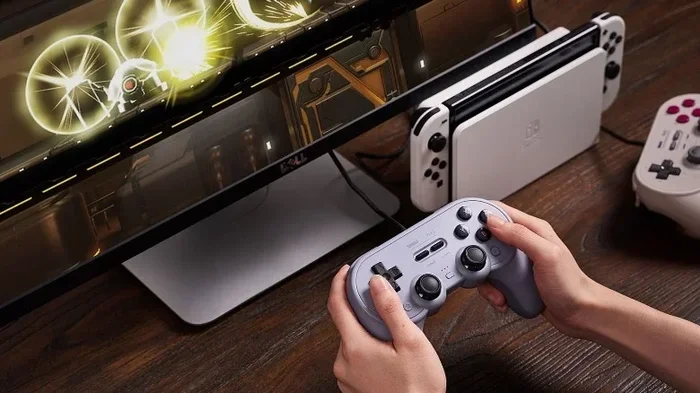
The 8bitdo Ultimate Controller is a wireless gamepad designed to work across multiple platforms. It supports PC, Nintendo Switch, Android devices, and even some smart TVs. The controller features a familiar layout with dual analog sticks, a D-pad, face buttons, and shoulder triggers. It feels like a premium controller in hand, with a comfortable grip and solid build quality.
One of the standout features is its Bluetooth connectivity. You can pair it with your PC without any cables, giving you more freedom during gaming sessions. It also comes with a USB receiver for those who prefer a wired connection with lower latency. The rechargeable battery is another highlight, offering hours of continuous play on a single charge.
Key Features at a Glance
- Wireless Bluetooth 4.0 for cable-free gaming
- USB receiver support for low-latency wired play
- Rechargeable battery with long-lasting power
- Dual analog sticks with precise analog input
- Programmable buttons for custom configurations
- Cross-platform compatibility with PC, Switch, and Android
Is the 8bitdo Ultimate Controller Compatible with PC?
The 8bitdo Ultimate Controller works with Windows PCs running Windows 7 and later. It also supports macOS and Linux, though the experience may vary depending on the operating system. The most common and smoothest experience is on Windows, where the controller is recognized almost immediately after pairing.
Unlike some controllers that require third-party software to function on PC, the 8bitdo Ultimate Controller uses standard gamepad drivers built into Windows. This means you can plug it in or pair it via Bluetooth, and your PC will recognize it as a standard input device. No extra downloads are required in most cases.
If you have ever dealt with controllers that refused to work on PC, you know how frustrating that can be. The 8bitdo Ultimate Controller avoids most of those headaches. It shows up as a standard gamepad in Windows settings and in most games. You can also check if your Bluetooth controller is recognized by going to your PC’s Bluetooth settings and looking for the device name.
Supported Operating Systems
- Windows 7, 8, 10, and 11 — Full support via Bluetooth or USB
- macOS — Basic support, may need configuration
- Linux — Works with most distributions
- SteamOS — Compatible with Steam Big Picture mode
How to Set Up the 8bitdo Ultimate Controller on PC
Setting up the 8bitdo Ultimate Controller on your PC is straightforward. You have two main options: Bluetooth wireless connection or USB wired connection. Both methods are simple and take only a few minutes.
Method 1: Connecting via Bluetooth
Bluetooth is the most convenient way to use the controller wirelessly. Here is how to do it:
- Turn on your PC’s Bluetooth from the settings menu.
- Press and hold the B button and the Home button on the controller simultaneously until the LED light starts flashing.
- On your PC, select Add Bluetooth or Other Device and choose Bluetooth.
- Find the 8bitdo Ultimate Controller in the list of available devices.
- Click on it to pair, and you are good to go.
Once paired, the controller will remember your PC and reconnect automatically the next time you turn it on. This is a huge convenience if you game regularly.
Method 2: Connecting via USB
If you prefer a wired connection or want the lowest possible input lag, you can use the USB cable that comes with the controller. Simply plug the micro-USB or USB-C end (depending on your model) into your PC, and Windows will recognize the controller instantly. This method is ideal for competitive gaming where every millisecond counts.
Another option is to use the USB receiver that some 8bitdo models include. The receiver plugs into a USB port, and the controller pairs with it directly. This gives you a wireless experience with the stability of a wired connection.
Quick Tips for a Smooth Setup
- Make sure your PC’s Bluetooth drivers are up to date before pairing.
- Keep the controller within 10 feet of your PC for the best Bluetooth signal.
- If the controller does not appear, try restarting your Bluetooth adapter.
- For the lowest latency, use the USB cable or receiver instead of Bluetooth.
Controller Features and Performance on PC
The 8bitdo Ultimate Controller is not just about connectivity. It also delivers a strong performance experience on PC. The analog sticks are precise and responsive, making it great for both casual and competitive gaming. The D-pad is tight and accurate, which is especially noticeable in fighting games and platformers.
One thing that sets this controller apart is its build quality. The grips are textured and comfortable, so your hands do not slip even during long sessions. The buttons have a satisfying feel with good travel and feedback. The shoulder triggers and bumpers are also well-designed, providing smooth analog input for racing games and shooters.
Input Lag and Responsiveness
Input lag is a concern for many PC gamers, especially those who play competitive titles. When connected via Bluetooth, the 8bitdo Ultimate Controller has minimal input lag that is barely noticeable for most games. For the absolute best performance, using the USB cable or receiver eliminates any wireless latency entirely.
If you have ever experienced lag with a Bluetooth adapter on another device, you know how annoying it can be. The 8bitdo Ultimate Controller handles Bluetooth connections well, and most users do not notice any delay during gameplay.
Battery Life and Charging
The rechargeable battery in the 8bitdo Ultimate Controller lasts for a long time on a single charge. Most users report getting around 18 to 20 hours of continuous play. Charging takes a couple of hours using the included USB cable. This means you can game for days before needing to recharge, which is perfect for weekend gaming marathons.
Using the 8bitdo Ultimate Controller with Steam
Steam has excellent built-in support for game controllers, and the 8bitdo Ultimate Controller works seamlessly with the Steam platform. When you connect the controller to your PC and open Steam, it will be recognized automatically. You can configure button mappings, adjust stick sensitivity, and even create controller profiles for specific games.
Steam’s controller configuration tool lets you test each input and assign functions to any button. This is especially useful for games that do not have native controller support. You can also use Steam Input to create custom configurations that enhance your gameplay experience.
One of the best things about using a PC gaming controller like the 8bitdo Ultimate Controller is that it works with thousands of games on Steam. Whether you are playing indie titles or major releases, the controller support is reliable and consistent.
Common Issues and How to Fix Them
Even with a great controller, you might run into occasional issues. Here are the most common problems users face and how to solve them.
Controller Not Showing Up on PC
If your PC does not detect the controller, the first thing to check is the Bluetooth connection. Make sure the controller is in pairing mode and that your PC’s Bluetooth is turned on. Sometimes restarting your Bluetooth adapter fixes the issue. You can also try using the USB cable instead of Bluetooth to see if the controller is recognized.
Another common fix is to update your Bluetooth drivers. Go to Device Manager, find your Bluetooth adapter, right-click, and select Update Driver. This often resolves connectivity issues.
Buttons Not Responding Correctly
If some buttons do not work as expected, you may need to recalibrate the controller. Go to Windows Game Controllers settings, select the 8bitdo Ultimate Controller, and click Properties. From there, you can test each button and adjust calibration if needed.
Connection Drops During Gaming
Bluetooth connections can sometimes drop, especially if you are far from your PC. To fix this, move closer to your computer or switch to a USB wired connection. If you are using a USB Bluetooth dongle, make sure it is plugged into a USB port that is close to the controller for the strongest signal.
Why Choose the 8bitdo Ultimate Controller for PC Gaming?
There are many controllers on the market, but the 8bitdo Ultimate Controller stands out for several reasons. Its combination of wireless freedom, build quality, and cross-platform support makes it a versatile choice for any PC gamer.
The controller is also very affordable compared to premium options like the Xbox Elite Controller. You get a lot of features for the price, making it an excellent value. Whether you are a casual gamer or someone who plays competitively, the 8bitdo Ultimate Controller delivers a satisfying experience.
If you are looking for a reliable gamepad that works well with your PC, the 8bitdo Ultimate Controller should be at the top of your list. Its ease of use, comfort, and performance make it a standout choice in the crowded world of PC gaming controllers.
Final Thoughts
The 8bitdo Ultimate Controller is a fantastic choice for PC gaming. It connects easily, feels great in your hands, and works with a wide range of games and platforms. Whether you prefer Bluetooth freedom or the stability of a wired connection, this controller has you covered.
Setting it up takes just a few minutes, and the customizable controls let you fine-tune your experience. The long battery life means you can game for hours without interruption. If you are in the market for a new PC controller, the 8bitdo Ultimate Controller is a solid investment that delivers on every front.
Give it a try, and you will see why so many gamers are choosing the 8bitdo Ultimate Controller for their PC gaming setup. You will not be disappointed.
Frequently Asked Questions
Can I use the 8bitdo Ultimate Controller on a laptop?
Yes, the 8bitdo Ultimate Controller works on any laptop with Bluetooth or a USB port. It is fully compatible with Windows laptops and connects easily through Bluetooth or a USB cable. Most modern laptops have built-in Bluetooth, so setup is quick and straightforward.
Do I need to install drivers for the 8bitdo Ultimate Controller on PC?
In most cases, no. Windows recognizes the 8bitdo Ultimate Controller as a standard gamepad without requiring any driver installation. However, if you experience issues, updating your Bluetooth drivers through Device Manager can help resolve connectivity problems.
Can I use the 8bitdo Ultimate Controller with a USB Bluetooth dongle?
Yes, you can use a USB Bluetooth dongle to connect the 8bitdo Ultimate Controller to your PC. This is especially useful for desktop computers that do not have built-in Bluetooth. Make sure the dongle supports Bluetooth 4.0 or higher for the best performance.
How long does the battery last on the 8bitdo Ultimate Controller?
The rechargeable battery lasts approximately 18 to 20 hours on a single charge, depending on usage and connection type. Charging takes about two hours using the included USB cable. This makes it ideal for extended gaming sessions without frequent recharging.
Is the 8bitdo Ultimate Controller good for competitive PC gaming?
Yes, the 8bitdo Ultimate Controller performs well for competitive gaming. When connected via USB cable or receiver, it provides the lowest possible input lag. The precise analog sticks and responsive buttons make it suitable for fast-paced games like shooters and fighting titles.
Can I customize the button layout on PC?
Absolutely. The 8bitdo Ultimate Controller supports customizable button mappings through both Windows settings and third-party software. You can reassign buttons, adjust stick sensitivity, and create profiles for different games using Steam Input or the 8bitdo Ultimate Software.
=== CONCLUSION ===
The 8bitdo Ultimate Controller is a versatile, reliable, and affordable option for PC gamers. Its seamless Bluetooth connectivity, comfortable design, and strong performance make it a great choice for both casual and competitive gaming. Whether you are connecting via Bluetooth or USB, the setup process is simple and hassle-free. With full Steam support, long battery life, and customizable controls, this controller delivers everything you need for an excellent PC gaming experience.