Do Samsung Phones Have Projectors Everything You Should Know
Do Samsung phones have projectors? The answer depends on the model and technology you are looking at. Most Samsung phones do not come with a built-in hardware projector, but many support wireless projection and screen mirroring to external displays. A few niche models and accessories have explored built-in projection, but for everyday use, you will rely on apps and smart TVs to cast your content.
Have you ever wondered whether do Samsung phones have projectors built right into the device? It is a question that pops up more often than you might think, especially as phones get more advanced every year. People love the idea of pulling up a movie on a big wall during a camping trip or giving a presentation without carrying extra gear.
The short answer is that most Samsung phones do not come with a true built-in projector. However, the story does not end there. Samsung has packed its phones with wireless projection technology, screen mirroring tools, and deep integration with smart home devices. This means your Galaxy phone can still act as a projector in many practical ways.
In this guide, we will walk through everything you need to know. We will cover which Samsung models offer projection features, how the technology works, what apps you can use, and whether buying a portable projector accessory makes sense. By the end, you will have a clear picture of what your Samsung phone can and cannot do when it comes to projecting content.
Key Takeaways
- Most Samsung phones lack a built-in projector: Standard Galaxy models focus on high-quality screens rather than projection hardware.
- Wireless projection is widely supported: Samsung phones work seamlessly with smart TVs, monitors, and projectors via Miracast and Smart View.
- Third-party projector apps exist: You can use apps to mirror or cast content, though they do not create a true built-in projector.
- Certain accessories add projection capability: Portable phone projectors can turn any Samsung phone into a projector on the go.
- Samsung’s ecosystem enhances projection: Features like DeX mode and SmartThings make presenting and streaming from your phone easier than ever.
- Do not expect cinema-quality output from a phone projector: Built-in phone projectors, where they exist, offer modest brightness and resolution.
📑 Table of Contents
- Do Samsung Phones Have Built-In Projectors?
- How Phone Projection Technology Works
- Samsung Phone Models and Projection Support
- Phone Projector Apps for Samsung Devices
- Pros and Cons of Using a Samsung Phone as a Projector
- Portable Projector Accessories for Samsung Phones
- Tips for Getting the Best Projection Experience
- Common Mistakes People Make with Phone Projection
- Expert Insights on Phone Projection Technology
- Conclusion
Do Samsung Phones Have Built-In Projectors?
When people ask whether Samsung phones have projectors, they usually picture a tiny projector lens built into the phone body. Think of those old pico projectors you might have seen attached to phones years ago. The truth is that very few mainstream Samsung phones have ever included a true built-in projector.
Why Most Samsung Phones Skip Built-In Projectors
There are several good reasons Samsung has not put projectors into most of its phones. First, a projector module takes up valuable internal space. Samsung engineers have to balance battery size, camera quality, and overall phone thickness. Adding a projector would mean making the phone thicker or shrinking the battery.
Second, projector brightness is a real challenge. A tiny projector inside a phone simply cannot match the brightness of even a cheap external projector. In a bright room, the image would look washed out and hard to see. Samsung has chosen instead to focus on its stunning AMOLED displays, which deliver vibrant colors and sharp details.
Third, most users do not need a built-in projector. The rise of smart TVs, streaming sticks, and wireless casting has made built-in projectors less essential. Samsung has invested in software-based projection features instead, which work with any compatible display.
The Few Exceptions in Samsung’s History
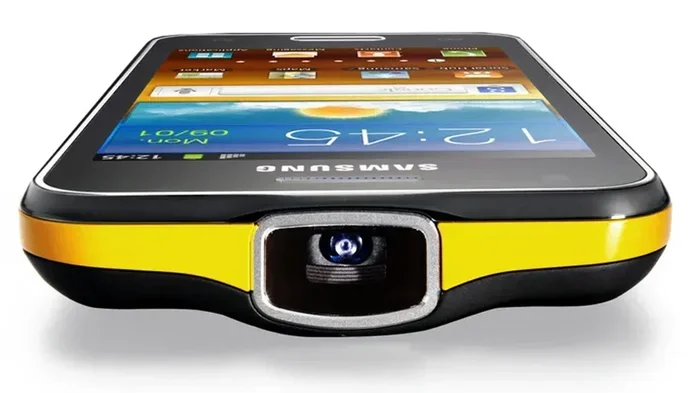
There have been a few experimental Samsung devices over the years that explored projection technology. Some older prototypes and limited-edition models featured tiny pico projectors. However, these never became mainstream products. The Samsung Galaxy Beam was one notable attempt. It included a built-in pico projector that could cast a small image on a wall or screen.
Unfortunately, the Galaxy Beam did not gain widespread popularity. The projection quality was modest, and most users found that a simple wireless connection to a TV worked better in real life. Samsung has not released another mainstream phone with a built-in projector since then.
So if you are looking for a Samsung phone with a true built-in projector, your options are very limited. You are better off exploring wireless projection or buying a portable projector that pairs with your phone.
How Phone Projection Technology Works
Even though most Samsung phones do not have a built-in projector, they can still project content to larger screens. Understanding how this works helps you get the best experience from your device.
Wireless Display and Miracast
Samsung phones use a technology called Miracast for wireless screen mirroring. This allows your phone to send its screen display to a compatible TV or projector without any cables. The connection happens over Wi-Fi Direct, which means you do not need an internet connection to mirror your screen.
On Samsung phones, this feature is branded as Smart View. You can access it by swiping down from the top of your screen and tapping the Smart View icon. It will search for nearby compatible devices, and you can connect to a smart TV or external projector in seconds.
One thing to keep in mind is that wireless projection works best when both devices are on the same Wi-Fi network. If your router is far away, you might experience lag or a drop in image quality. For the smoothest experience, keep your phone close to the display you are projecting to.
Samsung DeX Mode for Presentations
Samsung DeX is a powerful feature that turns your phone into a desktop-like experience. When you connect your Samsung phone to a monitor or projector using a USB-C cable or wirelessly, DeX gives you a full desktop interface with a taskbar, resizable windows, and multitasking support.
This is incredibly useful for work presentations. You can open PowerPoint files, browse the web, and even run multiple apps side by side — all displayed on a big screen. DeX mode is available on many newer Galaxy models, including the Galaxy S series and Galaxy Note series.
One great thing about DeX is that it does not require an internet connection to work on a local display. You can plug your phone into a projector at a conference room and present without needing Wi-Fi. Just make sure your projector or monitor has the right input ports.
SmartThings and Samsung Ecosystem Integration
Samsung’s SmartThings platform connects your phone to a wide range of smart devices. This includes smart TVs, projectors, and streaming devices. Through SmartThings, you can control your Samsung TV directly from your phone and cast content effortlessly.
For example, you can use the SmartThings app to open Netflix on your Samsung TV and mirror your phone’s screen as a remote control. This is a much smoother experience than trying to navigate the TV interface with a tiny remote. The integration works best when both your phone and TV are Samsung devices, but it also supports many third-party smart TVs.
If you have ever struggled with connecting your phone to a Samsung TV, you might want to check out Can I Listen To My Samsung TV With Bluetooth Headphones for more tips on Samsung TV connectivity.
Samsung Phone Models and Projection Support
Not all Samsung phones are created equal when it comes to projection features. Let us look at how different lines of Samsung phones handle screen mirroring and projection capabilities.
Galaxy S Series
The Galaxy S series is Samsung’s flagship lineup. Models from the Galaxy S6 onward support wireless screen mirroring and Smart View. Newer models like the Galaxy S23, S24, and S25 series offer even better projection quality thanks to faster Wi-Fi and improved processing power.
These phones also support Samsung DeX, making them excellent choices for presentations and mobile productivity. If you need to project your phone screen frequently, the S series gives you the most polished experience.
Galaxy Z Fold and Flip Series
The Galaxy Z Fold and Z Flip series bring foldable screens into the mix. These phones support all the same projection features as the S series. The foldable design actually adds a unique twist — you can use the phone as a mini-screen while projecting the main content on a TV or external display.
The Z Fold series, in particular, shines here because its large inner screen makes it easy to preview what you are about to project. This is helpful when you are preparing a presentation or adjusting the layout before sending it to a bigger screen.
Galaxy A Series
The Galaxy A series covers Samsung’s mid-range and budget-friendly phones. Most A series models support basic screen mirroring through Smart View and Miracast. However, they may not support all DeX features, and the projection experience can vary depending on the specific model.
If you are on a tighter budget, a Galaxy A series phone can still handle basic projection tasks like mirroring photos, videos, and simple presentations. Just do not expect the same smooth performance as a flagship model.
Galaxy Tab Series
While not phones, it is worth mentioning that Samsung’s Galaxy Tab tablets also support projection features. The larger screen size makes them great for sharing content with a group. Many Tab models support DeX mode and wireless casting, making them versatile alternatives to phones for projection tasks.
Phone Projector Apps for Samsung Devices
Even if your Samsung phone does not have a built-in projector, you can use apps to enhance your projection experience. These apps help you cast, mirror, and share content with external displays more effectively.
Built-In Samsung Apps
Samsung phones come with several built-in apps that handle projection. Smart View is the primary app for wireless screen mirroring. It lets you connect to smart TVs, projectors, and other Miracast-compatible devices quickly.
Samsung Flow is another useful app that lets you connect your phone to your PC or TV and transfer content seamlessly. It is especially handy if you use a Samsung monitor or TV as your projection target.
Third-Party Projection Apps
The Google Play Store offers many third-party apps for phone projection. Some popular options include Epson iProjection, Screen Mirroring, and LetsView. These apps work with a wide range of projectors and smart TVs, giving you more flexibility.
One thing to be careful about is app quality. Some free projection apps show ads or limit functionality. Look for apps with good reviews and regular updates. If you want to know more about apps that work well with Samsung devices, you can check out Does Homewerks Have An App for insights on how apps integrate with smart devices.
Do You Need Special Software for Projection?
For basic wireless mirroring, you do not need any special software beyond what comes built into your Samsung phone. However, if you are connecting to a specific projector brand, you may need that brand’s app. For example, Epson projectors work best with the Epson iProjection app.
Similarly, if you are using a USB-C connection to a projector, you might need a simple MHL or DisplayPort adapter. These are hardware adapters, not software, but they are essential for wired projection on some setups. Always check your projector’s input options before buying an adapter.
In some cases, you might wonder whether you need additional software for phone accessories. For instance, if you are using a Blue Yeti microphone for a presentation with projection, you might need specific drivers or software. You can learn more about that at Do You Need Software For Blue Yeti Mic.
Pros and Cons of Using a Samsung Phone as a Projector
Using your Samsung phone as a projector — whether through built-in features or accessories — comes with real advantages and some clear limitations. Let us break them down.
The Advantages
- Convenience: You always have your phone with you, so you always have a projection source ready.
- No extra cables for wireless casting: Smart View and Miracast let you project without plugging anything in.
- Cost-effective: You do not need to buy a separate projector if you already own a smart TV or have a portable projector accessory.
- High-quality source content: Your phone’s screen delivers sharp, vibrant content that looks great when projected.
- Integration with Samsung ecosystem: SmartThings and DeX make the projection workflow smooth and intuitive.
The Limitations
- No true built-in projector in most models: You still need an external display or projector for a big-screen experience.
- Brightness limitations: Phone screens are designed for personal viewing, not projecting onto a wall in a bright room.
- Battery drain: Projection and screen mirroring use a lot of battery power, so keep your charger handy.
- Lag and latency: Wireless projection can sometimes have a slight delay, which matters for real-time presentations or gaming.
- Resolution limits: Casting from a phone to a large projector screen may not look as crisp as native projection from a laptop or dedicated projector.
Portable Projector Accessories for Samsung Phones
If you really want a projector experience with your Samsung phone, portable projector accessories are the way to go. These small devices connect to your phone and project a larger image onto any surface.
Types of Portable Projectors
There are two main types of portable projectors that work with Samsung phones. The first type connects via HDMI or USB-C and receives a direct video signal from your phone. These tend to offer better image quality and brightness.
The second type connects wirelessly through Wi-Fi or Bluetooth. These are more convenient but may have slightly lower image quality due to compression. Both types are compact enough to carry in a backpack or even a large pocket.
Popular Portable Projector Brands
Brands like Anker, LG, and XGIMI make popular portable projectors that pair well with Samsung phones. Look for models that support HDMI input or wireless casting. Some projectors even have built-in batteries, which makes them perfect for outdoor movie nights or on-the-go presentations.
When choosing a portable projector, consider brightness (measured in lumens), resolution, and battery life. A projector with at least 500 lumens will work decently in a dim room. For brighter environments, aim for 1,000 lumens or more.
Before buying a projector, you might also want to check whether your phone needs any special software or adapters. If you are curious about whether additional apps are required for phone accessories, you can read Do I Need An App To Print From My Phone for a similar look at phone accessory software requirements.
Tips for Getting the Best Projection Experience
Want to get the most out of projecting content from your Samsung phone? Here are some practical tips that make a real difference.
- Use a dark room: Projection works best in low-light conditions. Dim the lights or close the curtains for a sharper, more visible image.
- Clean the projection surface: A clean white wall or screen gives you the best image quality. Dust and stains can make the picture look blurry.
- Keep your phone charged: Projection drains battery fast. Start with a full charge or keep a portable power bank nearby.
- Use a stable connection: For wireless projection, stay close to the display device and make sure both are on the same Wi-Fi network.
- Adjust your phone’s screen brightness: Setting your phone brightness to maximum before casting can improve the projected image’s vibrancy.
- Close background apps: This frees up processing power and reduces lag during projection.
- Use landscape mode for videos: Rotating your phone to landscape gives you a wider projected image that matches the aspect ratio of most movies and presentations.
Common Mistakes People Make with Phone Projection
Even with the best intentions, people often make mistakes that ruin their projection experience. Here are a few to avoid.
Assuming all Samsung phones have built-in projectors. As we have covered, most do not. Make sure you understand what your specific model can do before you count on it for a big presentation.
Ignoring Wi-Fi quality. Wireless projection relies heavily on a strong, stable Wi-Fi connection. If your router is old or far away, the projection may stutter or lag. Consider using a wired connection for critical presentations.
Using a cheap, unverified projector accessory. Not all portable projectors are created equal. Cheap models may have poor color accuracy, low brightness, and short lifespans. Stick with reputable brands and read reviews before buying.
Forgetting about audio. When you project your phone screen, the audio might not come through the projected display’s speakers. Check your audio output settings and make sure sound is routing to the right device.
Not updating your phone’s software. Samsung regularly releases updates that improve Smart View, DeX, and other projection features. Keeping your phone updated ensures the best compatibility and performance.
Expert Insights on Phone Projection Technology
The world of mobile projection has come a long way, but it still has a long way to go. Industry experts generally agree that the future of phone projection lies in software-based solutions rather than built-in hardware projectors.
Samsung has been investing heavily in its SmartThings ecosystem and wireless display technology. The company’s strategy seems focused on making phones work seamlessly with external displays rather than cramming projectors into the phone body itself. This approach makes sense given the physical limitations of tiny projectors in slim phone designs.
Some tech analysts believe that laser projection technology could eventually make its way into phones. Ultra-compact laser projectors are becoming smaller and more efficient. If this trend continues, we might see mainstream Samsung phones with built-in projectors within the next few years. But for now, wireless casting and portable accessories remain the best options.
One thing is clear: Samsung phones are excellent at connecting to external displays. Whether you use Smart View, DeX, or a portable projector, the experience is smooth and reliable for most use cases. The key is understanding what your phone can do and setting realistic expectations about image quality and convenience.
Conclusion
So, do Samsung phones have projectors? The honest answer is that most Samsung phones do not have a true built-in hardware projector. However, Samsung has equipped its phones with powerful wireless projection features that let you cast your screen to smart TVs, monitors, and external projectors with ease.
From Smart View and Samsung DeX to the SmartThings ecosystem, Samsung gives you multiple ways to share your phone’s screen on a bigger display. If you need a true projector experience, a portable projector accessory paired with your Galaxy phone is the best path forward.
The technology is evolving fast, and who knows what Samsung will bring next. But for now, your Samsung phone is a powerful tool for projection — you just need the right setup and a few smart accessories. Use the tips in this guide, explore the apps and features mentioned, and you will be projecting like a pro in no time.
Frequently Asked Questions
Do any Samsung phones have a built-in projector?
A few older experimental models like the Samsung Galaxy Beam included a built-in pico projector. However, most modern Samsung phones do not have a built-in projector. Instead, they rely on wireless casting and screen mirroring to display content on external screens.
Can I project my Samsung phone screen to any TV?
You can project to most smart TVs that support Miracast or Smart View. Samsung TVs work seamlessly, but many other brands also support wireless screen mirroring. For older TVs without smart features, you can use an HDMI adapter or a portable projector.
Is wireless projection the same as screen mirroring?
Yes, wireless projection and screen mirroring are essentially the same thing. Both send your phone’s screen display to a larger display over Wi-Fi. Samsung brands this feature as Smart View, and it uses Miracast technology for the connection.
Does projecting from my Samsung phone drain the battery quickly?
Yes, screen mirroring and projection use significant battery power because your phone is constantly processing and sending video data. It is a good idea to keep your phone plugged in or use a portable battery pack during long projection sessions.
Can I use Samsung DeX on any Samsung phone?
Samsung DeX is available on most flagship Galaxy phones, including the Galaxy S series and Galaxy Z Fold series. Some mid-range Galaxy A series models also support DeX, but the experience may be more limited. Check your specific model’s specifications to confirm DeX support.
Do I need a special projector to use my Samsung phone as a source?
No, you do not need a special projector. Any projector or smart TV that supports HDMI input, Miracast, or wireless casting will work with your Samsung phone. For the easiest setup, a Samsung smart TV with Smart View compatibility is the most seamless option.