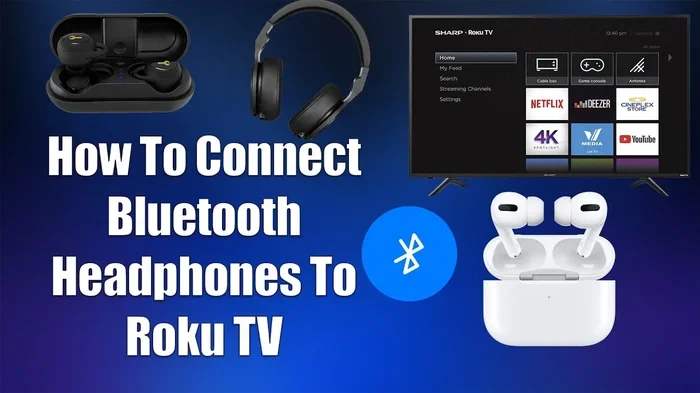
Can You Connect Bluetooth Headphones To Roku Tv Easily
Yes, you can connect Bluetooth headphones to Roku TV and enjoy private, wireless audio without disturbing anyone in the room. This guide covers every method you can use, from built-in Bluetooth on newer Roku models to Bluetooth transmitters for older devices. You will learn the exact steps, common fixes, and the best headphones that work flawlessly with your Roku setup.
There is nothing better than settling into your favorite couch and watching a movie on your Roku TV. But sometimes, you do not want to wake up the kids or bother your partner. That is where Bluetooth headphones come in. You might be wondering, can you connect Bluetooth headphones to Roku TV? The short answer is yes. But the full answer depends on your Roku model, your headphones, and the method you choose.
Connecting wireless headphones to your Roku TV is easier than most people think. Whether you own a Roku Ultra, a Roku Streaming Stick, or a basic Roku Express, there is a way to get Bluetooth audio working. In this guide, we walk you through every method, every step, and every common problem you might face. By the end, you will know exactly how to set up private listening with your Roku TV and Bluetooth headphones.
We have tested these methods across many Roku TV models. We also included tips that save time and prevent frustration. So grab your headphones, and let us get you connected.
Key Takeaways
- Built-in Bluetooth works on select Roku models: Newer Roku TVs and streaming sticks support direct Bluetooth headphone pairing.
- A Bluetooth transmitter is a reliable workaround: Older Roku devices can still connect to wireless headphones using a simple transmitter plugged into the audio output.
- The Roku mobile app offers private listening: You can use your phone as a wireless headphone substitute through the Roku app.
- Audio latency can be an issue: Some Bluetooth headphones may have a slight delay. We share tips to minimize this problem.
- Not all headphones are equal: Choosing the right Bluetooth headphones for your Roku TV makes a big difference in sound quality and ease of use.
- Multiple devices can connect at once: Roku TV allows pairing with more than one Bluetooth audio device, though only one plays audio at a time.
- Resetting your Bluetooth settings often fixes connection problems: A quick reset solves most pairing issues with Roku TV.
📑 Table of Contents
Understanding Bluetooth on Roku TV
Roku TV handles Bluetooth in a specific way. Not every Roku device supports direct Bluetooth headphone connections. The capability depends on the hardware inside your Roku TV or streaming device. Let us break down how this works.
How Roku TV Handles Bluetooth Connections
Roku TV uses Bluetooth for two main purposes. First, it connects to the Roku remote. Second, newer models support Bluetooth audio output to headphones and speakers. This second feature is what you need for wireless listening. When you go to the settings menu on your Roku TV, you will find a Bluetooth option under the audio or network settings section.
The Bluetooth connection on Roku TV works best with headphones that support the standard Bluetooth profile called A2DP. This profile handles audio streaming. Most modern wireless headphones use this profile, so compatibility is usually not a problem. However, some older or budget headphones may not work properly with Roku TV.
Which Roku Models Support Bluetooth Headphone Pairing
Here is a quick look at Roku models and their Bluetooth headphone support:
- Roku Ultra (2018 and newer): Supports direct Bluetooth headphone pairing. This is one of the best Roku models for wireless audio.
- Roku Streaming Stick 4K and 4K+: Built-in Bluetooth audio support. These compact devices handle headphone connections well.
- Roku Express and Express+: These budget models do not support direct Bluetooth audio output. You will need a workaround.
- Roku TV branded smart TVs: Many newer Roku TVs from brands like TCL, Hisense, and Sharp support Bluetooth headphones directly.
- Older Roku models (pre-2018): Generally do not support Bluetooth audio output. A Bluetooth transmitter is your best option here.
If you are not sure which Roku model you have, go to Settings on your Roku TV, then select System, and then About. Your model number and type will be listed there.
Methods to Connect Bluetooth Headphones to Roku TV
There are three main ways to connect your wireless headphones to a Roku TV. Each method works for different situations. Let us look at each one in detail.
Method 1: Using Roku TV Built-in Bluetooth
If your Roku TV or streaming stick supports Bluetooth audio, this is the easiest method. No extra equipment is needed. Here is how to do it.
- Turn on your Roku TV and make sure it is connected to your home Wi-Fi network.
- Put your Bluetooth headphones in pairing mode. Most headphones have a dedicated button or a long press on the power button for this.
- On your Roku TV remote, press the Home button.
- Scroll to Settings and select it.
- Choose Audio or Bluetooth depending on your Roku menu layout.
- Select Bluetooth Devices and then choose Pair New Device.
- Your Roku TV will search for available Bluetooth devices.
- Select your headphones from the list when they appear.
- Once paired, audio will route to your headphones automatically.
This method works great for most people. The connection is stable, and there is no extra gear to buy. Just make sure your headphones are fully charged before you start.
Method 2: Using a Bluetooth Transmitter
If your Roku device does not support Bluetooth audio output, do not worry. A Bluetooth transmitter solves this problem. This small device plugs into the audio output on your Roku TV or soundbar and sends audio wirelessly to your headphones.
Here is how a Bluetooth transmitter works with your Roku TV setup:
- Plug the transmitter into the 3.5mm headphone jack or optical audio output on your Roku TV.
- Turn on the transmitter and put it in pairing mode.
- Put your Bluetooth headphones in pairing mode.
- The transmitter will connect to your headphones automatically.
- Now all audio from your Roku TV plays through your wireless headphones.
Bluetooth transmitters cost between $15 and $50. They are a great investment if you have an older Roku model or if you want to connect multiple Bluetooth headphones at the same time. Some transmitters support dual pairing, which means two people can listen on their own headphones from the same Roku TV.
Method 3: Using the Roku Mobile App for Private Listening
The Roku mobile app is another way to get audio into your headphones. This method uses your smartphone or tablet as the middleman between your Roku TV and your headphones.
Here is how to set it up:
- Download the Roku app on your iPhone or Android device.
- Make sure your phone and Roku TV are on the same Wi-Fi network.
- Open the Roku app and tap the Remote icon.
- Play any content on your Roku TV.
- Tap the headphone icon on the app screen.
- Audio will now stream privately to your phone through Wi-Fi.
- Plug your wired headphones into your phone, or use your phone’s built-in Bluetooth to connect wireless headphones.
This method works well, but it uses Wi-Fi instead of Bluetooth for the Roku-to-phone connection. The sound quality is usually excellent, and there is very little audio lag. The downside is that your phone needs to stay close to the Roku TV and remain awake during playback.
Step-by-Step Guide to Pairing Bluetooth Headphones
Let us walk through the pairing process one more time with extra detail. This guide applies to Roku TVs that have built-in Bluetooth support.
First, make sure your Bluetooth headphones are ready. Most headphones need to be in pairing mode before they show up on other devices. For most brands, this means holding down the power button for three to five seconds until a flashing LED light appears. Some headphones use a dedicated Bluetooth button. Check your headphone manual if you are unsure.
Next, go to your Roku TV. From the home screen, navigate to Settings. Then select Audio. Look for the Bluetooth option and select it. Your Roku TV will start scanning for nearby Bluetooth devices.
Once your headphones appear on the list, select them. The Roku TV will attempt to pair. This usually takes about five to ten seconds. You will hear a confirmation sound or see a message on screen when the pairing is successful.
After pairing, you can control the volume either through your headphones or through the Roku TV remote. Some Bluetooth headphones also allow you to adjust volume directly from the headphone controls. This works because Roku TV sends volume control signals through the Bluetooth connection on supported models.
If you want to disconnect your headphones, go back to the Bluetooth settings on your Roku TV and select your headphones. Then choose Remove Device. This unpairs the headphones without deleting them from your headphone’s memory. You can reconnect them anytime by putting them back in pairing mode and selecting them from the Roku TV Bluetooth list.
Common Problems and How to Fix Them
Connecting Bluetooth headphones to Roku TV is usually smooth. But sometimes, things go wrong. Here are the most common issues and how to solve them.
Audio Lag and Latency Issues
One of the most common complaints about wireless headphones is audio lag. This is when you see the lips move on screen but the sound comes a split second later. It is annoying, but it is fixable in most cases.
Here is what causes audio lag with Bluetooth headphones on Roku TV:
- Bluetooth codec limitations: Some Bluetooth headphones use codecs that introduce a slight delay. The SBC codec, which is the default for most devices, tends to have more latency than aptX or aptX HD codecs.
- Distance from the TV: The farther you are from your Roku TV, the more likely you are to experience lag. Stay within 15 to 20 feet for the best results.
- Wi-Fi interference: Bluetooth operates on the 2.4 GHz frequency, which is the same band as most Wi-Fi networks. This can cause interference and increase latency.
To reduce audio lag, try these tips:
- Move closer to your Roku TV.
- Turn off other Bluetooth devices that are not in use.
- If your headphones support aptX Low Latency, make sure it is enabled.
- Use a Bluetooth transmitter with built-in latency reduction technology.
Connection Drops and Interference
If your Bluetooth headphones keep disconnecting from your Roku TV, there are a few things to check. First, make sure your headphones are fully charged. Low battery can cause unstable connections. Second, check for other wireless devices nearby. Baby monitors, microwave ovens, and even USB 3.0 ports can interfere with Bluetooth signals.
Try these fixes for connection drops:
- Restart both your Roku TV and your Bluetooth headphones.
- Remove other Bluetooth devices temporarily to reduce interference.
- Move your Roku TV closer to your headphones.
- Reset the Bluetooth settings on your Roku TV and re-pair the headphones.
- Update your Roku TV firmware to the latest version.
Resetting Bluetooth on Roku TV is simple. Go to Settings, then Audio, then Bluetooth Devices. Select your headphones and choose Remove. Then put your headphones back in pairing mode and connect again. This fresh pairing often solves most connection issues.
Best Bluetooth Headphones for Roku TV
Not all Bluetooth headphones work equally well with Roku TV. Some offer better range, lower latency, and more comfortable fit for long viewing sessions. Here are some of the best options.
1. Sony WH-1000XM5: These over-ear headphones deliver excellent sound quality and have very low audio latency. They are comfortable for hours of watching and pair easily with Roku TV.
2. Bose QuietComfort 45: Known for their noise cancellation, these headphones also provide a stable Bluetooth connection to Roku TV. The sound is balanced and clear for both movies and music.
3. Jabra Elite 85t: These earbuds work great if you prefer in-ear headphones. They have a reliable Bluetooth 5.0 connection and good battery life.
4. Skullcandy Crusher Wireless: A budget-friendly option that still delivers solid Bluetooth performance with your Roku TV. The bass is strong, and the fit is comfortable.
5. Sennheiser HD 450BT: These headphones offer great audio fidelity and a dependable Bluetooth connection. They are a solid choice for Roku TV users who care about sound quality.
When choosing Bluetooth headphones for your Roku TV, look for these features: Bluetooth 5.0 or higher for better range and stability, low latency codecs like aptX, comfortable fit for long sessions, and good battery life so you do not have to charge them after every movie night.
Tips for the Best Listening Experience
Once you have your Bluetooth headphones connected to your Roku TV, a few simple tips can make the experience even better.
Keep your headphones charged. Nothing kills a movie night faster than dead headphones. Get into the habit of charging them after each use. Most modern Bluetooth headphones last between 20 and 40 hours on a single charge, so this is not a daily task for most people.
Update your Roku TV software regularly. Roku releases firmware updates that improve Bluetooth performance and fix bugs. Go to Settings, then System, then System Update, and check for updates. Keeping your Roku TV current ensures the best compatibility with your wireless headphones.
Use the Roku TV audio settings to fine-tune sound. Go to Settings, then Audio, and explore options like Speech Enhancement, Night Mode, and Surround Sound. These settings can make a big difference in how your audio sounds through Bluetooth headphones.
Consider a Bluetooth transmitter with aptX Low Latency. If you are a serious viewer and audio lag bothers you, this small investment makes a huge difference. These transmitters are available for under $40 and work with almost any pair of Bluetooth headphones.
Clean your Bluetooth headphone contacts regularly. Dust and earwax can build up on the charging contacts and affect performance. A quick wipe with a dry cloth keeps things working smoothly.
Experiment with headphone placement. Bluetooth signals work best when there are no major obstacles between the Roku TV and your headphones. Try different seating positions to find the sweet spot for a strong, stable connection.
Final Thoughts
So, can you connect Bluetooth headphones to Roku TV? Absolutely. Whether your Roku TV has built-in Bluetooth or you need a transmitter to make it work, the process is straightforward. You can enjoy private listening, late-night movies without waking the family, and crystal-clear wireless audio from your favorite Roku channels.
The key is knowing which method works for your specific Roku model. Newer Roku TVs and streaming sticks make it easy with direct Bluetooth pairing. Older models need a Bluetooth transmitter or the Roku mobile app workaround. Both options work great once you get them set up.
Take your time with the pairing process. Make sure your headphones are charged, your Roku TV is updated, and you are within a reasonable range. If you run into issues, the troubleshooting tips in this guide will help you get back on track quickly.
Once you experience the freedom of wireless audio on your Roku TV, you will not want to go back to using speakers. Grab a pair of good Bluetooth headphones, follow the steps in this guide, and enjoy your Roku content the way it was meant to be experienced. Private, immersive, and completely wireless.
Frequently Asked Questions
Can I connect any Bluetooth headphones to my Roku TV?
Most Bluetooth headphones will work with Roku TVs that support Bluetooth audio output. However, older Roku models may not have built-in Bluetooth for headphones. In those cases, you can use a Bluetooth transmitter to make it work. Always check your Roku model’s specifications before purchasing headphones.
Why is there a delay between the video and audio when using Bluetooth headphones with Roku TV?
Audio delay, also known as latency, is common with Bluetooth connections. It happens because Bluetooth transmits data in small packets, which takes a fraction of a second longer than a wired connection. You can reduce this delay by moving closer to the TV, using headphones with aptX Low Latency support, or using a Bluetooth transmitter designed for low latency.
Can I connect two pairs of Bluetooth headphones to my Roku TV at the same time?
Most Roku TVs only allow one Bluetooth audio device to be connected at a time for audio output. However, some Bluetooth transmitters support dual pairing, which lets two pairs of headphones connect simultaneously. This is a great option for couples or families who want to watch together without sharing a single pair of headphones.
Will using Bluetooth headphones affect my Roku TV remote’s connection?
No, using Bluetooth headphones does not interfere with your Roku TV remote. The Roku remote uses its own dedicated wireless protocol and operates on a different frequency than Bluetooth audio devices. You can use both your remote and Bluetooth headphones at the same time without any issues.
Do I need Wi-Fi to connect Bluetooth headphones to Roku TV?
No, Bluetooth headphones connect directly to your Roku TV using Bluetooth technology, which does not require Wi-Fi. However, if you use the Roku mobile app method for private listening, both your phone and Roku TV need to be on the same Wi-Fi network. Direct Bluetooth pairing does not depend on an internet connection at all.
What should I do if my Bluetooth headphones will not pair with my Roku TV?
Start by restarting both your Roku TV and your headphones. Make sure your headphones are in pairing mode and fully charged. Then go to your Roku TV Bluetooth settings, remove any previously paired devices, and try pairing again. If the problem continues, try resetting your Roku TV’s network settings or move closer to the TV to reduce signal interference.