Can I Use Any Bluetooth Headphones With My Smart TV
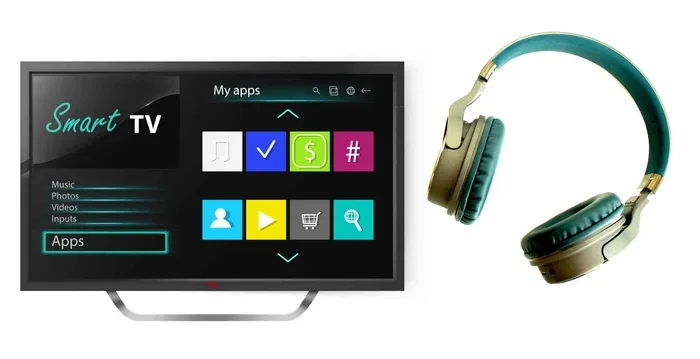
Can I use any Bluetooth headphones with my TV? The short answer is no, not all Bluetooth headphones work with every television. Your TV needs to support Bluetooth, or you need an external adapter to make it work. This guide covers everything you need to know about Bluetooth headphones TV compatibility, pairing steps, limitations, and the best options for wireless audio.
You just settled onto the couch with your favorite show. The kids are asleep. The house is quiet. And then it hits you. You want to watch at full volume, but you don’t want to wake anyone up. So you reach for your Bluetooth headphones and think, “Can I use any Bluetooth headphones with my TV?”
The answer is not as simple as you might hope. Some TVs connect to wireless headphones easily. Others need extra gear. And some just won’t work at all without a little help. This guide breaks it all down for you. You will learn what works, what doesn’t, and exactly how to get your wireless headphones paired with your TV.
Whether you have a brand new smart TV or an older model, there is a way to enjoy wireless audio. Let’s dive in and figure out your best option.
Key Takeaways
- Not all TVs support Bluetooth: Many smart TVs have built-in Bluetooth, but older models may need an adapter.
- Check compatibility first: Look for Bluetooth 4.0 or higher on your TV for the best experience.
- Audio delay can be an issue: Low latency codecs help reduce lip sync problems when using wireless headphones.
- A Bluetooth transmitter is a great workaround: It adds wireless capability to any TV with an audio output.
- Private listening is a huge benefit: Wireless headphones let you enjoy TV without disturbing others.
- Not all Bluetooth codecs are equal: aptX Low Latency and similar codecs improve the TV watching experience.
- Multiple pairing options exist: You can connect headphones directly, through a soundbar, or via a transmitter.
📑 Table of Contents
- Understanding Bluetooth Connectivity on TVs
- Types of Bluetooth Headphones That Work With TVs
- How to Pair Bluetooth Headphones With Your Smart TV
- Limitations and Things to Watch Out For
- Best Bluetooth Headphones for TV Watching
- Alternative Ways to Get Wireless Audio From Your TV
- Quick Tips for the Best Bluetooth TV Experience
- Common Mistakes People Make With Bluetooth Headphones and TV
- Expert Insights on Bluetooth Headphones for TV
- Conclusion
Understanding Bluetooth Connectivity on TVs
Before you try pairing anything, it helps to understand how Bluetooth works with televisions. Not every TV handles wireless audio the same way. Some have it built right in. Others need a little extra support.
How Bluetooth Works With Your TV
Bluetooth is a short-range wireless technology. It sends audio from your TV to your headphones without any cables. Most modern smart TVs include Bluetooth built into the system. This means you can pair headphones directly, just like you would with a phone or speaker.
But here is the catch. Not all Bluetooth implementations are the same. Your TV might support Bluetooth, but it might not support every type of headphone. Some TVs only work with certain Bluetooth codecs. Others have limits on how many devices you can pair at once.
When you connect Bluetooth headphones to a TV, the TV sends the audio signal wirelessly. The headphones receive it and play the sound. Simple enough, right? But the quality of that connection depends on several factors. These include the Bluetooth version, the codec used, and the distance between the devices.
Built-In Bluetooth vs. External Bluetooth Adapters
Smart TVs made in the last few years usually come with built-in Bluetooth. You can check your TV settings under “Audio” or “Bluetooth.” If you see an option to search for devices, your TV likely has it built in.
Older TVs or budget models often lack Bluetooth altogether. In that case, you have two choices. You can use a Bluetooth transmitter. This is a small device that plugs into your TV’s audio output. It sends the audio signal wirelessly to your headphones. Or you can use a Bluetooth-enabled soundbar that connects to your TV and also pairs with headphones.
A Bluetooth adapter is an affordable solution. Most cost between $15 and $40. They work with almost any TV that has a 3.5mm headphone jack or an optical audio output. This makes them a great option if your TV does not have built-in Bluetooth.
Types of Bluetooth Headphones That Work With TVs
Not all wireless headphones are created equal when it comes to TV use. The type of headphones you choose matters a lot for your experience.
Over-Ear vs. On-Ear vs. True Wireless
Over-ear headphones are the most popular choice for TV watching. They cover your entire ear and offer great sound quality. They also tend to have better battery life. Brands like Sony, Bose, and Sennheiser make excellent over-ear options for TV use.
On-ear headphones sit on top of your ears. They are lighter and more compact. But they may not block out as much background noise. True wireless earbuds are the smallest option. They fit right inside your ears. They are convenient, but they can be less comfortable for long viewing sessions.
For TV watching, over-ear headphones usually win. They provide the best balance of comfort, sound quality, and battery life. But the right choice depends on your personal preference and how you like to watch.
Low Latency Headphones for TV
One of the biggest issues with Bluetooth headphones and TV is audio delay. This is called latency. It is the tiny gap between what you see on screen and what you hear through your headphones.
Standard Bluetooth has a latency of about 150 to 200 milliseconds. That might not sound like much. But it is enough to make dialogue feel out of sync. If you have ever noticed lips moving before the sound comes through, that is latency at work.
Low latency Bluetooth headphones solve this problem. They use special codecs like aptX Low Latency or aptX Adaptive. These codecs reduce the delay to around 40 to 60 milliseconds. That is much closer to real-time. Look for headphones that specifically advertise low latency support for the best TV experience.
How to Pair Bluetooth Headphones With Your Smart TV
Pairing Bluetooth headphones with your TV is usually straightforward. But the exact steps depend on your TV brand and model. Here is a general guide that works for most smart TVs.
Step-by-Step Pairing Guide
Follow these steps to connect your wireless headphones to your TV:
- Turn on your TV and go to Settings. Look for the “Sound” or “Audio” section. On some TVs, it is under “General” or “Network.”
- Find the Bluetooth settings. Select “Bluetooth” or “Bluetooth Audio.” If your TV has built-in Bluetooth, you will see this option.
- Turn Bluetooth on. Set it to “On” or “Search for Devices.”
- Put your headphones in pairing mode. This usually means holding down the power button or a dedicated Bluetooth button until a light flashes.
- Select your headphones from the list. Your TV should show available devices. Tap on your headphones to pair.
- Test the audio. Play something on your TV. If you hear sound through your headphones, you are all set.
That is it. The whole process usually takes less than two minutes. If your TV does not find your headphones, make sure they are fully charged and in pairing mode.
Common Pairing Problems and Fixes
Sometimes things do not go smoothly. Here are common issues and how to fix them:
- TV does not find headphones: Make sure your headphones are in pairing mode. Restart both devices and try again.
- Audio cuts out or stutters: Move closer to the TV. Bluetooth range is typically about 30 feet. Walls and furniture can weaken the signal.
- Headphones connect but no sound plays: Check your TV audio output settings. Make sure Bluetooth is selected as the output device.
- Connection keeps dropping: Update your TV firmware. Also check if other devices are interfering with the Bluetooth signal.
Limitations and Things to Watch Out For
Using Bluetooth headphones with your TV comes with some limitations. Knowing these ahead of time helps you avoid frustration.
Audio Delay and Lip Sync Issues
We already touched on this, but it deserves its own section. Audio delay is the number one complaint with Bluetooth headphones and TV. Even with low latency codecs, there can still be a slight delay.
If you notice lip sync issues, try these fixes. First, check if your TV has a “Bluetooth audio delay” setting. Some smart TVs let you adjust the audio offset manually. Second, make sure you are using a low latency codec if your headphones support one. Third, reduce the distance between your TV and headphones. Closer distance means a stronger, more stable connection.
Range and Connection Stability
Bluetooth range is limited. Most devices work well within 30 feet. If you like to walk around the house while watching TV, you might experience dropouts. Walls, doors, and even microwave ovens can interfere with the Bluetooth signal.
If you need more range, consider a Bluetooth transmitter with an extended range. Some transmitters offer up to 100 feet of range. This gives you more freedom to move around while still enjoying your show.
Multiple Device Connections
Many Bluetooth headphones can connect to multiple devices at once. This is called multi-device pairing. But not all TVs support this feature. If your TV does, you can switch between your TV and your phone without disconnecting. This is handy if you want to take calls while watching TV.
Best Bluetooth Headphones for TV Watching
Not all wireless headphones are great for TV use. Here are some things to look for when shopping.
Top Picks for Different Needs
Best overall: Over-ear headphones with low latency support and long battery life. Look for models with aptX Low Latency codec support.
Best budget option: A basic Bluetooth transmitter paired with affordable wireless headphones. This combo costs under $50 and works with almost any TV.
Best for late-night watching: True wireless earbuds with a charging case. They are lightweight and easy to wear for extended periods. Just make sure they support low latency mode.
Best for hearing assistance: Some Bluetooth headphones offer volume amplification and EQ customization. These are great for viewers who need a little extra volume or clarity.
When choosing headphones for TV, prioritize low latency, comfort, and battery life. Sound quality matters too, but it is less important than getting the audio in sync with the video.
Alternative Ways to Get Wireless Audio From Your TV
Bluetooth is not the only way to get wireless audio from your TV. There are other options worth considering.
Bluetooth Transmitters as a Solution
A Bluetooth transmitter is one of the best solutions for TVs without built-in Bluetooth. You plug it into your TV’s audio output. Then your headphones connect to the transmitter instead of the TV directly.
Many Bluetooth transmitters also support aptX Low Latency. This means you get a better audio sync experience than with standard Bluetooth. Some popular options include the Avantree Oasis and the 1Mii B06. Both are well-regarded for TV use.
Wi-Fi Streaming Options
Some smart TVs support Wi-Fi audio streaming. This uses your home network to send audio to compatible devices. Wi-Fi streaming generally has lower latency than Bluetooth. It also offers a longer range. However, it requires compatible speakers or headphones on the same network.
Apple AirPlay and Chromecast are examples of Wi-Fi streaming. If you have an Apple TV, you can use AirPlay to stream audio to AirPods or compatible speakers. This is a seamless experience for Apple users.
Quick Tips for the Best Bluetooth TV Experience
- Always use low latency mode if your headphones support it.
- Keep your TV and headphones within 30 feet of each other.
- Update your TV firmware regularly for the best Bluetooth performance.
- Charge your headphones fully before a long movie night.
- Use a Bluetooth transmitter if your TV does not have built-in Bluetooth.
- Test audio sync before settling in for a movie or show.
- Consider a headphone with a built-in microphone for easy volume control.
Common Mistakes People Make With Bluetooth Headphones and TV
Avoid these common pitfalls to get the best experience:
- Assuming all Bluetooth headphones work with all TVs: Compatibility varies. Always check your TV’s Bluetooth specifications.
- Ignoring audio delay: If lip sync bothers you, invest in low latency headphones or a transmitter.
- Pairing too many devices: This can cause connection issues. Keep your TV paired to a limited number of devices.
- Forgetting to update firmware: Updates often fix Bluetooth bugs and improve performance.
- Using standard Bluetooth for TV: Standard Bluetooth is not optimized for video. Look for low latency codecs whenever possible.
Expert Insights on Bluetooth Headphones for TV
Audio engineers recommend using aptX Low Latency or similar codecs for TV watching. Standard SBC Bluetooth codec was not designed for video. It works fine for music, but video needs tighter sync. Low latency codecs close that gap significantly.
Another expert tip is to use a dedicated Bluetooth transmitter rather than relying on your TV’s built-in Bluetooth. Transmitters often have better antennas and more powerful chips. This means a stronger, more stable connection. They also tend to support better codecs than built-in TV Bluetooth modules.
If you share your home with a partner or family member, consider headphones with dual pairing. This lets two pairs of headphones connect to the same TV. Everyone can watch at their preferred volume without disturbing anyone else.
Conclusion
So, can I use any Bluetooth headphones with my TV? The honest answer is no, not any. But most modern setups work well with the right approach. Check your TV for built-in Bluetooth first. If it has it, pairing is usually easy. If it does not, a Bluetooth transmitter solves the problem.
Choose headphones with low latency support for the best experience. Over-ear models are the most comfortable for long viewing sessions. And always test the audio sync before you start a movie. With the right setup, wireless headphones make TV watching more enjoyable and private than ever before.
Take a few minutes to explore your options. The right Bluetooth headphones can transform how you watch TV. You will enjoy every scene with crystal clear sound and perfect sync. Happy watching.
Frequently Asked Questions
Can I connect any Bluetooth headphones to my TV?
Not all Bluetooth headphones work with every TV. Your TV needs to support Bluetooth, and the headphones must be compatible with the TV’s Bluetooth version and codec. Check your TV settings to see if Bluetooth is available.
Why is there a delay when I use Bluetooth headphones with my TV?
This delay is called latency. Standard Bluetooth has a delay of about 150 to 200 milliseconds. It causes audio to feel out of sync with video. Using low latency codecs like aptX Low Latency reduces this delay significantly.
Do I need a Bluetooth transmitter if my TV has built-in Bluetooth?
No, you do not need a transmitter if your TV has built-in Bluetooth. You can pair headphones directly. However, a transmitter can improve audio sync and range if your TV’s Bluetooth is weak or outdated.
Can I use Bluetooth headphones with a non-smart TV?
Yes, you can. You just need a Bluetooth transmitter. Plug it into your TV’s audio output. Then pair your headphones with the transmitter. This works with any TV that has a headphone jack or optical audio output.
What is the best Bluetooth codec for TV watching?
aptX Low Latency is the best codec for TV watching. It reduces audio delay to around 40 to 60 milliseconds. This makes the audio feel much more in sync with what you see on screen.
Can two people wear Bluetooth headphones and watch the same TV?
Yes, if you use headphones that support dual pairing or a transmitter that connects to multiple headphones. Some transmitters allow two pairs of headphones to connect at the same time. This is great for couples or families.
=== CONCLUSION ===
Can I use any Bluetooth headphones with my TV? The answer depends on your TV’s capabilities and the headphones you choose. With the right setup, wireless TV audio is a game changer. Whether you use built-in Bluetooth, a transmitter, or Wi-Fi streaming, you can enjoy private, high-quality sound every time you watch.
Start by checking your TV’s Bluetooth support. Then choose headphones that match your needs and budget. Follow the pairing steps in this guide. And remember to prioritize low latency for the best sync. You will wonder how you ever watched TV without wireless headphones.