How Do I Bluetooth My Skullcandy Headphones To My Phone Now
Bluetoothing your Skullcandy headphones to your phone is quick and easy once you know the steps. This guide walks you through pairing, troubleshooting, and pro tips for a flawless wireless connection. Whether you own Skullcandy Indy, Crusher, or another model, you will get connected in minutes.
So you just got a pair of Skullcandy headphones and you want to go wireless. Maybe you are tired of tangled cords or you just love the freedom of moving around without being tethered to your phone. Either way, Bluetooth pairing your Skullcandy headphones is a straightforward process that takes just a few minutes.
In this guide, we will walk you through every step from turning on pairing mode to fixing common connection issues. We have tested these steps across multiple Skullcandy models and phone types, so you can trust the advice here. By the end, you will be streaming your favorite music, podcasts, and calls without any wires holding you back.
Wireless headphones have become essential for millions of people. The convenience of Bluetooth connectivity means you can take calls, listen to music, and watch videos all without reaching for a cable. Let us get your Skullcandy headphones paired and ready to go.
Key Takeaways
- Put your Skullcandy headphones in pairing mode by holding the power button for 5 seconds until the LED flashes blue.
- Enable Bluetooth on your phone and search for available devices to find your Skullcandy headphones.
- Troubleshoot common issues like connection drops, audio lag, and pairing failures with simple reset steps.
- Keep your headphones charged and within 30 feet of your phone for the best Bluetooth signal.
- Use the Skullcandy app to customize EQ settings and update firmware for optimal performance.
- You can connect to multiple devices but only stream audio from one at a time on most Skullcandy models.
- Resetting your headphones solves most Bluetooth connectivity problems quickly and easily.
📑 Table of Contents
- Understanding Your Skullcandy Bluetooth Headphones
- How to Pair Your Skullcandy Headphones to Your Phone
- Troubleshooting Bluetooth Connection Issues
- Tips for the Best Bluetooth Experience
- Can You Use Skullcandy Headphones for Phone Calls?
- Comparing Bluetooth Pairing Across Devices
- Frequently Asked Questions
- Final Thoughts
Understanding Your Skullcandy Bluetooth Headphones
Before you start the pairing process, it helps to understand what makes your Skullcandy wireless headphones tick. Most Skullcandy models use Bluetooth 5.0 or newer, which gives you a stronger signal and longer range than older versions. This means fewer dropouts and better audio quality when you are streaming music or taking calls.
Here are a few key things to know about your headphones before you begin:
- Bluetooth range: Most Skullcandy headphones work within 30 feet of your phone. Walls and obstacles can reduce this distance.
- Battery life: A full charge typically gives you 6 to 12 hours of playback depending on the model.
- Multipoint connection: Some newer Skullcandy models can connect to two devices at once, but audio streams from only one.
- Built-in microphone: All wireless Skullcandy headphones have a mic for hands-free calls and voice assistants.
- Touch controls: Many models let you tap or swipe on the ear cup to play, pause, or skip tracks.
Which Skullcandy Models Support Bluetooth?
Skullcandy offers a wide range of wireless headphones. Popular models like the Skullcandy Indy, Crusher Wireless, Hesh 3, and Riff Wireless all support Bluetooth pairing. If your model has a power button and a LED light, it almost certainly supports wireless connectivity. You can also check the product box or manual to confirm.
One thing to keep in mind is that older Skullcandy models may use Bluetooth 4.2, which works fine but has a slightly shorter range. Newer models use Bluetooth 5.0 or 5.3, which offers improved stability and lower energy consumption. Either way, the pairing process is essentially the same.
How to Pair Your Skullcandy Headphones to Your Phone
Now let us get into the actual steps. The pairing process is simple and works for both Android and iPhone. Just follow along and you will be connected in no time.
Step 1: Charge Your Headphones
Before you try to pair, make sure your Skullcandy headphones have enough battery. A low battery can cause pairing failures or weak connections. Plug them in using the included USB cable and wait at least 15 minutes. You want at least 30 percent battery to ensure a smooth pairing process.
Pro tip: If your headphones came with a charging case, place them inside and close the lid. The case will charge the headphones quickly and also helps you know they are ready to go.
Step 2: Turn On Your Headphones
Press and hold the power button on your Skullcandy headphones for about 3 to 5 seconds. You will see a LED light flash, which tells you the headphones are on. On most models, a flashing blue or red light means the headphones are ready to pair.
If this is the first time you are using your headphones, they may automatically enter pairing mode when you turn them on. If not, you will need to do the next step manually.
Step 3: Enter Pairing Mode
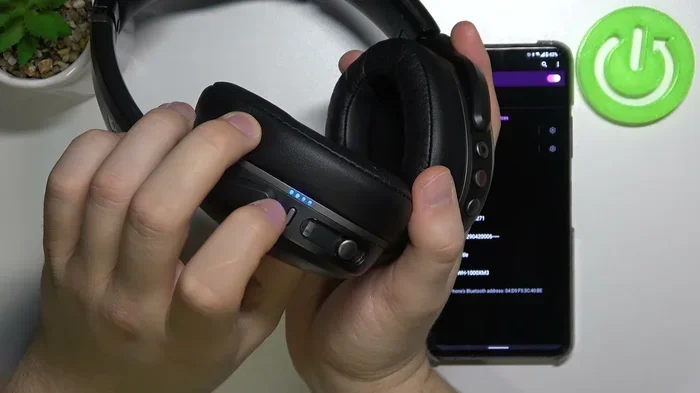
To enter pairing mode on most Skullcandy models, press and hold the power button or the Bluetooth button for 5 seconds. The LED will start flashing rapidly, usually blue or red and blue alternating. This flashing light means your headphones are discoverable and ready to connect.
Here is a quick reference for common Skullcandy models:
- Skullcandy Indy: Hold the button on the left ear cup for 5 seconds until the LED flashes blue.
- Skullcandy Crusher: Hold the power button for 5 seconds until the LED flashes red and blue.
- Skullcandy Hesh 3: Hold the Bluetooth button for 5 seconds until the LED flashes blue.
- Skullcandy Riff: Hold the power button for 5 seconds until the LED flashes blue and red.
Step 4: Enable Bluetooth on Your Phone
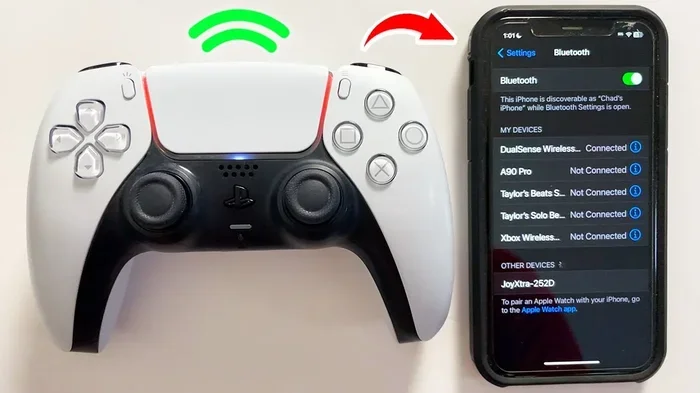
Now go to your phone. Open the Settings app and tap on Bluetooth. Make sure the Bluetooth toggle is turned on. Your phone will start scanning for nearby devices automatically.
On iPhone, you can also swipe down from the top right corner to open Control Center and tap the Bluetooth icon. On Android, you can swipe down from the top to access Quick Settings and tap the Bluetooth icon there.
Step 5: Find and Select Your Skullcandy Headphones
Your phone should now show a list of available Bluetooth devices. Look for your Skullcandy headphones in the list. The name will usually start with “Skullcandy” followed by the model name, like “Skullcandy Indy” or “Skullcandy Crusher.”
Tap on the name of your headphones to connect. You may see a pairing request popup on your screen. Tap Pair or Connect to confirm. Within a few seconds, your headphones should be connected and you will hear a confirmation tone.
Step 6: Test the Connection
Once connected, play some music or a video to test the audio. You should hear sound coming through your Skullcandy wireless headphones clearly. Try adjusting the volume using your phone or the headphones themselves to make sure everything is working.
If you want to make a test call, that works too. The built-in microphone on your Skullcandy headphones will pick up your voice. Ask a friend to confirm they can hear you clearly.
Troubleshooting Bluetooth Connection Issues
Sometimes things do not go smoothly. Maybe your headphones will not pair, or they keep disconnecting. Do not worry, these issues are common and easy to fix. Here are the most common problems and how to solve them.
Headphones Not Showing Up on Your Phone
If your Skullcandy headphones do not appear in the Bluetooth list, try these steps:
- Make sure your headphones are in pairing mode. The LED should be flashing rapidly.
- Turn Bluetooth off and back on your phone.
- Restart your phone and try again.
- Move closer to your phone. Being too far away can prevent discovery.
- Check if your headphones are connected to another device. Some models remember previous connections.
Connection Keeps Dropping
A dropping connection can be frustrating. Here is what to do:
- Stay within range: Keep your phone within 30 feet of your headphones.
- Remove obstacles: Walls, metal objects, and other electronics can interfere with the Bluetooth signal.
- Update firmware: Download the Skullcandy app and check for headphone firmware updates.
- Check for interference: Wi-Fi routers and microwaves can sometimes cause Bluetooth issues.
- Reset your headphones: A factory reset often fixes persistent connection problems.
Audio Quality Is Poor or Lagging
If your audio sounds scratchy or there is a delay, try these fixes:
- Move closer to your phone to strengthen the Bluetooth signal.
- Turn off other Bluetooth devices that might be causing interference.
- Restart both your headphones and your phone.
- Check if any apps on your phone are using heavy bandwidth.
- Update the Skullcandy app and your phone software.
Resetting Your Skullcandy Headphones
A reset is the go-to fix for most Bluetooth problems. The reset process varies by model, but here is the general approach:
- Turn off your headphones.
- Press and hold the power button and the volume down button together for 10 seconds.
- Release the buttons when the LED flashes red and blue.
- Turn your headphones back on and try pairing again.
If the general reset does not work, check the Skullcandy website for model-specific instructions. Each model has a slight variation in the reset process.
Tips for the Best Bluetooth Experience
Once you have your Skullcandy headphones connected, you want to keep them working well. Here are some tips to get the most out of your wireless experience.
Keep Your Headphones Charged
Nothing ruins a good listening session faster than dead headphones. Get in the habit of charging them after every few uses. Most Skullcandy models charge fully in 1 to 2 hours and hold a charge for many hours of playback.
Use the Skullcandy App
The Skullcandy app is a great tool for managing your headphones. You can use it to update firmware, customize EQ settings, and check battery levels. The app also lets you find your headphones if you lose them nearby. Download it from the App Store or Google Play Store.
Manage Multiple Device Connections
If you have Skullcandy headphones that support multipoint, you can connect to your phone and another device at the same time. However, audio will only stream from one device at a time. When you get a call on your phone, the headphones will switch to your phone automatically.
For users who also enjoy connecting headphones to other devices, it is worth noting that Bluetooth pairing works similarly across devices. The process you learn here applies to tablets, laptops, and even smart TVs. If you are curious about using your headphones with a TV, you can explore whether you can use any Bluetooth headphones with your TV for a broader understanding of compatibility.
Clean Your Headphones Regularly
Dirt and earwax can build up on the speaker mesh and affect sound quality. Wipe your headphones down with a soft, dry cloth after each use. For deeper cleaning, use a slightly damp cloth and let them dry completely before storing.
Store Them Properly
When you are not using your headphones, store them in a cool, dry place. Avoid leaving them in hot cars or direct sunlight for long periods. If your model came with a carrying case, use it to protect the headphones from dust and damage.
Can You Use Skullcandy Headphones for Phone Calls?
Absolutely. All wireless Skullcandy headphones come with a built-in microphone that works great for phone calls. When you get a call, simply press the call button on your headphones or tap the touch controls to answer. The microphone will pick up your voice clearly, even in noisy environments.
If you have ever wondered about using Bluetooth headphones specifically for phone conversations, the experience is generally very smooth. The microphone quality on Skullcandy headphones is designed to reduce background noise so the person on the other end can hear you well. For more details on using Bluetooth headphones for phone calls, you can check out our guide on talking on the phone with Bluetooth headphones, which covers general tips that apply to Skullcandy models as well.
The call controls vary by model. Some Skullcandy headphones let you swipe on the ear cup to adjust volume during a call. Others have dedicated buttons. Check your specific model’s manual for the exact controls.
Comparing Bluetooth Pairing Across Devices
While this guide focuses on connecting Skullcandy headphones to your phone, the basic pairing process is very similar across different devices. Here is a quick comparison of what to expect when pairing with different types of devices:
| Device Type | Pairing Steps | Typical Range | Special Notes |
|---|---|---|---|
| Android Phone | Settings > Bluetooth > Tap Skullcandy | 30 feet | May need to enable “Visible” mode |
| iPhone | Settings > Bluetooth > Tap Skullcandy | 30 feet | iPhone often auto-connects |
| Tablet | Settings > Bluetooth > Tap Skullcandy | 30 feet | Same process as phone |
| Laptop | Settings > Bluetooth > Add Device | 30 feet | May need Bluetooth dongle on older laptops |
| Smart TV | Settings > Bluetooth > Pair | 30 feet | Not all TVs support Bluetooth headphones natively |
As you can see, the process is nearly identical regardless of the device. The main difference is where you find the Bluetooth settings. Once you pair your Skullcandy headphones to one device, they will remember it and reconnect automatically next time.
Frequently Asked Questions
How long does it take to Bluetooth Skullcandy headphones to a phone?
The entire pairing process takes less than 2 minutes. Once your headphones are in pairing mode, your phone should find them within seconds. The actual connection happens almost instantly after you tap on the device name.
Why won’t my Skullcandy headphones connect to my phone?
The most common reason is that the headphones are not in pairing mode. Make sure the LED is flashing rapidly. Also check that Bluetooth is turned on your phone and that your headphones are not already connected to another device. A quick reset usually solves the problem.
Can I connect my Skullcandy headphones to more than one phone?
Yes, you can pair your Skullcandy headphones to multiple phones. However, they will only be actively connected to one phone at a time. To switch phones, disconnect from the current phone and pair with the new one following the same steps.
Do I need to download an app to use Skullcandy headphones with my phone?
No, you do not need an app to pair and use your Skullcandy headphones. Basic playback and calls work right out of the box. The Skullcandy app is optional and gives you extra features like EQ customization and firmware updates. If you are wondering about app requirements for phone audio in general, you can check out our article on whether you need an app to print from your phone, which covers similar app-related questions for phone features.
How do I know when my Skullcandy headphones are fully charged?
Most Skullcandy headphones have an LED indicator that changes color or turns solid when fully charged. Check your specific model’s manual for the exact indicator. Typically, a solid green light or a steady white light means the battery is full. Charging usually takes 1 to 2 hours.
Can I use my Skullcandy headphones with a phone case on?
Yes, phone cases do not interfere with Bluetooth connectivity. Your headphones will connect and work normally whether your phone has a thin case or a thick protective case. The Bluetooth signal passes through phone cases without any issues.
Final Thoughts
Connecting your Skullcandy headphones to your phone via Bluetooth is a simple process that anyone can do. Just charge your headphones, put them in pairing mode, and find them on your phone. Within a couple of minutes, you will be enjoying wireless audio without any hassle.
Remember that occasional connection issues are normal and easy to fix. Keep your headphones charged, stay within range, and reset when needed. The Skullcandy app is a great bonus tool that helps you get the most out of your wireless experience.
Once you experience the freedom of wireless audio, you will never want to go back to tangled cords. Whether you are commuting, working out, or just relaxing at home, your Skullcandy Bluetooth headphones give you the freedom to move and enjoy your music your way. Now go ahead and enjoy that wireless connection.