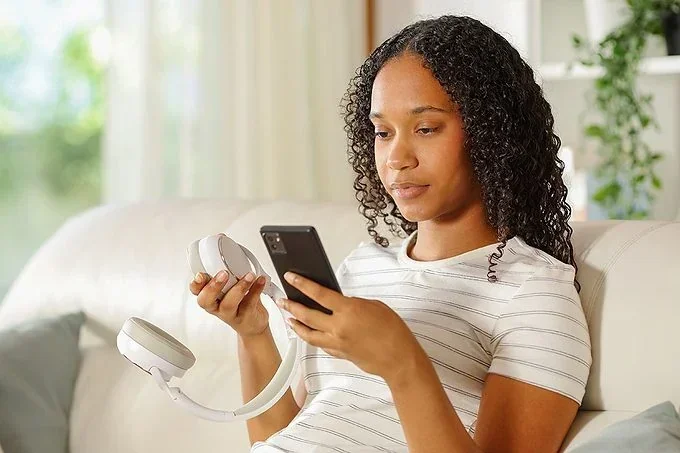
How Do I Connect My Bluetooth to My Phone Step by Step
Connecting Bluetooth to your phone is simple once you know the right steps. This guide walks you through the entire process from enabling Bluetooth settings to pairing your device. You will also learn common fixes and expert tips for a smooth wireless connection.
Have you ever tried to connect a Bluetooth device to your phone and felt completely lost? You are not alone. Millions of people search for how do I connect my Bluetooth to my phone every single day. The good news is that it is much easier than you think. In this guide, we will walk you through every step with clear instructions and practical tips.
Whether you want to connect Bluetooth headphones, a wireless speaker, or even a Bluetooth printer, this article has you covered. We will explain everything from basic pairing to fixing common problems. By the end, you will feel confident connecting any Bluetooth device to your phone without help.
Key Takeaways
- Bluetooth pairing is quick and easy when you follow the right steps on both your phone and the device.
- Keep your devices close and within range for the strongest wireless connection.
- Restarting both devices solves most Bluetooth connectivity issues.
- Check for compatibility before you try to connect a new Bluetooth device.
- Update your phone software regularly to avoid Bluetooth problems.
- Turn off unused Bluetooth devices to keep your connection clean and fast.
- Use Bluetooth security settings to protect your phone from unauthorized connections.
📑 Table of Contents
- What Is Bluetooth and How Does It Work?
- How to Prepare Your Phone for Bluetooth Connection
- Step-by-Step Guide to Connecting Bluetooth to Your Phone
- Common Bluetooth Connection Problems and How to Fix Them
- Tips for Getting the Best Bluetooth Performance
- Bluetooth Safety and Security Tips
- Bluetooth vs Other Wireless Connection Methods
- Frequently Asked Questions About Bluetooth Connection
- Conclusion
What Is Bluetooth and How Does It Work?
Bluetooth is a wireless technology that lets devices talk to each other over short distances. It uses radio waves to send data between your phone and another device. You do not need cables or wires. You just need both devices to be Bluetooth enabled.
The technology has been around for a long time. Most modern phones come with Bluetooth built right in. The latest Bluetooth version offers faster speeds and better range than older versions. Here is a quick look at what Bluetooth can do:
- Wireless audio streaming to headphones and speakers
- Hands-free calling while driving
- File sharing between devices
- Device control like keyboards and mice
- Printing wirelessly from your phone
How Bluetooth Pairing Works
When you connect two devices, this is called Bluetooth pairing. One device becomes visible to the other. Your phone searches for nearby devices. Once it finds a match, you confirm the connection. After that, the devices remember each other and connect automatically next time.
The Bluetooth range is usually about 30 feet. Walls and other obstacles can reduce this distance. For the best results, keep your devices close together during the initial device pairing process.
How to Prepare Your Phone for Bluetooth Connection
Before you start connecting, you need to make sure your phone is ready. Taking a few simple steps upfront saves a lot of frustration later. Here is what you should do.
Check That Bluetooth Is Available on Your Phone
Almost every smartphone made in the last ten years has Bluetooth built in. If you have an older phone, it might not support this feature. You can check by going to your phone settings. Look for a section called Bluetooth or Wireless Connections.
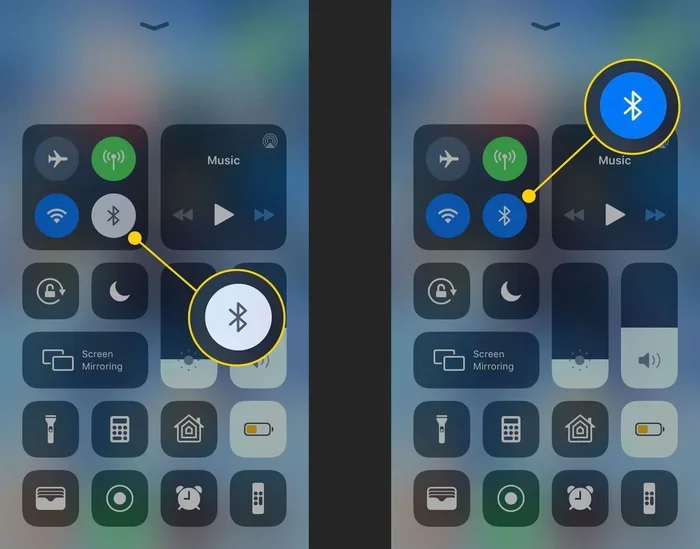
On most phones, you can also swipe down from the top of your screen. This opens the quick settings panel. If you see a Bluetooth icon there, your phone supports it. Tapping the icon turns it on or off quickly.
Update Your Phone Software
Old software can cause Bluetooth connectivity problems. Make sure your phone is running the latest version. Go to Settings, then look for Software Update or System Update. Install any pending updates before you try to pair a new device.
Software updates often include fixes for wireless connection bugs. They also improve compatibility with newer Bluetooth devices. This is a step many people skip, but it makes a big difference.
Charge Both Devices
This sounds obvious, but low battery can cause pairing issues. Make sure both your phone and the device you want to connect have enough charge. A device with very low power may not show up during the device discovery process.
Step-by-Step Guide to Connecting Bluetooth to Your Phone
Now let us get into the actual steps. This is the core part of our guide. Follow these instructions carefully and you will be connected in no time.
Step 1: Turn on Bluetooth on Your Phone
Open your phone settings. Find the Bluetooth option and tap it. Switch the toggle to On. Your phone will now start looking for nearby devices. You should see a message saying Bluetooth is searching or scanning for devices.
On iPhones, you go to Settings and tap Bluetooth. On Android phones, the path is similar. You can also pull down the notification shade and tap the Bluetooth icon for quick access. This is the fastest way to enable Bluetooth on most phones.
Step 2: Make Your Other Device Discoverable
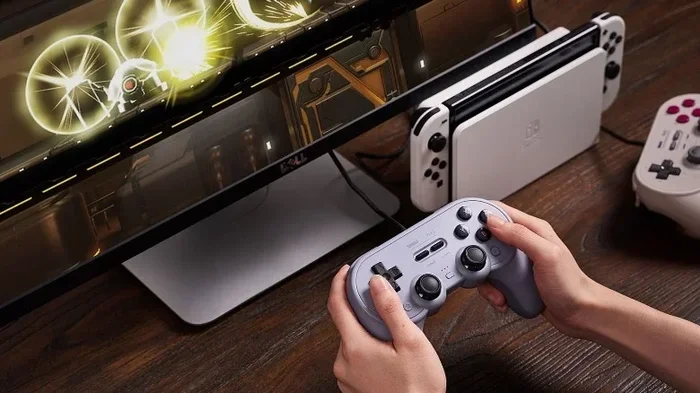
This is a step many people forget. The device you want to connect needs to be visible. Put your headphones, speaker, or other device into pairing mode. Usually, this means holding down a button until a light flashes.
Check the manual for your specific device if you are unsure. Each device has its own way of entering pairing mode. Once it is discoverable, it will appear in the list on your phone screen.
Step 3: Select Your Device from the List
Your phone now shows a list of available devices. Look for the name of the device you want to connect. Tap on it. Your phone will try to establish a wireless connection. This only takes a few seconds.
Sometimes you will need to enter a PIN code. The most common code is 0000 or 1234. Check the device manual if you are unsure. Once the PIN is accepted, the connection is made.
Step 4: Confirm the Connection
After you tap the device name, wait a moment. Your phone should show a message that the device is connected. The Bluetooth icon in your status bar will also change. On most phones, it shows the name of the connected device right next to the icon.
Now try using the device. Play some music through your Bluetooth headphones or speak into a wireless speaker. If it works, you are all set. If not, do not worry. We cover troubleshooting in the next section.
Step 5: Save and Manage Your Paired Devices
Your phone remembers paired devices. You can view all of them in the Bluetooth settings menu. This is useful if you want to connect a different device or remove one you no longer use.
You can also rename devices for easier identification. Some people have multiple Bluetooth speakers or headphones. Giving them clear names like Office Speaker or Gym Headphones helps you find them quickly in the list.
Common Bluetooth Connection Problems and How to Fix Them
Even when you follow all the steps, things can go wrong. Bluetooth troubleshooting is a normal part of using wireless technology. Here are the most common problems and how to solve them.
Device Not Showing Up in the List
If your phone does not find the other device, try these fixes. First, make sure the other device is in pairing mode. Second, move both devices closer together. Third, turn Bluetooth off and back on again. Fourth, restart both devices. These simple steps fix the problem most of the time.
Sometimes a device stays stuck in pairing mode from a previous attempt. Turn it off completely, wait a few seconds, and turn it back on. This resets the discovery mode and often solves the issue.
Connection Keeps Dropping
A weak or unstable connection is frustrating. The most common cause is distance. Stay within 30 feet of the connected device. Walls, furniture, and other electronics can interfere with the wireless connection.
Another cause is interference from other Bluetooth devices. If you have many Bluetooth gadgets in one room, they can compete for the same signal. Turn off any devices you are not using. This frees up the connection and makes it more stable.
Audio Sounds Scratchy or Broken
If your audio quality is poor, check the distance first. Move closer to the connected device. Also check if anything is blocking the signal between the two devices. Removing obstacles often fixes this problem immediately.
Low battery on either device can also cause audio issues. Charge both devices and try again. If the problem continues, forget the device from your Bluetooth list and pair it fresh. This resets the connection and usually improves audio quality.
Phone Won Connect to a Specific Device
Sometimes a phone refuses to connect to one particular device but works fine with others. This is usually a pairing glitch. Go to your Bluetooth settings and forget that device. Then put it back into pairing mode and try again.
If this does not work, restart your phone. A fresh start clears out any temporary glitches. You can also check if the device needs a firmware update. Visit the manufacturer website for instructions on updating your device software.
Tips for Getting the Best Bluetooth Performance
Once you have successfully connected your devices, you want them to work well every time. These tips help you get the most out of your wireless technology.
Keep Your Devices Close Together
The closer your devices are, the stronger the signal. Try to stay within 10 feet for the best audio quality. If you need more distance, make sure there are no walls or large objects between them.
Turn Off Bluetooth When Not in Use
Leaving Bluetooth on all the time drains your battery. It also makes your phone visible to nearby devices you do not want to connect to. Turn it off when you are not using it. You can always turn it back on in seconds.
Keep Your Devices Updated
Both your phone and your Bluetooth device benefit from updates. Manufacturers release fixes for Bluetooth connectivity issues regularly. Check for updates on both devices at least once a month.
Clean Your Bluetooth Devices
Dust and dirt can block sensors on Bluetooth devices. Clean the charging contacts and any sensors gently with a dry cloth. This keeps the connection strong and prevents charging problems.
Use Bluetooth 5.0 or Newer When Possible
Newer Bluetooth versions offer better range and sound quality. If you are buying new devices, look for Bluetooth 5.0 or higher. This ensures you get the best wireless audio experience. It also means fewer connection drops.
Bluetooth Safety and Security Tips
Using Bluetooth is generally safe. But like any wireless technology, it comes with some risks. Here is how to stay protected.
Only Pair with Devices You Trust
Never accept a pairing request from a device you do not recognize. This prevents unauthorized access to your phone. Only pair devices you own or devices you know are safe.
Turn Off Discoverable Mode When Done
When your device is in pairing mode, it is visible to everyone nearby. Once you finish connecting, turn off discoverable mode. This adds a layer of Bluetooth security to your device.
Keep Your Phone Updated
Software updates often include security patches. These fix vulnerabilities that could be exploited through Bluetooth connections. Keeping your phone updated is one of the best ways to stay safe.
Be Careful in Public Places
Avoid pairing Bluetooth devices in crowded public spaces. Someone nearby could try to connect to your phone without your permission. Wait until you are in a private or secure location.
Bluetooth vs Other Wireless Connection Methods
Bluetooth is not the only way to connect devices wirelessly. Here is how it compares to other options.
Wi-Fi offers faster speeds and longer range than Bluetooth. But it uses more battery. Bluetooth uses less power and is simpler to set up. For short-range connections like headphones and speakers, Bluetooth is usually the better choice.
NFC (Near Field Communication) is even simpler but has a very short range. You just tap two devices together to connect. However, not all devices support NFC. Bluetooth works with almost every modern phone and accessory.
Some people use USB cables for a wired connection. This gives the most stable connection but removes the convenience of going wireless. If you want to know more about USB connections, check out our guide on Can I Connect My iPhone to a USB for helpful tips.
For audio connections specifically, Bluetooth is the most popular wireless option. If you want to connect your phone to a TV for audio output, you might also explore HDMI options. Learn more in our article on Can I Connect My Phone to HDMI TV.
If you use a Bluetooth printer or want to connect a printer wirelessly, check out our guide on Can I Connect My Brother Printer Via Bluetooth. It covers printer pairing in detail.
Frequently Asked Questions About Bluetooth Connection
Here are answers to some common questions people ask about connecting Bluetooth to their phones.
Why Won My Phone Find Any Bluetooth Devices?
Your phone might not find devices if Bluetooth is turned off. Make sure it is enabled in your settings. Also check that the other device is in pairing mode and within range. Restarting both devices often fixes this problem quickly.
How Many Devices Can I Pair with My Phone?
Most phones can remember several paired devices at once. However, you can only actively connect to one device at a time for audio. You can switch between paired devices easily in your Bluetooth settings menu.
Does Connecting Bluetooth Drain My Phone Battery?
Yes, Bluetooth does use battery power. But modern Bluetooth versions are much more efficient than older ones. Turning off Bluetooth when you are not using it helps save battery life significantly.
Can I Connect Bluetooth to Any Phone?
Almost all smartphones made in the last decade support Bluetooth. Even some basic phones have it now. If your phone has settings for wireless connections, it likely supports Bluetooth. Check your phone manual if you are not sure.
Is Bluetooth Safe to Use Every Day?
Yes, Bluetooth is considered safe for daily use. The radiation levels are very low. Health organizations worldwide have reviewed Bluetooth technology and found it safe for regular use. Just follow basic security tips like pairing only with trusted devices.
What Should I Do If My Bluetooth Connection Is Very Slow?
A slow connection is often caused by distance or interference. Move closer to the connected device and remove obstacles between them. Also check if other wireless devices are nearby causing interference. Restarting both devices can also speed up the connection.
Conclusion
Connecting Bluetooth to your phone does not have to be complicated. With the right steps, you can pair any device in just a few minutes. Remember to turn on Bluetooth, make your device discoverable, select it from the list, and confirm the connection. It really is that simple.
Use the troubleshooting tips when things do not go perfectly the first time. Keep your devices updated and within range for the best performance. Follow the security tips to keep your phone safe. Now that you know how do I connect my Bluetooth to my phone, you can enjoy wireless audio, hands-free calling, and seamless device connections every day.
Start with a simple device like your headphones or speaker. Once you get comfortable, you can connect printers, speakers, and other accessories with confidence. The wireless world is waiting for you. Enjoy the freedom of going cable-free.