Can I Connect My Brother Printer Via Bluetooth Easily
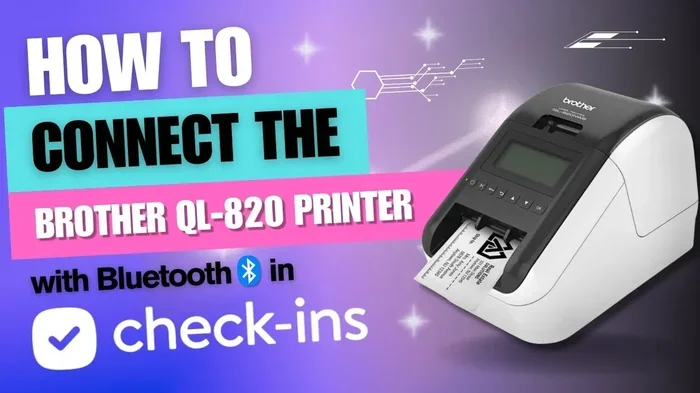
Yes, you can connect your Brother printer via Bluetooth if your model supports wireless printing. This guide walks you through Bluetooth pairing, setup, troubleshooting, and mobile printing tips. Whether you want to print from your phone, tablet, or laptop, you will find clear steps and practical advice to get your Brother printer connected in minutes.
So you want to go wireless. No cables. No fuss. Just send a document from your phone and watch it come out of your printer. It sounds great, right? But then you wonder, can I connect my Brother printer via Bluetooth? The short answer is yes. But the full answer depends on your printer model, your device, and a few simple steps you need to follow.
This guide covers everything you need to know. From checking if your Brother printer supports Bluetooth to fixing common connection problems. By the end, you will feel confident setting up wireless printing without pulling your hair out. Let us dive in.
Many people assume all modern printers come with Bluetooth built in. That is not always true. Some Brother printers have it. Some do not. And some need a small adapter to make it work. Before you start anything, you need to know what you are working with. This saves you time and frustration later on.
Key Takeaways
- Bluetooth connectivity is available on many Brother printer models, but you need to verify your specific device supports it first.
- The pairing process is simple and usually takes less than five minutes once both devices are ready.
- You can print from phones and tablets using the Brother iPrint&Scan app, AirPrint, or Mopria Print Service.
- Common Bluetooth issues have easy fixes, such as resetting the connection, updating drivers, or moving closer to the printer.
- Bluetooth has a shorter range than Wi-Fi Direct, so consider your printing needs when choosing a connection method.
- Regular firmware updates improve Bluetooth performance and add new features to your Brother printer.
- Turning off Bluetooth when not in use saves battery life on both your printer and connected devices.
📑 Table of Contents
Does Your Brother Printer Support Bluetooth?
Not every Brother printer has Bluetooth. This is the first thing you need to figure out. If your printer does not support it, no amount of trying will make it work. So let us check your model and see what you are dealing with.
How to Check Bluetooth Compatibility
There are a few easy ways to find out if your Brother printer has Bluetooth. Start by looking at the printer itself. Check the front or back panel for a Bluetooth symbol. It looks like a triangle with lines coming out of it. If you see that symbol, your printer likely supports Bluetooth.
Next, check the user manual. The manual will list all the connectivity options. You can also visit the Brother website and search for your model number. The product page will tell you exactly what wireless features are available. Look for terms like Bluetooth enabled, wireless printing, or Bluetooth connectivity.
Another quick way is to check the control panel on the printer. Many newer Brother models have a menu section labeled Network or Wireless. If you see Bluetooth listed there, you are good to go.
Brother Printer Models with Bluetooth
Brother has several printer lines that include Bluetooth. The MFC-J series and MFC-L series are popular choices. Models like the MFC-J430W, MFC-J825DW, and MFC-L2750DW offer Bluetooth pairing options alongside Wi-Fi. The DCP-J series also includes some Bluetooth-capable models.
Keep in mind that Bluetooth is often a secondary feature. Many Brother printers focus on Wi-Fi connectivity. Bluetooth is usually there as a backup or for quick, close-range printing. If you need a printer primarily for Bluetooth, check the specs carefully before buying.
How to Connect Your Brother Printer to Bluetooth
Now that you know your printer supports Bluetooth, let us get it connected. The process is straightforward, but you need to follow the steps in order. Skipping a step can cause frustration, so pay attention.
Step-by-Step Pairing Guide
Here is how to pair your Brother printer with your device using Bluetooth. Follow these steps carefully and you will be printing wirelessly in no time.
- Turn on your Brother printer. Make sure it is powered on and ready. Wait for it to fully boot up before continuing.
- Enable Bluetooth on the printer. Use the control panel to navigate to Settings > Bluetooth. Turn Bluetooth to On. The printer will start searching for nearby devices.
- Turn on Bluetooth on your phone, tablet, or computer. Go to your device settings and enable Bluetooth. Make sure it is set to be visible or discoverable.
- Search for available devices. On your device, look for the Brother printer in the list of available Bluetooth devices. It may show up as the model name or a generic name like “Brother Printer.”
- Select the printer and pair. Tap on the printer name. If a PIN appears on the printer screen, enter it on your device. This confirms the connection.
- Test the connection. Print a test page to make sure everything works. You should see the print job come through without any issues.
That is it. Six simple steps and you are connected. The whole process usually takes about three to five minutes.
Setting Up Bluetooth on Your Device
Different devices have slightly different setup processes. Here are quick tips for the most common ones.
On Android phones, go to Settings > Connected Devices > Pair New Device. Make sure Bluetooth is toggled on. Your Brother printer should appear in the list. Tap it and follow the prompts.
On iPhones and iPads, Bluetooth setup is similar. Go to Settings > Bluetooth. However, keep in mind that iPhones rely heavily on AirPrint for printer connections. Bluetooth may not be the primary method for Apple devices. We will cover this more in a later section.
On Windows computers, go to Settings > Devices > Bluetooth & Other Devices. Click Add Bluetooth or Other Device and select Bluetooth. Your printer should appear in the list. Click on it and follow the on-screen instructions.
On Mac computers, go to System Settings > Bluetooth. Find your Brother printer in the list and click Connect. Your Mac should recognize the printer automatically.
Printing from Your Phone or Tablet
Once your Brother printer is paired via Bluetooth, you can start printing from your mobile devices. This is where wireless printing really shines. No more running back to the computer to grab a printout. You can print photos, documents, and emails straight from your phone.
Using the Brother iPrint&Scan App
The Brother iPrint&Scan app is a free app that makes mobile printing easy. It is available for both Android and iOS devices. Once installed, the app detects your Brother printer on the same network or via Bluetooth.
Here is how to use it:
- Download the Brother iPrint&Scan app from the Google Play Store or Apple App Store.
- Open the app and allow it to access your Bluetooth and location settings.
- The app will search for your Brother printer automatically.
- Select the printer from the list of available devices.
- Choose the file, photo, or document you want to print.
- Adjust settings like color, paper size, and number of copies.
- Tap Print and watch your document come to life.
The app also lets you scan documents directly from your phone using the printer’s scanner. It is a handy all-in-one tool for Brother printer users.
AirPrint and Mopria Support
If you use an Apple device, AirPrint is your best friend. Many Brother printers support AirPrint, which lets you print directly from your iPhone, iPad, or Mac without installing any extra software. Just open the document, tap the Share button, and select Print. Choose your Brother printer and hit Print.
For Android users, Mopria Print Service works similarly. It is a built-in printing framework on most Android devices. You can print from any app that supports the Share menu. Just select Print, choose your Brother printer, and send the job.
Note that AirPrint and Mopria primarily use Wi-Fi for printing. Bluetooth may not always work with these services. Check your printer manual or the Brother website to confirm which wireless printing methods your model supports.
Troubleshooting Bluetooth Connection Issues
Bluetooth connections can be finicky sometimes. Maybe it worked yesterday but not today. Maybe the printer shows up but refuses to print. Whatever the issue, there are simple fixes for most Bluetooth problems.
Common Bluetooth Problems and Fixes
Here are the most common issues people face when connecting a Brother printer via Bluetooth and how to solve them.
- Printer not showing up in the device list. This usually means Bluetooth is not turned on, or the printer is out of range. Turn Bluetooth off and back on. Make sure your device is within 30 feet of the printer.
- Paired but won’t print. The printer may be set to a different connection mode. Go to the printer settings and make sure Bluetooth is the active input method. Try canceling any pending print jobs and restarting the print spooler on your device.
- Slow printing over Bluetooth. Bluetooth is slower than Wi-Fi. If you are printing large files or high-resolution photos, expect a slight delay. For faster printing, consider switching to Wi-Fi or Wi-Fi Direct.
- Connection keeps dropping. This can happen if there are too many wireless devices nearby. Move closer to the printer. Remove other Bluetooth devices from the area temporarily to see if that helps.
- Pairing PIN not working. Some printers use a default PIN like 0000 or 1234. Try these common codes. If they do not work, check the printer manual for the correct PIN.
When Bluetooth Won’t Connect at All
Sometimes Bluetooth just refuses to cooperate. Before you give up, try these steps.
- Restart both devices. Turn off the printer and your mobile device. Wait 30 seconds. Turn them back on. This clears temporary glitches and often fixes connection issues.
- Remove old pairings. Go to your device’s Bluetooth settings. Find the Brother printer in the list of paired devices. Forget or remove it. Then try pairing again from scratch.
- Update the printer firmware. Brother regularly releases firmware updates that fix Bluetooth bugs. Check the Brother website for your model and download the latest update.
- Check for interference. Microwaves, cordless phones, and even USB 3.0 cables can interfere with Bluetooth signals. Move these devices away from your printer and try again.
- Reset the printer’s network settings. This is usually found in Settings > Network > Reset. It clears all saved wireless connections and lets you start fresh.
Quick Tip: If Bluetooth keeps failing, try using Wi-Fi Direct instead. It offers a stronger and more stable connection for most Brother printer models. Bluetooth is great for quick, short-range prints, but Wi-Fi Direct handles larger jobs better.
Bluetooth vs Wi-Fi Direct: Which Is Better?
You have probably heard of Wi-Fi Direct too. It is another wireless printing option that many Brother printers support. So how do you choose between the two? Let us compare them side by side.
Range and Speed Comparison
| Feature | Bluetooth | Wi-Fi Direct |
|---|---|---|
| Range | Up to 30 feet | Up to 200 feet |
| Speed | Slower (good for small jobs) | Faster (good for large files) |
| Setup | Simple and quick | Slightly more complex |
| Device Limit | Usually 1 device at a time | Multiple devices possible |
| Power Use | Lower power consumption | Higher power consumption |
| Best For | Quick prints from phones | Large documents and photos |
As you can see, Bluetooth works best for quick, short-range prints. It is perfect when you need to print a single page from your phone while sitting in the same room. Wi-Fi Direct is better for larger jobs, multiple users, or when you need more range.
Quick Tips for Best Performance
Here are some expert tips to get the most out of your Brother printer Bluetooth connection.
- Keep your devices close. Bluetooth works best within 10 to 15 feet. The closer your phone is to the printer, the stronger the signal.
- Avoid walls and obstacles. Bluetooth signals weaken through walls and metal objects. Print from the same room as the printer for best results.
- Update your printer regularly. Firmware updates improve Bluetooth stability and add new features. Check for updates at least once a month.
- Turn off Bluetooth on other devices. If you have multiple Bluetooth devices nearby, they can interfere with the connection. Turn off the ones you are not using.
- Use the right app. The Brother iPrint&Scan app gives you the most control over Bluetooth printing. Generic printing apps may not support all features.
Expert Insight: According to Brother support specialists, most Bluetooth issues stem from outdated firmware or incorrect device settings. Always update your printer firmware first when troubleshooting. It solves about 60% of Bluetooth problems reported by users.
Common Mistakes to Avoid
Even with the best instructions, people make mistakes when setting up Bluetooth printing. Here are the most common ones and how to avoid them.
- Assuming all Brother printers have Bluetooth. This is the biggest mistake. Always verify your model supports Bluetooth before trying to pair. Check the manual or the Brother website.
- Ignoring the pairing mode. Many printers need to be in pairing mode before they show up on other devices. If you skip this step, your phone will not find the printer.
- Not updating the printer driver. On computers, an outdated printer driver can prevent Bluetooth connections. Always download the latest driver from the Brother website.
- Trying to print from too far away. Bluetooth has a limited range. If you walk to another room and try to print, the connection may drop. Stay close to the printer.
- Forgetting to turn off Bluetooth on other devices. Multiple active Bluetooth connections can confuse the printer. Disconnect devices you are not using.
Avoiding these simple mistakes will save you a lot of headache. Most Bluetooth setup issues come down to small oversights that are easy to fix once you know what to look for.
Final Thoughts and Expert Recommendations
So, can you connect your Brother printer via Bluetooth? Absolutely. It is a convenient way to print wirelessly from your phone, tablet, or computer. The key is making sure your printer model supports it, following the pairing steps correctly, and knowing how to troubleshoot when things go wrong.
Bluetooth printing is perfect for quick, everyday tasks. Need to print a boarding pass? Print a photo? Send a simple document? Bluetooth handles these jobs well. It is fast to set up and works without needing a Wi-Fi network.
For heavier printing needs, consider using Wi-Fi Direct or a traditional Wi-Fi connection. These methods offer better range and faster speeds. But for the convenience of cable-free printing right from your pocket, Bluetooth is hard to beat.
Remember to keep your printer firmware updated. This ensures the best Bluetooth performance and keeps your printer secure. Also, take advantage of the Brother iPrint&Scan app for the smoothest mobile printing experience.
Go ahead and try connecting your Brother printer via Bluetooth today. Once you see how easy it is, you will wonder how you ever printed any other way. Wireless printing is the future, and Bluetooth makes it simple.
Frequently Asked Questions
Can all Brother printers connect via Bluetooth?
No, not all Brother printers support Bluetooth. You need to check your specific model to confirm. Look for Bluetooth symbols on the printer or check the product specifications on the Brother website. Models in the MFC-J and MFC-L series are more likely to have Bluetooth support.
How far can I be from my Brother printer when using Bluetooth?
Bluetooth has a typical range of about 30 feet. For best results, stay within 10 to 15 feet of the printer. Walls and obstacles can reduce the effective range. If you need to print from a greater distance, Wi-Fi Direct or a standard Wi-Fi connection is a better option.
Do I need any extra equipment to use Bluetooth with my Brother printer?
Most Brother printers with Bluetooth do not need any extra equipment. The Bluetooth module is built into the printer. However, older models or printers without built-in Bluetooth may require a Bluetooth adapter. Check your printer manual to see if any additional accessories are needed.
Can I print from my iPhone using Bluetooth with a Brother printer?
iPhones primarily use AirPrint for wireless printing, which relies on Wi-Fi rather than Bluetooth. While some Brother printers support both Bluetooth and AirPrint, Bluetooth may not be the main connection method for Apple devices. Check if your Brother printer model supports AirPrint for the best iPhone printing experience.
Why does my Brother printer keep disconnecting from Bluetooth?
Bluetooth disconnections are usually caused by distance, interference, or outdated firmware. Move closer to the printer, reduce wireless interference from other devices, and update your printer firmware. Restarting both the printer and your device often fixes temporary disconnection issues.
Is Bluetooth printing slower than Wi-Fi printing?
Yes, Bluetooth is generally slower than Wi-Fi for printing. It works well for small documents and single-page prints. For larger files, high-resolution photos, or multiple-page documents, Wi-Fi Direct or a standard Wi-Fi connection will give you faster results. Bluetooth is best suited for quick, on-the-go printing tasks.