Can I Connect Hdmi Monitor To Usb Without Any Adapters
Yes, you can connect an HDMI monitor to USB using a USB to HDMI adapter or adapter cable. This simple solution lets you expand your screen, mirror your display, or set up a dual monitor workspace without buying a new computer. Most modern USB ports support video output through DisplayLink technology or native USB-C video capabilities.
Have you ever looked at your laptop or desktop and thought, “I need more screen space”? Maybe you are working from home and want a bigger display. Or perhaps you are setting up a second monitor for multitasking. Whatever the reason, you might be wondering if you can plug an HDMI monitor directly into a USB port. The short answer is yes, but there is a catch. You need the right USB to HDMI adapter to make it work. Let me walk you through everything you need to know about connecting an HDMI monitor to USB.
This guide covers how USB and HDMI connections work together. I will explain what hardware you need, how to set things up, and what problems you might run into. Whether you use a Windows laptop, a Mac, or a desktop computer, this article has you covered. Let us dive in and figure out your options.
Key Takeaways
- USB to HDMI adapters are widely available and affordable: They let you connect any HDMI monitor to a USB port on your laptop or desktop.
- Not all USB ports support video output: USB 3.0 and USB-C ports are generally compatible, while older USB 2.0 ports may not work well.
- DisplayLink technology is the most common method: It uses software and a small adapter to send video signals through USB connections.
- You cannot connect HDMI to USB without any adapter at all: The shapes and signals are different, so some form of adapter is always needed.
- Resolution and refresh rate depend on your adapter quality: Better adapters support 4K and higher frame rates.
- USB-C to HDMI is the easiest direct connection: Many modern laptops have USB-C ports that carry video signals natively.
📑 Table of Contents
- Understanding How USB and HDMI Work Together
- What You Need to Connect an HDMI Monitor to USB
- Step-by-Step Guide to Connecting Your HDMI Monitor to USB
- Common Problems and How to Fix Them
- Best USB to HDMI Adapters and Devices
- Can You Connect HDMI to USB Without Any Adapters?
- Setting Up a Dual Monitor Workspace with USB
- Expert Insights on USB-to-HDMI Connectivity
- Key Takeaways
- Conclusion
Understanding How USB and HDMI Work Together
USB and HDMI are two completely different types of connections. They were designed for different purposes. USB stands for Universal Serial Bus. It was built to transfer data and power between devices. HDMI stands for High-Definition Multimedia Interface. It was built specifically to carry high-quality video and audio signals to displays.
So how do you bridge the gap? The answer lies in adapters and special technology. A USB to HDMI adapter acts as a translator. It takes the data signal from your USB port and converts it into a video signal that your HDMI monitor can understand. Think of it like a language translator between two people who speak different languages.
How USB Ports Handle Video Signals
Not every USB port can send video. The ability depends on the type of USB port you have. USB 2.0 ports were never designed for video. They are too slow. USB 3.0 and USB 3.1 ports have more bandwidth, but they still need help to carry video. That help comes from software called DisplayLink technology.
DisplayLink is a clever piece of software. It uses your computer’s processor to compress video data and send it through a USB connection. The adapter then decompresses it and displays it on your monitor. This process happens in real time. You can watch videos, play games, and work on spreadsheets without noticeable lag.
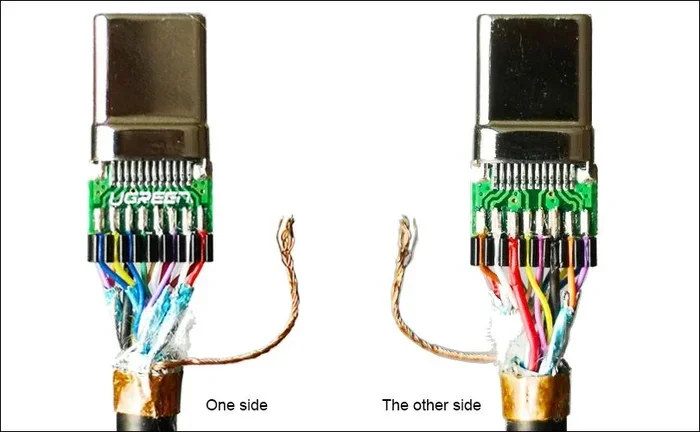
Then there is USB Type-C. This newer port is special. Many USB-C ports support DisplayPort Alternate Mode. This means they can carry a video signal natively, without needing extra software. If your computer has a USB-C port that supports video output, you can use a simple USB-C to HDMI cable and be done with it.
Why HDMI Monitors Are Popular for USB Setups
HDMI monitors are everywhere. They are affordable, they come in many sizes, and they deliver great picture quality. Most people already own an HDMI monitor or can buy one cheaply. This makes them the perfect choice for a USB-to-monitor setup. You do not need to buy a special monitor. Any standard HDMI display will work with the right adapter.
Another reason HDMI monitors work so well is compatibility. Nearly every laptop, desktop, and even some tablets have USB ports. So you can connect a big screen to almost any device. This flexibility is why so many people choose this setup for home offices, gaming stations, and digital workspaces.
What You Need to Connect an HDMI Monitor to USB
Before you start, make sure you have the right equipment. Here is a simple list of what you need for a basic setup.
- A computer or laptop with a USB port: USB 3.0, USB 3.1, or USB-C are all good options.
- An HDMI monitor: Any standard HDMI display will work.
- A USB to HDMI adapter or adapter cable: This is the key piece of hardware.
- A USB cable: Usually included with the adapter. It connects the adapter to your computer.
- An HDMI cable: This connects the adapter to your monitor.
- Updated drivers: If you use DisplayLink, you need the latest drivers installed.
That is it. You do not need a graphics card upgrade or any special software beyond the drivers. The whole setup is designed to be simple and plug and play. Most adapters work right out of the box once you install the driver.
Checking Your USB Port Compatibility
Not all USB ports are created equal. Before buying an adapter, check what kind of USB port your computer has. Look at the port shape and check your computer specs.
Here is a quick breakdown of USB port types and their video capabilities.
- USB Type-A (standard rectangular port): Common on older computers. Needs a USB-A to HDMI adapter. Works best with USB 3.0 or higher.
- USB Type-C (small, oval port): Found on modern laptops and tablets. Can carry video natively if it supports DisplayPort Alt Mode. Use a USB-C to HDMI cable or adapter.
- USB 3.0 and USB 3.1: These provide enough bandwidth for smooth video. They work well with DisplayLink adapters.
- USB 2.0: Not recommended for video. The data transfer speed is too slow. You may experience lag, low resolution, or no signal at all.
If you are unsure about your port type, check your computer manufacturer’s website or look up your model number online. This small step saves time and money later.
Step-by-Step Guide to Connecting Your HDMI Monitor to USB
Setting up your external monitor through USB is straightforward. Follow these steps and you will be up and running in minutes.
Step 1: Plug in the USB to HDMI adapter. Connect the adapter to an available USB port on your computer. If you are using a USB-A adapter, it fits snugly into the standard rectangular port. If you are using USB-C, align the connector and press gently.
Step 2: Install the drivers (if needed). For DisplayLink adapters, visit the DisplayLink website and download the latest driver for your operating system. Windows 10 and 11 usually detect the adapter automatically. Mac users may need to download drivers from the adapter manufacturer.
Step 3: Connect the HDMI cable to the adapter. Plug one end of the HDMI cable into the adapter and the other end into your monitor.
Step 4: Power on the monitor and select the right input. Use your monitor’s menu button to select the HDMI input source. Most monitors auto-detect, but sometimes you need to switch manually.
Step 5: Configure your display settings. On Windows, go to Settings > System > Display. On Mac, go to System Settings > Displays. Choose whether you want to extend your desktop, mirror your screen, or use the monitor as the primary display.
Step 6: Test your setup. Open a video, browse a webpage, or drag a window to the second screen. If everything looks smooth, you are all set.
Quick Tips for a Smooth Setup
- Always use a high-quality HDMI cable. Cheap cables can cause signal loss.
- Restart your computer after installing new drivers.
- If the screen flickers, try a different USB port.
- Keep your adapter drivers updated for the best performance.
- Use a powered USB hub if your laptop USB port does not provide enough power.
Common Problems and How to Fix Them
Sometimes things do not go smoothly. Here are the most common issues people face when connecting an HDMI monitor to USB and how to solve them.
No Signal on the Monitor
This is the most common complaint. If your monitor shows no signal, start by checking your cable connections. Make sure the HDMI cable is firmly plugged into both the adapter and the monitor. Try a different HDMI cable to rule out a faulty cable.
Next, check your display settings. On Windows, press the Windows key plus P to open the projection menu. Make sure the correct display mode is selected. If the adapter is new, restart your computer and let Windows detect the display.
Low Resolution or Blurry Image
A blurry or low-resolution image usually means your adapter is not set to its full capability. Go to your display settings and manually set the resolution to match your monitor’s native resolution. For most modern monitors, this is 1920×1080 (Full HD) or 3840×2160 (4K).
Also, make sure you are using a USB 3.0 or USB-C port. USB 2.0 ports simply do not have enough bandwidth for high-resolution video. Upgrading to a better adapter can also help.
Flickering or Freezing Screen
Screen flickering often points to a driver issue. Update your DisplayLink drivers or the adapter manufacturer’s software. You can find the latest drivers on the official website. Restart your computer after updating.
If flickering continues, try a different USB port. Some USB ports share bandwidth with other devices. Plugging your adapter directly into a dedicated port can fix the problem.
Audio Not Working
HDMI carries both video and audio. But sometimes the audio goes to the wrong output. On Windows, right-click the speaker icon in your taskbar and select your HDMI monitor as the audio output device. On Mac, go to Sound Settings and choose the HDMI display as your output.
Best USB to HDMI Adapters and Devices
Not all adapters are the same. Some are cheap and unreliable. Others deliver smooth, high-quality video. Here are the types of adapters you should consider.
- Basic USB-A to HDMI adapters: These are affordable and work well for everyday tasks. They support up to 1080p resolution and are great for office work.
- USB-C to HDMI adapters and cables: These are the simplest option for modern laptops. No extra software is needed if your USB-C port supports video output.
- USB docking stations with HDMI output: These are all-in-one hubs. They add multiple ports like USB, Ethernet, and HDMI in one device. Great for a permanent workspace setup.
- 4K-capable adapters: If you need ultra-high definition, look for adapters that support 4K at 60Hz. These cost more but deliver stunning picture quality.
- Dual-monitor adapters: Some adapters support two HDMI outputs. This lets you connect two external monitors to a single USB port.
When shopping, look for adapters from trusted brands. Read user reviews and check the resolution and refresh rate specs. A good adapter makes all the difference in your experience.
Can You Connect HDMI to USB Without Any Adapters?
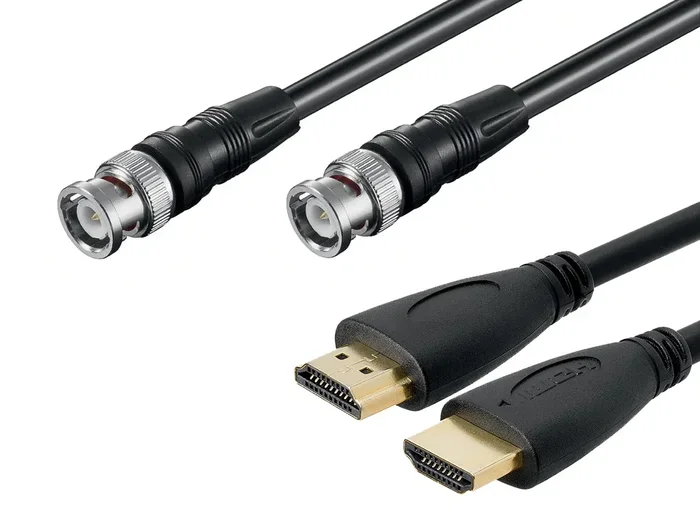
Here is the honest truth. You cannot connect an HDMI monitor to a USB port without some form of adapter. The physical connector shapes are completely different. HDMI has 19 pins arranged in a specific pattern. USB has a different number of pins in a different shape. They simply do not fit together.
Beyond the physical difference, the signals are different too. USB carries data packets. HDMI carries a dedicated video and audio signal. Without an adapter to convert one to the other, the two technologies cannot communicate.
However, there is one exception. Many modern laptops and tablets have USB-C ports that support video output natively. If your USB-C port carries video, you can use a simple USB-C to HDMI cable. This is technically still an adapter, but it is much simpler than a bulky USB-A to HDMI converter box. It is a direct cable that bridges the two standards seamlessly.
So when people ask, “Can I connect HDMI monitor to USB without any adapters,” the real answer is no, not completely. But a simple cable or small adapter does the job easily and affordably. You do not need a complex setup or expensive equipment.
What About USB-C Monitors?
Some monitors now come with USB-C inputs. These monitors can receive video directly from a USB-C port on your laptop. They can also charge your laptop through the same cable using USB Power Delivery. This is the closest thing to a direct connection, and it is becoming very popular for laptop docking and workspace setups.
If you are buying a new monitor, consider a USB-C model. It simplifies your cable setup and gives you both video and charging in one connection.
Setting Up a Dual Monitor Workspace with USB
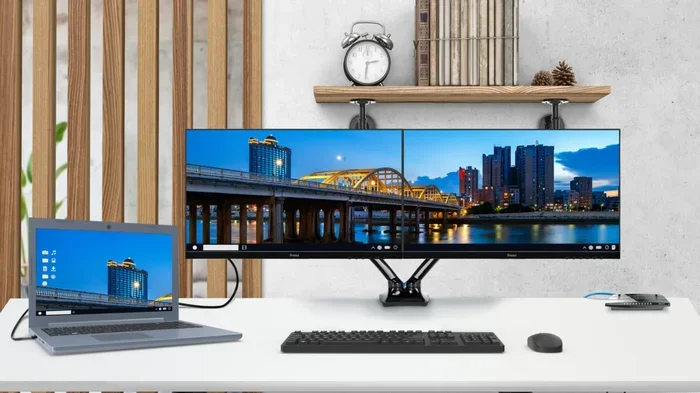
One of the best reasons to connect an HDMI monitor via USB is to create a dual monitor setup. Having two screens boosts productivity significantly. You can keep your email on one screen and your work documents on the other. Or you can have your main workspace on one screen and reference materials on the second.
Setting up dual monitors through USB is easy. Connect your first monitor to your computer’s native HDMI or DisplayPort output. Then connect your second monitor using a USB to HDMI adapter. Your computer will recognize both displays and let you arrange them however you like.
Here are some tips for a great dual monitor experience.
- Match your monitor sizes and resolutions for a seamless workspace.
- Use a monitor arm or stand to position both screens at eye level.
- Set your primary display to the monitor you look at most often.
- Extend your desktop across both screens for maximum workspace.
- Use keyboard shortcuts to move windows between screens quickly.
A dual monitor setup through USB is one of the best upgrades you can make for your computer. It costs less than buying a new laptop and makes a huge difference in your daily workflow.
Expert Insights on USB-to-HDMI Connectivity
According to display technology experts, USB-to-HDMI setups have improved dramatically in recent years. DisplayLink technology now supports 4K resolution and smooth video playback. The software has become much more efficient, using less CPU power than older versions.
Tech reviewers also recommend paying attention to the USB port you use. Always plug your adapter into a USB 3.0 or USB-C port for the best results. Avoid USB hubs that are not powered, as they may not deliver enough current for the adapter to function properly.
For professionals who work with video editing or graphic design, experts suggest using adapters that support higher refresh rates and color depths. These adapters may cost more, but they deliver a noticeably better visual experience.
Key Takeaways
- USB to HDMI adapters make it easy to connect any HDMI monitor to a USB port: They are affordable, simple to use, and widely available.
- USB 3.0 and USB-C ports are the best choices: They provide enough bandwidth for smooth, high-quality video output.
- DisplayLink technology powers most USB-to-HDMI adapters: It converts data signals into video signals in real time.
- You cannot connect HDMI to USB without any adapter at all: The physical connectors and signals are incompatible without a converter.
- USB-C to HDMI cables are the simplest direct solution: They work natively on laptops with video-capable USB-C ports.
- Common issues like no signal or low resolution are easy to fix: Check cables, update drivers, and use the right USB port.
- USB adapters open up possibilities for dual monitors and extended workspaces: They are a cost-effective way to boost productivity.
Conclusion
So, can you connect an HDMI monitor to USB? Absolutely. With the right USB to HDMI adapter, you can turn any USB port into a video output. Whether you want a bigger screen for work, a second monitor for multitasking, or a simple display setup for your home office, this solution works beautifully.
The process is simple. Check your USB port type. Get the right adapter. Install any needed drivers. Connect your monitor. And you are good to go. Most setups take less than ten minutes from start to finish.
Remember, you do need at least one adapter. There is no way to connect HDMI directly to USB without a converter. But adapters are cheap, easy to find, and work with almost any computer. Do not let confusion stop you from expanding your display setup today.
Take a look at your current USB ports. Check what type you have. Then pick up a compatible adapter. You will wonder why you did not set this up sooner. A second screen changes the way you work, play, and create. Give it a try and see the difference for yourself.
Frequently Asked Questions
Can I connect an HDMI monitor to a USB port on my laptop?
Yes, you can. You just need a USB to HDMI adapter. Most laptops with USB 3.0 or USB-C ports support external monitor connections through adapters. The setup is simple and works with both Windows and Mac laptops.
Do I need special drivers for a USB to HDMI adapter?
It depends on the adapter type. DisplayLink-based adapters require drivers that you download from the manufacturer’s website. USB-C to HDMI adapters that support native video output usually do not need any drivers. Check your adapter specifications before purchasing.
Can I use a USB 2.0 port for video output?
It is not recommended. USB 2.0 ports lack the bandwidth needed for smooth video. You may experience lag, low resolution, or no signal at all. Always use USB 3.0, USB 3.1, or USB-C ports for the best results with an HDMI monitor.
What resolution can I expect from a USB to HDMI adapter?
Most adapters support 1080p (Full HD) resolution. Higher-end adapters can handle 4K resolution at 30Hz or 60Hz. Check the adapter specifications before buying to make sure it meets your resolution needs.
Can I connect two HDMI monitors using USB ports?
Yes, you can. Each USB port can support one external monitor through a USB to HDMI adapter. If your computer has two USB ports, you can connect two external HDMI monitors for a dual display setup. Some docking stations support even more displays.
Is a USB-C to HDMI cable the same as a USB to HDMI adapter?
They are similar but not the same. A USB-C to HDMI cable is a single cable that connects directly from your laptop’s USB-C port to the HDMI monitor. A USB to HDMI adapter is a small box that connects to a USB-A port and then uses an HDMI cable to reach the monitor. USB-C cables are simpler and more compact.