Can Hdmi Be Converted To Sdi Heres Everything You Need
Can HDMI be converted to SDI? Absolutely! This guide covers everything you need to know about HDMI to SDI conversion, including converter types, setup steps, and common pitfalls. You will learn how to bridge the gap between consumer HDMI devices and professional SDI video equipment with ease.
Can HDMI be converted to SDI? The short answer is yes, and it is simpler than most people think. Whether you are a content creator, a broadcast professional, or just someone who needs to connect a modern HDMI source to legacy SDI equipment, a HDMI to SDI converter makes it possible. This guide walks you through everything you need to know about HDMI to SDI conversion, from the basic technology to choosing the right gear and avoiding common pitfalls.
You will learn how signal conversion works, what types of converters exist, and how to set them up in minutes. I will also share expert tips and quick fixes for the most frequent problems. By the end, you will feel confident tackling any HDMI to SDI conversion project.
Let us dive into the world of video interfaces and see why converting HDMI to SDI is a game changer for many setups.
Key Takeaways
- Yes, HDMI can be converted to SDI: with the right active converter, you can connect consumer HDMI sources to professional SDI gear reliably.
- Active converters are essential for longer runs: they re-clock and boost the signal, preventing dropouts over long cable distances.
- Match your SDI standard to your resolution: choose HD-SDI, 3G-SDI, 6G-SDI, or 12G-SDI based on the resolution and frame rate you need.
- Audio embedding matters: look for converters that embed audio into the SDI stream and offer return audio for monitoring.
- EDID and HDCP handling is critical: ensure your converter manages display handshake and copy protection correctly to avoid black screens.
- Setup is simple: connect HDMI source, SDI output, power the converter, and test the full signal chain before going live.
- Avoid common mistakes: do not use passive adapters for long runs, ignore cable quality, or mismatch the SDI standard and resolution.
📑 Table of Contents
What Is SDI And Why Convert HDMI To SDI?
SDI stands for Serial Digital Interface. It is a professional video standard used in broadcast studios, live events, and post-production houses. Unlike HDMI, which is common in consumer gear, SDI is built for long cable runs and rock-solid reliability. The signal travels over coaxial cable and can carry uncompressed video and audio over hundreds of feet without degradation.
So why do people need to convert HDMI to SDI? Many modern cameras, computers, and media players output only HDMI. But professional monitors, switchers, and recorders often expect SDI. A HDMI to SDI converter bridges that gap. It takes the HDMI signal and re-clocks it into a clean SDI signal that professional gear can understand.
Quick Tip: Always check the SDI standard your gear uses. You might need HD-SDI, 3G-SDI, 6G-SDI, or 12G-SDI support depending on the resolution and frame rate.
Understanding The SDI Standard
The SDI family has several levels, each designed for different bandwidths and resolutions. SD-SDI handles standard definition up to 480i or 576i. HD-SDI supports 1080p at 60fps and is still widely used in broadcast. 3G-SDI doubles the bandwidth and can carry 1080p at 120fps or 4K at 30fps. 6G-SDI handles 4K at 60fps, which is the current standard for high-end production. 12G-SDI pushes even further, supporting 4K at 120fps and some 8K formats. The converter must match the SDI standard of your workflow, or you will see no picture or a downscaled image.
Understanding these standards helps you avoid the frustrating experience of buying a converter that cannot handle your signal. Always check the maximum resolution and frame rate your source and display support, then choose a converter that meets or exceeds those requirements.
Why HDMI To SDI Conversion Is Needed
The consumer world runs on HDMI. Your Blu-ray player, game console, laptop, and mirrorless camera all use HDMI. The professional world runs on SDI. Broadcast trucks, control rooms, and large venue displays rely on SDI for its robustness. A video conversion device lets you move content between these two ecosystems seamlessly. Without it, you would need to replace all your professional gear with HDMI-only equipment, which is expensive and impractical.
Expert Insight: Many live event companies keep a stock of HDMI to SDI converters in their kits. They know that modern content sources almost always output HDMI, but the venue’s infrastructure is SDI. A small converter saves the day when a last-minute connection is needed.
Can Hdmi Be Converted To Sdi? The Simple Answer
Yes, can HDMI be converted to SDI with the right hardware. The process is straightforward. A HDMI to SDI converter box accepts an HDMI input and outputs an SDI signal. Some converters also handle audio embedding, meaning they take the audio from the HDMI source and mux it into the SDI stream. This eliminates the need for separate audio cables and keeps your signal chain clean.
How HDMI to SDI conversion works: The converter chip reads the HDMI video and audio data, then re-transmits it as a serial digital signal following the SDI protocol. The converter also handles EDID (Extended Display Identification Data) and HDCP (High-bandwidth Digital Content Protection) handshake. This ensures your source device recognizes the display and respects copy protection.
Active conversion is essential because HDMI and SDI use different electrical signaling. HDMI uses TMDS (Transition Minimized Differential Signaling), while SDI uses a simpler serial format. The converter must translate these signals in real time without adding lag. For live production, this means you need a converter with low latency and high reliability.
Quick Tip: Look for converters labeled “active” or “powered” if you need long cable runs. Passive adapters only work for very short distances and may fail with 4K signals.
Active Versus Passive Conversion
Active converters have built-in circuitry that re-clocks and amplifies the signal. They can drive SDI cables over 100 feet or more without signal loss. Passive adapters simply wire the pins differently and do not boost the signal. They work for short patch cables but are unreliable for professional use.
When can HDMI be converted to SDI passively? Only for very short distances (under 3 feet) and only if the source and display support the same resolution. In practice, always choose an active HDMI to SDI converter for any serious setup. Passive adapters are fine for quickly testing a signal on a monitor, but they are not a substitute for a proper active converter in a production environment.
Expert Insight: Some users try to use a passive HDMI to SDI adapter for a 100-foot run and wonder why the picture drops out. The signal needs active re-clocking to travel that far. Always match the tool to the task.
Types Of HDMI To SDI Converters
Not all converters are the same. The market offers several form factors and technologies. Choosing the right type depends on your budget, portability needs, and signal quality requirements. Below are the three main categories you will encounter.
Standalone Converter Boxes
These are the most common HDMI to SDI converters. They are small boxes with an HDMI input, an SDI output, and a power source. Many include loop-through outputs so you can monitor the signal on both HDMI and SDI displays simultaneously. Standalone boxes are ideal for permanent installations, broadcast trucks, and fixed video walls. They often offer the most features, including frame synchronizers, audio embed/de-embed, and SDI input for return feeds.
Quick Tip: Choose a box with locking SDI connectors (BNC) to prevent accidental disconnections during events. A loose BNC cable can take down an entire broadcast.
SDI Over HDMI Cables And Adapters
Some manufacturers offer SDI over HDMI cables that contain a built-in converter chip. These look like regular HDMI cables but have an SDI output at the other end. They are convenient for short runs and quick setups. However, they are limited by the cable length and the quality of the internal chip. They are not suitable for long-distance runs or 4K 60Hz signals that require high bandwidth.
These cables are great for temporary setups or when you need a clean, single-cable solution. They are popular with field reporters who need to connect a camera to a portable monitor quickly. Just remember they are not a replacement for a full converter box in a fixed installation.
Encoder And Decoder Solutions
For advanced setups, you can use network encoders that take HDMI input and output SDI over IP. These are common in AV distribution and video wall applications. A decoder at the destination converts the network stream back to SDI. This approach allows long-distance signal transport over standard Ethernet cables. It also enables routing signals through network switches, giving you flexible routing without running dedicated SDI cables across a building.
These solutions are more expensive but offer flexibility and scalability. They are popular in large venues, control rooms, and stadiums where signals must travel long distances and be routed to multiple destinations.
| Converter Type | Best For | Max Distance | 4K Support | Price Range |
|---|---|---|---|---|
| Standalone Box | Permanent installs, broadcast | 300+ ft (active) | Yes (12G-SDI) | $$$ |
| SDI over HDMI Cable | Quick setups, short runs | Under 15 ft | Limited | $ |
| Encoder/Decoder | AV distribution, video walls | 100+ ft over Ethernet | Yes | $$$$ |
Use this comparison to narrow down your choices. If you need reliable long-distance HDMI to SDI conversion, a standalone active box is the safest bet. The table gives you a quick reference, but always check the specific model’s specifications for your exact resolution and frame rate needs.
Key Features To Look For In A Converter
Not every converter offers the same features. Here are the critical specs to check before buying. Missing one important feature can lead to a setup that does not work.
Resolution And Bandwidth Support
Your converter must support the resolution and frame rate you need. For 1080p at 60fps, a standard HD-SDI or 3G-SDI converter works. For 4K at 60fps, you need 12G-SDI support. Check the bandwidth rating carefully. A converter rated for 6G-SDI cannot handle 4K 60Hz. Always look for the exact standard supported, not just the maximum resolution.
Quick Tip: Always buy a converter that supports one generation above your current needs. Technology moves fast, and future-proofing saves money. A 12G-SDI converter will handle today’s 4K and tomorrow’s higher frame rates.
Audio Embedding And Return Channels
Professional SDI streams can carry multiple audio channels embedded in the signal. A good HDMI to SDI converter will take the audio from the HDMI source and embed it into the SDI output. Some converters also provide a return audio channel, sending audio from the SDI input back to the HDMI output. This is handy for monitoring audio on consumer headphones while the main feed goes to SDI.
If you are building a broadcast workflow, embedded audio is essential. It keeps your signal chain clean and reduces cable clutter. Look for converters that support at least 2-channel embedded audio, and ideally 8-channel if you are working with surround sound or multiple audio tracks.
EDID And HDCP Compatibility
EDID tells your source device what resolution and format to output. HDCP is copy protection that can block the signal if not handled correctly. Many converters have EDID management buttons or software that lets you force a specific resolution. This prevents black screens and handshake failures. Some converters also have an HDCP bypass or stripping feature, but use this carefully and legally.
Look for converters that explicitly state HDCP compliance if you are playing protected content like Blu-rays or streaming services. A converter that cannot handle HDCP will show a black screen when you try to play protected content. Always test with the actual content you plan to use.
Expert Insight: In professional environments, EDID management is often the difference between a plug-and-play setup and a frustrating troubleshooting session. Take five minutes to configure EDID correctly, and you will save hours later.
Step By Step Setup Guide
Setting up an HDMI to SDI converter is quick and easy. Follow these steps for a reliable connection. Even if you are not a technical expert, you can get this right on the first try.
Connecting Your Devices Correctly
- Place the converter near your HDMI source (camera, laptop, or media player).
- Connect the HDMI cable from the source to the converter’s HDMI input.
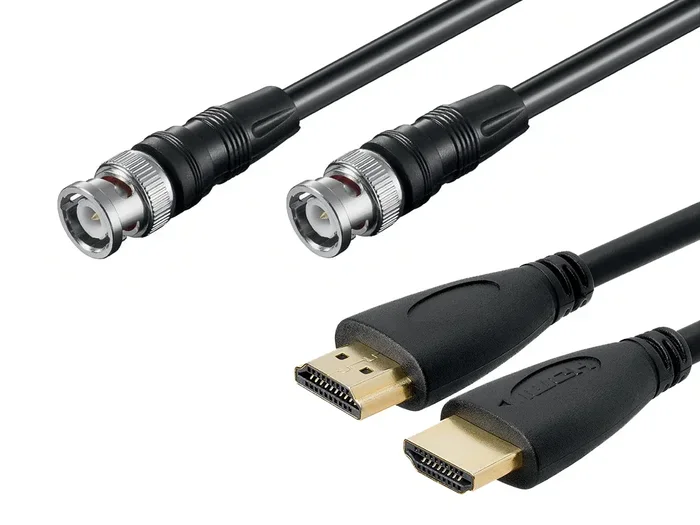
- Attach a BNC cable from the converter’s SDI output to your SDI display or switcher.
- If the converter has power, plug it in. Some boxes are powered by the HDMI connection (bus-powered), while others need a wall adapter.
- Power on the source device first, then the converter, then the display.
- Check the SDI monitor for a stable picture and audio.
Quick Tip: Label your cables at both ends. In a complex setup, it is easy to confuse HDMI and SDI lines. A simple piece of tape can save you from a head-scratching troubleshooting session later.
Troubleshooting Common Issues
If you see no picture, check these common problems:
- No signal on SDI: Ensure the BNC cable is tight and the converter is powered. A loose BNC connector is the most common cause of no signal.
- Black screen with audio: The EDID might be mismatched. Try pressing the EDID button on the converter or forcing a resolution in your source settings.
- HDCP error: Your source is protected. Use a converter that handles HDCP or disable copy protection in the source device settings if legally allowed.
- Flickering or dropouts: The cable might be too long or of poor quality. Use a shorter cable or an active signal booster.
- No audio on SDI output: Check if the converter supports audio embedding and if the source is outputting audio through HDMI.
Most issues resolve with basic checks. Patience and a systematic approach save hours of frustration. Start with the simplest explanation—a loose cable or a missing power supply—before diving into complex settings.
Expert Insight: In broadcast environments, always test the full signal chain end-to-end before going live. A converter that works at the store might fail under real-world conditions with multiple splits and long cable runs. A quick five-minute test can prevent a disaster during a live show.
Common Mistakes And Expert Tips
Even with the right converter, mistakes can ruin a setup. Here are the most common pitfalls and how to avoid them. Learning from others’ mistakes is the fastest way to get it right.
Buying The Wrong Converter Type
The biggest mistake is buying a passive adapter when you need an active converter. Passive adapters do not re-clock the signal and fail beyond a few feet. They also cannot handle 4K bandwidth. Always verify whether your setup requires active conversion. If you are running cables longer than 10 feet, go active.
Expert Insight: Many users assume “HDMI to SDI cable” means a simple cable. In reality, it is an active electronic device. Treat it like a small computer that needs power and proper cooling. Do not enclose it in a tight metal box without ventilation.
Ignoring Cable Quality And Distance
Cheap coaxial cables cause signal loss and intermittent dropouts. Use quality SDI cable with proper shielding. For runs over 100 feet, consider an SDI signal extender or a fiber converter. Fiber optic SDI links can travel kilometers without any loss. They are the ultimate solution for long-distance video conversion in large venues and stadiums.
Quick Tip: Keep your SDI cables away from power cables. Electromagnetic interference can degrade the signal, especially with long runs. Use cable ties and cable trays to keep your setup clean and organized.
Mismatching SDI Standards And Frame Rates
Another common mistake is connecting an HD-SDI source to a 3G-SDI display without a converter that can handle the bandwidth difference. Or running a 4K 60Hz signal through a 6G-SDI converter that only supports 4K 30Hz. Always double-check the specifications of every device in the chain. A single mismatch can cause a black screen or a downscaled image that nobody notices until it is too late.
Expert Insight: Keep a cheat sheet of your gear’s SDI standards and maximum resolutions taped inside your equipment case. It is a small habit that prevents big headaches during live productions.
Quick Tip: Before any important event, run a test pattern through the entire chain. Many SDI generators can output standard test patterns that reveal signal issues instantly. A five-minute test can save a live broadcast.
Conclusion
Can HDMI be converted to SDI? Absolutely, and it opens up a world of possibilities for connecting consumer devices to professional gear. Whether you use a standalone HDMI to SDI converter, an SDI over HDMI cable, or a network encoder, the key is choosing the right type for your needs. Match the SDI standard to your resolution, ensure audio embedding works, and always use quality cables.
With the right HDMI to SDI converter, your setup becomes more flexible and future-proof. You can connect any HDMI source to any SDI display without hassle. Take your time, follow the setup steps, and avoid the common mistakes outlined above. Your video conversion workflow will run smoothly and reliably.
Now you have everything you need to bridge the gap between HDMI and SDI. Go build your setup with confidence, and enjoy the freedom of connecting any device to any display.
Frequently Asked Questions
What does HDMI to SDI conversion actually do?
It takes the HDMI video and audio signal and re-transmits it as a serial digital signal (SDI) that professional equipment can understand. The converter chip handles the translation in real time, including EDID and HDCP handshake, so your source device and display communicate correctly.
Do I need an active or passive HDMI to SDI converter?
You almost always need an active converter. Active converters re-clock and boost the signal, allowing long cable runs and reliable 4K performance. Passive adapters only work for very short distances and are not suitable for professional setups.
Can I convert 4K HDMI to SDI?
Yes, but you need a converter that supports the correct SDI standard. For 4K at 60Hz, you need a 12G-SDI converter. For 4K at 30Hz, a 6G-SDI or 3G-SDI converter will work. Always check the converter’s specifications before purchasing.
Will the converter handle audio as well?
Most modern converters embed audio from the HDMI source into the SDI stream. Some also provide a return audio channel for monitoring. Check the product specs to confirm it supports audio embedding if that is important for your workflow.
How long can an SDI cable be after conversion?
With an active converter, SDI cables can run 100 feet or more without signal loss. For even longer distances, you can use SDI signal extenders or fiber optic converters that can transmit the signal over kilometers.
Is HDMI to SDI conversion legal?
Yes, using a converter to connect different video standards is perfectly legal. However, bypassing HDCP copy protection may violate copyright laws in some regions. Always use converters that comply with HDCP when playing protected content.