How Do I Connect My Bluetooth To My TV With Simple Steps
Connecting Bluetooth to your TV is easier than most people think. Whether your TV has built-in Bluetooth or you need a transmitter, this guide walks you through every step. You will learn how to pair headphones, speakers, and soundbars wirelessly in minutes.
There is nothing better than settling onto your couch and enjoying your favorite show with wireless audio. But when you want to connect Bluetooth to TV, things can feel confusing fast. You might wonder if your TV even supports it, what equipment you need, or why your headphones keep disconnecting.
This guide answers all of those questions and more. I will walk you through every method step by step. Whether you own a Samsung, LG, Sony, or any other brand, you will find the right path here. By the end, you will know exactly how to connect my Bluetooth to my TV without frustration.
We will cover built-in Bluetooth, external adapters, transmitters, receivers, and common troubleshooting tips. I will also share practical advice from real-world use so you do not waste time on methods that do not work. Let us get started.
Key Takeaways
- Check for built-in Bluetooth first before buying extra hardware.
- A Bluetooth transmitter is the most common solution for TVs without native Bluetooth support.
- Pairing is usually a 3-step process: turn on Bluetooth, put your device in pairing mode, and select it on your TV.
- Audio delay or lip sync issues are common but fixable with simple settings adjustments.
- Keep your Bluetooth devices close to your TV for the best connection quality.
- Not all Bluetooth headphones work with TVs — check codec and latency compatibility.
- A Bluetooth adapter can make any TV wireless-ready without expensive upgrades.
📑 Table of Contents
Why Connect Bluetooth to Your TV?
More people are cutting the cord on wired audio. Bluetooth offers freedom of movement, cleaner setups, and the ability to share audio with multiple devices. Here are the main reasons you might want to go wireless.
- No more tangled cables running across your living room floor.
- Listen at night without disturbing anyone using wireless headphones.
- Connect a wireless speaker or soundbar for better audio quality.
- Move freely around the room while still hearing your TV audio.
- Use your existing Bluetooth headphones instead of buying new ones.
Many people also want to listen to their Samsung TV with Bluetooth headphones while others sleep. This is one of the most popular use cases, and it is very achievable with the right setup. Wireless audio also works great for gaming, where low audio latency can make a big difference in your experience.
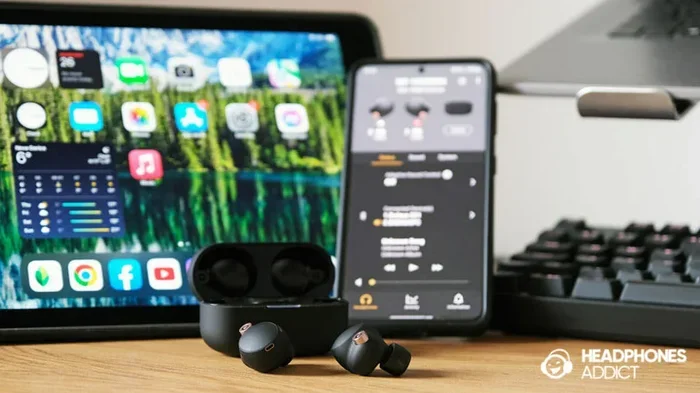
If you have ever tried pairing AirPods to a TV or connecting a wireless speaker, you know it is not always plug-and-play. Different TVs use different Bluetooth versions, and not every device plays nicely together. That is why understanding your options matters.
Check If Your TV Has Built-In Bluetooth
Before buying any extra gear, the first step is simple. Check whether your TV already supports Bluetooth. Most modern smart TVs from the last five years include it, but older models may not.
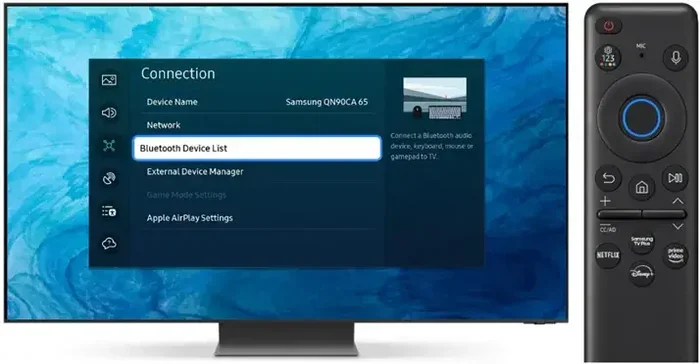
How to Find Your TV’s Bluetooth Settings
Finding the Bluetooth setting on your TV is usually straightforward. Here is what to do:
- Open your TV’s Settings menu. Use your remote to navigate to the gear icon or Settings.
- Look for Sound, Audio, or Connections. Different brands organize these differently.
- Find the Bluetooth option. It may be labeled “Bluetooth Audio,” “Wireless Audio,” or “Bluetooth Connection.”
- Turn Bluetooth on. Your TV will start searching for nearby devices.
On Samsung TVs, you will usually find this under Settings > Sound > Sound Output > Bluetooth Speaker List. On LG TVs, it is Settings > Sound > Sound Out > Bluetooth Device. Sony TVs often have it under Settings > Network & Accessories > Bluetooth.
Once you confirm your TV has built-in Bluetooth, you can skip ahead to the pairing section. If your TV does not have Bluetooth, do not worry. There are affordable solutions that work great.
What If Your TV Does Not Have Bluetooth?
This is more common than you might think. Many reliable TVs still do not include Bluetooth, especially budget models or older sets. The good news is you have several options to add wireless capability.
Using a Bluetooth Transmitter
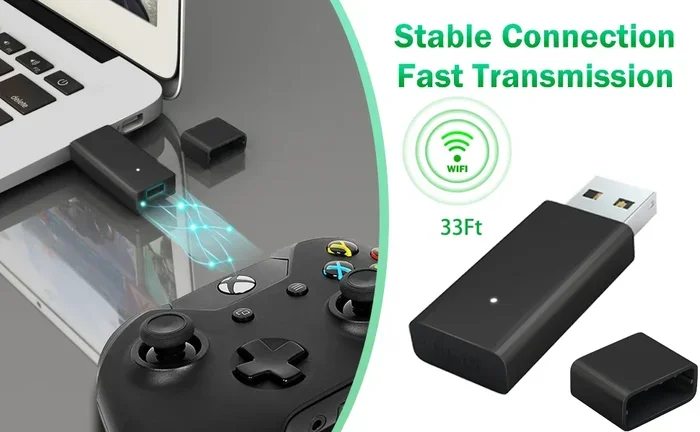
A Bluetooth transmitter is the most popular way to add Bluetooth to a TV without it. This small device plugs into your TV’s audio output and sends a wireless Bluetooth signal to your headphones or speaker.
You will need to connect the transmitter to your TV using one of these cables:
- 3.5mm audio cable — plugs into the headphone jack if your TV has one.
- RCA audio cable — connects to the red and white audio ports.
- Optical audio cable — offers the best sound quality for digital audio output.
- HDMI ARC — some transmitters connect through HDMI for a clean setup.
Most Bluetooth transmitters cost between $15 and $40. They are small, easy to set up, and work with almost any TV. One thing to watch for is audio latency. Some cheap transmitters have a noticeable delay between the video and audio, which can be annoying during movies or shows.
Look for a transmitter that supports aptX Low Latency or aptX HD codecs. These reduce the delay significantly. If you plan to use a USB Bluetooth dongle on your TV, make sure your TV has a compatible USB port and supports the dongle’s drivers.
Using a Bluetooth Receiver
A Bluetooth receiver works differently from a transmitter. While a transmitter sends audio out wirelessly, a receiver takes a wireless signal in. Some soundbars and audio systems use Bluetooth receivers to accept connections from phones and tablets.
For connecting a phone or tablet to a TV, a receiver approach is less common. But if your TV has a USB port or a 3.5mm input, a Bluetooth receiver can work as a bridge. This method is less typical for TV setups, but it does have its uses.
If you want to make your TV Bluetooth with an adapter, a transmitter is almost always the better choice. Receivers are more useful when you want a TV or stereo to act as a Bluetooth speaker for another device.
How to Pair Your Bluetooth Device to Your TV
Once you have confirmed Bluetooth is available — either built into your TV or added through a transmitter — the pairing process is straightforward. Here is exactly how to do it.
Step-by-Step Pairing Process
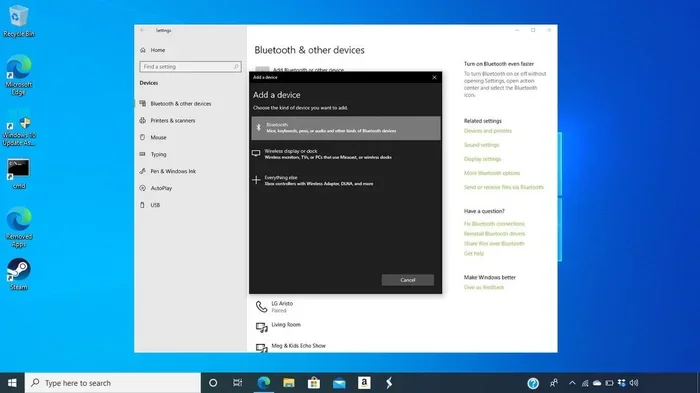
- Turn on Bluetooth on your TV. Go to your TV’s Bluetooth settings and enable it. Your TV will now be visible to other devices.
- Put your Bluetooth device in pairing mode. For headphones, this usually means holding down the power button or a dedicated Bluetooth button until a flashing light appears.
- Search for devices on your TV. Your TV will scan for nearby Bluetooth devices. Select your headphones, speaker, or soundbar from the list.
- Confirm the connection. Some devices require a PIN, often 0000 or 1234. Others connect automatically.
- Test the audio. Play something on your TV and check if you hear sound through your Bluetooth device.
Most Bluetooth pairing processes take less than a minute once both devices are ready. If your TV does not find your device, make sure the device is close enough and in pairing mode. Bluetooth range is typically about 30 feet, but walls and furniture can reduce that distance.
For those wondering whether any Bluetooth headphones work with a TV, the answer is mostly yes. However, some headphones use codecs that certain TVs do not support. If you experience crackling audio or poor sound quality, try switching codecs in your Bluetooth transmitter settings if it supports that feature.
Many users also ask about connecting a phone to an HDMI TV or using USB cables instead. While those methods work for screen mirroring and file transfer, Bluetooth remains the simplest path for wireless audio alone. You do not need to mirror your screen — you just need the audio to follow.
Common Problems and How to Fix Them
Bluetooth connections are not always perfect. Here are the most common issues people face when trying to connect Bluetooth to TV, and how to solve them.
Audio Delay and Lip Sync Issues
This is the number one complaint with wireless TV audio. You see the person’s mouth move, but the sound comes a fraction of a second later. It can be distracting and ruin your viewing experience.
Here is how to fix it:
- Use a transmitter with low-latency codecs like aptX LL (Low Latency).
- Adjust your TV’s audio delay settings. Many TVs have an “Audio Delay” or “Lip Sync” option under sound settings.
- Reduce the distance between your Bluetooth device and the TV or transmitter.
- Remove obstacles between the devices. Walls and furniture weaken the signal.
- Check if other wireless devices are interfering. Wi-Fi routers and microwaves can disrupt Bluetooth signals.
If you are using Bluetooth headphones with a PS4 or other gaming console, latency is even more important. A transmitter with aptX LL will make a noticeable difference in gaming and fast-action content.
Connection Keeps Dropping
A Bluetooth connection that drops frequently is frustrating. Here are the usual causes and fixes:
- Your device is too far away. Stay within 30 feet of the TV for best results.
- Bluetooth is overloaded. If too many devices are connected, disconnect ones you are not using.
- Firmware is outdated. Check for updates for both your TV and your Bluetooth device.
- Interference from other electronics. Move your Bluetooth transmitter away from USB 3.0 ports and other wireless devices.
- Reset both devices. Turn Bluetooth off on both, wait 10 seconds, and turn it back on.
If you are trying to connect two monitors to your laptop with only one HDMI port, you know how annoying connection issues can be. Bluetooth drops can feel similar — annoying but usually fixable with a few simple steps.
Your TV Does Not Detect the Bluetooth Device
Sometimes your TV simply will not find your headphones or speaker. Try these solutions:
- Make sure your device is in pairing mode. Most devices only stay in pairing mode for a few minutes.
- Turn Bluetooth off and on again on both the TV and the device.
- Remove old pairings. Delete the device from both the TV’s and the headphones’ Bluetooth memory, then try again.
- Restart both devices. A simple reboot can clear up connection issues.
- Check for compatibility. Not all Bluetooth headphones work with all TVs. Check the manufacturer’s specifications.
For Samsung TV owners, you may want to check if you can listen to your Samsung TV with Bluetooth headphones using the specific Samsung Bluetooth settings menu. Some Samsung models require you to enable Bluetooth in a hidden settings menu accessible by typing a code on your remote.
Tips for the Best Bluetooth Audio Experience on Your TV
Once you have your Bluetooth connected, a few simple tips can make a big difference in sound quality and reliability.
Choose the Right Bluetooth Codec
Bluetooth codecs determine audio quality and latency. The most common ones are:
- SBC — the default codec. Works everywhere but offers average quality.
- aptX — better quality than SBC. Widely supported.
- aptX Low Latency — best for video because it reduces audio delay.
- aptX HD — high-resolution audio. Great for music and movies.
- LDAC — Sony’s codec. Offers excellent quality but uses more battery.
If your transmitter and headphones both support aptX Low Latency, use it for watching TV. For music listening, aptX HD or LDAC may be better choices.
Keep Your Devices Updated
Firmware updates often improve Bluetooth performance and fix bugs. Check for updates on your TV, your Bluetooth transmitter, and your headphones regularly. A simple update can solve connection problems you did not even know were caused by outdated software.
Manage Your Device List
Most TVs remember multiple Bluetooth devices. Over time, this list can get cluttered. Go through your TV’s Bluetooth settings and remove devices you no longer use. This keeps the connection list clean and can improve detection speed.
Consider a Dedicated Bluetooth Audio System
If you are serious about audio quality, consider a dedicated wireless soundbar or a Bluetooth-enabled AV receiver. These devices are designed to work with TVs and often provide better sound than headphones alone. You can also turn your stereo into Bluetooth using a simple adapter if you already own a wired stereo system.
For car owners, the same principles apply. You can make your car radio Bluetooth capable with a transmitter or receiver, just like you would for a TV. The technology is the same — it is all about bridging the gap between wired and wireless.
Final Thoughts
Connecting Bluetooth to your TV does not have to be complicated. Whether your TV has built-in Bluetooth or you need a transmitter, the process is simple once you know what to do. Start by checking your TV’s capabilities, then choose the right method for your setup.
Remember that audio delay is the most common complaint, and investing in a transmitter with low-latency codecs is the best way to avoid it. Keep your devices updated, manage your paired device list, and stay within range for the most reliable connection.
Wireless audio on your TV opens up a world of convenience. You can watch movies late at night with headphones, move around the room freely, and enjoy cleaner setups without cables everywhere. Once you make the switch, going back to wired audio feels like a step backward.
Now that you know how to connect my Bluetooth to my TV with confidence, you are ready to set up your wireless audio. Follow the steps in this guide, and you will be enjoying your favorite content without wires in no time.
Frequently Asked Questions
Can I connect any Bluetooth headphones to my TV?
Most Bluetooth headphones will work with TVs that have built-in Bluetooth. However, some headphones use codecs that certain TVs do not support. If you experience issues, check that both your TV and headphones support the same Bluetooth codec for the best results.
How do I connect Bluetooth to my TV without built-in Bluetooth?
You can use a Bluetooth transmitter that plugs into your TV’s audio output. Connect it using a 3.5mm cable, RCA cable, or optical cable depending on what your TV has available. The transmitter then sends the audio wirelessly to your Bluetooth headphones or speaker.
Why is there a delay between the video and audio when using Bluetooth?
Bluetooth audio delay, also called latency, happens because wireless signals take slightly longer to transmit than wired connections. Using a transmitter that supports aptX Low Latency can significantly reduce this delay. You can also adjust the audio delay settings in your TV’s sound menu.
Can I connect multiple Bluetooth devices to my TV at once?
Some smart TVs support multiple Bluetooth connections, but most only connect to one audio device at a time. If you want to share audio with a friend, look for TVs or transmitters that support multipoint pairing, which allows two devices to connect simultaneously.
Does Bluetooth affect TV picture quality?
No. Bluetooth only transmits audio, so it has no effect on your TV picture quality. The video signal remains unchanged whether you use Bluetooth or wired audio connections.
What is the best Bluetooth transmitter for TV?
The best transmitter depends on your needs. Look for one that supports aptX Low Latency if you watch a lot of video. Check that it has the right audio output ports for your TV, such as 3.5mm, RCA, or optical. Brands like Avantree, 1Mii, and TaoTronics are popular and reliable choices.