Do All Printers Come With A Usb Cable Or Do You Need One
Do all printers come with a USB cable? The answer is no. Most printer brands do not include a USB cable in the box, and you will likely need to buy one separately. Knowing what comes with your printer before you buy it saves time and frustration. This guide covers which brands include cables, what to look for, and how to connect your printer the right way.
Do all printers come with a USB cable? This is a question that trips up a lot of people, especially when they are setting up a new printer for the first time. You unbox the printer, excited to start printing, and then you realize there is no cable in sight. It is a frustrating moment, but it happens more often than you might think.
The truth is that most printer manufacturers do not include a USB cable in the box. They assume you already have one or that you will buy one separately. This practice is common across many brands and printer models. In this guide, we will walk you through everything you need to know about printer cables, what comes in the box, and how to get your printer connected without any headaches.
Whether you are buying a home printer or a big office machine, understanding printer connectivity before you make a purchase saves you time and money. Let us dive in and clear up the confusion once and for all.
Key Takeaways
- Most printers do not include a USB cable: Major brands like HP, Canon, Epson, and Brother often leave the USB cable out of the box.
- Check the product listing before you buy: The box details or product page will tell you if a cable is included.
- USB Type-B cables are standard for printers: Make sure you buy the right type, not a regular phone charger cable.
- Wireless printers offer cable-free options: Wi-Fi and Bluetooth let you print without any cable at all.
- USB cables serve double duty: They handle both data transfer and power in most printer setups.
- Buying a cable is cheap and easy: A good USB printer cable costs between $5 and $15.
📑 Table of Contents
- What Is Actually Inside the Printer Box
- Which Printer Brands Include USB Cables
- How to Connect a Printer Without a USB Cable
- USB Printer Cable Types You Should Know
- Wireless vs Wired Printer Connections
- Common Mistakes People Make When Setting Up a Printer
- Quick Tips for a Smooth Printer Setup
- The Role of Printer Drivers and Software
- How to Tell If You Need a USB Cable
- Where to Buy a USB Cable for Your Printer
- Final Thoughts
What Is Actually Inside the Printer Box
When you buy a new printer, the box usually contains the printer itself, a power cord, a few ink or toner cartridges, a setup CD or a link to download software, and a quick start guide. What is often missing is the USB cable. Many people assume the cable is inside because they do not see it listed on the outside of the box.
Typical Items Included in Printer Packaging
- The printer unit
- A power cord for the printer
- Ink cartridges or toner (pre-installed or in a separate pack)
- A quick start guide or setup manual
- A CD with drivers and software (on older models)
- A USB cable (only on some models)
Notice that the USB cable is listed as an optional item. This is because printer companies treat it as an accessory, not a core part of the printer. Some higher-end models or all-in-one printers may include a USB cable, but this is not the norm. Always check the product listing or the box details before you assume a cable is included.
Why Manufacturers Leave the Cable Out
There are a few reasons printer makers do this. First, not everyone needs a USB cable. Many users prefer wireless printer setup through Wi-Fi or Bluetooth. Second, including cables adds to the cost of the printer, and companies want to keep prices competitive. Third, they assume you already have a USB cable lying around from another device. While this assumption is not always fair, it drives their packaging decisions.
Which Printer Brands Include USB Cables
Not every brand follows the same rules. Some printer companies include USB cables in the box, while others do not. Here is a closer look at how different printer models handle this.
HP Printers
HP is one of the most popular printer brands, and their packaging varies. Most HP home printers do not include a USB cable. However, some business-class HP models, especially those sold as part of a bundle, may come with one. Always check the product description on the HP website or the retailer’s page for details.
Canon Printers
Canon printers follow the same trend. Most Canon consumer printers do not include a USB cable. The power cord is there, but the data cable is not. Canon does include a short USB cable with some of their photo printers, but this is not standard across their lineup.
Epson Printers
Epson is another brand that usually leaves the USB cable out. Their printers come with a power cord and all the essentials except the data connection cable. Epson does include a USB cable with a few of their EcoTank models, but you should not count on it.
Brother Printers
Brother printers are similar to the rest. Most Brother models ship without a USB cable. The company includes a power cord and all the necessary components for setup, but you will need to buy a USB cable on your own if you want a wired connection.
Budget vs. Premium Printers
Budget printers are the least likely to include a USB cable. Premium and business printers sometimes include one, especially when sold as part of a complete package. If having a USB cable included matters to you, look for printer bundles or check the specifications carefully before purchasing.
How to Connect a Printer Without a USB Cable
If your printer does not come with a USB cable, you are not stuck. There are several printer connection options that work without any cable at all. Let us explore them.
Wi-Fi Printing
Most modern printers support Wi-Fi connectivity. This means you can connect your printer to your home network and print from any device on the same network. The setup process usually involves downloading the printer app, following the on-screen prompts, and entering your Wi-Fi password. Once connected, you can print from your phone, tablet, or laptop without touching a single cable.
Wi-Fi printing is convenient, but it does come with some trade-offs. The print speed may be slower than a wired connection. Also, the quality of your wireless printer setup depends on your router and the printer connectivity hardware inside the device. If you have a weak Wi-Fi signal in the room where your printer sits, you may run into printer connectivity issues.
Bluetooth Printing
Some printers support Bluetooth, which lets you print directly from your phone or tablet without needing a Wi-Fi network. This is great for quick prints on the go. Bluetooth printing works over short distances, so you need to be within range of the printer.
Ethernet Connection
For office environments, an Ethernet cable provides a fast and stable connection. Many office printers come with an Ethernet port built in. You just plug the printer directly into your router or network switch, and you are good to go. Ethernet is more reliable than Wi-Fi for heavy printing tasks.
Cloud Printing
Cloud printing lets you send print jobs over the internet, even if you are not on the same local network. Services like Google Cloud Print (now built into Chrome OS and Google apps) and Apple AirPrint make this possible. You can send a print job from anywhere in the world as long as your printer is connected to the internet.
For offices using a value-added network, printer connectivity can work differently than a standard home setup. These networks add extra layers of security and management, which can affect how your printer communicates with other devices on the network.
USB Printer Cable Types You Should Know
If you do need to buy a USB cable for your printer, it is important to get the right one. Not all USB cables are the same, and using the wrong one can cause problems.
USB Type-A to Type-B
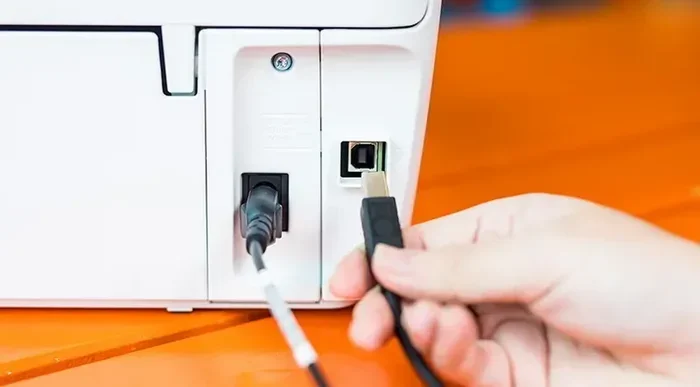
This is the standard cable for most printers. One end is a flat USB Type-A plug that goes into your computer. The other end is a square USB Type-B plug that goes into the printer. This cable handles both data transfer and power, which is why it is the go-to choice for printer connections.
USB Type-C
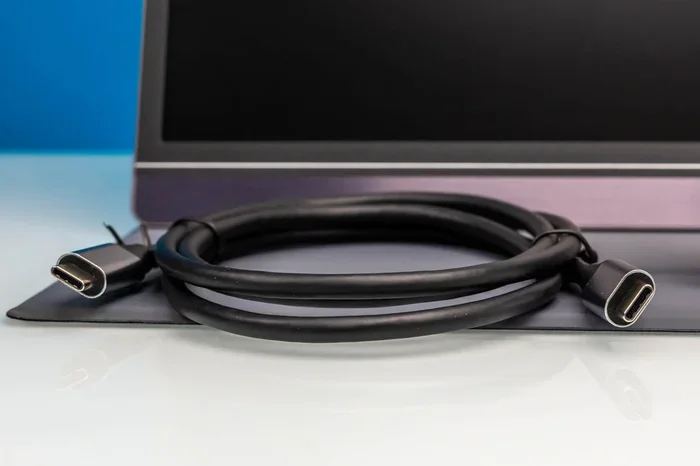
Some newer printers use USB Type-C ports. These cables are smaller and reversible, making them easier to plug in. If your printer has a USB Type-C port, make sure you buy a cable that matches. Using an old USB Type-A to Type-B cable will not work with a Type-C port.
USB Mini and Micro
You may come across older printers that use USB Mini or Micro connectors. These are less common today, but they still exist in some budget and older models. Check your printer manual to confirm the port type before buying a cable.
How to Choose the Right Cable Length
Think about where you will place your printer. If it is close to your computer, a short 3-foot cable works fine. If your printer sits farther away, go for a longer cable, like 6 or 10 feet. Avoid extremely long cables unless you need them, as longer cables can weaken the signal and slow down printing.
The quality of your setup also depends on the printer accessories you choose. A good-quality cable from a reputable brand will last longer and provide a more stable connection than a cheap knockoff.
Wireless vs Wired Printer Connections
Deciding between a wireless and wired printer connection is an important choice. Both options have pros and cons, and the right choice depends on your needs.
Pros and Cons of USB Wired Connections
- Faster transfer speeds: USB connections are generally faster than Wi-Fi for large print jobs.
- More stable connection: You do not have to worry about Wi-Fi drops or signal interference.
- Better for security: A wired connection is harder for outsiders to access.
- Simple setup: Plug in the cable and the computer usually recognizes the printer right away.
- Limited mobility: You are tied to the length of your cable, which can be restrictive.
- Cable clutter: Extra cables on your desk can look messy.
Pros and Cons of Wireless Connections
- Freedom to place the printer anywhere: As long as there is Wi-Fi coverage, you can set up the printer wherever you want.
- Multiple device support: Everyone in the household or office can print from their own device.
- Cleaner setup: No cables to manage.
- Convenient for mobile devices: Print directly from your phone or tablet.
- Slower speeds: Wi-Fi printing can be slower, especially for large documents.
- Potential connectivity issues: Wi-Fi interference, router problems, and signal drops can cause frustration.
Which One Should You Choose?
If you need fast, reliable printing for important documents, a wired USB connection is hard to beat. If you value convenience and flexibility, wireless printing is the way to go. Many people use both methods, keeping a USB cable handy for big jobs and using Wi-Fi for everyday printing.
The printer wireless vs wired debate really comes down to your personal workflow. Think about how you print, where your printer sits, and what devices you use most often.
Common Mistakes People Make When Setting Up a Printer
Setting up a printer seems simple, but people make mistakes all the time. Here are some common errors to avoid.
Assuming the Cable Is Included
This is the biggest mistake. Many people buy a printer, get home, and then realize there is no USB cable in the box. Always check the product listing or the box contents before you buy. If a cable is not listed, assume you need to buy one separately.
Buying the Wrong Cable Type
Not every USB cable works with every printer. A phone charging cable will not work for printing because it lacks the data transfer capability you need. Make sure you buy a USB printer connection cable with the right connector types for your printer and computer.
Ignoring Driver Installation
Even with the right cable, your printer will not work if you skip the driver installation. Drivers are the software that lets your computer talk to the printer. Some printers use a proprietary operating system for their driver software, which means you need to download the correct driver from the manufacturer’s website. Skipping this step is one of the top causes of printer troubleshooting headaches.
Placing the Printer Too Far from the Router
If you are using a wireless connection, distance matters. A printer that is too far from your Wi-Fi router may have weak signal strength, leading to slow print speeds or dropped connections. Try to place your printer within a reasonable range of your router for the best results.
Not Checking the Printer Port
Before you buy a cable, check what kind of port your printer has. Modern printers use USB Type-B or USB Type-C. Older printers may use USB Mini or Micro. Using the wrong cable means you will be back at the store, and that wastes time and money.
Forgetting the Power Cable
It sounds obvious, but some people forget that printers need a power cable too. Most printers come with a power cord, but not all of them do. Check the box contents to make sure you have everything you need to plug in and turn on your printer.
Quick Tips for a Smooth Printer Setup
Here are some practical tips to make your printer setup go as smoothly as possible.
- Read the box contents list before you buy the printer. If a USB cable is not listed, add one to your shopping cart.
- Buy a high-quality USB cable from a reputable brand. A $5 cable from an unknown brand may cause connection problems.
- Download the latest drivers from the manufacturer’s website before you connect the printer. This ensures compatibility and smooth performance.
- Test your connection with a test print before you start a big job. This helps you catch any issues early.
- Keep your cables organized with cable ties or a cable management box. This keeps your workspace clean and reduces the risk of accidentally unplugging your printer.
- Update your printer firmware regularly. Manufacturers release updates that fix bugs and improve printer connectivity.
- Use the right cable length for your setup. Too short means you cannot reach; too long creates clutter and potential signal loss.
The Role of Printer Drivers and Software
Printer drivers are the bridge between your computer and your printer. Without the right driver, your computer cannot communicate with the printer, even if you have the perfect USB cable plugged in. When you buy a new printer, the first thing you should do after unboxing is visit the manufacturer’s website and download the latest driver for your specific model.
Some printer brands bundle their drivers with a full software suite that includes scanning tools, photo editing, and ink management features. Others keep their software minimal, giving you just the essentials. The printer setup requirements vary from brand to brand, so it is always a good idea to check the manufacturer’s support page for the most up-to-date software.
For the best printer compatibility, make sure your operating system is supported by the driver. Most manufacturers support the latest versions of Windows, macOS, and Linux, but older operating systems may not be compatible with the newest drivers. This is especially important if you are using an older computer with a new printer.
When you plug in your USB cable and the computer does not recognize the printer, the first thing to check is the driver. Nine times out of ten, the problem is a missing or outdated driver, not a faulty cable. Printer troubleshooting starts with the software, not the hardware.
How to Tell If You Need a USB Cable
Not sure if you need a USB cable for your printer? Here are some signs that you do.
- You want to print from a laptop or desktop computer.
- Your Wi-Fi connection is unstable or too slow for your needs.
- You are printing large files, like high-resolution photos or PDFs.
- You want the fastest possible print speed.
- You are setting up the printer for the first time and the wireless setup is not working.
- You are in an environment where wireless printing is not allowed or practical.
If none of these apply to you, you might be fine without a USB cable. Many people today rely entirely on wireless printing and never touch a cable. But it is always smart to have a USB cable on hand, just in case.
Where to Buy a USB Cable for Your Printer
USB printer cables are easy to find and affordable. You can buy them at most electronics stores, office supply shops, and online retailers. Here are some places to look.
- Amazon: Wide selection, fast shipping, and competitive prices.
- Walmart or Target: Good for picking up a cable the same day.
- Best Buy: Helpful staff who can guide you to the right cable.
- Manufacturer’s website: Some brands sell their own branded cables, which guarantees compatibility.
- Office supply stores: Staples, Office Depot, and similar stores carry a good selection of printer cables.
A basic USB printer cable costs between $5 and $15. Premium cables with better shielding and faster data transfer rates may cost a bit more, but for most home and office setups, a standard cable works perfectly fine. The printer cable types you need to look for are USB Type-A to Type-B or USB Type-A to Type-C, depending on your printer model.
When shopping for a cable, look for one that is well-shielded and has good reviews. A cheap, poorly made cable can cause intermittent connection problems, which leads to wasted time and missed print jobs. Investing in a decent cable is a small price to pay for a reliable printing experience.
Final Thoughts
So, do all printers come with a USB cable? The clear answer is no. Most printers, regardless of brand, do not include a USB cable in the box. You will need to buy one separately if you want a wired connection. This is standard practice across the industry, and it applies to most printer models from HP, Canon, Epson, Brother, and others.
That said, you are not limited to USB cables. Wireless printing through Wi-Fi, Bluetooth, and cloud services gives you plenty of options to connect your printer without any cable at all. The best choice depends on your setup, your workflow, and your personal preferences.
Before you buy a printer, take a moment to check the box contents and product listing. Know what is included and what you need to purchase separately. This small step saves you time, frustration, and an extra trip to the store. With the right cable and the right setup, your printer will be up and running in no time.
Understanding your printer setup requirements and printer connection options puts you ahead of most people. You will walk into your next printer purchase knowing exactly what to expect and what to do. That confidence makes the whole process smoother and more enjoyable.
Keep this guide handy for your next printer setup. Share it with friends and family who might be struggling with the same question. And remember, whether you go wired or wireless, the best printer is the one that fits your needs and works reliably every time you hit the print button.
Frequently Asked Questions
Do all printers come with a USB cable in the box?
No, most printers do not include a USB cable. Major brands like HP, Canon, Epson, and Brother typically leave the USB cable out of the packaging. Always check the product listing before you buy to confirm what is included.
What kind of USB cable do I need for a printer?
Most printers use a USB Type-A to Type-B cable. Some newer models use USB Type-C. Check your printer manual or the manufacturer’s website to confirm the correct cable type for your specific model.
Can I use a phone charger cable to connect my printer?
No, a phone charger cable usually only has power wires and lacks the data transfer wires needed for printing. You need a proper USB printer cable that supports data transfer between your computer and the printer.
How do I set up a printer without a USB cable?
You can set up most modern printers using Wi-Fi or Bluetooth. Download the printer manufacturer’s app, follow the setup prompts, and connect the printer to your home network. Cloud printing services also let you print without any physical cable.
Are USB printer cables expensive?
No, USB printer cables are very affordable. A basic cable costs between $5 and $15. You can find them at most electronics stores, office supply shops, and online retailers like Amazon.
What should I do if my computer does not recognize the printer after plugging in the USB cable?
First, make sure you have installed the correct printer drivers from the manufacturer’s website. If the drivers are up to date and the computer still does not recognize the printer, try a different USB port or test the cable with another device to rule out a faulty cable.