Can I Daisy Chain Usb C To Displayport You Will Be Surprised
Yes, you can daisy chain USB C to DisplayPort, and the results may surprise you. This setup lets you connect multiple monitors through a single USB-C port using DisplayPort Alt Mode and Thunderbolt technology. Whether you are a remote worker, gamer, or creative professional, understanding how USB-C daisy chaining works can simplify your multi-monitor setup dramatically.
Have you ever looked at your laptop and thought, “I wish I could connect more than one monitor without a mess of cables”? Well, here is some good news. You can daisy chain USB C to DisplayPort, and the process is easier than most people expect. This simple technique lets you run multiple displays from a single USB-C port on your computer.
The idea of USB-C daisy chaining might sound technical, but it is really quite straightforward. Whether you are working from home, editing videos, or just want more screen space, this setup can change the way you work. In this guide, we will walk you through everything you need to know. You will learn what daisy chaining means, what hardware you need, and how to set it up step by step.
Many people do not realize that their USB-C port can do more than charge their laptop or transfer files. With the right setup, it can also power multiple displays. By the end of this article, you will have a clear picture of how USB-C to DisplayPort daisy chaining works and whether it is right for you.
Key Takeaways
- USB-C daisy chaining to DisplayPort is possible: You can connect multiple monitors through one port using the right cables and adapters.
- Thunderbolt 3 and 4 make it seamless: These technologies provide the bandwidth needed for reliable multi-monitor setups.
- You need compatible hardware: Not all USB-C ports support video output, so check your device first.
- Setup is simpler than most people think: With the right guide, you can have your monitors running in minutes.
- Avoid common pitfalls: Using wrong cables or exceeding bandwidth limits can cause display issues.
- USB-C hubs and docking stations help: They expand your connectivity options and make daisy chaining practical.
📑 Table of Contents
- What Does It Mean to Daisy Chain USB C to DisplayPort?
- How USB-C Daisy Chaining Works
- What You Need for USB-C to DisplayPort Daisy Chaining
- Step-by-Step Guide to Daisy Chaining Your Monitors
- Common Mistakes to Avoid
- Expert Tips for the Best Daisy Chain Experience
- Comparing Daisy Chaining vs. Using a Docking Station
- Final Thoughts on USB-C to DisplayPort Daisy Chaining
What Does It Mean to Daisy Chain USB C to DisplayPort?
Understanding the Basics
Daisy chaining means connecting multiple devices in a line, one after another. In the display world, this means linking two or more monitors together using a single output from your computer. The signal flows from your laptop through one cable to the first monitor, then from that monitor to the next one, and so on.
When we talk about USB-C to DisplayPort daisy chaining, we mean using a USB-C port that supports video output to connect a series of monitors. The key technology behind this is called DisplayPort Alt Mode. This feature allows USB-C ports to carry a DisplayPort signal directly. Without it, your USB-C port would only handle data and power, not video.
Think of it like a chain of lights. The power source plugs in once, and each light connects to the next one in line. That is essentially what happens with USB-C daisy chain monitors. One cable from your computer feeds into the first monitor, and then a second cable runs from the first monitor to the second one.
Why People Want This Setup
The appeal of USB-C monitor daisy chaining is simple. It reduces cable clutter. Instead of plugging three or four cables into your laptop, you use just one. This is especially helpful for people who travel frequently or work in small spaces.
Here are some of the main reasons people choose this setup:
- Cleaner workspace: Fewer cables means less mess on your desk.
- Single cable solution: One USB-C connection handles video, data, and power.
- Easy setup: Connecting monitors takes just a few minutes.
- Portability: Perfect for laptop users who switch between home and office.
- Cost savings: You may need fewer docks or adapters.
For creative professionals who use multi-monitor setups, daisy chaining through USB-C to DisplayPort can be a game changer. Video editors, graphic designers, and programmers all benefit from having multiple screens without the cable chaos.
How USB-C Daisy Chaining Works
The Role of Thunderbolt Technology
Not all USB-C ports are created equal when it comes to video output. The best experience comes from Thunderbolt 3 and Thunderbolt 4 ports. These are special USB-C ports that offer much higher bandwidth than standard USB-C. Thunderbolt 4 supports up to 40 Gbps of data transfer, which is more than enough for driving multiple high-resolution displays.
When you use a Thunderbolt docking station, daisy chaining becomes even easier. These docks act as a hub. Your computer connects to the dock, and the dock then connects to your monitors. Some Thunderbolt docks also support charging your laptop through the same connection, giving you a true single-cable solution.
However, you do not need Thunderbolt to daisy chain. Many modern laptops have USB-C ports that support DisplayPort Alt Mode without Thunderbolt. These ports can still output video to external monitors. The difference is in bandwidth. Thunderbolt gives you more headroom, especially when running multiple 4K displays.
USB-C Alt Mode Explained Simply
USB-C Alt Mode is a feature built into the USB-C standard. It allows the port to carry different types of signals, including video. When a port supports DisplayPort Alt Mode, it can send a DisplayPort video signal through the USB-C connector.
Here is how it works in practice:
- Your computer sends a video signal through the USB-C port.
- The signal travels through a USB-C to DisplayPort cable or adapter.
- The first monitor receives the signal and displays it.
- The monitor then passes the signal to the next monitor in the chain.
This process is called Multi-Stream Transport, or MST for short. MST allows a single DisplayPort output to drive multiple displays. Not all monitors support MST, so it is important to check your monitor’s specs before buying. Look for terms like “DisplayPort 1.2 MST” or “daisy chain capable” on the product label.
What You Need for USB-C to DisplayPort Daisy Chaining
Essential Cables and Adapters
Setting up a USB-C DisplayPort daisy chain requires the right hardware. Here is what you will need in most cases:
- A computer with a USB-C port: It must support video output, either through Thunderbolt or DisplayPort Alt Mode.
- A USB-C to DisplayPort cable: This connects your computer to the first monitor.
- Monitors with DisplayPort in and out: The first monitor needs a DisplayPort output to pass the signal to the second monitor.
- A DisplayPort cable for the monitor-to-monitor connection: This links the first and second monitors together.
Some people also use a USB-C hub or docking station instead of a direct cable. A good USB-C docking station can simplify things by providing multiple DisplayPort outputs from one connection. This approach works well when you want three or more monitors.
Quick tip: Always buy cables and adapters from reputable brands. Cheap knockoff cables can cause signal loss, flickering, or no signal at all. Look for cables that are certified for DisplayPort 1.2 or higher.
Compatible Devices and Requirements
Before you start, check that your devices are compatible. Here is a simple checklist:
- Your laptop or computer: Must have a USB-C port that supports video output. Check your device manual or the manufacturer’s website.
- Your monitors: Must have a DisplayPort input and a DisplayPort output (for daisy chaining). Not all monitors have a DisplayPort out port.
- Your cables: Must be rated for the resolution and refresh rate you need. A 4K display needs a higher bandwidth cable than a 1080p display.
- Your GPU: Your computer’s graphics card must be able to drive multiple displays simultaneously.
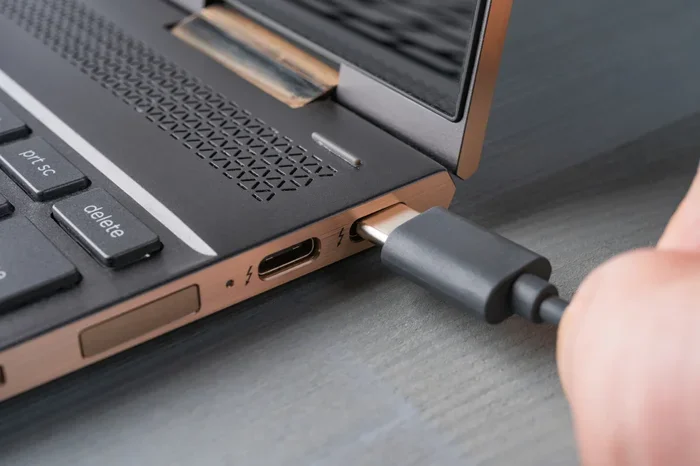
If you are unsure whether your USB-C port supports video, look for a small DisplayPort icon next to the port. That icon means the port supports DisplayPort Alt Mode. If you see a lightning bolt symbol, it is a Thunderbolt port, which is even better.
Step-by-Step Guide to Daisy Chaining Your Monitors
Setting Up Your First Connection
Now that you have the right gear, let us walk through the setup process. Follow these steps carefully for the best results.
- Turn off all your monitors and your computer. This prevents any signal conflicts during setup.
- Connect the USB-C cable from your computer to the first monitor. Plug the USB-C end into your laptop and the DisplayPort end into the monitor’s input port.
- Connect a DisplayPort cable from the first monitor to the second monitor. Use the DisplayPort output on the first monitor and plug it into the DisplayPort input on the second monitor.
- Power on your monitors in order. Start with the monitor closest to your computer, then turn on the second one.
- Power on your computer. Wait for it to fully boot up before checking the displays.
Once everything is on, your computer should recognize both monitors. If the second monitor does not display anything, check your cable connections and make sure the first monitor has MST support enabled in its settings menu.
Configuring Display Settings
After connecting your monitors, you need to configure how they work together. On Windows, go to Settings > System > Display. On macOS, go to System Preferences > Displays.
Here, you can choose how your screens work:
- Extend these displays: This gives you separate desktops on each screen. You can drag windows between them.
- Duplicate these displays: This shows the same image on both screens. Useful for presentations.
- Show only on 1 or 2: This uses only one monitor at a time.
For most people, “Extend these displays” is the best choice. It gives you the most screen space and lets you multitask efficiently.
Quick Tip: Arrange your monitors in the settings to match their physical layout. If your second monitor is above the first one, drag its display box up in the settings. This makes moving your mouse between screens feel natural.
Common Mistakes to Avoid
Overlooking Bandwidth Limits
One of the biggest mistakes people make is not understanding bandwidth. USB-C daisy chaining shares the available bandwidth between all connected monitors. If you try to run two 4K monitors at 60Hz through a single USB-C connection, you might run into problems with standard USB-C ports that lack Thunderbolt.
Here is what you need to know:
- USB 3.1 Gen 2 offers 10 Gbps, which is enough for one 4K monitor.
- Thunderbolt 3 offers 40 Gbps, which can handle two 4K monitors at 60Hz.
- Thunderbolt 4 also offers 40 Gbps with improved reliability.
If your setup stutters or drops frames, bandwidth might be the issue. Consider lowering the resolution or refresh rate on one of the monitors to reduce the load.
Using the Wrong Cable or Adapter
Not all USB-C cables are the same. Some cables only carry power and data, not video signals. If you buy a cheap charging cable and try to use it for daisy chaining, it will not work for video output.
Here are some common mistakes to watch out for:
- Using a USB-C cable without video support: Always check that the cable supports DisplayPort Alt Mode.
- Forgetting the DisplayPort out port: The first monitor must have a DisplayPort output to pass the signal to the second monitor.
- Using an incompatible adapter: Some USB-C to HDMI adapters do not support daisy chaining. Stick to USB-C to DisplayPort adapters for this setup.
- Ignoring firmware updates: Some monitors need firmware updates to support MST properly. Check the manufacturer’s website.
Expert Tips for the Best Daisy Chain Experience
Optimizing Your Cable Management
A clean setup is not just about looks. Proper cable management helps prevent signal interference and keeps your workspace organized. Use cable clips or a cable tray to keep your USB-C cables neatly routed behind your desk.
Expert advice from IT professionals suggests keeping your USB-C to DisplayPort cables as short as practical. Longer cables can lead to signal degradation, especially at higher resolutions. If you need to run cables more than six feet, consider using active cables that boost the signal.
Another pro tip: Label your cables. When you have multiple connections running between monitors, it can be hard to remember which cable does what. A simple label maker can save you a lot of troubleshooting time later.
Getting the Most Out of Your Setup
To truly benefit from USB-C monitor daisy chaining, think about your workflow. Arrange your windows so that your most-used applications are on the primary monitor. Use the second monitor for reference materials, chat windows, or browser tabs.
Here are some additional tips:
- Calibrate your monitors: Matching the color and brightness of both screens makes your workflow smoother.
- Use a USB-C hub with power delivery: This keeps your laptop charged while driving two monitors.
- Check for driver updates: Your graphics card driver can affect multi-monitor performance. Keep it up to date.
- Test your setup with different resolutions: Find the sweet spot between visual quality and performance.
For those who want to expand beyond two monitors, a USB-C docking station with multiple DisplayPort outputs is the way to go. These docks handle the daisy chaining internally, so you do not need to worry about monitor-to-monitor connections. Just plug one cable into your laptop and connect all your monitors directly to the dock.
Comparing Daisy Chaining vs. Using a Docking Station
When setting up multiple monitors, you have two main options: daisy chaining or using a USB-C docking station. Both approaches have their strengths. Here is a quick comparison to help you decide.
| Feature | Daisy Chaining | USB-C Docking Station |
|---|---|---|
| Number of cables from computer | One USB-C cable | One USB-C cable |
| Monitor-to-monitor cables needed | Yes | No |
| Monitors need DP out port | Yes | No |
| Setup complexity | Moderate | Simple |
| Cost | Lower | Higher |
| Flexibility | Depends on monitor ports | High |
| Best for | Two monitors, clean setup | Three or more monitors |
As you can see, daisy chaining works best when you have two monitors and want a minimal cable setup. A USB-C docking station is better if you need three or more monitors or if your monitors do not support daisy chaining.
Final Thoughts on USB-C to DisplayPort Daisy Chaining
USB-C daisy chaining to DisplayPort is a practical and surprisingly simple way to expand your workspace. With the right cables, compatible monitors, and a basic understanding of how the setup works, you can connect two or more monitors without turning your desk into a cable nest.
The key is to check your hardware compatibility first. Make sure your USB-C port supports video output, and confirm that your monitors have the necessary ports for daisy chaining. Once you have the right gear, the setup process is quick and straightforward.
Whether you are a student, a professional, or a creative, adding a second monitor through USB-C to DisplayPort daisy chaining can boost your productivity significantly. Give it a try, and you might be surprised at how easy and rewarding the experience is.
Start small if you are new to this. Connect one monitor first, make sure it works, and then add the second one. Once you see the benefits of a multi-monitor setup, you will wonder how you ever worked without it.
Frequently Asked Questions
Can any USB-C port daisy chain to DisplayPort?
No, not all USB-C ports support video output. Your port must support DisplayPort Alt Mode or Thunderbolt to output video. Check your device specifications or look for a DisplayPort icon next to the port to confirm compatibility.
Do all monitors support USB-C daisy chaining?
No, your monitors need to have a DisplayPort input and a DisplayPort output port. The output port is what passes the signal to the next monitor in the chain. Look for “MST” or “daisy chain” in your monitor’s specifications to confirm support.
What is the difference between Thunderbolt 3 and USB-C for daisy chaining?
Thunderbolt 3 uses the USB-C connector but offers much higher bandwidth at 40 Gbps compared to standard USB-C. This means Thunderbolt 3 can handle multiple high-resolution displays more reliably. Standard USB-C with DisplayPort Alt Mode works for daisy chaining but may have more limitations with resolution and refresh rate.
Can I daisy chain more than two monitors using USB-C to DisplayPort?
Yes, you can daisy chain more than two monitors, but each monitor in the chain must support MST and have a DisplayPort output. In practice, most people daisy chain two monitors. For three or more, a USB-C docking station with multiple outputs is often a better choice.
Do I need special software for USB-C daisy chaining?
No special software is needed. Your operating system handles multi-monitor setups natively. You just need to configure your display settings after connecting the monitors. However, keeping your graphics drivers up to date ensures the best performance.
Why is my second monitor not showing a signal after daisy chaining?
This is usually caused by an incompatible cable, a monitor that does not support MST, or a missing DisplayPort output on the first monitor. Check that your cables support video, confirm your monitors support daisy chaining, and make sure the DisplayPort output on the first monitor is properly connected to the input on the second monitor.