Can I Charge My Laptop With Usb C Port And Save Time
Can I Charge My Laptop With Usb C Port and save time? Absolutely! Using a USB C port to power up your laptop is faster, more convenient, and works with most modern devices. This guide covers everything from compatibility checks to choosing the right charger.
Have you ever been stuck with a dead laptop battery and no charger in sight? It happens to all of us. But here is the good news. You might already have a solution sitting in your bag right now. Your phone charger probably has a USB C port. And guess what? That same port might be able to charge your laptop too.
The question Can I Charge My Laptop With Usb C Port is one of the most searched queries in the tech world today. And the answer is a big yes for most modern laptops. USB C has changed the way we power our devices. It is faster, smaller, and works with almost everything. In this guide, we will walk you through everything you need to know about USB C charging for laptops. You will learn about compatibility, speed, the best chargers, and how to avoid common mistakes.
Key Takeaways
- USB C charging is universal: Most modern laptops support USB C power delivery for fast and convenient charging.
- Check compatibility first: Not all laptops or chargers are the same, so verify your device supports USB C charging before buying.
- Power delivery matters: The wattage of your USB C charger directly affects your charging speed and battery health.
- One cable does it all: USB C lets you charge your laptop, phone, and tablet with a single cable and adapter.
- Avoid common mistakes: Using the wrong cable or low-wattage adapter can slow down your charging time significantly.
- Fast charging is real: With the right USB C power adapter, you can charge your laptop in under two hours.
- Future-proof your setup: USB C is the standard for modern devices, making it a smart long-term investment.
📑 Table of Contents
- Understanding USB C Charging for Laptops
- Which Laptops Support USB C Charging
- How to Charge Your Laptop With a USB C Port
- Benefits of USB C Laptop Charging
- Common Problems and How to Fix Them
- Expert Tips to Maximize USB C Charging
- Is USB C Charging Better Than Traditional Laptop Chargers?
- Conclusion
Understanding USB C Charging for Laptops
Before you plug anything in, it helps to understand what makes USB C different from the old charging ports. USB C is a small, reversible connector that can carry data, video, and power all at the same time. This is a huge upgrade from the bulky chargers most laptops used to need.
What Makes USB C Different from Other Ports
Traditional laptop chargers use barrel connectors or USB A ports. These are bulky and only carry power. USB C is tiny and reversible, which means you never have to flip the cable to get it right. It also supports USB Power Delivery, a standard that allows much higher wattage. This means your laptop can charge faster and more efficiently.
USB C also supports Thunderbolt technology. Thunderbolt 3 and Thunderbolt 4 use the same USB C connector but offer even faster data transfer and more power. If your laptop has a Thunderbolt port, you can use it for charging too.
How Power Delivery Works with USB C
USB Power Delivery, or USB PD, is the technology that makes USB C charging possible for laptops. USB PD can deliver up to 240 watts of power. That is more than enough to charge even the most power-hungry laptops. The charger and the laptop negotiate the right amount of power automatically. This means your device gets exactly what it needs without any damage.
The wattage of your charger matters a lot. A 65-watt charger works great for most ultrabooks. But a gaming laptop might need 100 watts or more. Always check your laptop’s charging requirements before buying a USB C power adapter.
Which Laptops Support USB C Charging
Not every laptop can charge through USB C. But most laptops made in the last few years do support it. Let us look at which ones work and how to check your own device.
Popular Laptop Brands with USB C Charging
Many top laptop brands now use USB C as their main charging port. Here are some popular examples:
- Apple MacBook: All MacBooks since 2016 use USB C exclusively. They charge fast and support USB Power Delivery.
- Dell XPS: Most XPS models support USB C charging with the right adapter.
- HP Spectre and EliteBook: Many HP business and consumer laptops now include USB C charging.
- Lenovo ThinkPad: Several ThinkPad models support USB C power delivery.
- Microsoft Surface: Surface laptops and tablets use USB C for charging.
- ASUS ZenBook: Most ZenBook models support USB C charging.
- Acer Swift: Many Swift laptops use USB C as their primary charging port.
How to Check if Your Laptop Supports USB C Charging
Not sure if your laptop can charge through USB C? Here is how to find out:
- Check your laptop’s specs on the manufacturer website. Look for “USB Power Delivery” or “USB C charging.”
- Look at your USB C ports. If the port has a lightning bolt or a “D” symbol, it supports Thunderbolt and can charge.
- Check your original charger. If it uses a USB C cable, your laptop supports USB C charging.
- Read your laptop’s manual or look up the model number online.
If your laptop does not support USB C charging, you cannot make it work with just a cable. The hardware needs to support USB Power Delivery for charging to work.
How to Charge Your Laptop With a USB C Port
Now that you know your laptop supports USB C charging, let us talk about how to actually do it. The process is simple, but there are a few things to keep in mind.
Choosing the Right USB C Charger
Not all USB C chargers are created equal. Here is what to look for when picking a charger:
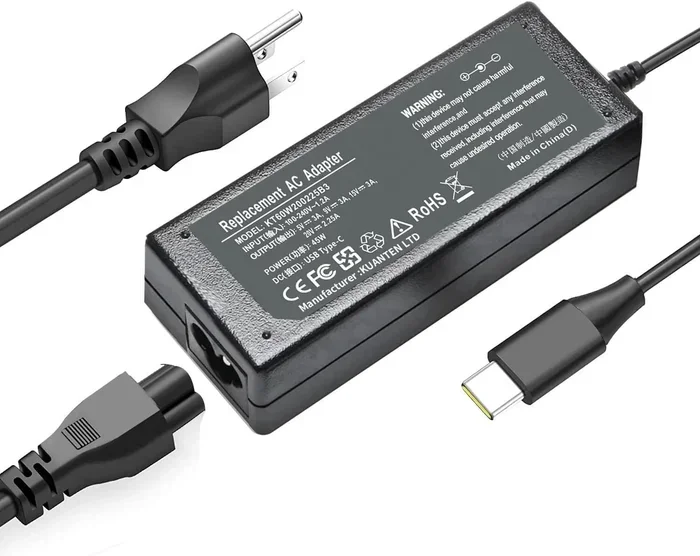
- Wattage: Match the charger wattage to your laptop’s requirements. Most ultrabooks need 45 to 65 watts. Gaming laptops may need 100 watts or more.
- USB PD Support: Make sure the charger supports USB Power Delivery. This ensures safe and fast charging.
- Cable Quality: Use a high-quality USB C cable. Cheap cables can cause slow charging or even damage your device.
- Brand Reputation: Stick with trusted brands like Anker, Belkin, or the laptop manufacturer’s own charger.
A good USB C wall charger is a worthwhile investment. It will charge your laptop quickly and safely every time.
Step by Step Guide to Charging Your Laptop
Follow these simple steps to charge your laptop with USB C:
- Plug your USB C charger into a wall outlet.
- Connect the USB C cable to the charger.
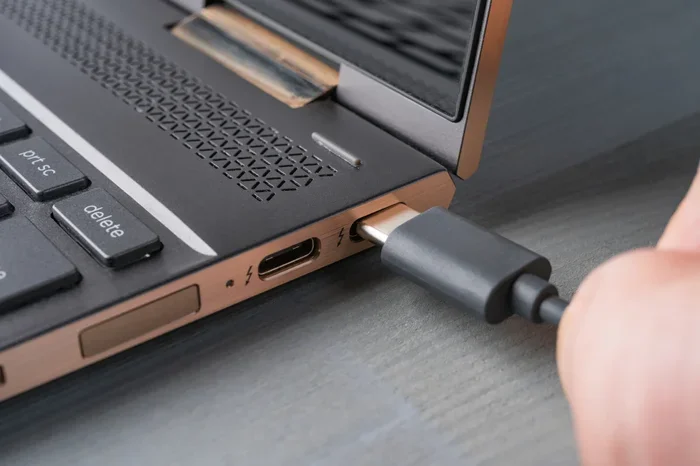
- Insert the other end of the cable into your laptop’s USB C port.
- Check your laptop screen. You should see a charging icon or battery indicator.
- Let it charge. Most laptops will reach 50% in about 30 minutes with a proper USB C charger.
That is it! The process is just as simple as charging your phone. The difference is the speed and power delivery.
Using a USB C Dock or Hub for Charging
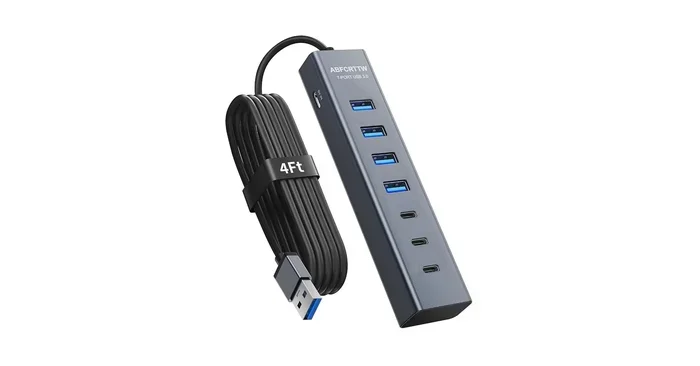
Many people use a USB C hub or USB C dock to connect multiple devices. These hubs often include a USB C charging port. You can plug your laptop into the dock and charge it while using external monitors, keyboards, and storage devices. This is a great way to simplify your workspace and reduce cable clutter.
Just make sure your dock supports USB Power Delivery and can deliver enough wattage for your laptop. A dock that only provides 10 watts will charge your laptop very slowly.
Benefits of USB C Laptop Charging
Switching to USB C charging comes with several real advantages. Here is why more and more people are making the switch.
Faster Charging Speeds
Fast charging is one of the biggest benefits of USB C. With a proper USB PD charger, you can charge most laptops from 0 to 50% in under 30 minutes. Compare that to older chargers that could take hours to reach the same level. The charging speed depends on the wattage of your charger and the battery size of your laptop.
For example, a 100-watt USB C charger can fully charge a MacBook Air in about two hours. The same charger can charge a Dell XPS 13 in roughly 90 minutes. That is a huge time savings if you are always on the go.
One Cable for Everything
With USB C, you only need one type of cable for almost everything. You can charge your laptop, phone, tablet, and even some accessories with the same cable. This means less clutter in your bag and fewer cables to keep track of. It also means you can share chargers with friends or family without worrying about compatibility.
Lighter and More Portable
USB C chargers are much smaller and lighter than traditional laptop chargers. A 65-watt USB C charger is about the size of a small credit card. You can easily slip it into your laptop bag or even your pocket. This makes travel much more convenient. You do not have to carry a heavy brick of a charger anymore.
Future Proof and Universal
USB C is becoming the universal standard for almost all devices. Phones, tablets, monitors, keyboards, and now laptops all use USB C. By investing in USB C charging now, you are future-proofing your setup. You will not need to buy a new charger every time you switch devices.
Common Problems and How to Fix Them
USB C charging is great, but sometimes things go wrong. Here are the most common issues and how to solve them.
Laptop Not Charging Through USB C
If your laptop is not charging when plugged into a USB C port, try these steps:
- Check that your cable and charger support USB Power Delivery. Not all USB C cables can carry power.
- Try a different USB C port on your laptop if you have more than one.
- Make sure the cable is fully inserted into both the charger and the laptop.
- Restart your laptop. Sometimes a simple reboot fixes charging issues.
- Update your laptop’s firmware or drivers. Manufacturers often release updates that fix charging bugs.
If none of these steps work, your charger or cable might be faulty. Try using a different USB C charger to rule out a bad adapter.
Slow Charging Issues
Is your laptop charging slowly through USB C? Here are the most common causes:
- Low wattage charger: A 30-watt charger will charge a laptop much slower than a 100-watt charger.
- Cheap cable: Low-quality USB C cables cannot carry high power. Invest in a good cable.
- Using laptop while charging: Running demanding apps while charging slows down the process.
- Wrong power profile: Some laptops have a battery saver mode that limits charging speed.
To fix slow charging, use a higher wattage USB C power adapter and a quality cable. Also, try closing unnecessary apps while your laptop charges.
Battery Draining While Connected
Sometimes your laptop battery drains even when it is plugged in. This usually happens when the USB C port does not provide enough power. If you are using a USB C hub or USB C dock, make sure it supports pass-through charging. Some hubs only provide data connections and no power at all.
Expert Tips to Maximize USB C Charging
Want to get the most out of your USB C charging setup? Here are some expert tips that make a real difference.
Best USB C Chargers for Laptops
Not all chargers are the same. Here are some top picks for USB C laptop chargers:
- Anker 737 Charger: A 140-watt GaN charger that is compact and powerful. Great for most laptops.
- Apple 96W USB C Power Adapter: Perfect for MacBook users. Fast, reliable, and compact.
- Dell 130W USB C Adapter: Ideal for Dell XPS and Latitude laptops.
- UGREEN 100W Charger: An affordable option that supports USB Power Delivery.
- Satechi 100W USB C Charger: Sleek design with reliable power delivery.
Extending Your Laptop Battery Life
Charging your laptop with USB C is only half the battle. You also want to keep your battery healthy. Here are some tips:
- Do not let your battery drop to 0% regularly. Keep it between 20% and 80% for best health.
- Avoid charging your laptop in very hot or very cold environments.
- Use the original USB C charger that came with your laptop when possible.
- Turn on battery saver mode when charging slowly.
- Calibrate your battery once a month by draining it to 0% and then charging to 100%.
Quick Tips for Better USB C Charging
Here are some quick tips to remember:
- Always use a certified USB C cable to avoid damage.
- Check the wattage rating on both your charger and laptop.
- Keep your charging port clean. Dust can block the connection.
- Use a USB C power adapter with a built-in safety feature to prevent overheating.
- Store your cables properly to avoid fraying and damage.
Is USB C Charging Better Than Traditional Laptop Chargers?
The short answer is yes for most people. USB C charging is faster, more portable, and more versatile than traditional barrel connectors. You can use the same charger for multiple devices. The charging time is significantly shorter with a good USB PD charger. And the cables are much more durable and easier to use.
However, there are a few things to keep in mind. Not all USB C chargers deliver the same power. And not all laptops support USB C charging at all. Always check your device specifications before making the switch.
If your laptop does support USB C charging, there is really no reason not to switch. It is one of the best upgrades you can make for your daily routine. You will save time, reduce cable clutter, and enjoy faster charging speed every single day.
Conclusion
Can I Charge My Laptop With Usb C Port and save time? Yes, you absolutely can. USB C charging has revolutionized the way we power our laptops. It is faster, more convenient, and works with most modern devices. Whether you are using a MacBook, Dell XPS, HP Spectre, or any other laptop with USB C support, a good USB C charger can make a huge difference in your daily routine.
Remember to check compatibility, choose the right wattage, and use quality cables. Avoid common mistakes like using cheap adapters or low-quality cables. And take care of your battery to get the most out of your device. With the right setup, you can charge your laptop in a fraction of the time it used to take. So go ahead, give it a try, and enjoy the simplicity of USB C charging today.
Frequently Asked Questions
Can any USB C cable charge a laptop?
No, not every USB C cable can charge a laptop. You need a cable that supports USB Power Delivery and enough wattage for your device. Check the cable specifications before buying. A standard USB C cable might only carry 3 to 5 watts, which is not enough for most laptops.
How fast can a laptop charge with USB C?
With a proper USB C power adapter, most laptops can reach 50% battery in 30 minutes or less. A 100-watt charger can fully charge many ultrabooks in under two hours. The actual charging time depends on your laptop battery size and the wattage of your charger.
Is USB C charging safe for my laptop battery?
Yes, USB C charging is very safe. Modern laptops and chargers have built-in safety features that regulate power flow. The USB Power Delivery standard ensures your laptop receives the right amount of power. Just make sure to use certified chargers and cables to avoid any risks.
Can I use a phone charger to charge my laptop?
It depends on the wattage. Most phone chargers only deliver 10 to 20 watts, which is not enough for most laptops. However, some ultrabooks with small batteries can charge slowly from a 20-watt USB C charger. For best results, use a charger rated for your laptop’s power needs.
Do I need a special charger to use USB C for laptop charging?
You need a charger that supports USB Power Delivery and delivers enough wattage for your laptop. You do not need a special brand charger, but it must be compatible. Check your laptop’s charging requirements and match them with a suitable USB C charger.
Can I charge my laptop with a USB C hub or dock?
Yes, many USB C hubs and USB C docks support pass-through charging. This lets you charge your laptop while using external devices. Just make sure the hub supports USB Power Delivery and provides enough wattage for your laptop model.