Can You Use An Hdmi Splitter On A Laptop Simple Guide
Yes, you can use an HDMI splitter on a laptop to display the same content on multiple screens simultaneously. An HDMI splitter takes the video and audio signal from your laptop and duplicates it across two or more displays. This guide covers everything you need to know about setup, compatibility, and choosing the right splitter for your needs.
If you have ever wanted to show the same screen on two monitors or connect your laptop to a projector and a TV at the same time, you might have considered an HDMI splitter. The good news is that using an HDMI splitter on a laptop is totally doable. It is one of the simplest ways to share your screen with a group or expand your workspace without buying extra hardware.
But before you grab any splitter off the shelf, there are a few things you should know. Not every splitter works the same way. Some need power. Some handle high resolutions better than others. And your laptop’s port and graphics card play a big role too. In this guide, we walk you through everything step by step. By the end, you will know exactly which splitter to buy, how to set it up, and what to watch out for.
Key Takeaways
- Easy Setup: Connecting an HDMI splitter to your laptop is straightforward and requires minimal technical knowledge.
- Dual Display Support: A splitter lets you mirror your laptop screen onto multiple monitors for presentations or multitasking.
- Choose Wisely: Not all splitters are equal. Active splitters work better for longer cable runs and higher resolutions.
- Check Compatibility: Your laptop’s HDMI port version and graphics capabilities determine the splitter’s performance.
- Audio Matters: Most HDMI splitters pass audio alongside video, but some may need separate configuration.
- Avoid Common Mistakes: Using a passive splitter for high-resolution setups or long cable runs often causes signal loss.
📑 Table of Contents
- What Is an HDMI Splitter and How Does It Work?
- Can You Use an HDMI Splitter on a Laptop?
- Benefits of Using an HDMI Splitter on a Laptop
- How to Set Up an HDMI Splitter on Your Laptop
- Common Problems and How to Fix Them
- How to Choose the Right HDMI Splitter for Your Laptop
- Frequently Asked Questions
- Final Thoughts
What Is an HDMI Splitter and How Does It Work?
An HDMI splitter is a small device that takes one HDMI input and copies the signal to two or more outputs. Think of it like a water pipe with multiple taps. Water flows in one end and comes out of all the taps at the same time. That is exactly what an HDMI splitter does with your video and audio signal.
When you plug your laptop into a splitter, the device duplicates the HDMI signal and sends it to every connected display. This means every screen shows the exact same content. You are not extending your desktop. You are mirroring it. This is perfect for presentations, classroom setups, or when you want a larger view of what is on your screen.
Passive vs Active HDMI Splitters
There are two main types of splitters. A passive splitter does not need external power. It simply splits the signal using internal circuits. These work fine for short distances and basic setups. An active splitter, on the other hand, requires a power source. It boosts the signal so it can travel longer distances without losing quality. If you need to run a cable across a room or connect to a projector far away, an active splitter is your best bet.
Can You Use an HDMI Splitter on a Laptop?
The short answer is yes. Most modern laptops come with an HDMI port built right in. You plug the splitter into your laptop’s HDMI output, and then connect your monitors or displays to the splitter’s output ports. Your laptop treats the splitter just like another display device. The operating system sends the signal out, and the splitter copies it to every connected screen.
However, there are a few things to keep in mind. Your laptop’s HDMI port version matters. An HDMI 2.0 port supports higher resolutions and refresh rates than an HDMI 1.4 port. If your laptop has an older port, the splitter will still work, but it may be limited to 1080p at 30Hz. Also, your laptop’s graphics card needs to be able to handle driving multiple displays at once, even if they show the same image.
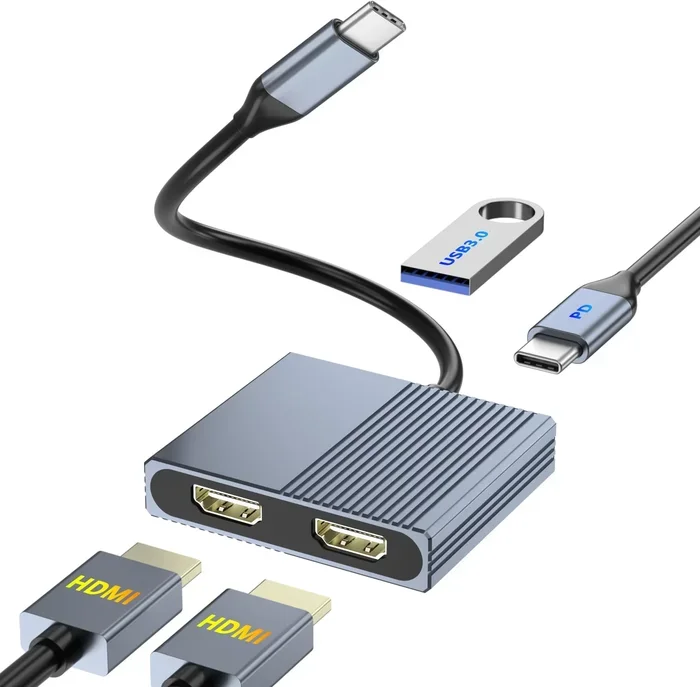
Some laptops, especially ultrabooks and thin models, use USB-C or Thunderbolt ports instead of traditional HDMI. In those cases, you will need a USB-C to HDMI adapter first. Once you have that adapter, you can plug the splitter into it just like normal. The setup remains the same.
How the Motherboard Plays a Role
Your laptop’s motherboard handles the connection between the graphics chip and the HDMI port. The 5 components that are found on the motherboard include the HDMI controller, which manages video output signals. If this controller is working properly, your splitter will receive a clean signal and duplicate it without issues. Understanding this helps you troubleshoot if your splitter is not working as expected.
On some systems, the operating system also influences how HDMI output behaves. Different operating systems handle display output settings in their own way. For example, Windows, macOS, and Linux each have their own methods for managing connected displays. Knowing your system’s behavior helps you get the most from your setup.
Benefits of Using an HDMI Splitter on a Laptop
There are many reasons why people choose to use an HDMI splitter with their laptop. Let us look at the most common benefits.
1. Simple Screen Mirroring
The biggest advantage is how easy it is to mirror your screen. You do not need special software or complicated configuration. Plug in the splitter, connect your displays, and your laptop automatically sends the same image to every screen. This is perfect for classroom teachers, business presenters, and anyone who needs to share their screen with a group.
2. No Extra Software Needed
Unlike some wireless display solutions, an HDMI splitter does not require any additional software. It works at the hardware level. This means no lag, no compatibility issues, and no need to install drivers. You plug it in, and it works. That simplicity is a huge plus for people who are not tech-savvy.
3. Cost Effective
An HDMI splitter is one of the cheapest ways to connect your laptop to multiple displays. A basic passive splitter costs under twenty dollars. Even an active splitter with signal boosting rarely costs more than fifty dollars. Compare that to buying a second laptop or a dedicated presentation system, and the savings are obvious.
4. Works with Many Devices
An HDMI splitter is not just for laptops. You can use it with desktop computers, gaming consoles, Blu-ray players, and streaming boxes. Once you own one, you will find many uses for it around your home or office. It is a versatile little tool that punches well above its price tag.
5. Reliable Connection
Wireless display solutions like Miracast or Chromecast can suffer from interference and lag. An HDMI splitter gives you a wired, stable connection. The signal does not drop, the image stays crisp, and there is no buffering. For professional settings, this reliability is essential.
How to Set Up an HDMI Splitter on Your Laptop
Setting up an HDMI splitter is quick and easy. Follow these steps and you will be up and running in minutes.
Step 1: Check Your Laptop’s HDMI Port
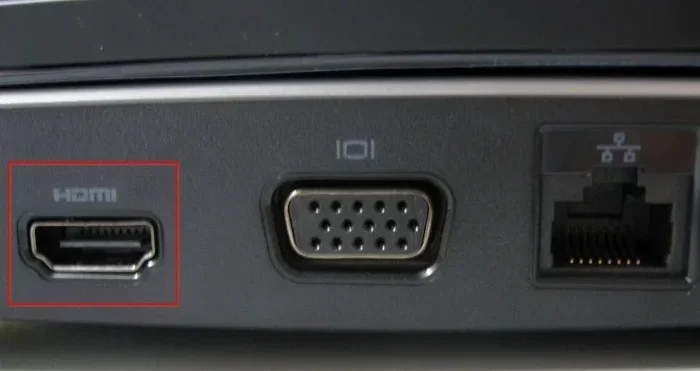
Look at the side or back of your laptop. Find the HDMI port. It is a flat, trapezoidal slot. Make sure it is not blocked by other cables or objects. If your laptop does not have an HDMI port, you will need a USB-C to HDMI adapter first.
Step 2: Connect the Splitter to Your Laptop
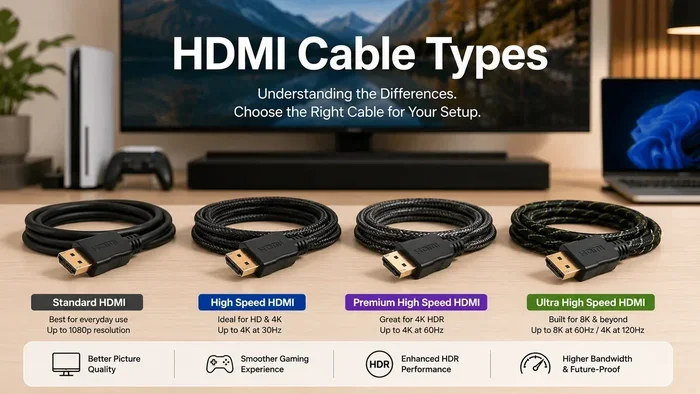
Plug one end of an HDMI cable into your laptop’s HDMI port. Connect the other end into the input port on the HDMI splitter. Use a good quality cable to ensure the best signal transfer.
Step 3: Connect Your Displays
Take additional HDMI cables and connect them from the splitter’s output ports to your monitors, projector, or TV. Make sure each cable is firmly seated in its port.
Step 4: Power On the Splitter (If Needed)
If you are using an active splitter, plug in the power adapter. Passive splitters do not need power. Once everything is connected, turn on your displays and your laptop.
Step 5: Adjust Display Settings
On Windows, go to Settings > System > Display. Make sure the display mode is set to “Duplicate these displays.” On macOS, go to System Settings > Displays and choose “Mirror Display.” Your screens should now show the same content.
Quick Setup Tips
- Always use high-quality HDMI cables to avoid signal issues.
- If you experience flickering, try a shorter cable or an active splitter.
- Check your laptop’s display settings if the image looks stretched or cut off.
- Keep the splitter in a well-ventilated area if it requires external power.
Common Problems and How to Fix Them
Even though HDMI splitters are simple devices, you might run into some issues. Here are the most common problems and their solutions.
No Signal on One or More Displays
If one screen shows nothing while the others work, check the cable connection first. A loose cable is the most common cause. If the cables are fine, the splitter might not be sending a strong enough signal to that particular output. Try swapping the cables between ports to see if the problem moves with the cable or stays with the port.
Flickering or Intermittent Signal
Flickering usually happens when the signal is weak. This is common with long cable runs or passive splitters used beyond their limits. Switching to an active splitter with a signal booster often fixes this problem. Also, make sure your HDMI cables are not damaged or bent.
Resolution Issues
If your displays show a lower resolution than expected, check your laptop’s display settings. Sometimes Windows or macOS defaults to a lower resolution when it detects multiple displays. Go into your display settings and manually set the resolution to your monitor’s native resolution.
Audio Not Working
HDMI splitters pass audio along with video in most cases. But sometimes the audio does not reach all displays. Check your laptop’s sound settings and make sure the HDMI output is set as the default audio device. If you are using a projector with built-in speakers, ensure the projector is set to receive audio through HDMI.
Compatibility Issues with Certain Laptops
Some laptops, especially those with USB-C only output, may not work seamlessly with every splitter. You might need a specific adapter or a splitter that supports the USB-C input format. Always check the splitter’s specifications before purchasing to make sure it matches your laptop’s output capabilities.
How to Choose the Right HDMI Splitter for Your Laptop
Not all HDMI splitters are created equal. Here is what to look for when shopping.
Number of Outputs
Splitters come in 1-to-2, 1-to-4, and even 1-to-8 configurations. For most laptop users, a 1-to-2 splitter is enough. If you need to connect more displays, go for a 1-to-4 model. Keep in mind that more outputs can mean weaker signal strength, so an active splitter is recommended for setups with multiple displays.
Resolution Support
Make sure the splitter supports the resolution you need. Most modern splitters handle 1080p and 4K. If you have a 4K laptop display, choose a splitter that supports at least 4K at 30Hz. For gaming or high-refresh-rate content, look for 4K at 60Hz support.
Active vs Passive
As mentioned earlier, active splitters are better for longer cable runs and more demanding setups. Passive splitters work well for short distances and basic mirroring. If you are setting up a permanent display in a conference room, invest in an active splitter for reliability.
Build Quality and Brand Reputation
Cheap splitters from unknown brands can be unreliable. Look for well-known brands with good reviews. A reliable splitter should last for years without issues. Spending a little extra on quality saves you from frustration down the road.
Compatibility Check
Before buying, check that the splitter is compatible with your laptop’s operating system and HDMI version. Most modern splitters work with Windows, macOS, and Linux without issues. But it never hurts to double-check the product specifications.
Frequently Asked Questions
Can an HDMI splitter improve my laptop’s display quality?
No, an HDMI splitter does not improve display quality. It simply copies the signal from your laptop to multiple screens. The quality you get on each display depends on your laptop’s graphics capabilities and the resolution settings you choose. A good splitter ensures the signal stays strong, but it cannot enhance the image beyond what your laptop produces.
Can I use an HDMI splitter to extend my laptop screen instead of mirroring it?
No, an HDMI splitter mirrors the same image on all connected displays. If you want to extend your screen across multiple monitors, you need a different solution, such as a USB docking station or a laptop with multiple native video outputs. A splitter duplicates content, it does not expand your workspace.
Do I need any special software to use an HDMI splitter with my laptop?
No, you do not need any special software. HDMI splitters work at the hardware level. Once you connect the cables and configure your display settings in Windows or macOS, everything works automatically. There are no drivers to install and no apps to download.
Will an HDMI splitter slow down my laptop’s performance?
Not really. An HDMI splitter places very little demand on your laptop’s processor or graphics card. Since it is just copying the same signal to multiple outputs, your laptop does not need to render different images for each screen. This makes it a lightweight and efficient solution for screen mirroring.
Can I chain multiple HDMI splitters together for more displays?
Yes, you can daisy-chain splitters in some cases. However, this can lead to signal degradation over time. Each splitter in the chain reduces signal quality slightly. For best results, use a single splitter with enough outputs for your needs, or use an active splitter with signal boosting capabilities.
What is the maximum cable length I can use with an HDMI splitter?
For passive splitters, keep cables under 15 feet for best results. Active splitters can handle longer runs, sometimes up to 50 feet or more, depending on the model and signal quality. If you need very long cable runs, consider using an active splitter with a built-in signal amplifier or adding an HDMI repeater in the chain.
Final Thoughts
Using an HDMI splitter on a laptop is one of the easiest and most affordable ways to share your screen with others or connect to multiple displays at once. Whether you are giving a presentation at work, teaching a class, or simply want a bigger view of your screen at home, a splitter gets the job done with minimal fuss.
The key is to choose the right type of splitter for your needs. Go with a passive splitter for simple, short-distance setups. Choose an active splitter for longer cables or more demanding resolution requirements. Check your laptop’s HDMI port version and make sure your cables are in good condition.
With the right setup and a little patience, you will have a smooth, reliable multi-display experience in no time. HDMI splitters are small devices that deliver big value. Once you try one, you will wonder how you ever managed without it.