Can You Fully Install Linux On Usb And Use It Today
Yes, you can fully install Linux on a USB drive and use it just like a regular operating system. A full Linux USB install gives you a portable, private, and powerful computing environment that runs on almost any computer. You get persistent storage, full software access, and the freedom to carry your entire OS in your pocket. This guide walks you through everything you need to know.
Have you ever wanted to carry a complete operating system in your pocket? The idea of running a full Linux system straight from a USB drive sounds like something from a tech movie. But here is the truth — it is real, it works, and you can do it today.
The question can you fully install Linux on USB comes up all the time. People want a portable operating system for travel, troubleshooting, privacy, or just to try something new. The good news is that a full Linux install on a USB drive is not only possible but also surprisingly easy. You do not need to be a tech expert to pull it off.
In this guide, we will cover everything. From picking the right USB drive to choosing the best Linux distribution, we have you covered. You will learn how to set up a bootable USB Linux system that works just like a installed operating system on a hard drive. Let us dive right in.
Key Takeaways
- Full Linux USB Installation Is Possible: You can install a complete Linux system on a USB flash drive and boot it on virtually any PC.
- Persistent Storage Matters: Unlike a live USB, a full install saves all your files, settings, and apps permanently.
- Performance Depends on USB Speed: USB 3.0 or higher drives deliver a much smoother experience than older USB 2.0 drives.
- Choose the Right Distro: Lightweight Linux distros run best on USB drives because they demand less storage and processing power.
- Check Your BIOS Settings: You must enable USB boot and disable Secure Boot before installing Linux from a USB drive.
- Internal Hardware Matters Too:Understanding how components like those found on the 5 components that are found on the motherboard helps you troubleshoot boot issues.
📑 Table of Contents
- What Does It Mean to Fully Install Linux on a USB Drive?
- Can You Run a Full Linux System From USB?
- Best Linux Distros for USB Installation
- Step-by-Step Guide to Installing Linux on a USB Drive
- Performance and Limitations of Running Linux from USB
- Who Should Use a Fully Installed Linux USB?
- Common Mistakes to Avoid When Installing Linux on USB
- Expert Tips for Getting the Best Performance from a Linux USB
- Final Thoughts
What Does It Mean to Fully Install Linux on a USB Drive?
A full Linux installation on a USB drive means you are putting an entire operating system onto a flash drive. This is different from a live USB, which runs Linux temporarily and loses your data when you shut down. With a full install, everything stays put. Your files, settings, downloaded apps, and desktop preferences all persist between sessions.
Live USB vs. Full Install USB
Many beginners confuse a live USB with a fully installed system. A live USB lets you test Linux without making any changes to your computer. You boot it up, try things out, and when you turn off the PC, everything disappears. It is great for trying out a new Linux distro before committing.
A full install USB, on the other hand, writes the operating system directly onto the drive. It uses the USB drive as its main storage. When you reboot, your system remembers everything. Think of it like installing Linux on a regular hard drive, except the drive is a USB flash stick.
The key difference comes down to persistent storage. A full install gives you a real home directory, real system updates, and the ability to install any software you want. This makes it a genuinely usable daily driver.
Why Would You Want a Fully Installed Linux USB?
There are many reasons people choose to go this route. Let us look at the most common ones:
- Portability: Carry your entire OS with you. Plug it into any computer and your desktop, apps, and files are right there.
- Privacy: You leave no trace on the host computer. Everything stays encrypted on your USB drive.
- Recovery: Use it as a rescue system when your main computer crashes or gets infected.
- Testing: Try out different Linux environments without touching your existing operating system.
- Old Hardware Revival: Breathe new life into an older laptop or desktop by booting a lightweight Linux system from USB.
Can You Run a Full Linux System From USB?
The short answer is yes. You can run a complete Linux system from a USB flash drive. But the experience depends on a few important factors. Let us break them down so you know what to expect.
Hardware Compatibility
Most modern computers support booting from USB drives. Whether you are using a desktop or a laptop, the BIOS or UEFI firmware usually includes USB boot options. However, some older systems or certain branded PCs may need you to change settings in the firmware menu.
It helps to understand a bit about how your computer boots. When you power on a PC, it looks for a bootable device. The motherboard plays a key role here because it controls how the system initializes and hands off control to the boot device. The components on the motherboard, including the core components that are found on the motherboard, determine how smoothly your system can detect and load from a USB drive.
In most cases, you just need to press a function key during startup to select your boot device. From there, you can choose your USB drive and boot straight into your freshly installed Linux system.
USB Drive Speed and Its Impact
The speed of your USB drive matters a lot. A USB 2.0 drive will work, but the experience can feel sluggish. Boot times are slow, applications take longer to open, and file operations feel laggy.
A USB 3.0 or USB 3.1 drive makes a massive difference. The read and write speeds jump dramatically. Your system boots faster, apps launch quickly, and overall performance feels much closer to a traditional hard drive installation.
Here is a quick comparison:
| USB Type | Max Speed | Linux USB Experience |
|---|---|---|
| USB 2.0 | 480 Mbps | Slow boot, laggy apps, usable for light tasks |
| USB 3.0 | 5 Gbps | Fast boot, smooth performance, great for daily use |
| USB 3.1/3.2 | 10+ Gbps | Near-native speed, excellent for full daily driving |
Pro tip: Always use a flash drive with a USB 3.0 connector and plug it into a USB 3.0 port on your computer. This single change can transform your experience.
Best Linux Distros for USB Installation
Not all Linux distributions are created equal when it comes to USB installation. Some are lightweight and perfect for flash drives. Others are heavier and may struggle on USB media. Here are the best options to consider.
Lightweight Distros for USB
If you want smooth performance, go with a lightweight distribution. These distros use fewer system resources and run beautifully even on slower USB drives:
- Lubuntu: A lightweight version of Ubuntu that uses minimal RAM and storage. Perfect for USB drives with 16 GB or more.
- Xubuntu: Uses the XFCE desktop environment, which is fast and friendly. Great balance of features and performance.
- Linux Lite: Designed for older hardware and USB setups. Very easy for beginners.
- Puppy Linux: One of the lightest distros available. It can run entirely in RAM, making it incredibly fast from USB.
Full-Featured Distros That Work Well on USB
If you have a fast USB 3.0 drive and want more features, these distros are excellent choices:
- Ubuntu: The most popular Linux distribution. Huge software library and great community support.
- Linux Mint: Based on Ubuntu but with a more polished desktop experience. Very beginner-friendly.
- Fedora: Cutting-edge software and strong performance. A great choice for more experienced users.
As a rule of thumb, pick a distro that matches your USB drive size and your computer’s power. A 16 GB USB drive is the minimum for a comfortable full install. Go for 32 GB or more if you plan to store files and install many applications.
Step-by-Step Guide to Installing Linux on a USB Drive
Now let us get into the practical part. Here is how you can fully install Linux on a USB drive and start using it right away.
Step 1: Gather What You Need
Before you start, make sure you have the following:
- A USB flash drive with at least 16 GB of storage (32 GB recommended)
- A computer with internet access
- A Linux ISO file downloaded from your chosen distro’s website
- A tool to create a bootable USB, such as Rufus (Windows), BalenaEtcher (cross-platform), or dd (Linux)
Your USB drive will be completely erased during this process. Make sure you back up any important files first.
Step 2: Create a Bootable USB Drive
Open your preferred tool and select the Linux ISO file. Choose your USB drive as the target device. Click start or flash and wait for the process to finish. This usually takes between 5 and 15 minutes depending on your drive speed.
Once the bootable USB is ready, plug it into the computer where you want to install Linux.
Step 3: Boot from the USB Drive
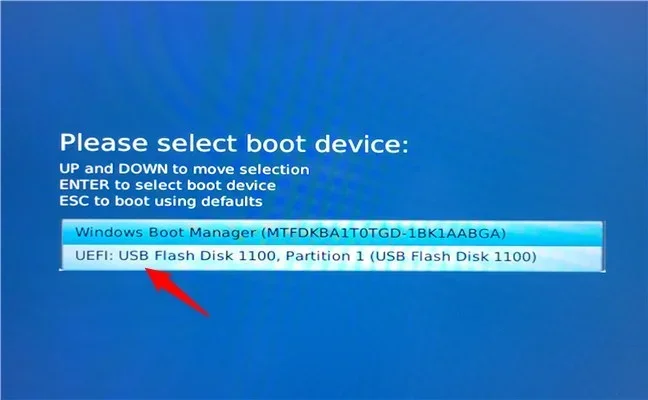
Restart your computer and enter the BIOS or boot menu. This is usually done by pressing F2, F12, Del, or Esc during startup. The exact key depends on your computer brand.
In the boot menu, select your USB drive as the first boot device. Save your changes and exit. Your computer will now boot from the USB drive.
If you are installing Linux, you will see an option to install the system. Choose it and follow the on-screen prompts.
Step 4: Complete the Installation
During the installation process, you will be asked where to install Linux. Choose your USB drive as the target disk. This is the most important step — make sure you select the USB drive and not your internal hard drive.
Set up your username, password, and timezone. The installer will copy all system files to the USB drive. Once complete, remove the USB drive, restart your computer, and boot from the USB again.
You should now see your brand new Linux desktop. Everything is installed and ready to go.
Step 5: Update and Customize Your System
After the first boot, open the terminal and run the system update command for your distro. For Ubuntu-based systems, use sudo apt update && sudo apt upgrade. This ensures all your software is up to date.
Now comes the fun part — customizing your desktop. Install your favorite browser, office suite, media player, and any other apps you need. Your full Linux USB is now a personalized, portable operating system.
Performance and Limitations of Running Linux from USB
Running Linux from a USB drive is incredibly convenient, but it does come with some trade-offs. Understanding these helps you set realistic expectations and get the best experience.
Speed Considerations
USB flash drives are slower than internal SSDs or hard drives. Even with USB 3.0, you will notice that boot times and application loading are slightly slower than a native install. For most everyday tasks like browsing, word processing, and coding, the difference is barely noticeable.
However, heavy tasks like video editing, large file transfers, or running databases may feel the bottleneck more. If you plan to do resource-intensive work, consider using a high-speed external SSD instead of a standard flash drive.
Wear and Lifespan of USB Drives
Flash drives have a limited number of write cycles. Constant writing to the drive, such as during system updates or heavy file operations, can wear out the cells over time. This is a real concern for long-term daily use.
To extend the life of your USB drive, consider these tips:
- Use a high-quality USB drive rated for heavy use
- Enable TRIM support if your distro supports it
- Reduce unnecessary write operations by using tmpfs for temporary files
- Keep a backup of your important data on another drive
Security and Encryption
One of the best things about a fully installed Linux USB is the ability to encrypt your data. During installation, most Linux distros offer the option to encrypt the entire drive. This means that if you lose the USB stick, nobody can access your files.
Encryption does add a slight performance overhead, but on modern USB 3.0 drives, the impact is minimal. The peace of mind it gives you is well worth it.
Who Should Use a Fully Installed Linux USB?
A fully installed Linux USB is not just a cool tech experiment. It is a genuinely useful tool for many people. Here are some scenarios where it shines.
Travelers and Digital Nomads
If you travel often, a portable Linux USB is a game changer. You can plug it into any hotel computer, internet cafe, or borrowed laptop and have your full desktop environment ready. Your data stays with you and never touches the host machine.
IT Professionals and Troubleshooters
Tech workers love a bootable Linux USB. It serves as a portable repair toolkit. You can diagnose hardware issues, recover lost data, fix broken systems, and test networks — all from a single USB stick.
Privacy-Conscious Users
If you care about your digital privacy, a Linux USB lets you compute safely on any machine. You are not relying on someone else’s operating system or software. Your environment is controlled entirely by you.
Students and Learners
Students who want to learn Linux can carry a full installation on a USB drive. They can practice command line skills, experiment with different desktop environments, and explore the Linux ecosystem without risking their main computer.
Common Mistakes to Avoid When Installing Linux on USB
Even though the process is straightforward, some common mistakes can cause headaches. Here is what to watch out for.
- Selecting the wrong drive during installation: Always double-check which drive you are installing to. Installing Linux on your internal hard drive by mistake will erase your existing data.
- Using a slow USB 2.0 drive: This leads to a frustratingly slow experience. Invest in a decent USB 3.0 drive.
- Skipping BIOS settings: Forgetting to enable USB boot or leaving Secure Boot on can prevent your system from recognizing the drive.
- Ignoring drive health: Old or damaged USB drives can corrupt your installation. Use a reliable, new drive for best results.
- Not making a backup: Always keep a backup of your important files. Even a successful installation can sometimes have unexpected issues.
Expert Tips for Getting the Best Performance from a Linux USB
Want to squeeze every bit of performance out of your USB Linux setup? Here are some expert-backed tips that make a real difference.
- Use a USB 3.0 drive in a USB 3.0 port: This is the single biggest performance upgrade you can make.
- Choose a distro with a lightweight desktop: XFCE, LXQt, and MATE desktops are fast and efficient on USB media.
- Disable unnecessary startup services: Fewer background services mean more speed for the tasks you actually care about.
- Use a swap file on the USB drive: This helps when your system runs low on RAM. Just be mindful of write cycles.
- Keep your system lean: Only install the software you actually need. Every installed package takes up space and resources.
Another thing worth mentioning is that your computer’s internal hardware plays a role in how well your USB Linux setup performs. The five key components that are found on the motherboard — including the chipset, RAM slots, and boot controller — all influence how smoothly your system handles USB booting and drive communication.
Final Thoughts
So, can you fully install Linux on a USB drive and use it today? Absolutely. It is a practical, powerful, and flexible way to carry your own portable operating system wherever you go. Whether you are a traveler, a student, a tech enthusiast, or someone who values privacy, a fully installed Linux USB delivers real value.
The process is simpler than most people think. With the right USB drive, a good Linux distribution, and a little patience, you can have a fully functional portable computer in under an hour. The freedom to boot your own OS on any machine is a genuinely empowering experience.
Start with a lightweight distro, use a USB 3.0 drive, and follow the steps in this guide. You will be surprised at how well it works. Give it a try, and you might just find that your portable Linux USB becomes your favorite computing setup.
The world of portable Linux is wide open. All you need is a USB drive and the willingness to explore. Your fully installed Linux USB is waiting.
Frequently Asked Questions
Can I use any USB flash drive to install Linux?
You can, but the results vary. A USB 3.0 drive with at least 16 GB of storage gives the best experience. Cheap or very old USB 2.0 drives will work but run much slower. Invest in a quality drive for a smooth experience.
Will installing Linux on a USB erase my computer’s hard drive?
No, as long as you select the USB drive as the installation target during setup. Always double-check which drive you are installing to. If you accidentally select your internal hard drive, it will be formatted and all data will be lost.
How long does a full Linux USB installation take?
The installation process usually takes between 15 and 30 minutes. This depends on your USB drive speed and the Linux distribution you choose. The download of the ISO file may take additional time.
Can I update software on a Linux USB installation?
Yes, absolutely. A full Linux USB install works just like a regular installation. You can update software, install new applications, and apply system updates through the terminal or your desktop software manager.
Is it safe to use a Linux USB on public or shared computers?
Yes, it is one of the safest ways to use a shared computer. Your operating system and data live entirely on the USB drive. The host computer does not have access to your files or settings, which protects your privacy.
What is the difference between a live USB and a fully installed Linux USB?
A live USB runs Linux temporarily and does not save your changes after shutdown. A fully installed USB writes the entire operating system to the drive, giving you persistent storage, saved settings, and the ability to install software permanently.