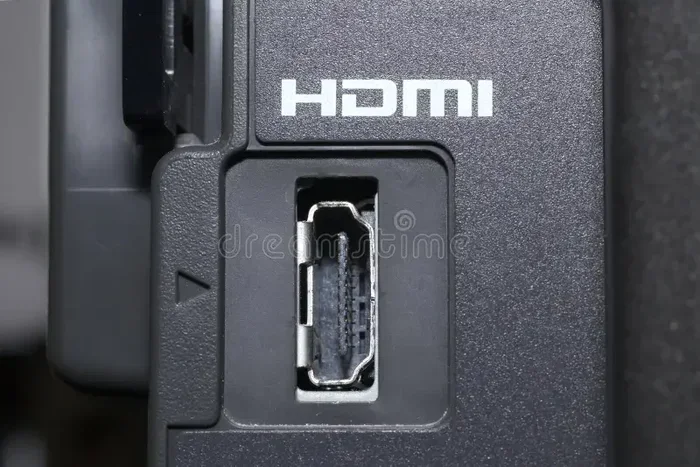
Can A USB Transmit Video Here Is What You Need To Know
Yes, a USB can transmit video signals to external monitors and displays. Whether you use a standard USB-A or the newer USB-C connector, video transmission over USB is now widely supported through technologies like DisplayLink and native USB-C Alt Mode. USB video adapters, docking stations, and capture cards make it easy to extend or mirror your screen without needing a dedicated video port.
Have you ever looked at your laptop and thought, “I wish I could plug in another screen”? Maybe you are working from home and need extra display space. Or perhaps you want to hook up your computer to a TV for movie night. Whatever the reason, the question comes up a lot: can a USB transmit video?
The short answer is yes. A USB cable can carry video signals to an external monitor, projector, or television. But how exactly does this work? And what do you need to know before you buy an adapter or cable? This guide covers everything you need about USB video transmission. We will walk through the technology, the different types of adapters, common problems, and practical tips to get the best results.
Whether you are using an older USB-A port or a modern USB-C connector, there is a way to send video through USB. Let us break it all down so you can set up your external display with confidence.
Key Takeaways
- USB can transmit video: Both USB-A and USB-C connectors support video output with the right adapter or technology.
- DisplayLink is a popular solution: This software-based technology allows USB connections to drive external displays reliably.
- USB-C Alt Mode carries video natively: Modern USB-C ports can transmit video without extra software or adapters in many cases.
- USB video adapters are affordable: You can find USB to HDMI adapters for under $50 in most cases.
- Bandwidth matters: USB 3.0 and newer provide the speed needed for smooth video transmission.
- Driver installation is key: Many USB video solutions require drivers or software to work properly.
- USB video is not the same as dedicated video ports: There are limitations in resolution and refresh rate compared to HDMI or DisplayPort.
📑 Table of Contents
- What Is USB Video Transmission?
- Can A USB Transmit Video Through Different Connector Types?
- Types of USB Video Adapters and Solutions
- USB Video Bandwidth and Performance
- Common Problems with USB Video Transmission
- Expert Insights on USB Video Technology
- USB Video vs Traditional Video Ports
- Key Takeaways
- Conclusion
What Is USB Video Transmission?
USB stands for Universal Serial Bus. It was originally designed to connect peripherals like keyboards, mice, and printers. Over time, USB technology evolved to handle much more data. Today, it can transfer files, charge devices, and yes, transmit video signals.
USB video transmission means sending visual content from your computer through a USB connection to an external display. This is different from traditional video ports like HDMI or DisplayPort, which were built specifically for video output. USB was not originally designed for video, but clever technology made it possible.
There are two main ways USB handles video transmission. The first is through software-based solutions like DisplayLink. The second is through native support built into newer USB-C ports. Both methods work well, but they operate differently. Understanding this difference helps you choose the right solution for your setup.
How Does USB Handle Video Data?
When you send a video signal through USB, your computer compresses the visual data and sends it through the USB connection. The receiving device, like a monitor or adapter, decodes that data and displays it on screen. This process happens in real time, so you see smooth movement on your external display.
The speed of the USB connection matters a lot here. USB 2.0 is too slow for video. It was never meant for that purpose. USB 3.0, USB 3.1, and USB 3.2 provide the bandwidth needed for decent video quality. And USB4 and Thunderbolt 3/4 offer the best performance for USB video output.
Can A USB Transmit Video Through Different Connector Types?
Not all USB connectors are the same. The type of USB port on your computer affects how video transmission works. Let us look at the most common connector types and what they can do.
USB-A and Video Output
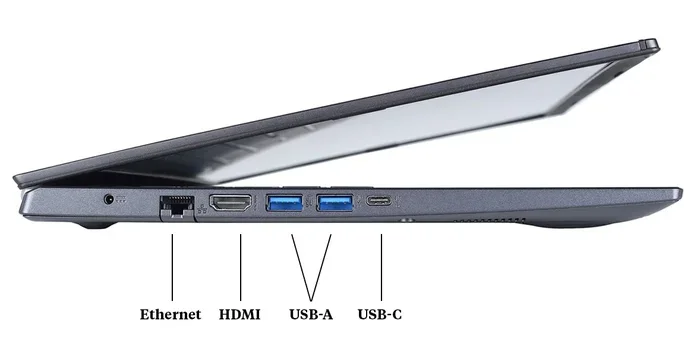
The traditional USB-A port is the flat, rectangular connector you have seen on computers for decades. It is great for flash drives and peripherals. But can a USB-A port transmit video? The answer is yes, but with a catch.
You cannot plug a monitor directly into a USB-A port. You need a USB to HDMI adapter or a USB video adapter that connects to the USB-A port and outputs a video signal through HDMI, VGA, or DisplayPort. These adapters use a chip inside them to convert the USB data into a video signal.
DisplayLink technology is the most common method used in USB-A video adapters. It relies on software drivers installed on your computer. The adapter handles the video processing, and your computer sends the compressed video data through the USB connection. This works well for everyday tasks like browsing, office work, and media consumption.
USB-C and Native Video Support
USB-C is the smaller, reversible connector found on most modern laptops and devices. Here is where things get exciting. Many USB-C ports support Alt Mode, which allows video signals to be transmitted natively without extra software.
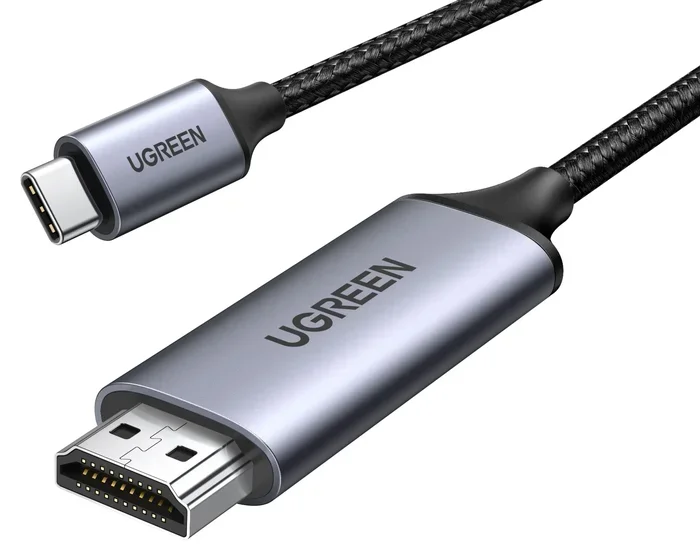
When a USB-C port supports USB-C Alt Mode, it can carry the same video signal as HDMI or DisplayPort. You can plug a USB-C to HDMI cable directly into your laptop and connect it to a monitor. No adapter with extra chips needed. No software installation required. It just works.
However, not all USB-C ports support Alt Mode. Some USB-C ports only provide power and data transfer. They cannot transmit video. This is why it is important to check your device specifications before buying a USB-C video cable or adapter.
Thunderbolt and USB4
Thunderbolt 3, Thunderbolt 4, and USB4 connectors use the same physical shape as USB-C. But they offer much higher bandwidth. Thunderbolt 3 supports up to 40 Gbps of data transfer. Thunderbolt 4 maintains that speed with additional security and display features.
These connections can easily handle high-resolution video output. You can connect multiple monitors through a single Thunderbolt dock. You can drive 4K displays at 60Hz or even 8K displays with the right setup. If your computer has Thunderbolt or USB4 ports, you have excellent USB video capabilities.
Types of USB Video Adapters and Solutions
Now that you understand the basics, let us look at the different products available for USB video transmission. There are several types of adapters and docks designed for different needs and budgets.
USB to HDMI Adapters
A USB to HDMI adapter is the most popular solution for connecting a computer to an external monitor. These small devices plug into your USB port on one end and connect to an HDMI cable on the other end. The HDMI cable then connects to your monitor or TV.
Most USB to HDMI adapters use DisplayLink technology. They work with both USB-A and USB-C ports. You simply install the DisplayLink driver, plug in the adapter, and your computer recognizes the external display. These adapters are affordable and widely available.
USB Docking Stations
A USB docking station is a larger hub that connects to your laptop through a single USB cable. It provides multiple ports, including video output, USB ports for peripherals, Ethernet, and sometimes even power delivery.
Docking stations are perfect for people who work at a desk every day. You plug one cable into your laptop and instantly have access to an external monitor, keyboard, mouse, and internet connection. Popular brands like CalDigit, Anker, and Dell make reliable docking stations with strong USB video output support.
USB Video Capture Cards
A USB video capture card works in the opposite direction. Instead of sending video from your computer to a monitor, it captures video from an external source and sends it to your computer. These are popular with streamers, content creators, and anyone who wants to record gameplay or video calls.
Capture cards plug into your computer via USB and receive video through HDMI or other inputs. Your computer then processes and displays or records the video. While not exactly the same as USB video output, capture cards are an important part of the USB video ecosystem.
USB-C to DisplayPort and VGA Adapters
Not all monitors use HDMI. Some use DisplayPort or even the older VGA connector. Fortunately, there are USB-C to DisplayPort adapters and USB-C to VGA adapters available. These work the same way as USB to HDMI adapters but with different video output options.
If you have an older monitor with only VGA input, a USB-C to VGA adapter can still get the job done. The video quality will not be as sharp as HDMI or DisplayPort, but it works for basic tasks and presentations.
USB Video Bandwidth and Performance
The performance of USB video transmission depends heavily on the bandwidth of the USB connection. Bandwidth is the amount of data that can travel through the cable at one time. Higher bandwidth means smoother video and higher resolution support.
USB 2.0 has a maximum bandwidth of 480 Mbps. This is far too slow for video. You might be able to push a very low-resolution display through USB 2.0, but the experience will be laggy and frustrating. Avoid using USB 2.0 for video whenever possible.
USB 3.0 offers 5 Gbps of bandwidth. This is enough for 1080p video at 60Hz and even some 4K content. USB 3.1 Gen 2 doubles that to 10 Gbps, and USB 3.2 Gen 2×2 reaches 20 Gbps. These speeds handle high-quality USB video output with ease.
USB4 and Thunderbolt 3/4 provide up to 40 Gbps of bandwidth. This is more than enough for multiple 4K displays or even a single 8K display. If you want the best USB video performance, look for devices that support USB4 or Thunderbolt.
Quick Tips for Maximizing USB Video Performance
- Always use USB 3.0 or newer ports for video transmission.
- Use high-quality USB cables that support the data speeds you need.
- Keep your DisplayLink drivers and firmware up to date.
- Avoid using USB hubs between your computer and the adapter when possible.
- If you experience lag, try reducing the display resolution or refresh rate.
- Use a wired USB connection rather than a wireless adapter for the best stability.
Common Problems with USB Video Transmission
USB video works great most of the time. But like any technology, it can have issues. Here are the most common problems people run into and how to fix them.
Display Not Recognized
The most common issue is plugging in a USB video adapter and having the monitor show nothing. This usually happens because the driver is not installed. DisplayLink adapters require the DisplayLink software to be installed on your computer. Without it, the computer does not know how to communicate with the adapter.
To fix this, visit the DisplayLink website and download the latest driver for your operating system. Install it, restart your computer, and plug in the adapter again. The external display should be recognized immediately.
Lag or Stuttering Video
If your external display shows video but it looks choppy or laggy, the USB connection may be the bottleneck. This often happens when using a USB 2.0 port or a low-quality cable. Switch to a USB 3.0 or USB-C port and make sure your cable supports the needed data speed.
Another cause is running too many demanding applications at the same time. Video compression and decompression take processing power. If your computer is already working hard, the video may stutter. Close unnecessary programs and see if the performance improves.
Resolution and Refresh Rate Limitations
Not every USB adapter supports the same resolutions and refresh rates. A cheap USB 3.0 adapter might only handle 1080p at 30Hz. If you want 4K at 60Hz, you need a more powerful adapter or a Thunderbolt connection.
Check the specifications of any adapter before you buy it. Look for the maximum supported resolution and refresh rate. Make sure it matches what your monitor and use case require. Investing in a better adapter saves you from disappointment later.
Audio Not Working Over USB
Some USB video adapters do not carry audio. The video signal goes through, but the sound does not. This is especially common with older adapters or those that only support certain codecs. If you need audio along with video, check the product specifications carefully before purchasing.
Many modern adapters and docking stations do support audio over USB. Look for products that explicitly mention audio support in their description. A USB-C to HDMI adapter with audio support is easy to find and usually affordable.
Expert Insights on USB Video Technology
USB video transmission has come a long way in the last decade. What used to be a clunky, limited solution is now a reliable alternative to traditional video ports. Experts in the tech industry agree that USB-based video output has its place, especially for people who need flexibility and portability.
DisplayLink technology has improved significantly. The latest versions support higher resolutions, better color depth, and lower latency than earlier generations. The company continues to update its drivers and software to work with the latest operating systems and hardware.
At the same time, native USB-C Alt Mode has made dedicated adapters less necessary for many users. If your laptop has a USB-C port with Alt Mode support, you can often connect directly to a monitor with just a simple cable. This is the simplest and most reliable way to get USB video output.
Experts also recommend considering your overall setup. If you need multiple displays, a USB docking station is the way to go. If you just need one extra screen occasionally, a simple USB to HDMI adapter works perfectly. Match your solution to your actual needs rather than buying the most expensive option.
USB Video vs Traditional Video Ports
How does USB video transmission compare to traditional ports like HDMI and DisplayPort? Here is a quick comparison to help you understand the differences.
- HDMI and DisplayPort were designed specifically for video. They offer the best image quality, highest refresh rates, and the lowest latency.
- USB video is more flexible. You can use it on computers that lack dedicated video ports. It works through adapters and docks.
- USB-C Alt Mode bridges the gap. It provides native video support through a USB-C port without needing extra software.
- DisplayLink adapters offer great compatibility but add a small amount of latency due to software processing.
- Thunderbolt and USB4 provide near-native video performance through the USB connection.
For most everyday users, USB video transmission is more than adequate. You will not notice a significant difference in daily tasks like web browsing, document editing, or video watching. Professionals who need pixel-perfect accuracy or ultra-low latency for gaming may still prefer dedicated video ports.
Key Takeaways
- USB can transmit video: Both USB-A and USB-C connectors support video output with the right adapter or technology.
- DisplayLink is a popular solution: This software-based technology allows USB connections to drive external displays reliably.
- USB-C Alt Mode carries video natively: Modern USB-C ports can transmit video without extra software or adapters in many cases.
- USB video adapters are affordable: You can find USB to HDMI adapters for under $50 in most cases.
- Bandwidth matters: USB 3.0 and newer provide the speed needed for smooth video transmission.
- Driver installation is key: Many USB video solutions require drivers or software to work properly.
- USB video is not the same as dedicated video ports: There are limitations in resolution and refresh rate compared to HDMI or DisplayPort.
Conclusion
So, can a USB transmit video? Absolutely. The technology has matured to the point where USB video output is a practical, reliable, and affordable solution for most users. Whether you use a simple USB to HDMI adapter, a full-featured docking station, or a native USB-C connection, you can extend your display and boost your productivity.
The key is understanding your options. Know which USB ports your computer has. Choose the right adapter for your monitor. Install the necessary drivers. And pay attention to bandwidth requirements for the resolution and refresh rate you want.
USB video transmission opens up possibilities for laptop users, desktop builders, and anyone who needs flexible display options. It is not perfect, and it has some limitations compared to dedicated video ports. But for the vast majority of people, it works beautifully. Try it out, and you will wonder how you ever managed without an extra screen.
Start small with a basic adapter if you are new to this. Upgrade to a docking station or Thunderbolt solution if you need more. The world of USB video connectivity is wide open, and there has never been a better time to explore it.
Frequently Asked Questions
Can I use any USB cable to transmit video?
No, not every USB cable supports video transmission. You need a USB video adapter or a cable specifically designed for video output. Standard USB cables are meant for data transfer and charging, not for carrying video signals to a display.
Does USB video transmission have any lag?
There can be a small amount of lag with DisplayLink-based USB adapters because the video data is compressed and decompressed through software. However, for everyday tasks like browsing and office work, the lag is usually unnoticeable. Thunderbolt and USB-C Alt Mode connections have much lower latency.
Can I connect multiple monitors through USB?
Yes, you can connect multiple monitors using USB docking stations or multiple USB video adapters. The number of monitors you can support depends on your computer’s USB bandwidth and the capabilities of the adapters or dock you are using.
Is USB video quality as good as HDMI?
USB video quality is very good for most uses, but it may not match HDMI or DisplayPort in every scenario. High-quality USB-C adapters and Thunderbolt connections can deliver excellent 4K video. Budget USB 2.0 adapters will have noticeable quality limitations.
Do I need to install drivers for USB video adapters?
Most DisplayLink USB adapters require driver installation. The driver allows your computer to communicate with the adapter and compress video data for transmission over USB. USB-C Alt Mode adapters typically do not need drivers because the video support is built into the hardware.
Can I charge my laptop and transmit video through the same USB-C cable?
Yes, many USB-C docking stations and adapters support power delivery alongside video transmission. This means you can charge your laptop and connect to an external monitor using a single USB-C connection. Look for docks that support USB Power Delivery for this convenience.