Can One Usb C Support Dual Monitors Without Any Hassle
Can one USB C support dual monitors? The answer is yes, and it is easier than most people think. A single USB-C port can power two external displays through USB-C docking stations, Thunderbolt 3, or Thunderbolt 4 technology. This guide covers everything you need to know about setting up a dual display setup without any hassle, from cable compatibility to the best docking stations on the market.
Have you ever sat at your desk and thought, “I wish I could just plug in two monitors and get work done”? You are not alone. More and more people are looking for ways to expand their workspace without buying expensive new hardware. The good news is that can one USB C support dual monitors? Absolutely. A single USB-C port can handle two external displays, and you do not need to be a tech expert to make it work.
USB-C has become the standard connector on most modern laptops, tablets, and even some desktops. It is small, reversible, and incredibly versatile. But its real superpower is the ability to carry video signals, data, and power all through one tiny cable. That means you can connect external monitors, charge your device, and transfer files using just one port. In this guide, we will walk you through everything you need to know about using a single USB-C port for a dual monitor setup without any hassle.
Key Takeaways
- USB-C Can Drive Dual Monitors: A single USB-C port supports dual monitors via docking stations, Thunderbolt, or USB-C alt mode.
- Thunderbolt Makes It Easier: Thunderbolt 3 and Thunderbolt 4 offer the best bandwidth and reliability for multi-monitor setups.
- Docking Stations Are Key: The right USB-C docking station determines your resolution, refresh rate, and overall experience.
- Check Your Laptop First: Not every USB-C port supports video output, so verify compatibility before buying gear.
- Cable Quality Matters: Using the wrong cable can limit your display performance or cause connection drops.
- Setup Is Simple: With the right equipment, connecting two monitors takes minutes, not hours.
📑 Table of Contents
- What Is USB-C and Why Does It Matter for Dual Monitors?
- How Can One USB C Support Dual Monitors?
- USB-C Alt Mode vs. Thunderbolt: What Is the Difference?
- Best USB-C Docking Stations for Dual Monitor Setup
- Common Mistakes to Avoid When Setting Up Dual Monitors via USB-C
- Expert Tips for Getting the Most Out of Your USB-C Dual Monitor Setup
- Expert Insights
- Conclusion
What Is USB-C and Why Does It Matter for Dual Monitors?
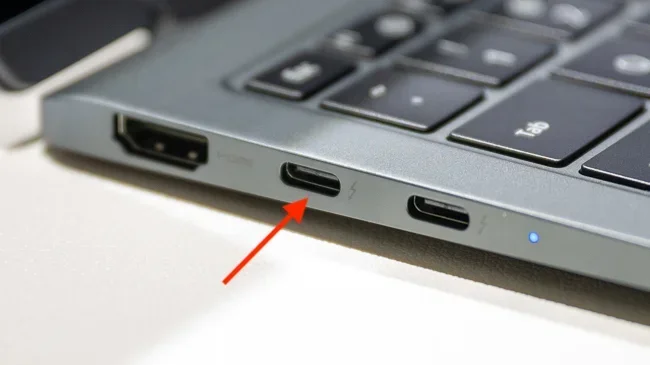
USB-C is a type of connector that has taken the tech world by storm. Unlike older USB-A ports, USB-C is small, oval-shaped, and reversible. You can plug it in either way, which is a small thing that makes a big difference. But its real value goes far beyond convenience.
USB-C supports something called USB-C alt mode, which allows it to carry video signals from your computer to an external display. This is the foundation of everything we will talk about today. Without alt mode, USB-C is just a data and charging port. With alt mode, it becomes a video output capable of driving one or even two monitors.
Why USB-C Replaced Older Ports
Older laptops used to have multiple ports for different jobs. You had a VGA port for one monitor, an HDMI port for another, and a USB-A port for your mouse and keyboard. It was messy and confusing. USB-C changed all of that by combining video, data, and power into a single connector.
Today, most new laptops only have USB-C ports. That is great for portability, but it can be confusing when you want to connect external monitors. The key is understanding what your specific USB-C port can do. Not all USB-C ports are created equal, and this is where most people get tripped up.
USB-C vs. USB-A: The Big Difference
USB-A is the classic rectangular port you have seen on computers for decades. It handles data and sometimes charging, but it cannot carry video signals natively. USB-C, on the other hand, can do all three: data, power, and video. This is why USB-C docking stations have become so popular. They unlock the full potential of the USB-C port and make monitor connectivity simple and clean.
How Can One USB C Support Dual Monitors?
Now let us get to the heart of the matter. Can one USB C support dual monitors? Yes, and there are several ways to do it. The method you choose depends on your laptop, your USB-C port type, and your budget. Let us break down each option so you can pick the best one for your situation.
Method 1: USB-C Docking Station
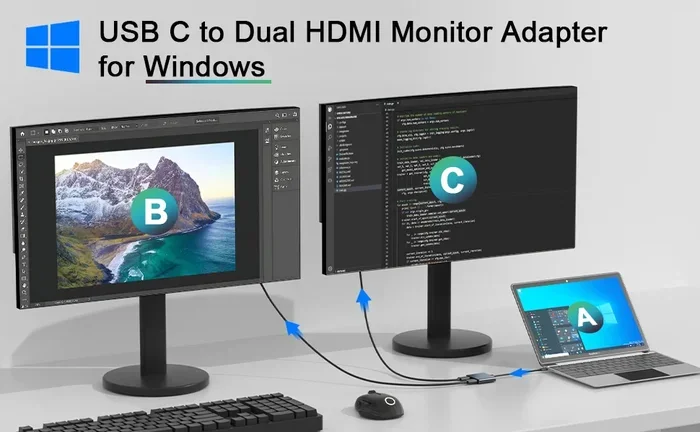
The most popular and reliable way to connect two monitors through a single USB-C port is by using a USB-C docking station. A docking station is a small hub that connects to your laptop via one USB-C cable and provides multiple ports for your monitors, keyboard, mouse, and other peripherals.
Most docking stations come with at least one or two video output ports, such as HDMI or DisplayPort. You simply plug in your two monitors, connect the docking station to your laptop, and you are good to go. Some docking stations even support resolution up to 4K on both displays, which is impressive for a single cable solution.
Here is what to look for in a good docking station:
- Video outputs: At least two HDMI or DisplayPort outputs for dual monitors.
- USB-C Power Delivery: This charges your laptop while connected.
- Data ports: USB-A or USB-C ports for peripherals and storage.
- Ethernet port: For a stable wired internet connection.
- Bandwidth support: Look for USB 3.1 or USB 3.2 for fast data transfer.
Method 2: Thunderbolt 3 or Thunderbolt 4
If your laptop has a Thunderbolt 3 or Thunderbolt 4 port, you are in luck. These ports use the USB-C connector but offer much more bandwidth than standard USB-C. Thunderbolt 3 provides up to 40 Gbps of bandwidth, and Thunderbolt 4 guarantees 40 Gbps as well.
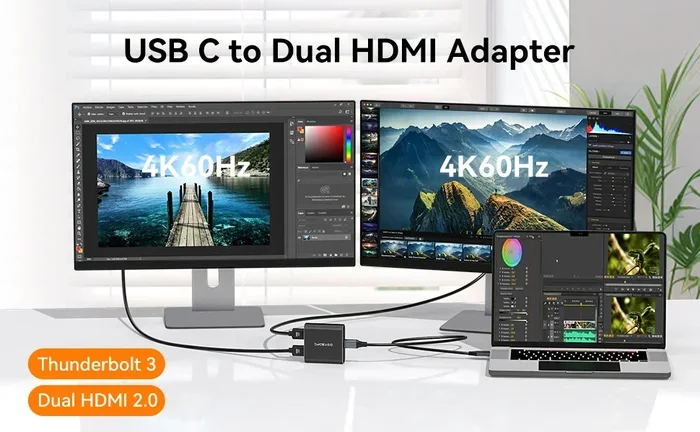
This extra bandwidth is what makes Thunderbolt ideal for dual display setups. With a Thunderbolt docking station, you can run two 4K monitors at 60Hz without any lag or stutter. Some Thunderbolt docks even support three or four monitors, though that depends on your laptop’s graphics capabilities.
Thunderbolt is also great for daisy chaining, which means you can connect one monitor to another and then to your laptop using a single Thunderbolt cable. This reduces cable clutter and simplifies your workspace. Not all monitors support daisy chaining, so check your display specifications first.
Method 3: USB-C to HDMI or DisplayPort Adapters
If you do not want to buy a docking station, you can use individual adapters. A USB-C to HDMI adapter lets you connect one monitor directly to your laptop. Then, you can use a second adapter or a different port for the second monitor.
This method works well if your laptop has more than one USB-C port. One port connects to the first monitor, and the other connects to the second. However, if your laptop only has one USB-C port, this method will not work for dual monitors without a docking station.
Quick tip: Always buy adapters from reputable brands. Cheap adapters can cause flickering, low resolution, or no signal at all. Spending a little more upfront saves you frustration later.
Method 4: USB-C Hub with Built-in Video
A USB-C hub is similar to a docking station but smaller and more portable. Hubs typically offer a few extra ports, including one or two video outputs. They are great for people who travel frequently and need a lightweight solution for laptop productivity.
However, hubs usually provide less power delivery than full-size docking stations. They also may not support the same resolution or refresh rate. If you need a portable setup for occasional use, a hub is a great choice. For a permanent desk setup, a docking station is better.
USB-C Alt Mode vs. Thunderbolt: What Is the Difference?
Understanding the difference between USB-C alt mode and Thunderbolt is essential for making the right choice. Both use the same physical connector, but they perform very differently when it comes to driving external monitors.
What Is USB-C Alt Mode?
USB-C alt mode is a feature built into many USB-C ports that allows them to carry video signals. When a port supports alt mode, it can output video to one or more displays depending on the bandwidth available. Most USB-C alt mode ports can drive one 4K monitor at 60Hz or two 1080p monitors.
The problem is that alt mode does not guarantee dual monitor support. Some laptops only support one external display through alt mode, even if the port looks like it should handle two. Always check your laptop’s specifications or contact the manufacturer to confirm dual display support.
What Is Thunderbolt?
Thunderbolt is Intel’s proprietary technology that uses the USB-C connector but provides much higher bandwidth. Thunderbolt 3 supports up to 40 Gbps, and Thunderbolt 4 guarantees the same speed. This massive bandwidth allows for multi-monitor support, fast data transfer, and charging, all through a single cable.
Thunderbolt docks are more expensive than standard USB-C docks, but they offer superior performance and reliability. If you regularly work with dual display setups and need the best experience, Thunderbolt is the way to go.
Comparison Table: USB-C Alt Mode vs. Thunderbolt
| Feature | USB-C Alt Mode | Thunderbolt 3/4 |
|---|---|---|
| Max Bandwidth | 10-20 Gbps | 40 Gbps |
| Dual Monitor Support | Often limited to 1080p | Two 4K at 60Hz |
| Charging | Yes (varies) | Yes (up to 100W) |
| Data Transfer Speed | Up to 10 Gbps (USB 3.2) | Up to 40 Gbps |
| Daisy Chaining | No | Yes |
| Price | Affordable | Higher |
| Best For | Basic dual monitor needs | Professional multi-monitor work |
Best USB-C Docking Stations for Dual Monitor Setup
Choosing the right docking station can make or break your dual display setup. There are many options on the market, and they vary widely in price, features, and performance. Here are some of the best options for different needs and budgets.
Budget-Friendly Option
If you are on a tight budget, look for a basic USB-C docking station with two HDMI outputs. These docks typically cost between $30 and $60 and can drive two 1080p monitors at 60Hz. They are perfect for home offices where you do not need 4K resolution.
One popular option in this range is the UGREEN USB-C Dock. It offers two HDMI ports, multiple USB-A ports, and a 100W power delivery port. It is compact, affordable, and works well for everyday tasks like browsing, email, and document editing.
Mid-Range Option
For better performance and more features, consider a mid-range dock in the $80 to $150 range. These docks often include DisplayPort outputs, higher bandwidth support, and better build quality.
The Anker 555 USB-C Docking Station is a solid choice. It supports dual 4K displays at 30Hz or a single 4K display at 60Hz. It also offers 100W power delivery, gigabit Ethernet, and multiple USB-A and USB-C ports. This dock is ideal for professionals who need reliable monitor connectivity without breaking the bank.
Premium Option
If you want the best of the best, invest in a Thunderbolt 4 docking station. These docks offer the highest bandwidth, the best reliability, and the most features. They typically cost between $200 and $400.
The CalDigit TS4 is widely regarded as one of the best Thunderbolt 4 docks available. It supports dual 4K displays at 60Hz, provides 87W of power delivery, and has an impressive array of ports including USB-A, USB-C, SD card reader, and DisplayPort. If you use your laptop for creative work or heavy multitasking, this dock is worth every penny.
Quick Tips for Choosing a Docking Station
- Check your laptop’s port type: Make sure it supports USB-C alt mode or Thunderbolt before buying a dock.
- Verify resolution support: Not all docks can drive 4K on two monitors simultaneously.
- Look for Power Delivery: A dock with 60W or 100W PD keeps your laptop charged while working.
- Read reviews: Real-world user experiences often reveal issues that product descriptions do not mention.
- Consider your monitor inputs: Match the dock’s outputs to your monitors’ available inputs (HDMI, DisplayPort, etc.).
Common Mistakes to Avoid When Setting Up Dual Monitors via USB-C
Setting up dual monitors through USB-C is generally straightforward, but there are a few common mistakes that can cause frustration. Here is what to watch out for.
Assuming All USB-C Ports Support Video
This is the number one mistake people make. Not every USB-C port on a laptop can output video. Some ports are data-only and cannot connect to external monitors at all. Before you buy any adapter or dock, check your laptop’s specifications to confirm which ports support video output.
Look for terms like “DisplayPort over USB-C,” “USB-C with video output,” or “Thunderbolt.” If your laptop manual does not mention video support, contact the manufacturer’s support team to confirm.
Using the Wrong Cable
The cable you use matters more than you might think. A cheap or incompatible USB-C cable can limit your resolution, cause flickering, or prevent your monitors from being recognized. Always use high-quality cables that are rated for the bandwidth you need.
For dual 4K setups, you need a USB-C cable that supports at least 20 Gbps. For Thunderbolt setups, use Thunderbolt-certified cables. Using a standard USB 2.0 cable for video output will not work, no matter how good your dock is.
Overlooking Power Delivery
Many people buy a docking station for video output but forget about charging. A good dock should charge your laptop while also powering your monitors. If your dock does not support sufficient power delivery, your laptop battery may drain faster while connected.
Look for docks that offer at least 60W of Power Delivery. If you have a gaming laptop or a workstation, aim for 85W or 100W. This ensures your laptop stays powered and performs at its best throughout the day.
Ignoring Resolution and Refresh Rate Limits
Not every setup can handle two 4K monitors at 60Hz. Your USB-C port, your dock, and your laptop’s graphics card all play a role in determining what resolution and refresh rate you can achieve. Pushing beyond these limits can result in a black screen, flickering, or reduced performance.
Before setting up your monitors, check the maximum resolution your USB-C port and dock can support. If you only need 1080p or 1440p for both displays, most USB-C docks will handle this easily without any issues.
Not Updating Drivers and Firmware
This is a step many people skip, but it can save you hours of troubleshooting. Outdated graphics drivers or dock firmware can cause compatibility issues with dual monitor setups. Always update your laptop’s graphics drivers and your dock’s firmware before setting up your displays.
Most dock manufacturers provide firmware update tools on their websites. Graphics driver updates are available through Windows Update or directly from Intel, AMD, or NVIDIA’s websites, depending on your laptop’s graphics hardware.
Expert Tips for Getting the Most Out of Your USB-C Dual Monitor Setup
Once you have your dual monitors connected, there are a few things you can do to optimize your experience. These tips come from years of real-world testing and user feedback.
Use Display Settings to Arrange Your Monitors
Windows and macOS both let you arrange your monitors virtually. Go to your display settings and drag the monitor icons to match their physical placement on your desk. This ensures that your mouse moves naturally between screens and that windows span across displays correctly.
You can also set each monitor to a different resolution or orientation. For example, keep your primary monitor at 4K for detailed work and set your secondary monitor at 1080p for email and chat windows.
Enable Night Light and Blue Light Filters
Working with two monitors for hours can strain your eyes. Both Windows and macOS offer built-in blue light filters that reduce eye fatigue during long work sessions. Enable night mode on both monitors and adjust the warmth based on your preference and lighting conditions.
Use a Monitor Arm for Better Ergonomics
If you use two monitors regularly, consider investing in a dual monitor arm. A monitor arm raises your displays to eye level, reduces neck strain, and frees up desk space. Many monitor arms are designed to work with USB-C connected setups and can support monitors weighing up to 15 pounds or more.
Organize Your Cables
A clean workspace reduces stress and improves focus. Use cable management solutions like clips, sleeves, or under-desk trays to keep your USB-C cables and power cords organized. A clean setup also makes it easier to troubleshoot connection issues if they arise.
Test Your Setup Before Committing
Before you finalize your workspace, test your dual monitor setup with different tasks. Open multiple applications, watch a video, and drag windows between screens. This helps you identify any issues with resolution, refresh rate, or cable quality before you rely on the setup for important work.
Expert Insights
According to tech reviewers and industry experts, the demand for USB-C dual monitor solutions has grown significantly over the past few years. As more laptops move to USB-C-only designs, the need for reliable docking stations and adapters has never been higher.
Industry experts recommend Thunderbolt 4 docks for professionals who need maximum reliability and performance. For casual users and students, a standard USB-C dock with two HDMI outputs provides excellent value. The key is matching your setup to your actual needs rather than overspending on features you will not use.
One common expert recommendation is to always have a backup plan. Keep a spare USB-C cable and a portable adapter in your laptop bag. If your primary dock fails or you need to connect to a different display on the go, having backup gear ensures you are never stuck without a working dual display setup.
Conclusion
Can one USB C support dual monitors without any hassle? Yes, it absolutely can. Whether you use a USB-C docking station, a Thunderbolt dock, or individual adapters, connecting two external monitors through a single USB-C port is practical, affordable, and increasingly common.
The key is understanding your laptop’s capabilities and choosing the right equipment for your needs. Check your port type, verify dual display support, invest in quality cables and docks, and keep your drivers updated. With these steps, you can set up a powerful multi-monitor workspace that boosts your laptop productivity and makes your workday more efficient.
Start with the basics, test your setup thoroughly, and upgrade as needed. A great dual monitor setup does not have to be expensive or complicated. It just needs the right equipment and a little planning. Now that you know the answer to “can one USB C support dual monitors,” it is time to set up your own dual display workspace and enjoy the extra screen real estate.
Frequently Asked Questions
Do all laptops with USB-C ports support dual monitors?
No, not all USB-C ports support video output. Check your laptop’s specifications to confirm that your USB-C port supports USB-C alt mode or Thunderbolt. Some USB-C ports are data-only and cannot connect to external displays at all.
Can I run two 4K monitors on a single USB-C port?
It depends on your port type and docking station. Thunderbolt 3 and Thunderbolt 4 ports can typically drive two 4K monitors at 60Hz. Standard USB-C alt mode may only support two 1080p monitors or one 4K monitor. Check your dock’s specifications for supported resolutions.
Do I need a Thunderbolt dock for dual monitors?
No, a standard USB-C docking station can also support dual monitors. Thunderbolt docks offer better bandwidth and higher resolution support, but they are more expensive. If you only need 1080p or 1440p on two screens, a regular USB-C dock is usually sufficient.
Can I daisy chain two monitors through one USB-C port?
Yes, if both your laptop and monitors support Thunderbolt or DisplayPort daisy chaining. Connect the first monitor to your laptop, then connect the second monitor to the first monitor using a Thunderbolt or DisplayPort cable. Not all monitors support daisy chaining, so check your display specs first.
Why is my second monitor not detected when connected via USB-C?
This can happen for several reasons. Check your cable quality, ensure your dock is properly connected, and update your graphics drivers. Also verify that your USB-C port supports video output and that your dock is compatible with your laptop model.
What is the best budget option for a USB-C dual monitor setup?
A basic USB-C docking station with two HDMI outputs is the most affordable option. These docks typically cost between $30 and $60 and support two 1080p monitors at 60Hz. Brands like UGREEN and Sabrent offer reliable budget-friendly options that work well for everyday tasks.
=== CONCLUSION ===
Can one USB C support dual monitors? Without a doubt, yes. A single USB-C port can power two external displays through the right equipment and setup. Whether you choose a USB-C docking station, a Thunderbolt dock, or simple adapters, the solution is within reach for almost anyone.
The key takeaways are simple. Know your port type, choose the right dock, use quality cables, and keep your software updated. With these steps, you can transform your single-laptop setup into a powerful multi-monitor workspace that boosts productivity and makes your work more comfortable.
Do not let confusion about ports and cables hold you back. The technology is ready, the equipment is affordable, and the setup process is easier than ever. Take the leap, connect your two monitors, and enjoy the extra screen space that will change the way you work.