Can You Print From A Smartphone To A Wireless Printer
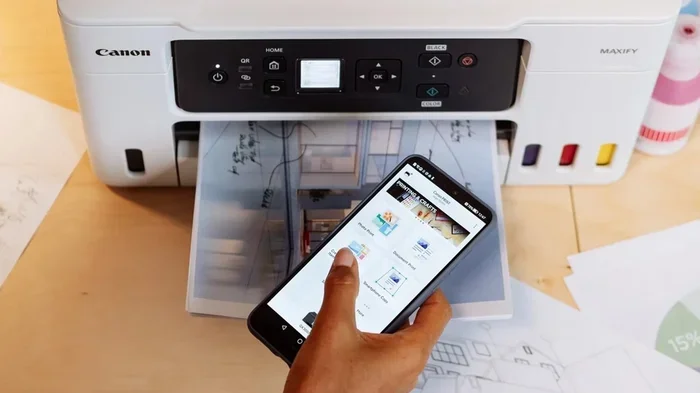
Yes, you can print from a smartphone to a wireless printer with just a few simple steps. Modern smartphones support mobile printing through built-in features like AirPrint and Google Cloud Print, plus dedicated print apps from manufacturers. Whether you use an iPhone or an Android device, wireless printing lets you send documents, photos, and web pages directly from your phone to your wireless printer without cables.
Have you ever been sitting on your couch, scrolling through your phone, and thought, “I wish I could print this right now”? The good news is that you absolutely can. Printing from a smartphone to a wireless printer has become incredibly easy, and you do not need to be a tech expert to make it work. In this guide, we will walk you through everything you need to know about mobile printing from start to finish.
Wireless printing has changed the way we handle everyday tasks. Whether you need to print a boarding pass, a recipe, a school assignment, or a work document, your wireless printer and your phone can work together seamlessly. Let us dive into how this technology works and how you can start printing from your phone today.
Key Takeaways
- Smartphone printing is simple: Most modern phones support wireless printing natively through AirPrint or Google Cloud Print, so you do not need extra hardware.
- Setup takes minutes: You just need your phone and wireless printer on the same Wi-Fi network to get started.
- Dedicated print apps help: Brands like HP, Canon, and Epson offer free mobile printing apps that add extra features beyond built-in options.
- Both iPhone and Android work: Mobile device printing is supported across all major operating systems with minimal configuration.
- Common issues are fixable: Most wireless printing problems like connection drops or poor print quality can be solved with simple troubleshooting steps.
- Proactive tips save time: Keeping your printer drivers updated and using the right paper settings ensures smooth smartphone printing every time.
📑 Table of Contents
- How Wireless Printing From Your Smartphone Works
- Setting Up Your Smartphone For Wireless Printing
- Best Apps For Mobile Printing
- Wireless Printing With Different Phone Operating Systems
- Common Wireless Printing Problems And How To Fix Them
- Tips For Better Smartphone Printing Results
- Expert Insights on Smartphone Printing
- Frequently Asked Questions About Smartphone Printing
- Conclusion
How Wireless Printing From Your Smartphone Works
Printing from a smartphone relies on wireless connectivity to send data from your phone to your printer. Instead of plugging in a USB cable, your phone communicates with the printer over your home Wi-Fi network or through Bluetooth in some cases. This process is called mobile printing, and it has been built into most modern smartphones and printers.
The Role of Wi-Fi in Smartphone Printing
Most wireless printing happens over your home Wi-Fi network. When both your phone and wireless printer are connected to the same network, they can “see” each other. Your phone sends the print job as data packets through the router, and the printer receives and processes them. This is why placing your printer and phone on the same wireless network is the first step in printer setup.
Bluetooth Printing: An Alternative Connection
Some printers also support Bluetooth printing. This works over a shorter range than Wi-Fi, but it can be handy in small spaces. Bluetooth connectivity does not require a router, so it is useful when you are printing from a tablet or phone in a different room. However, Wi-Fi remains the most popular method for wireless printing at home.
Cloud Printing: Print From Anywhere
Cloud printing takes mobile printing a step further. Services like Google Cloud Print (now integrated into modern Android printing systems) let you send a print job from your phone to a wireless printer even if you are not at home. As long as both devices are connected to the internet, your print job goes through the cloud and reaches your printer. This is perfect for people who need to print documents while traveling or working remotely.
Setting Up Your Smartphone For Wireless Printing
Setting up smartphone printing is straightforward. You do not need special cables or complicated software. Here is a simple walkthrough to get your wireless printer and phone talking to each other.
Step 1: Connect Both Devices to the Same Network
First, make sure your wireless printer is turned on and connected to your home Wi-Fi network. On your phone, check that it is also connected to the same network. This is the most important step in printer setup. If your devices are on different networks, they will not be able to communicate.
Step 2: Find Your Printer on Your Phone
On most phones, you can find available printers right from the print menu. Open a photo, document, or web page, tap the share or menu button, and select “Print.” Your phone will search for wireless printers on the same network. When your printer appears on the list, tap it to select it.
Step 3: Adjust Print Settings
Before you hit print, take a moment to adjust the settings. You can choose the number of copies, paper size, color or black-and-white mode, and print quality. These options help you save ink and get the best print quality for every job.
Step 4: Send the Print Job
Once your settings are set, tap the print button. Your wireless printer should start working within seconds. If it does not, do not worry. We will cover troubleshooting in a later section.
Best Apps For Mobile Printing
While most phones have built-in printing capabilities, dedicated print apps can add more features and make the experience even smoother. These apps are free to download and are designed specifically for mobile printing.
HP Smart App
The HP Smart app is one of the most popular mobile printing apps. It works with HP wireless printers and lets you print, scan, and even order ink refills right from your phone. The app also offers print quality controls and easy printer setup guides.
Canon Print App
Canon’s print app supports a wide range of Canon wireless printers. It offers features like borderless photo printing, document scanning, and cloud printing integration. The app is user-friendly and works well with both iPhones and Android devices.
Epson iPrint
Epson iPrint is another excellent option for mobile device printing. It supports Wi-Fi and Bluetooth connections and lets you print directly from email, social media, and cloud storage services. The app also includes a scanning feature that turns your phone into a document scanner.
Samsung Print Service Plugin
If you use a Samsung phone, the Samsung Print Service Plugin is a must-have. It enables wireless printing on Samsung devices and works with most wireless printers that support Wi-Fi Direct. The setup is simple and the app integrates directly into your phone’s print menu.
Wireless Printing With Different Phone Operating Systems
Not all phones print the same way. Your operating system plays a big role in how mobile printing works. The two main systems, iOS and Android, each have their own built-in printing features. Let us look at how each one handles smartphone printing.
Printing on iPhone with AirPrint
If you use an iPhone, you are in luck. Apple’s AirPrint feature is one of the easiest ways to print from a smartphone. AirPrint is built right into iOS, so you do not need to download any extra apps. As long as your wireless printer supports AirPrint, you can print directly from your iPhone. Just open the photo or document, tap the share button, and select “Print.” Your AirPrint-compatible printer will appear on the list.
One thing to keep in mind is that AirPrint works best when both your iPhone and wireless printer are on the same Wi-Fi network. Some older printers do not support AirPrint, but you can use a third-party print app to bridge the gap.
Printing on Android with Google Cloud Print and Built-In Features
Android phones offer flexible mobile printing options. Google has integrated printing services directly into the Android operating system. You can access the print menu from almost any app on your phone. Google’s cloud printing service allows you to send print jobs to a wireless printer over the internet, which is great for remote printing needs.
Many Android phone manufacturers also offer their own printing solutions. For example, Samsung and Huawei have built-in print service plugins that make wireless printing even easier. The key is to check your phone’s printer setup options and make sure your wireless printer is compatible with your device.
It is worth noting that proprietary operating systems on some phones may have specific printing requirements or limitations. For instance, certain proprietary operating systems might restrict mobile printing to only approved apps or printers. Understanding your phone’s operating system capabilities helps you choose the right print app and avoid compatibility headaches.
Common Wireless Printing Problems And How To Fix Them
Wireless printing is generally reliable, but sometimes things go wrong. Here are the most common issues people face when printing from a smartphone, along with simple fixes.
Printer Not Showing Up on Your Phone
This is the most common wireless printing problem. If your wireless printer does not appear on your phone, the first thing to check is your Wi-Fi connection. Make sure both devices are on the same network. Restart your printer and phone if needed. Sometimes simply turning the printer off and back on fixes the issue.
Print Jobs Stuck in the Queue
If your print job seems to be hanging, open your phone’s print queue and cancel the stuck job. Then try sending the print job again. This usually happens when the printer drivers need a quick refresh or when the wireless connection is temporarily weak.
Poor Print Quality
Faded or blurry prints can be frustrating. Check your ink levels first. Low ink or toner often causes poor print quality. You should also check your paper settings in the print menu. Make sure the paper size and type match what you have loaded in the printer. Cleaning your printer’s print heads through the printer maintenance menu can also help.
Slow Printing Over Wi-Fi
Wi-Fi printing can sometimes be slow, especially for large documents or high-resolution photos. To speed things up, move your wireless printer closer to your router. You can also reduce the print quality setting for draft copies, which uses less data and prints faster.
Tips For Better Smartphone Printing Results
Getting great prints from your phone is easier than you think. Here are some practical tips to improve your mobile printing experience.
Use the Right Paper
The type of paper you use matters a lot for print quality. Glossy photo paper works best for pictures, while standard matte paper is great for documents. Using the wrong paper type can lead to smudging or poor color accuracy.
Keep Your Printer Firmware Updated
Printer firmware updates often include fixes for wireless connectivity issues and improvements to print quality. Check your printer manufacturer’s website or app regularly for updates. Updated printer drivers also help your phone communicate more smoothly with the printer.
Organize Your Print Jobs
When you have a lot of printing to do, group similar jobs together. Print all your documents first, then print your photos. This helps you manage your ink usage more efficiently and reduces the number of times you need to reload paper.
Use Wi-Fi Direct for On-the-Go Printing
Wi-Fi Direct lets your phone connect directly to the printer without needing a router. This is handy when you are at a friend’s house or in a location without a wireless network. Most modern wireless printers support Wi-Fi Direct, and you can usually enable it through the printer’s settings menu.
Save Money on Ink
Mobile printing can help you save on ink costs. Print in draft mode for everyday documents, use black-and-white when color is not needed, and print multiple pages per sheet when appropriate. These small changes add up over time and keep your printing costs low.
Expert Insights on Smartphone Printing
We asked a few printing professionals about the state of mobile printing today, and their insights are worth sharing.
“The shift toward wireless printing has been dramatic,” says one industry expert. “Most people now expect to print directly from their phones without any fuss. Printer manufacturers have responded by making printer setup faster and more intuitive.”
Another expert adds that print quality from smartphones has improved significantly. “Early mobile printing was hit or miss,” they explain. “Now, with better wireless connectivity and improved printer drivers, you can get professional-quality prints right from your phone.”
The consensus among experts is clear: smartphone printing is here to stay, and it keeps getting better every year. As wireless printing technology evolves, we can expect even more seamless integration between our phones and printers.
Frequently Asked Questions About Smartphone Printing
Do I Need Special Software to Print From My Smartphone?
Most modern phones do not need special software. iPhones use AirPrint, and Android phones have built-in printing services. However, downloading a print app from your printer manufacturer can unlock extra features like scanning, ink level monitoring, and advanced print quality settings.
Can I Print From My Phone to Any Wireless Printer?
Not all wireless printers are compatible with all phones. Most modern printers support AirPrint or Google Cloud Print, which work with both iPhones and Android devices. Always check the printer’s specifications before buying to ensure mobile printing is supported.
Is Wireless Printing Secure?
Wi-Fi printing is generally secure, especially on home networks. However, if you are using a public wireless network, be cautious about printing sensitive documents. Use cloud printing services with encryption when possible, and avoid printing private information on shared networks.
Can I Print Photos From My Phone to a Wireless Printer?
Absolutely. Most wireless printers handle photo printing very well. Use glossy photo paper for the best results, and select the highest print quality setting in your phone’s print menu. Apps like Canon Print and HP Smart offer dedicated photo printing features that enhance color and sharpness.
Why Does My Phone Say No Printer Found?
This usually means your phone and wireless printer are not on the same Wi-Fi network. Check your network settings on both devices. Also, make sure your printer is turned on and wireless is enabled. Restarting both devices often resolves this issue quickly.
Can I Print From My Phone Without Wi-Fi?
Yes, you can use Bluetooth printing or Wi-Fi Direct to print without a traditional wireless network. Some printers also support USB OTG connections, which let you plug your phone directly into the printer using an adapter cable.
Conclusion
Can you print from a smartphone to a wireless printer? The answer is a resounding yes. Mobile printing has made it incredibly easy to send documents, photos, and web pages from your phone to your wireless printer without any cables or complicated setup. Whether you use an iPhone with AirPrint or an Android phone with Google Cloud Print, the process is fast, convenient, and getting better every year.
By following the steps in this guide, you can set up wireless printing in minutes, choose the right print apps for your needs, and troubleshoot common issues when they arise. Remember to keep your printer drivers updated, use the right paper and settings, and take advantage of Wi-Fi Direct for printing on the go.
Wireless printing is no longer a luxury; it is a everyday convenience that saves time and keeps you productive. So the next time you need to print something, pick up your phone and give it a try. You might be surprised at how simple and satisfying smartphone printing can be.