Can A Hard Drive Be Connected To Usb And How To Set It Up
Yes, a hard drive can absolutely be connected to USB and it is one of the simplest ways to expand your storage or back up important files. Whether you use a desktop drive, a portable drive, or an internal SATA drive, a USB connection makes file transfer quick and painless. This guide walks you through every step, from choosing the right adapter to formatting your drive and fixing common problems.
Have you ever wondered if you can plug a hard drive straight into your computer using a USB cable? The short answer is yes. Connecting a hard drive to USB is one of the most common and useful things you can do with your computer. Whether you need extra space, want to back up your files, or just need to move data from one machine to another, a USB connection makes it all possible.
In this guide, we will walk you through everything you need to know. From understanding the different types of drives to setting up your connection step by step, you will find clear and practical advice. We will also cover common mistakes and troubleshooting tips so you do not get stuck halfway through. Let us dive right in.
Key Takeaways
- Universal Compatibility: Most hard drives connect to USB with just a cable or a simple adapter, making it a plug and play experience.
- Multiple Connection Options: You can use USB adapters, enclosures, or docking stations to connect internal and external drives.
- Speed Matters: USB 3.0 and USB 3.1 offer much faster data transfer than older USB 2.0 ports.
- Formatting Is Key: Proper disk formatting ensures your drive works smoothly across Windows, Mac, and other operating systems.
- Power Supply Can Be Tricky: Some larger drives need extra power, and knowing this prevents frustrating connection failures.
- Backup and Storage Made Easy: Connecting a hard drive to USB is one of the best ways to secure your data and free up space.
📑 Table of Contents
- Can A Hard Drive Be Connected To Usb?
- What You Need to Connect a Hard Drive to USB
- Step by Step Setup Guide
- Benefits of Connecting a Hard Drive to USB
- USB Speeds: What You Should Know
- Common Problems and How to Fix Them
- Expert Insights: Best Practices for USB Hard Drive Use
- Comparison: Connecting Hard Drives to USB
- How to Choose the Right Hard Drive for USB Use
- Frequently Asked Questions
- Conclusion
Can A Hard Drive Be Connected To Usb?
The answer is a resounding yes. Can a hard drive be connected to USB? Absolutely. A hard drive is a storage device, and USB is one of the most universal ways to connect storage devices to computers. Almost every modern computer, laptop, and even many tablets supports USB connections for external storage.
When you connect a hard drive to USB, your computer recognizes it as an external storage device. You can then read files, write files, and even run programs directly from the drive. It works just like any other folder on your computer, but the data lives on the external drive instead of your main system drive.
Types of Hard Drives You Can Connect via USB
Not all hard drives are the same. Here are the main types you can connect using USB:
- External Hard Drives: These come pre-built with a USB connection. You just plug them in and go. They are the easiest option for most users.
- Internal Hard Drives (Desktop): These are 3.5-inch drives that need an external enclosure or adapter to connect via USB.
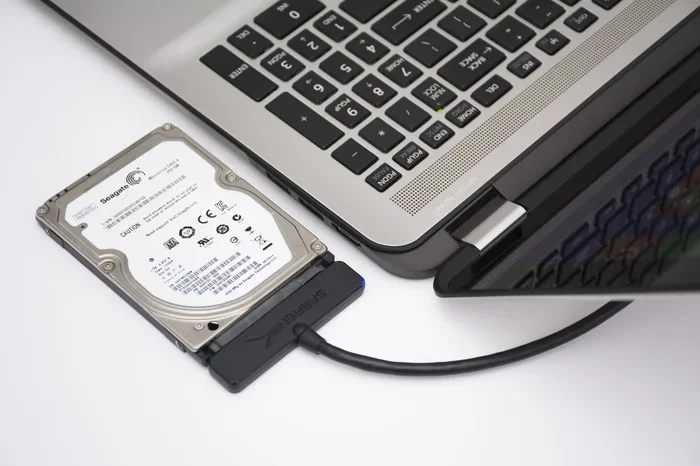
- Internal Laptop Hard Drives (2.5-inch): Smaller than desktop drives, these can also be placed in an enclosure or connected with a SATA-to-USB adapter.
- SSD Drives: Solid state drives connect to USB just like traditional hard drives. They are faster and more durable.
- Portable Hard Drives: These are compact, self-powered drives designed specifically for USB connection. They do not need an external power source.
What You Need to Connect a Hard Drive to USB
Setting up a USB hard drive connection is straightforward, but you do need the right equipment. Here is what you will need before you start.
Essential Equipment
- A hard drive: This can be an external drive with a built-in USB cable or an internal drive you want to connect externally.
- A USB cable: Most external drives come with one. If you are using an internal drive, you will need a SATA-to-USB cable or a hard drive adapter.
- A USB port on your computer: Almost all computers have USB ports. Look for USB 3.0 or USB 3.1 ports for the best speed.
- An external power source (if needed): Larger desktop drives sometimes require a separate power adapter. Portable drives draw power directly from the USB port.
Optional but Helpful Accessories
- Hard drive enclosure: A protective case that turns an internal drive into an external USB drive.
- Hard drive docking station: A handy device that lets you plug in a drive without any cables or setup. Great if you work with multiple drives.
- USB hub: If you run low on USB ports, a hub gives you more options.
Step by Step Setup Guide
Now that you have your equipment ready, here is how to actually connect and set up your hard drive via USB. Follow these steps carefully and you will be up and running in minutes.
Step 1: Choose the Right Connection Method
If your drive is already external, skip to Step 2. If you have an internal drive, decide how you want to connect it. The most popular methods are:
- SATA-to-USB cable: Plug one end into the hard drive and the other into your computer. This is the cheapest and simplest option.
- Hard drive enclosure: Place your internal drive inside a protective case that has a USB connection built in. This offers better protection and a cleaner setup.
- Hard drive docking station: Slide your drive into a dock, and it connects to your computer via USB. Docks are great for people who swap drives frequently.
Step 2: Connect the Drive
Plug the USB end of your cable or adapter into an available USB port on your computer. If your drive needs external power, plug in the power adapter and turn it on. You should hear the drive spin up or see a light turn on.
Step 3: Wait for Your Computer to Recognize the Drive
Most modern computers detect a new USB storage device within seconds. You may see a notification pop up on your screen. On Windows, you can check by opening File Explorer and looking for the new drive under This PC. On Mac, open Finder and look for the drive in the sidebar.
If your computer does not recognize the drive, do not panic. Move on to the troubleshooting section below. We will help you fix common issues.
Step 4: Format the Drive (If Needed)
Sometimes a new drive needs to be formatted before you can use it. Formatting prepares the drive for storing files. Here is what to know:
- For Windows only: Use the NTFS file system.
- For Mac only: Use APFS or Mac OS Extended.
- For both Windows and Mac: Use exFAT. This is the best choice if you need to share files between different operating systems.
Warning: Formatting erases all data on the drive. Make sure you back up any existing files before you format.
Step 5: Start Using Your Drive
Once your drive is recognized and formatted, you can start dragging and dropping files. You can store documents, photos, videos, music, and even back up your entire system. The process is just like using a regular folder on your computer.
Benefits of Connecting a Hard Drive to USB
Why do so many people connect their hard drives to USB? There are several great reasons.
Easy File Transfer
USB connections make moving files between computers incredibly simple. You can copy hundreds of gigabytes of data in minutes, especially if you use a USB 3.0 or USB 3.1 connection. This is far faster than burning files to a disc or emailing them to yourself.
Data Backup and Security
One of the best ways to protect your important files is to keep a backup on an external drive. When you connect a hard drive to USB, you can run regular backups automatically. If your main computer ever fails, your files stay safe on the external drive.
Extra Storage Without Opening Your Computer
Running low on disk space? Instead of replacing your internal drive, just connect an external one. This is a quick and painless way to add more storage without opening up your computer or installing new hardware.
Portability
Portable USB hard drives are small enough to fit in your pocket. You can carry your entire media library, work documents, or game collection with you wherever you go. Just plug it into any computer and your files are right there.
USB Speeds: What You Should Know
The speed of your USB connection matters a lot. A faster USB standard means quicker file transfers and better performance overall. Here is a quick breakdown.
USB 2.0
This is the oldest standard still in common use. It offers transfer speeds up to about 480 Mbps. It works fine for basic file transfers but feels slow when you are moving large files or backing up a full drive.
USB 3.0
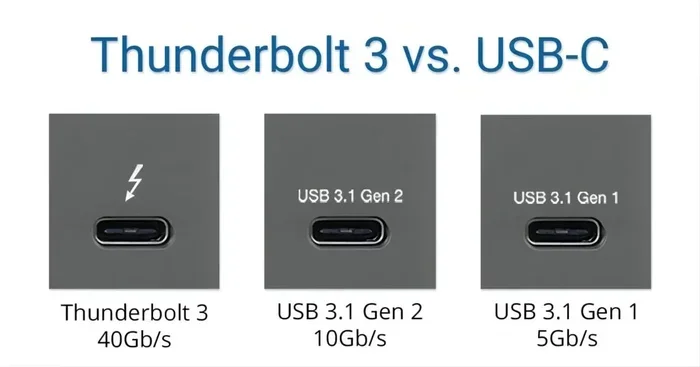
USB 3.0 is much faster, with speeds up to 5 Gbps. This is the most common standard on modern computers. If your computer and drive both support USB 3.0, you will see a big improvement in transfer speed.
USB 3.1 and USB 3.2
These newer standards push speeds even higher, up to 10 Gbps and 20 Gbps respectively. They are ideal for large files and fast SSDs.
USB-C
USB-C is a connector type, not a speed standard. However, USB-C ports often support the fastest USB speeds available. Many modern laptops and tablets now use USB-C, and you can find adapters to connect traditional USB drives to USB-C ports.
Quick Tip: Always check what USB version your computer and drive support. Using a USB 2.0 cable with a USB 3.0 drive will limit your speed to USB 2.0 levels.
Common Problems and How to Fix Them
Even with a simple setup like this, things can go wrong sometimes. Here are the most common issues and how to solve them.
Drive Not Showing Up on Your Computer
This is the most frequent problem. Try these fixes:
- Try a different USB port. Some ports may not supply enough power.
- Use a different USB cable. Cables can fail without any visible damage.
- Check if the drive needs external power and make sure it is plugged in.
- Restart your computer and plug the drive in again.
Drive Shows Up But You Cannot Access Files
This usually means the drive is not formatted or has a corrupted file system. You can try formatting the drive, but remember this erases all data. If the data is important, use data recovery software first.
Slow Transfer Speeds
If your transfers are slower than expected, check these things:
- Are you using a USB 2.0 port? Switch to a USB 3.0 port.
- Is your USB cable damaged or too long? Short, high-quality cables perform better.
- Is the drive itself an old spinning hard drive? SSDs are much faster.
Drive Disconnects Randomly
Random disconnections often point to a power issue. Desktop hard drives need more power than a single USB port can provide. Use a Y-shaped cable that pulls power from two USB ports, or connect the drive to a powered USB hub.
Expert Insights: Best Practices for USB Hard Drive Use
We spoke with tech professionals and gathered their top recommendations for anyone using an external hard drive over USB.
Always eject your drive properly. Do not just pull the cable out. On Windows, click the safely remove hardware icon in your taskbar. On Mac, drag the drive icon to the trash or use the eject button. This prevents data corruption.
Keep your drive in a cool, dry place. Heat is the enemy of hard drives. Do not leave your drive in direct sunlight or near heat sources.
Use a padded case for portable drives. Portable drives are small and easy to carry, but they are also vulnerable to drops. A simple protective case can save your drive from physical damage.
Run regular health checks. Most operating systems have built-in tools to check your drive for errors. Run these checks every few months to catch problems early.
Comparison: Connecting Hard Drives to USB
Here is a quick comparison of the most common methods to connect a hard drive to USB.
| Method | Best For | Ease of Use | Cost |
|---|---|---|---|
| External USB Drive | Beginners, casual users | Very Easy | Moderate to High |
| SATA-to-USB Cable | Budget-conscious users | Easy | Low |
| Hard Drive Enclosure | Frequent drive users | Moderate | Moderate |
| Docking Station | Users with multiple drives | Very Easy | Moderate to High |
Each method has its strengths. For most people, buying a pre-built external USB drive is the simplest path. If you already have an internal drive lying around, a SATA-to-USB cable or enclosure is a cost-effective way to put it to work.
How to Choose the Right Hard Drive for USB Use
Not all drives are created equal. Here is what to consider when shopping for a drive you plan to connect via USB.
- Capacity: Think about how much space you need. 1 TB is enough for most users, but if you store lots of videos or photos, consider 2 TB or more.
- Speed: Look for USB 3.0 or higher. SSDs are faster than traditional spinning drives.
- Portability: If you travel, choose a compact portable drive that does not need external power.
- Durability: Some drives are built with shock-resistant features. These are great for people who are always on the move.
- Brand Reputation: Stick with well-known brands that offer reliable customer support and warranty coverage.
Frequently Asked Questions
Can I connect any hard drive to USB?
Most hard drives can be connected to USB with the right adapter or enclosure. Internal drives need a SATA-to-USB cable or an enclosure, while external drives usually come with a USB cable already attached. The key is matching the drive interface with the right USB connection method.
Do I need special software to use a USB hard drive?
No, you do not need special software in most cases. Modern operating systems like Windows and Mac recognize USB hard drives automatically. You can start using the drive right away after connecting it. Some drives come with backup software, but it is optional.
Will connecting a hard drive to USB slow down my computer?
Generally, no. A USB hard drive should not slow down your computer. In fact, it can speed things up by freeing space on your main drive. However, if you are running programs directly from the external drive, it may be slightly slower than running them from your internal drive.
Can I connect multiple hard drives to USB at the same time?
Yes, you can connect multiple hard drives to USB at the same time. You may need a USB hub if you run out of ports. Just make sure each drive gets enough power. Powered USB hubs are the best choice when connecting several drives.
Is it safe to leave my USB hard drive plugged in all the time?
It is generally safe, but there are a few things to keep in mind. Make sure your drive is in a well-ventilated area and not at risk of being knocked over. Also, always eject the drive properly before unplugging it. If you are not actively using the drive, it is fine to leave it connected.
Can I use a USB hard drive with a smart TV or game console?
Yes, many smart TVs and gaming consoles support USB hard drives. You can connect a formatted external drive and use it to store media files or game downloads. Check your device manual for supported file systems and maximum drive capacity.
Conclusion
Connecting a hard drive to USB is simple, practical, and incredibly useful. Whether you need extra storage, a reliable backup solution, or an easy way to transfer files between computers, a USB connection delivers exactly what you need. The process is straightforward, the equipment is affordable, and the benefits are real.
Now that you know the answer to the question can a hard drive be connected to USB, you are ready to get started. Pick the right connection method, follow the setup steps, and enjoy the convenience of portable, expandable storage. Your files will thank you.
Take action today. Connect your hard drive to USB, organize your files, and set up a backup routine. A few minutes of setup now can save you hours of hassle later. Happy storing.