Can You Convert HDMI To USB Here Is The Complete Guide
Yes, you can convert HDMI to USB using the right adapter or capture card. This guide covers every method, from simple plug-and-play adapters to advanced video capture devices. You will learn how signal conversion works, which cables match your devices, and how to avoid common buying mistakes.
Have you ever looked at your HDMI cable and your USB port and wondered if there is a way to connect them? The short answer is yes. You can convert HDMI to USB, but the process is not as simple as plugging one end into the other. Understanding how this conversion works saves you money, time, and frustration.
Whether you want to connect a gaming console to a laptop, capture video from a camera, or extend your display, the right HDMI to USB solution makes all the difference. This guide walks you through every method, every adapter type, and every thing you need to know before buying. Let us dive in.
Key Takeaways
- HDMI to USB conversion is possible but requires the correct type of adapter or capture card depending on your goal.
- Active adapters handle signal conversion from HDMI output to USB input, while passive cables cannot do this on their own.
- Video capture cards are the best option for streaming, recording, or sending HDMI signals to a computer via USB.
- Check resolution and version compatibility before purchasing any HDMI to USB converter to avoid performance issues.
- Not all devices support USB video input, so verify your hardware and operating system requirements first.
- Buying the wrong adapter type is the most common mistake consumers make when shopping for HDMI to USB solutions.
📑 Table of Contents
- What Happens When You Convert HDMI To USB
- Types Of HDMI To USB Adapters And Converters
- How To Choose The Right HDMI To USB Converter
- Common Uses For HDMI To USB Conversion
- Common Mistakes People Make With HDMI To USB Converters
- Expert Tips For Best Performance
- Frequently Asked Questions
- Final Thoughts
What Happens When You Convert HDMI To USB
HDMI carries both audio and video signals in a digital format. USB was originally designed for data transfer and powering peripherals. So converting between them requires active electronics to translate one signal type into another. This is not a simple wire swap.
A HDMI to USB adapter or USB to HDMI converter contains a chip that processes the incoming signal and repackages it for the receiving device. Think of it like a translator between two different languages. Without the right translator, the devices simply cannot understand each other.
Signal Conversion Explained
The conversion process involves decoding the HDMI signal and re-encoding it into a format the USB port can read. This is called signal conversion. The quality of the chip inside the adapter determines how well this translation happens. Cheap adapters often produce poor image quality or drop frames during video playback.
Here are the key differences between the two signal types:
- HDMI transmits uncompressed audio and video over a single cable.
- USB was designed for data transfer, charging, and connecting peripherals like keyboards and mice.
- USB-C can carry video signals through Alt Mode, but this is not the same as traditional USB-A ports.
- DisplayPort over USB-C is another alternative that some devices support natively.
Types Of HDMI To USB Adapters And Converters
Not all converters are created equal. The type you need depends entirely on what you are trying to accomplish. Let us break down the main categories.
HDMI to USB Capture Cards
Video capture cards are the most popular solution for converting HDMI to USB. These devices accept an HDMI input from a source device and send the video data to your computer through a USB connection. They are widely used for streaming, recording gameplay, and video conferencing setups.
Capture cards come in two main forms:
- External capture cards connect via USB and work with laptops and desktops. They are portable and easy to set up.
- Internal capture cards install inside a desktop computer through a PCIe slot. They offer better performance but are not portable.
Popular brands like Elgato, AVerMedia, and generic Amazon brands offer HDMI to USB capture devices at various price points. A basic capture card costs between 30 and 100 dollars and handles 1080p resolution well.
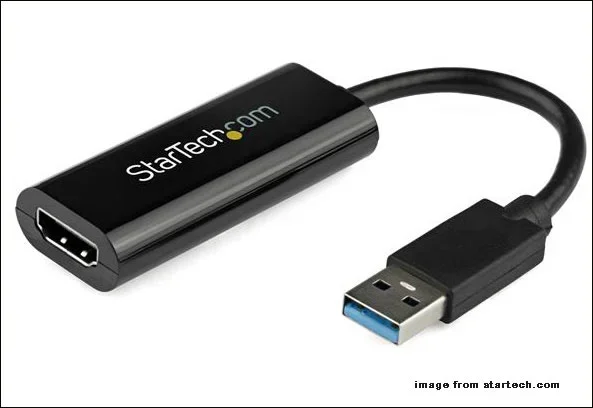
USB to HDMI Adapters (Display Output)
Wait, there is another direction. A USB to HDMI adapter takes a USB signal and converts it to an HDMI output. This lets you connect your computer to an external monitor or television. This is the reverse of what most people mean when they ask about HDMI to USB conversion.
These adapters are especially useful when:
- Your laptop lacks an HDMI port but has a USB-A or USB-C port.
- You need to present on a projector or TV during a meeting.
- You want to extend your desktop display to a second screen.
The key thing to remember is direction matters. An adapter that goes from HDMI to USB is different from one that goes from USB to HDMI. Always check which direction you need before purchasing.
USB-C to HDMI Adapters
Many modern laptops and tablets use USB-C ports. A USB-C to HDMI adapter leverages Alt Mode technology to send video directly to a display. This is technically not a true conversion but rather a native capability built into the USB-C standard.
These adapters are plug and play in most cases. You do not need to install drivers or software. Just plug the USB-C end into your device and the HDMI end into your monitor. The connection should work immediately.
How To Choose The Right HDMI To USB Converter
Shopping for the right converter can feel overwhelming with so many options on the market. Here are the factors you should consider before making a purchase.
Resolution and Refresh Rate Support
Check what resolution the adapter supports. Most budget adapters handle 1080p at 30Hz or 60Hz. Higher-end models support 4K resolution at 30Hz or 60Hz. If you plan to watch 4K content or game at high resolution, you need a converter that matches that capability.
Here is a quick comparison of common resolution options:
- 1080p at 30Hz — Fine for basic video playback and office work.
- 1080p at 60Hz — Smooth for everyday use and casual gaming.
- 4K at 30Hz — Good for video editing and content creation.
- 4K at 60Hz — Best for high-end gaming and professional work.
Active vs Passive Converters
This is where many people get confused. A passive adapter simply changes the physical shape of the connector. It does not convert the signal. An active adapter contains processing chips that actually translate the signal from one format to another.
For HDMI to USB conversion, you always need an active device. A passive cable will not work because the two protocols are fundamentally different. The active chip does the heavy lifting of decoding and re-encoding the signal.
Operating System Compatibility
Before buying any HDMI to USB converter, check whether it works with your operating system. Most adapters support Windows and macOS, but some budget options only work with Windows. If you use Linux or ChromeOS, double-check compatibility before purchasing.
Some devices also require specific drivers or software to function properly. Always read the product description carefully. The advantages and disadvantages of different operating systems can affect how well your converter performs, so understanding your system is important.
Build Quality and Brand Reputation
Cheap no-name adapters often overheat, drop frames, or stop working after a few weeks. Investing in a reputable brand saves you from headaches later. Look for adapters with metal housings, good thermal design, and positive customer reviews.
Popular reliable brands include Elgato, UGREEN, Sabrent, and Cable Matters. These brands offer consistent quality and good customer support if something goes wrong.
Common Uses For HDMI To USB Conversion
Why do people actually need to convert HDMI to USB? The use cases are more varied than you might think.
Streaming and Content Creation
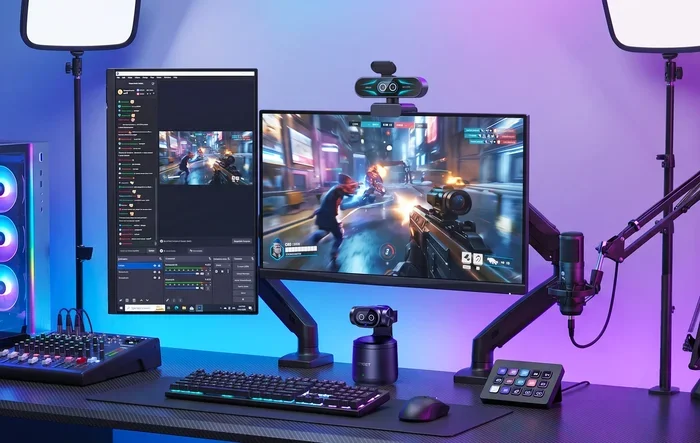
Content creators use HDMI to USB capture cards to feed their camera or console output into streaming software like OBS or XSplit. The capture card receives the HDMI signal and sends it to the computer as a USB video device. From there, the software can record or stream the footage live.
This setup is essential for gamers who want to stream their gameplay. Without a capture card, connecting a console directly to a computer for streaming would be nearly impossible.
Using External Monitors With Laptops
Many modern laptops only have USB-C or Thunderbolt ports. A USB to HDMI adapter lets you connect an external monitor for expanded workspace. This is incredibly helpful for remote workers and professionals who need dual-screen setups.
The device connectivity options have expanded significantly in recent years. USB-C docks and hubs now combine HDMI output with USB-A ports, Ethernet, and SD card readers in a single compact device.
Video Conferencing and Presentations
Some professional cameras output video over HDMI. By using a capture card, you can turn that camera into a high-quality webcam for video calls. This is a popular setup among professionals who want better video quality than a standard webcam provides.
Similarly, educators and presenters use HDMI to USB converters to connect document cameras or high-end cameras to their presentation software. The result is a much clearer and more professional-looking video feed.
Security Camera and Surveillance Systems
Some security cameras use HDMI output for monitoring. By converting that signal to USB, you can record footage directly to a computer. This is useful for small business owners or home security setups that need local video storage.
Common Mistakes People Make With HDMI To USB Converters
Avoid these pitfalls to save yourself time and money.
Buying the Wrong Direction
The most common mistake is buying an adapter that goes in the wrong direction. If your computer has USB and you want to output to an HDMI display, you need a USB to HDMI adapter, not an HDMI to USB one. Always double-check which direction you need.
Ignoring Bandwidth Limitations
USB 2.0 ports have very limited bandwidth. They cannot handle high-definition video smoothly. For best results, use a USB 3.0 or USB 3.1 port. USB-C ports with Thunderbolt support offer the best bandwidth for video conversion.
Skipping Driver Installation
Some capture cards require drivers to work properly. If your converter is not recognized by your computer, check the manufacturer website for the latest drivers. Installing the correct software before plugging in the device prevents most connectivity issues.
Expecting Passive Cables to Work
A simple HDMI-to-USB cable without any active electronics will not convert the signal. If a product claims to be a direct cable without any mention of a chip or processor, it is likely just a passive connector that will not work for signal conversion.
Overlooking Power Requirements
Some active adapters require external power. They may come with a USB cable that draws power from your computer or a separate power adapter. If your adapter does not work, check whether it needs additional power input.
Expert Tips For Best Performance
Follow these tips to get the most out of your HDMI to USB setup.
- Always use the shortest cable possible to reduce signal loss.
- Plug active adapters directly into your computer rather than through a USB hub when possible.
- Update your graphics drivers regularly for the best compatibility.
- Test your setup with a known working source before troubleshooting other issues.
- Store your adapters in a cool, dry place to prevent overheating damage.
- Check for firmware updates from the manufacturer to improve compatibility and performance.
When setting up a home office or streaming rig, the advantages and disadvantages of different connectivity options matter. Understanding the limitations of each connection type helps you make informed decisions. Similarly, when evaluating network-based solutions for your setup, knowing the advantages and disadvantages of using a value-added network for electronic commerce communication can help you choose the right infrastructure for your needs.
Frequently Asked Questions
Can I plug an HDMI cable directly into a USB port?
No, you cannot plug an HDMI cable directly into a USB port. The two connectors carry different types of signals. You need an active adapter or capture card that contains processing chips to convert the HDMI signal into a format that a USB port can understand.
What is the difference between an HDMI to USB adapter and a USB to HDMI adapter?
An HDMI to USB adapter takes a video source with HDMI output and converts it to a USB signal for a computer to receive. A USB to HDMI adapter takes a USB signal from a computer and converts it to an HDMI output to display on a monitor or TV. The direction of conversion is completely opposite.
Do I need a special driver for my HDMI to USB capture card?
Many capture cards work as plug and play devices and do not require drivers. However, some models, especially higher-end ones, may need specific software or drivers installed. Always check the manufacturer website for the latest drivers before assuming the device will work automatically.
Can I use a USB 2.0 port for HDMI to USB conversion?
You can, but the experience will be poor. USB 2.0 has very limited bandwidth and cannot handle high-definition video smoothly. For reliable performance, use a USB 3.0, USB 3.1, or USB-C port with adequate bandwidth support for the resolution you need.
Will an HDMI to USB converter work with gaming consoles like PlayStation or Xbox?
Yes, most HDMI to USB capture cards work with gaming consoles. You connect the console to the capture card via HDMI, then connect the capture card to your computer via USB. The computer will recognize the console video as a USB video input that you can record or stream.
Can I use an HDMI to USB adapter for video calls?
Yes, you can use a capture card as a high-quality webcam for video calls. Connect your camera or device with HDMI output to the capture card, then connect the card to your computer via USB. The computer will recognize it as a video input device you can select in Zoom, Teams, or other conferencing apps.
Final Thoughts
Converting HDMI to USB is absolutely possible and incredibly useful for a wide range of tasks. Whether you are a content creator, a remote worker, or simply someone who needs to connect devices that do not share the same port type, the right adapter solves the problem.
The key is understanding what you need and buying the right type of converter. Active adapters and capture cards handle the signal conversion work that passive cables simply cannot do. Always check resolution support, operating system compatibility, and build quality before making a purchase.
With the right HDMI to USB solution in hand, you can connect almost any device to almost any screen or computer. The technology is mature, affordable, and widely available. Take your time, pick the right product, and enjoy seamless connectivity across all your devices.