Can You Connect A Webcam Wirelessly And Stream Easily
Yes, you can connect a webcam wirelessly and stream easily using Wi-Fi, Bluetooth, or a USB wireless adapter. Setting up a wireless webcam saves desk space and gives you freedom to place your camera anywhere. This guide walks you through every step, from choosing the right device to fixing common connection issues.
Key Takeaways
- Wireless webcams offer flexibility: You can place your camera anywhere without being tethered to a cable.
- Multiple connection methods exist: Wi-Fi, Bluetooth, and wireless USB adapters all work for streaming.
- Setup is simple: Most modern wireless webcams use plug-and-play technology.
- Latency can be an issue: Wireless connections may add slight delays compared to wired setups.
- Streaming software matters: Tools like OBS Studio and Zoom work well with wireless webcams.
- Security is important: Always secure your wireless connection to protect your video feed.
Can You Connect A Webcam Wirelessly And Stream Easily?
The short answer is yes. Can you connect a webcam wirelessly? Absolutely. In fact, wireless webcam setup has become incredibly simple over the last few years. You no longer need long cables cluttering your desk or running across your room. Whether you want to video conference, start live streaming, or just chat with friends, a wireless webcam gives you the freedom you need.
Connecting a webcam without wires might sound complicated, but it really isn’t. Most modern devices support Wi-Fi streaming right out of the box. You just need to follow a few simple steps, and you will be broadcasting in no time. This guide covers everything you need to know about wireless video transmission and how to get the best results from your setup.
Why Go Wireless? The Benefits Of A Wireless Webcam
There are many reasons to ditch the cable. A wireless webcam lets you move your camera wherever you want. You can set it up on a tripod across the room, on a shelf high up, or even outside your window. This kind of wireless streaming flexibility is a game changer for content creators and remote workers alike.
Here are the main benefits of going wireless:
- Freedom of placement: Place your camera anywhere within range of your Wi-Fi network.
- Cleaner workspace: No cables means less clutter on your desk or setup area.
- Easy mobility: Move your camera during a live stream without unplugging anything.
- Quick setup: Most wireless webcams use plug and play technology.
- Better angles: Position your camera at the perfect angle without worrying about cable length.
When you compare a USB webcam with a cable to a Wi-Fi webcam, the wireless option wins for convenience. Of course, wired connections sometimes offer lower webcam latency, which we will talk about later.
How Wireless Webcams Work
Understanding how a wireless webcam connection works helps you troubleshoot problems later. Most wireless webcams use one of three methods to send video to your computer or phone.
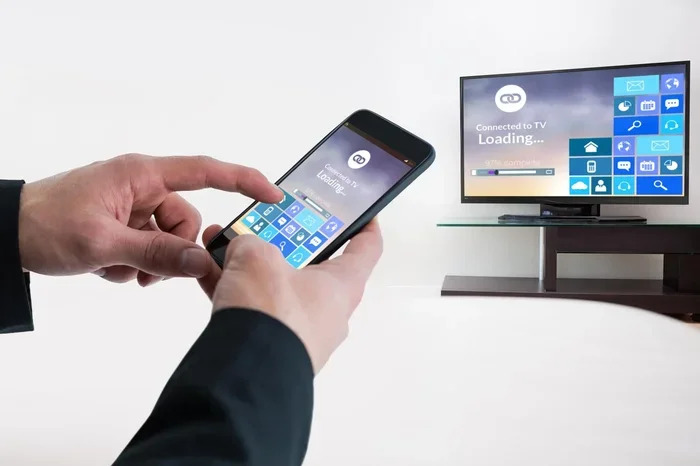
Wi-Fi Webcams connect directly to your home network. They send video data through your router, just like your phone connects to the internet. These cameras usually have their own app or web interface for configuration.
Bluetooth webcams pair directly with your device. They work well for short distances, typically up to 30 feet. Bluetooth is great for simple webcam connection tasks, but it may not handle high-quality video as smoothly as Wi-Fi.
Wireless USB adapters use a small dongle that plugs into your computer. The webcam connects to the adapter, which sends the signal wirelessly. This method keeps your video conferencing stable and reduces webcam latency compared to pure Wi-Fi setups.
Step-By-Step Guide To Setting Up A Wireless Webcam
Setting up a wireless webcam is easier than you might think. Follow these steps and you will be streaming in minutes.
- Unbox your webcam and check that everything is in the package.
- Download the manufacturer’s app or software from their website.
- Power on the webcam and put it in pairing mode.
- Connect to your Wi-Fi network through the app or the camera’s screen.
- Install any drivers if your computer asks for them.
- Test the feed by opening your camera app or streaming software.
- Adjust settings like resolution, frame rate, and audio input.
Most wireless webcam setup processes take less than 10 minutes. If you run into issues, check that your Wi-Fi signal is strong in the camera’s location. A weak signal causes lag and poor video quality.
Best Wireless Webcams For Streaming
Not all wireless webcams are created equal. Some excel at live streaming while others are better for simple video conferencing. Here are a few popular options:
- Logitech C930e: Great for professional video conferencing with 1080p resolution.
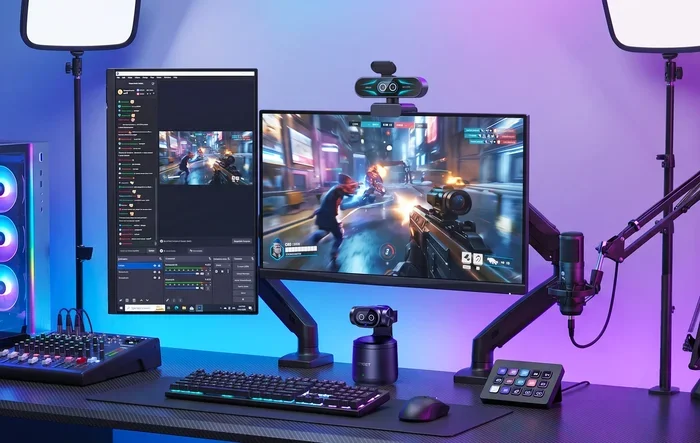
- Razer Kiyo Pro: Excellent for live streaming with adjustable ring light.
- Anker PowerConf C302: Budget-friendly option with solid wireless performance.
- Insta360 Link: AI-powered tracking makes it ideal for solo streamers.
When choosing a wireless webcam, look at resolution, frame rate, and connection type. A camera with at least 1080p resolution and 30 frames per second will give you smooth, clear video for most uses.
Wireless Webcam Vs Wired Webcam: Which Is Better?
This is a common question, and the answer depends on your needs. Let us compare the two options side by side.
| Feature | Wireless Webcam | Wired Webcam |
|---|---|---|
| Placement Flexibility | High | Low |
| Setup Ease | Very Easy | Easy |
| Video Latency | Slightly Higher | Very Low |
| Cable Clutter | None | Some |
| Signal Stability | Depends on Wi-Fi | Very Stable |
| Price Range | Mid to High | Low to Mid |
For most users, a wireless webcam offers the best balance of convenience and quality. If you are doing competitive gaming streams or professional broadcasting, a wired USB webcam might give you the edge in webcam latency. But for everyday use, wireless is the way to go.
Common Wireless Webcam Problems And How To Fix Them
Even the best wireless webcam can have issues. Here are the most common problems and how to solve them.
Slow Video Feed
If your video feed is slow or choppy, your Wi-Fi signal might be weak. Try moving your router closer to the camera. You can also reduce the resolution in your streaming software to improve performance.
Connection Drops
A wireless webcam connection that keeps dropping is frustrating. Check if other devices are using too much bandwidth. Streaming video uses a lot of data, so make sure nothing else is downloading large files at the same time.
Audio and Video Are Out Of Sync
This happens when the wireless video transmission delay is too high. Lower the frame rate or switch to a wired webcam adapter for a more stable connection.
Camera Not Showing Up
If your computer does not detect the webcam, restart both the camera and your computer. Make sure you installed the correct drivers from the manufacturer’s website.
Tips For Better Wireless Streaming Quality
Want to get the most out of your wireless webcam? Follow these practical tips.
- Use a 5GHz Wi-Fi band: It is faster and less crowded than the 2.4GHz band.
- Keep your camera close to the router: Distance weakens the signal and increases webcam latency.
- Close background apps: Other programs can eat up bandwidth and slow your stream.
- Update your drivers: Keep your webcam adapter drivers current for the best performance.
- Use good lighting: Even the best wireless camera looks bad in dim light.
- Invest in a good streaming software: Programs like OBS Studio give you control over every setting.
These small changes can make a huge difference in your stream quality. A wireless webcam can produce results that rival any wired setup when you optimize your network and settings.
Security Tips For Your Wireless Webcam
Since your wireless camera connects to your network, you need to keep it safe. Here are some simple steps.
- Change the default password on your webcam as soon as you set it up.
- Use WPA3 encryption on your Wi-Fi network if your router supports it.
- Update firmware regularly to patch any security vulnerabilities.
- Create a separate network for IoT devices like your webcam.
- Disable remote access if you do not need it.
Taking these precautions keeps your video conferencing sessions private and your live streaming content safe from unwanted viewers.
Final Thoughts On Wireless Webcam Connectivity
Can you connect a webcam wirelessly and stream easily? Yes, you absolutely can. A wireless webcam gives you the freedom, flexibility, and convenience that wired setups simply cannot match. Whether you are a content creator, a remote worker, or someone who just wants to video chat with family, wireless streaming is the way forward.
The setup process is simple, the technology is mature, and the results are excellent. Just remember to optimize your Wi-Fi network, keep your drivers updated, and secure your connection. With these steps, your wireless webcam connection will be smooth, reliable, and ready for anything you throw at it.
Start with a good wireless webcam, follow the tips in this guide, and you will be streaming like a pro in no time. Happy streaming!
Frequently Asked Questions
Can I Use Any Webcam Wirelessly?
Not all webcams support wireless connections natively. Many cameras need a wireless USB adapter or a Wi-Fi-enabled model to work without cables. Check your webcam’s specs before buying to confirm it supports wireless webcam setup.
Does A Wireless Webcam Have More Latency Than A Wired One?
Yes, wireless webcams usually have slightly higher webcam latency than wired ones. However, modern Wi-Fi webcams have minimized this gap significantly. For most users, the difference is barely noticeable during video conferencing or live streaming.
What Is The Best Wi-Fi Band For A Wireless Webcam?
The 5GHz band works best for wireless video transmission because it is faster and less congested. If your router supports dual-band, switch to 5GHz for the smoothest wireless streaming experience with minimal lag.
Can I Connect A Webcam Wirelessly To A Smart TV?
Yes, many smart TVs support wireless webcam connection through built-in apps or screen mirroring. Some TVs even allow direct Wi-Fi pairing with compatible webcams for video conferencing right on your big screen.
Do I Need Special Software For Wireless Streaming?
Most wireless webcams come with their own app for basic setup. For advanced live streaming, you will want software like OBS Studio, Streamlabs, or Zoom. These platforms work seamlessly with Wi-Fi webcams and give you full control over your stream settings.
How Far Can A Wireless Webcam Be From The Router?
The range depends on your Wi-Fi signal strength and the webcam’s technology. Most wireless webcams work reliably within 30 to 50 feet of the router. Walls and obstacles can reduce this range, so placing the camera closer to the router gives the best wireless webcam connection quality.