How Do I Know If My Phone Is Roaming On Your Network
Knowing how to check if your phone is roaming helps you avoid unexpected charges and connectivity issues. You can spot roaming through signal indicators, phone settings, and network notifications. This guide walks you through every method to confirm roaming status on both Android and iPhone devices.
Have you ever traveled abroad and suddenly noticed your phone behaving differently? Maybe your signal bars changed, or you got a strange notification about your cellular network. These could be signs that your mobile phone is roaming. Understanding how do I know if my phone is roaming is one of the most important skills for any modern phone user, especially if you travel frequently.
Roaming happens when your phone connects to a network outside your home carrier’s coverage area. This can occur when you cross state lines, visit another country, or even enter a remote region where your carrier has no towers. The good news is that your phone gives you several clear signals when it is roaming. In this guide, we will walk you through every way to check your roaming status and what it means for your bill and your connection.
Whether you use an Android device or an iPhone, the steps to identify roaming are straightforward. We will cover visual indicators on your screen, settings you can check, carrier-specific tools, and practical tips to manage data roaming effectively. By the end of this article, you will never have to wonder about your roaming status again.
Key Takeaways
- Look for the roaming icon: Your phone screen displays a small roaming symbol or “R” near signal bars when roaming is active.
- Check your phone settings: Both Android and iPhone offer built-in menu paths to see if data roaming is turned on.
- Contact your carrier: Your network provider can confirm roaming status and explain any associated fees.
- Watch for unusual notifications: Roaming alerts and pop-ups often appear when you cross into a foreign network zone.
- Use third-party apps: Network diagnostic tools can detect roaming status and monitor your data usage in real time.
- Turn off data roaming when not needed: Disabling roaming prevents surprise charges and keeps your bill predictable.
- Understand the difference between domestic and international roaming: Each type works differently and carries different costs.
📑 Table of Contents
What Is Phone Roaming and Why Does It Happen?
The Basics of Roaming
Roaming is when your mobile phone connects to a partner network instead of your home carrier network. Think of it like this: your carrier has agreements with other networks around the world. When you travel outside your home area, your phone hands over to one of these partner networks. This allows you to keep making calls, sending texts, and using mobile data even when you are far from home.
There are two main types of roaming. Domestic roaming happens when you move between regions or states within your own country. International roaming occurs when you cross borders into another country. Both types work the same way technically, but the costs and rules can be very different.
Why Do Phones Roam Automatically?
Your phone is designed to stay connected at all times. When you leave your home network coverage area, your device searches for the strongest available signal. If it finds a partner carrier tower, it connects automatically. This seamless handoff is what makes roaming so convenient. You do not need to do anything special to make it work.
However, automatic roaming can catch you off guard. Many carriers charge extra fees for using partner networks. These roaming charges can add up quickly if you are not careful. That is why knowing how to spot roaming early is so valuable.
Common Signs Your Phone Is Roaming
Visual Indicators on Your Screen
The easiest way to answer how do I know if my phone is roaming is to look at your screen. Most phones display a small roaming indicator in the status bar. On many devices, you will see a letter “R” or the word “Roam” near your signal bars. This tiny icon is your first clue that your phone has connected to a foreign network.
Another visual sign is a change in your network name. Instead of seeing your home carrier name, you might see a different network provider listed at the top of your screen. This means your mobile phone has handed over to a partner tower.
Here are the most common visual signs of roaming:
- An “R” icon appears near your signal bars
- The word “Roam” shows up in your status bar
- Your network name changes to a different carrier
- Your signal bars may drop or fluctuate
- A roaming notification pops up on your screen
Unusual Notifications and Alerts
Many carriers send roaming alerts when you first connect to a partner network. These notifications often explain the roaming fees you may incur. Some carriers even let you set up custom alerts that warn you before you exceed your data limit while roaming.
If you see a pop-up saying something like “You are now roaming” or “International network detected,” your phone has definitely entered a roaming state. Pay attention to these messages. They are there to help you stay informed and avoid bill shock.
How to Check Roaming Status on Different Phones
Checking Roaming on Android Devices
Android phones make it easy to check your roaming status. Start by opening your Settings app. Look for the “Network & Internet” or “Connections” section, depending on your phone model. Inside that menu, tap on “Mobile Network” or “SIM Cards.”
You will see a list of network settings. Look for the “Roaming” toggle. If it is turned on, your phone is allowed to connect to partner networks. Some Android devices also show the current network name and roaming status right on this screen.
Here is a quick step-by-step guide:
- Open your Settings app
- Tap “Network & Internet” or “Connections”
- Select “Mobile Network” or “SIM Card”
- Look for the “Data Roaming” or “Roaming” option
- Check if the toggle is on or off
Checking Roaming on iPhone
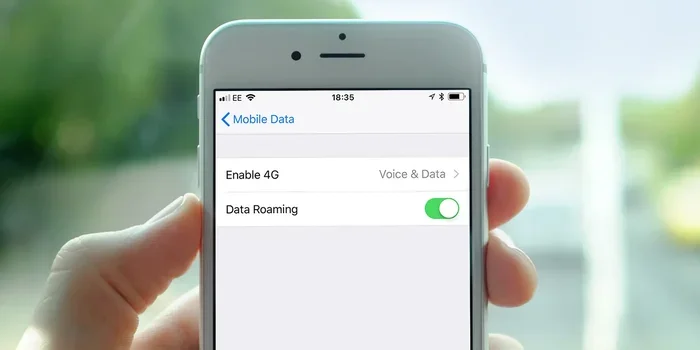
iPhone users can check their roaming status in just a few taps. Open the Settings app and go to “Cellular” or “Mobile Data.” Then tap “Cellular Data Options” or “Mobile Data Options.” You will see a “Data Roaming” switch that tells you if roaming is active.
If you are traveling internationally, you may also want to check your carrier settings. Go to “Settings,” then “General,” and tap “About.” If a carrier update is available, your iPhone will prompt you to install it. Updated carrier settings often improve how your phone handles roaming and network coverage abroad.
Using Your Carrier’s App or Website
Most carriers offer a dedicated app or online portal where you can check your roaming status. Log in with your account and look for a section called “Roaming,” “Travel,” or “Network.” These tools often give you detailed information about your current network connection, including whether you are roaming and what roaming charges you might face.
Some carriers also let you manage roaming settings directly from their app. You can turn data roaming on or off, set data limits, and even purchase temporary roaming plans before you travel. This is one of the most convenient ways to stay in control of your mobile data usage.
Understanding Roaming Charges and Fees
What Are Roaming Charges?
Roaming charges are fees your carrier adds when you use services on a partner network. These charges can apply to calls, texts, and mobile data. The cost varies widely depending on your carrier, your plan, and the country you are visiting.
Some carriers offer roaming at no extra cost within certain regions. For example, many US carriers include roaming in Canada and Mexico as part of their plans. However, roaming in other countries can be very expensive. A single megabyte of data roaming can cost several dollars in some regions.
How to Avoid Surprise Roaming Bills
The best way to avoid roaming charges is to understand your plan before you travel. Check with your carrier about their roaming policies. Ask about daily roaming passes, international add-ons, or roaming bundles that can save you money.
Here are some practical tips to keep your bill under control:
- Turn off data roaming when you do not need it
- Use Wi-Fi whenever possible for internet access
- Download maps and content before you leave home
- Set data usage alerts in your phone settings
- Purchase a local SIM card or eSIM for your destination
- Monitor your usage through your carrier’s app
Domestic vs. International Roaming
It is important to understand the difference between domestic and international roaming. Domestic roaming usually costs little or nothing because your carrier has nationwide agreements. International roaming, on the other hand, can be pricey because it involves crossing borders and using foreign networks.
Some carriers now offer international roaming packages that make travel more affordable. These plans often include a set amount of data, calls, and texts for a fixed daily or monthly fee. Always check if your carrier offers such options before your next trip.
How to Turn Off or Manage Roaming
Disabling Data Roaming on Android
If you want to stop roaming on your Android device, go to Settings > “Network & Internet” > “Mobile Network” > “Data Roaming.” Toggle the switch off. This prevents your phone from connecting to partner networks for data. You will still be able to make calls and send texts on your home carrier network, but you will not use mobile data while roaming.
Disabling Data Roaming on iPhone
On an iPhone, go to Settings > “Cellular” > “Cellular Data Options” > “Data Roaming.” Switch it off. Your iPhone will stop using partner networks for internet access. This is a great way to prevent unexpected roaming charges while still keeping your phone connected for calls and texts.
When to Keep Roaming On
There are times when you should keep data roaming enabled. If you are traveling internationally and need mobile data for navigation, translation apps, or emergency communication, turning off roaming will leave you disconnected. In these cases, consider purchasing a roaming plan or using a local SIM card to manage costs.
Tips for Avoiding Roaming Surprises While Traveling
Prepare Before You Leave
The best way to handle roaming is to prepare ahead of time. Before any trip, check your carrier’s roaming policies. Know what your plan covers and what it does not. If you are traveling internationally, look into roaming packages or eSIM options that can save you money.
Download all the content you need before you leave. Maps, music, podcasts, and important documents should be available offline. This way, you will not rely heavily on mobile data while roaming.
Monitor Your Usage in Real Time
Most carriers provide tools to monitor your data usage in real time. Use these tools to track how much data you are consuming while roaming. Setting up usage alerts can help you stay within your limits and avoid surprise fees.
You can also use third-party apps to track your mobile data usage. These apps often provide detailed breakdowns of your data consumption by app, making it easy to spot which apps are using the most data while you are roaming.
Consider Alternative Connectivity Options
If you travel frequently, consider alternative connectivity options that reduce or eliminate roaming costs. A local SIM card at your destination gives you a local number and affordable data. An eSIM allows you to switch plans digitally without swapping physical cards. Both options can save you a lot of money compared to standard international roaming fees.
Key Takeaways
- Visual indicators are your first clue: Look for the “R” icon or “Roam” text near your signal bars to confirm roaming.
- Phone settings give you full control: Both Android and iPhone let you check and toggle data roaming in their settings menus.
- Your carrier is a valuable resource: Use your carrier’s app or website to monitor roaming status and manage charges.
- Notifications keep you informed: Pay attention to roaming alerts your phone or carrier sends you.
- Turn off roaming to save money: Disabling data roaming prevents unexpected charges when you do not need it.
- Plan ahead for international trips: Research roaming packages, eSIMs, and local SIM options before you travel.
- Monitor usage in real time: Track your data consumption while roaming to stay within budget.
Conclusion
Understanding how do I know if my phone is roaming is simpler than most people think. Your phone gives you clear visual cues, and your settings make it easy to confirm your roaming status. Whether you are traveling for work or pleasure, knowing when you are roaming helps you stay connected without worrying about surprise bills.
Take a few minutes to explore your phone settings and learn what the roaming indicators mean on your device. Check with your carrier about their roaming policies and available roaming plans. With the right knowledge and a few simple precautions, you can enjoy seamless connectivity wherever you go.
Remember, roaming is a feature designed to keep you connected. But it needs your attention to avoid extra costs. Use the tips in this guide to take control of your mobile data and travel with confidence. Your phone is smarter than you think, and now you know exactly how to read its signals.
Frequently Asked Questions
How do I know if my phone is roaming right now?
Look at the top of your screen for a small “R” icon or the word “Roam” near your signal bars. You can also check your phone settings under “Mobile Network” or “Cellular” to see if the data roaming toggle is turned on. Your carrier may also send you a notification confirming you are on a partner network.
Will I be charged for roaming if I don’t use data?
You may still incur charges for calls and texts received while roaming, even if you do not use mobile data. However, turning off data roaming prevents internet-related charges. Always check with your carrier to understand their specific roaming fee structure before you travel.
Can I use my phone normally while roaming?
Yes, you can make calls, send texts, and use mobile data while roaming. Your phone connects to a partner network automatically. Just be aware that roaming charges may apply depending on your carrier and destination. Consider purchasing a roaming plan to manage costs.
How do I turn off roaming on my iPhone?
Open Settings on your iPhone and go to “Cellular” > “Cellular Data Options” > “Data Roaming.” Toggle the switch off. This stops your phone from using partner networks for internet access. You will still be able to make calls and send texts on your home carrier network.
What is the difference between data roaming and regular data?
Regular data uses your home carrier’s network within your coverage area. Data roaming uses a partner network outside your home area. Data roaming often comes with extra fees or requires a special roaming plan. Check your carrier’s terms to understand the difference in pricing.
Do all carriers charge for international roaming?
Not all carriers charge for international roaming. Some offer free roaming in certain countries or regions as part of their plans. Others charge daily or per-megabyte fees. Always contact your carrier before traveling internationally to learn about their roaming rates and available packages.