How Do I Connect My Motorola Phone To My Car Bluetooth
Connecting your Motorola phone to your car Bluetooth is quick and easy once you know the right steps. This guide walks you through pairing, troubleshooting common issues, and getting the most out of hands-free calling and music streaming. Whether you drive a Ford, Toyota, Honda, or any other vehicle, you will find clear instructions that work for your setup.
Have you ever jumped into your car and wished your Motorola phone would just connect to the stereo already? You are not alone. Millions of drivers face the same question every day: how do I connect my Motorola phone to my car Bluetooth?
The good news is that the process is simpler than most people think. Whether you drive a new Toyota with a fancy touchscreen or an older Honda with a basic radio, your Motorola phone can link up with your car’s audio system. This guide covers every step you need to take. You will learn how to pair your devices, fix common problems, set up Android Auto, and enjoy music and calls without touching your phone.
Bluetooth technology has been around for a long time now. Almost every car made after 2010 supports it. Your Motorola phone, whether it is a Moto G, Moto Edge, or any other model, comes with Bluetooth built right in. The two devices just need to find each other and shake hands digitally. That is really all there is to it.
In this article, we break everything down into easy steps. We also share tips that even tech-savvy folks sometimes miss. By the end, you will feel confident connecting your phone every time you get behind the wheel. Let us get started.
Key Takeaways
- Bluetooth pairing is simple: Turn on Bluetooth on your Motorola phone and your car infotainment system, then select your phone from the available devices list.
- Android Auto enhances your experience: It lets you access maps, music, and messages safely while driving your Motorola phone through your car display.
- Troubleshooting is often easy: Clearing paired devices, restarting both devices, and updating software fixes most connection problems.
- USB connection offers a backup: A USB cable provides a stable alternative when Bluetooth fails or for charging while you stream media.
- Car manufacturer settings matter: Each car brand has slightly different Bluetooth menus, so knowing your specific system helps you connect faster.
- Hands-free calling keeps you safe: Bluetooth lets you make and receive calls without taking your hands off the wheel or eyes off the road.
- Multiple devices can pair: Most car systems remember several phones, so passengers can connect their devices too.
📑 Table of Contents
- How to Connect Your Motorola Phone to Car Bluetooth
- Why Your Motorola Phone Might Not Connect to Car Bluetooth
- Setting Up Android Auto with Your Motorola Phone
- Hands-Free Calling with Bluetooth
- Music and Media Streaming via Bluetooth
- Using a USB Cable as an Alternative Connection
- Common Mistakes to Avoid When Connecting Bluetooth
- Expert Tips for the Best Bluetooth Experience
- Frequently Asked Questions
- Conclusion
How to Connect Your Motorola Phone to Car Bluetooth
Connecting your Motorola phone to your car Bluetooth happens in just a few minutes. You do not need any special tools or technical skills. Follow these simple steps and you will be listening to music and making calls in no time.
Step 1: Turn on Bluetooth on Your Motorola Phone
First, you need to make sure Bluetooth is active on your phone. Swipe down from the top of your screen to open the quick settings panel. Look for the Bluetooth icon. Tap it so it turns blue or turns on. You can also go to Settings, then Connections, then Bluetooth. Toggle the switch to On.
Once Bluetooth is on, your phone starts looking for nearby devices. This is the same process whether you have a Motorola Edge, a Moto G Power, or any other Motorola model. Your phone is now ready to be discovered.
Step 2: Turn on Bluetooth in Your Car
Now go to your car. Start the engine or turn the ignition to accessory mode. On your car’s infotainment screen, find the Settings menu. Look for Bluetooth or Phone Connections. Tap on it and select the option to make your car discoverable.
Different car brands place this setting in different spots. Here are some quick examples:
- Toyota: Go to Settings, then Bluetooth, then toggle On.
- Honda: Press the Phone button on the steering wheel or touch screen, then select Bluetooth Settings.
- Ford: Tap Settings, then Phone, then Bluetooth, and choose Add Device.
- Chevrolet: Press the Phone button on the MyLink or Infotainment system, then select Bluetooth.
- BMW: Go to Settings, then Bluetooth, and set it to Visible.
Your car is now broadcasting its presence. Your Motorola phone should see it appear on the screen within a few seconds.
Step 3: Pair the Devices
On your Motorola phone, look at the list of available Bluetooth devices. You should see your car’s name appear. Tap on it. Both devices may show a pairing code. Check that the codes match, then tap Pair or Confirm.
Once paired, your phone and car are linked. You will see a confirmation on both screens. From now on, the connection should happen automatically whenever both devices have Bluetooth turned on and are within range.
Step 4: Test the Connection
Play some music from your phone. You should hear it come through your car speakers. Try making a call using your phone’s dialer or contacts. The call audio should route through your car’s speakers and microphone.
If everything works, you are all set. If something does not work, do not worry. We cover troubleshooting in the next section.
Why Your Motorola Phone Might Not Connect to Car Bluetooth
Sometimes the Bluetooth connection just does not work right away. This can be frustrating, but it is usually easy to fix. Let us look at the most common reasons and solutions.
Bluetooth Is Not Discoverable
One of the top reasons for connection failure is that one or both devices are not in discovery mode. Your Motorola phone needs to be actively searching, and your car needs to be set to visible or discoverable. If your car Bluetooth does not show up on your phone, go back to your car settings and make sure discoverable mode is on.
Too Many Paired Devices
Car infotainment systems can only remember a certain number of paired devices. If you have paired more than the limit, old connections may block new ones. Go to your car Bluetooth settings and delete devices you no longer use. On your Motorola phone, you can also remove old pairings by going to Settings, then Bluetooth, then tapping the gear icon next to the device and selecting Unpair.
Software Needs an Update
Outdated software can cause compatibility issues. Make sure your Motorola phone is running the latest version of Android. Go to Settings, then System, then System Update. Check for updates and install any that are available. Similarly, some cars receive firmware updates for their infotainment systems. Check your car manufacturer’s website or dealer for updates.
Bluetooth Cache Needs Clearing
Sometimes the Bluetooth cache on your phone gets corrupted. This can prevent new pairings from working. On your Motorola phone, go to Settings, then Apps, then filter by All Apps. Find Bluetooth, tap Storage, and then Clear Cache. Restart your phone and try pairing again.
Distance and Interference
Bluetooth works best within about 30 feet. If your phone is in your back pocket or buried in a bag, the signal may be weak. Move your phone closer to the car’s antenna, which is usually near the rear windshield. Also, other electronic devices can cause interference. Try turning off nearby devices to see if that helps.
Setting Up Android Auto with Your Motorola Phone
Android Auto is a fantastic feature that makes using your Motorola phone in the car much safer and more convenient. It projects a simplified version of your phone onto your car’s display. You get access to maps, music, messages, and calls without looking at your phone.
What You Need for Android Auto
First, make sure your Motorola phone is running Android 6.0 or higher. Download the Android Auto app from the Google Play Store if it is not already installed. You will also need a USB cable that supports data transfer, not just charging. Some newer cars support wireless Android Auto, which eliminates the need for a cable entirely.
How to Set It Up
Connect your Motorola phone to your car using the USB cable. The car should recognize the phone and prompt you to allow Android Auto. Tap Allow on your phone screen. Follow the on-screen instructions to complete the setup.
Once Android Auto is running, you can say Hey Google to open voice commands. Ask for directions, play a podcast, or call a contact. Your hands stay on the wheel and your eyes stay on the road.
Wireless Android Auto
If your car supports wireless Android Auto, the setup is even easier. Make sure Bluetooth and Wi-Fi are both turned on in your Motorola phone settings. Your car should detect the phone automatically. You may need to confirm the connection on both screens the first time.
Wireless Android Auto is a game-changer. It removes the hassle of plugging in a cable every time you get in the car. Many new car models from brands like Hyundai, Kia, and Volvo now support this feature natively.
Hands-Free Calling with Bluetooth
One of the biggest benefits of connecting your Motorola phone to your car is hands-free calling. You can make and receive calls without ever touching your phone. This keeps your hands on the wheel and your focus on driving.
When Bluetooth is paired, your car’s microphone picks up your voice. The car’s speakers play the other person’s voice. The call audio routes automatically through the car system. Most Motorola phones handle this seamlessly without any extra setup.
To answer an incoming call, press the phone button on your steering wheel. To end the call, press the same button again. If your car has voice command features, you can say Call or Answer to handle calls verbally.
Keep in mind that call quality depends on your car’s microphone and speaker quality. In older cars, the sound may not be as clear as on a newer model. Still, Bluetooth calling is far safer than holding your phone while driving.
Music and Media Streaming via Bluetooth
Beyond calls, Bluetooth lets you stream music and podcasts from your Motorola phone through your car speakers. Whether you use Spotify, YouTube Music, Apple Music, or the default Google Play Music app, your audio flows right through the car system.
To control playback, you can use your car’s infotainment screen or steering wheel controls. Most cars let you skip tracks, adjust volume, and pause directly from the steering wheel buttons. This means you never have to reach for your phone while driving.
If you use Android Auto, your music apps appear on the car screen. You can browse playlists, search for songs, and control playback from the larger display. The experience feels much more natural than squinting at a small phone screen.
Using a USB Cable as an Alternative Connection
Sometimes Bluetooth just is not the right choice. Maybe you want to charge your phone while driving. Maybe you need a more stable connection for navigation. Or maybe your car’s Bluetooth is simply too old. In these cases, a USB cable works great.
Plug one end of the USB cable into your Motorola phone and the other into your car’s USB port. The car should recognize the phone and display options on screen. You may see choices like File Transfer, Charging Only, or Android Auto.
Using a USB cable gives you a few advantages:
- Faster charging: Your phone charges while you drive, so you never run low on battery.
- Stable connection: USB does not suffer from the same interference that Bluetooth can experience.
- Android Auto support: A USB connection is the most reliable way to run Android Auto.
- File access: You can transfer files between your phone and car if needed.
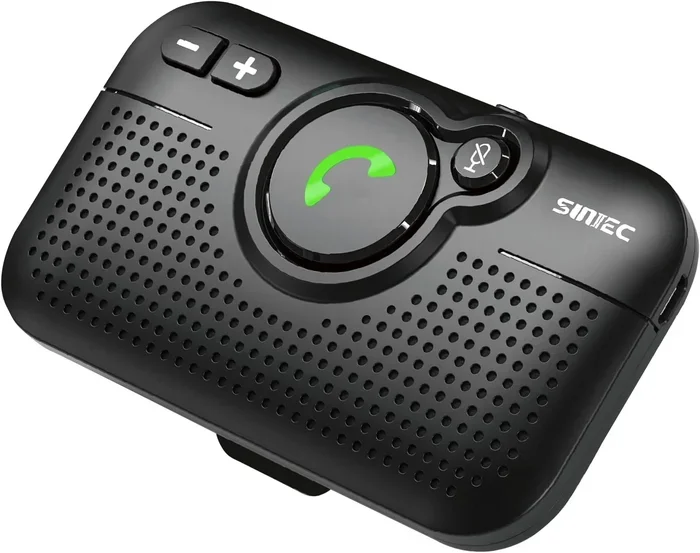
If your car does not have a USB port, you can use a Bluetooth car adapter or FM transmitter. These small devices plug into your car’s cigarette lighter or auxiliary port and create a Bluetooth connection point. They are affordable and work with any car.
Common Mistakes to Avoid When Connecting Bluetooth
Even though the process is straightforward, people still make mistakes that cause frustration. Here are some common errors and how to avoid them.
Not Deleting Old Pairings
Old paired devices can clutter your Bluetooth list and cause conflicts. Before trying to connect a new device, clear out any old pairings you no longer need. This simple step solves many connection problems.
Ignoring the Pairing Code
When pairing, both devices show a code. Always check that the codes match. If you just tap Pair without checking, you could be connecting to a different device nearby. This is a security risk and a common source of confusion.
Forgetting to Turn Off Bluetooth on Other Devices
Your Motorola phone might try to connect to a Bluetooth speaker, smartwatch, or headphones in your bag at the same time. This can confuse the car connection. Turn off Bluetooth on other devices when you are pairing with your car.
Not Restarting Devices
A quick restart works wonders for Bluetooth issues. Turn off Bluetooth on both devices, power them down completely, wait 30 seconds, and start again. This clears temporary glitches that block connections.
Assuming All Cars Work the Same Way
Every car manufacturer designs its Bluetooth menu differently. Do not assume your process is the same as your friend’s process. Check your car’s manual or search online for your specific model and year. Taking two minutes to find the right menu saves a lot of frustration.
Expert Tips for the Best Bluetooth Experience
Here are some extra tips that help you get the most out of your Motorola phone and car Bluetooth setup.
Keep your phone close to the car antenna. The antenna is usually near the rear windshield or roof. Placing your phone on the passenger seat or center console gives you a stronger signal than putting it in the glove box.
Update your phone regularly. Software updates often include Bluetooth fixes and improvements. Check for updates once a week and install them promptly.
Set your phone to auto-connect. Most Motorola phones remember paired cars and connect automatically. Make sure this feature is turned on in your Bluetooth settings so you never have to manually pair again.
Use a Bluetooth car adapter for older vehicles. If your car was made before 2010, it probably does not have Bluetooth built in. A Bluetooth adapter plugs into your auxiliary port or cigarette lighter and adds wireless capability for under $30.
Limit the number of connected devices. The more devices connected to your car’s Bluetooth, the slower the connection can become. Keep only the devices you actually use regularly.
Check for app conflicts. Sometimes third-party apps interfere with Bluetooth connections. If you notice issues, try closing apps that use audio or phone functions in the background.
Frequently Asked Questions
Why won’t my Motorola phone connect to my car Bluetooth?
Most connection issues come from Bluetooth not being discoverable on one of the devices. Try turning Bluetooth off on both your phone and car, waiting 10 seconds, and turning them back on. Also check that you have not reached the maximum number of paired devices in your car. Clearing the Bluetooth cache on your Motorola phone can also fix the problem.
Can I connect multiple phones to my car Bluetooth?
Yes, most car infotainment systems can remember and connect to several phones at once. However, only one phone can stream audio at a time. When you get in the car, the last connected phone usually reconnects automatically. You can switch between phones in your car’s Bluetooth settings.
Do I need Android Auto to connect my Motorola phone to my car?
No, Android Auto is optional. Bluetooth works independently of Android Auto. You can connect your Motorola phone to your car for calls and music without ever installing Android Auto. Android Auto simply adds extra features like a larger display and voice commands.
Why does my Bluetooth connection keep disconnecting?
Intermittent disconnections often happen due to signal interference or distance. Make sure your phone is within 30 feet of the car. Other electronic devices, especially USB chargers not connected to your car’s official port, can cause interference. Restarting both devices and unpairing then re-pairing often resolves this issue.
Can I use Bluetooth to charge my Motorola phone while driving?
Bluetooth itself does not charge your phone. It only transfers audio data. If you want to charge your phone while using Bluetooth, plug a USB cable into your car’s USB port. Many people use Bluetooth for audio and USB for charging at the same time. This gives you the best of both worlds.
Is it safe to use Bluetooth while driving?
Yes, Bluetooth is designed to be safer than holding your phone. It keeps your hands on the wheel and your eyes on the road. However, even hands-free calls can distract your mind. Stay focused on driving and use voice commands whenever possible to minimize distractions.
Conclusion
Connecting your Motorola phone to your car Bluetooth is one of the simplest and most useful things you can do as a driver. It gives you hands-free calling, music streaming, and access to Android Auto, all without taking your hands off the wheel. The process takes just a few minutes, and once set up, it works automatically every time you get in the car.
We covered the full pairing process, from turning on Bluetooth on both devices to testing the connection. We also explored common troubleshooting steps, Android Auto setup, USB alternatives, and expert tips to improve your experience. Whether you have a new car with a touchscreen or an older model with a basic radio, your Motorola phone can connect seamlessly.
Remember that Bluetooth technology continues to improve with each new phone and car model. The steps in this guide apply to most Motorola phones and most vehicles on the road today. If you run into issues, the troubleshooting section has solutions for the most common problems.
Now that you know how to connect your Motorola phone to your car Bluetooth, try it out on your next drive. Once you experience the convenience of hands-free calling and wireless music, you will wonder how you ever drove without it. Stay safe, stay connected, and enjoy the ride.