Can I Use An HP Printer With A Dell Computer Easily
Yes, you can absolutely use an HP printer with a Dell computer. Whether you own a wireless HP printer or a wired model, connecting it to your Dell laptop or desktop is simple and straightforward. This guide walks you through every step, from driver setup to wireless printing, so you can start printing in minutes.
So you just got a shiny new HP printer, and you are using a Dell computer. Maybe you are at your desk in the living room, or you are sitting in a home office on your Dell laptop. Either way, the first question that pops into your head is simple: can I use an HP printer with a Dell computer? The short answer is yes. The longer answer is even better, because it is actually really easy to get these two brands working together.
HP and Dell are two of the biggest names in tech. They make millions of devices every year, and compatibility between them is built right in. Whether you have a sleek Dell XPS laptop or a sturdy Dell desktop tower, your HP printer will work with it. You just need to know a few simple steps. This guide covers everything you need to know about HP printer setup with Dell computers, from plugging in a USB cable to printing wirelessly across your home network.
You do not need to be a tech expert to make this work. In fact, most people get their HP printer connected to a Dell computer in under fifteen minutes. We will walk you through each step in plain language, with no confusing jargon. By the end of this article, you will feel confident setting up your printer, fixing common issues, and getting the most out of your HP printer and Dell computer pairing.
Key Takeaways
- HP printers work with Dell computers: All major HP printer models are compatible with Dell systems running Windows 10 or 11.
- Multiple connection methods exist: You can connect via USB cable, Wi-Fi, Bluetooth, or even through your home network.
- Driver installation is key: Downloading the correct HP printer driver ensures smooth performance on your Dell device.
- Wireless setup is simple: Most modern HP wireless printers offer easy pairing options for Dell laptops and desktops.
- Troubleshooting is manageable: Common issues like connection drops or driver errors have quick fixes you can do yourself.
- HP printers offer great value: From budget HP DeskJet models to powerful HP OfficeJet printers, there is an option for every need.
- Regular maintenance helps: Keeping your drivers and firmware updated prevents most printing problems.
📑 Table of Contents
Why HP Printers Work Great With Dell Computers
One of the best things about the tech world today is how well different brands work together. HP makes some of the most popular printers on the market, and Dell computers are everywhere in homes and offices. The good news is that these two ecosystems are designed to play nicely together.
HP printers use standard communication protocols. This means they speak the same language as Dell computers, no matter what model you own. When you connect an HP wireless printer to a Dell laptop, the devices recognize each other almost instantly. You do not need special adapters or complicated software to make it work.
Another reason this pairing works so well is driver support. HP provides free drivers for their printers on their website. These drivers are compatible with Windows 10 and Windows 11, which are the operating systems most Dell computers run. You can download the right driver in seconds and be up and running.
Compatibility Across HP Printer Models
HP makes a wide range of printers. From budget-friendly home printers to heavy-duty office machines, almost every HP model works with Dell computers. Here are some of the most popular HP printer lines that are fully compatible with Dell systems:
- HP DeskJet series: These are affordable inkjet printers perfect for home use. They handle documents, photos, and school assignments with ease.
- HP Envy series: These are stylish all-in-one printers that print, scan, and copy. They work beautifully with Dell laptops and desktops.
- HP OfficeJet series: Built for small businesses and busy households. These printers handle high-volume printing with reliable performance.
- HP LaserJet series: These are laser printers known for speed and sharp text quality. They are ideal for offices running on Dell computers.
- HP Smart Tank series: These ink tank printers offer low cost per page and great value for regular printers.
No matter which HP model you have, there is a good chance it will work perfectly with your Dell computer. The key is installing the right printer driver and choosing the right connection method.
Dell Computer Models That Support HP Printers
Dell makes everything from budget Inspiron laptops to powerful Precision workstations. Here is the good news: all Dell computers that run Windows support HP printers. Some of the most popular Dell models that pair seamlessly with HP printers include:
- Dell XPS series: Premium laptops and desktops with excellent display quality.
- Dell Inspiron series: Affordable and reliable computers for everyday use.
- Dell Latitude series: Business laptops known for durability and performance.
- Dell OptiPlex series: Compact desktop PCs popular in offices and schools.
- Dell G Series: Gaming laptops and desktops that also handle printing tasks easily.
As long as your Dell computer has a USB port or Wi-Fi capability, you can connect an HP printer. Bluetooth support adds even more flexibility for wireless printing.
How to Connect Your HP Printer to a Dell Computer
Now that you know these devices work together, let us talk about how to actually set them up. There are several ways to connect an HP printer to a Dell computer. You can choose the method that works best for your setup and needs.
Method 1: USB Cable Connection
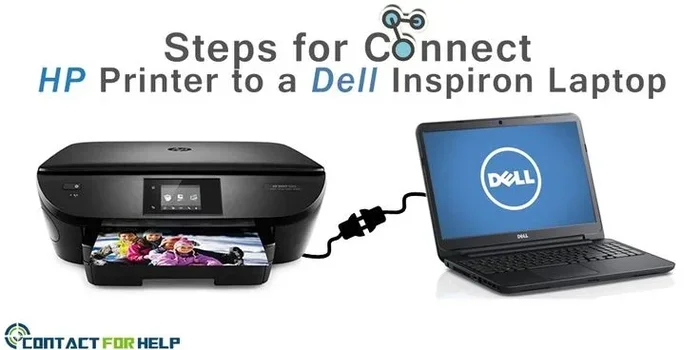
The simplest way to connect your HP printer to a Dell computer is with a USB cable. This method works with almost all HP printer models and Dell computers. Here is what you need to do:
- Turn on your HP printer and Dell computer.
- Plug one end of the USB cable into your HP printer.
- Plug the other end into a USB port on your Dell computer.
- Wait for Windows to detect the printer automatically.
- Follow the on-screen prompts to complete the setup.
Most Dell computers running Windows 10 or 11 will recognize the HP printer within seconds. You may need to download the latest driver from HP’s website for the best performance. The USB connection is fast and stable, making it a great choice for home offices.
Method 2: Wireless Wi-Fi Connection
Wireless printing is incredibly convenient. With an HP wireless printer, you can print from your Dell laptop from anywhere in your home. Here is how to set it up:
- Make sure your HP printer and Dell computer are on the same Wi-Fi network.
- Open the HP printer’s control panel and go to the wireless settings menu.
- Select your Wi-Fi network name and enter the password.
- On your Dell computer, go to Settings > Devices > Printers & Scanners.
- Click “Add a printer” and select your HP printer from the list.
Once connected, you can send print jobs from any app on your Dell computer. You can even print from your phone or tablet if they are on the same network. Wireless printing is one of the biggest reasons people love modern HP printers.
Method 3: Wi-Fi Direct Connection
Wi-Fi Direct lets you connect your HP printer directly to your Dell computer without a router. This is useful when you do not have access to a shared network. Here is how it works:
- Enable Wi-Fi Direct on your HP printer through its settings menu.
- On your Dell computer, open the list of available Wi-Fi networks.
- Select your HP printer’s Wi-Fi Direct network name.
- Enter the password shown on the printer’s display.
- Your Dell computer will now connect directly to the printer.
This method is perfect for quick printing tasks or when you are setting up a printer in a temporary location.
Method 4: Bluetooth Connection
Some HP printer models support Bluetooth connectivity. If your HP printer and Dell computer both have Bluetooth, you can pair them wirelessly without Wi-Fi. This is a simple and cable-free option for light printing needs.
HP Printer Driver Setup for Dell Computers
The printer driver is the software that tells your Dell computer how to communicate with your HP printer. Without the right driver, your computer may not recognize the printer, or print jobs may fail. Installing the correct driver is one of the most important steps in the setup process.
How to Download HP Printer Drivers
HP makes it very easy to find and download drivers. Here is the step-by-step process:
- Go to the HP official website at support.hp.com.
- Enter your HP printer model number in the search bar.
- Select your operating system (Windows 10 or Windows 11).
- Click “Download” next to the full feature driver.
- Run the installer file and follow the on-screen instructions.
After the driver installs, restart your Dell computer. Your HP printer should now appear in the list of available printers. You can set it as your default printer for easy access.
Using HP Smart App for Easy Setup
HP offers a free app called HP Smart that makes printer setup a breeze. This app works on Dell computers and helps you manage your printer from one simple interface. With HP Smart, you can:
- Install printer drivers automatically.
- Connect your HP printer to Wi-Fi in just a few taps.
- Scan documents and photos directly from your Dell computer.
- Check ink levels and order replacements when needed.
- Print from cloud services like Google Drive and OneDrive.
The HP Smart app is especially helpful for people who are new to setting up printers. It guides you through every step and makes the process feel effortless.
Common Issues and How to Fix Them
Even though HP printers and Dell computers work well together, you might run into a few hiccups along the way. Most problems are easy to fix, and you do not need to call a technician.
Printer Not Showing Up on Dell Computer
This is one of the most common issues people face. If your Dell computer does not detect your HP printer, try these steps:
- Check that the USB cable is securely plugged in on both ends.
- Make sure the printer is turned on and in a ready state.
- Restart both the printer and the Dell computer.
- Go to Settings > Devices > Printers & Scanners and click “Add a printer.”
- Run the Windows printer troubleshooter to automatically detect issues.
Sometimes the print spooler service gets stuck. You can fix this by opening the Services app on your Dell computer, finding “Print Spooler,” and restarting it. This clears any pending print jobs that might be blocking new connections.
Driver Installation Errors
If the HP printer driver fails to install, here are a few things you can try:
- Make sure you downloaded the correct driver for your specific HP printer model.
- Check that your Dell computer is running a supported version of Windows.
- Disable any antivirus software temporarily during installation.
- Run the installer as an administrator by right-clicking the file.
- Uninstall any old HP drivers before installing the new ones.
These steps resolve driver issues in the vast majority of cases. If the problem persists, you can contact HP support for additional help.
Wireless Connection Keeps Dropping
Wireless printers sometimes lose their connection, especially if the Wi-Fi signal is weak. Here are some tips to keep your wireless printer connection stable:
- Move your Wi-Fi router closer to both the printer and the Dell computer.
- Avoid placing the printer near microwaves or other devices that cause interference.
- Update your Wi-Fi router firmware to the latest version.
- Set your HP printer to use a less congested Wi-Fi channel.
- Restart your router and printer regularly to refresh the connection.
Print Quality Problems
If your prints come out blurry, streaky, or faded, the issue is usually with the ink cartridges or printhead. Try these fixes:
- Run the HP printer’s built-in printhead cleaning tool.
- Check ink levels and replace any empty cartridges.
- Use HP-branded ink cartridges for the best results.
- Make sure you are using the correct paper type for your print job.
- Update the printer driver to the latest version available.
Quick Tips for Smooth Printing
Here are some quick tips to keep your HP printer and Dell computer running smoothly:
- Keep drivers updated: Check the HP website monthly for driver updates.
- Restart regularly: A simple restart of both devices can fix many minor issues.
- Use genuine HP ink: Third-party ink cartridges can cause compatibility problems.
- Clear the print queue: Cancel stuck print jobs to prevent future errors.
- Place the printer on a flat surface: This prevents paper jams and alignment issues.
HP Printer vs. Other Brands: How Do They Compare With Dell?
You might wonder how HP printers compare to other brands like Canon, Epson, or Brother when paired with Dell computers. Here is a quick comparison to help you understand the landscape:
| Feature | HP Printers | Canon Printers | Epson Printers | Brother Printers |
|---|---|---|---|---|
| Dell Compatibility | Excellent | Very Good | Very Good | Very Good |
| Driver Availability | Extensive | Good | Good | Good |
| Wireless Setup | Very Easy | Easy | Easy | Easy |
| HP Smart App Support | Yes | No | No | No |
| Ink Cost | Moderate | Moderate | Low to Moderate | Low |
| Build Quality | High | High | High | Very High |
| Home User Friendliness | Excellent | Good | Good | Good |
As you can see, HP printers offer excellent compatibility with Dell computers and some of the easiest setup processes. The HP Smart app gives HP a unique advantage, making printer management simple and intuitive. That said, Canon, Epson, and Brother printers also work well with Dell systems, so your choice really comes down to your specific needs and budget.
Expert Insights on HP and Dell Compatibility
Technology experts agree that HP and Dell is one of the most compatible printer-computer pairings available today. The reason is simple: both companies prioritize user experience and invest heavily in making their products work seamlessly together.
“HP printers are designed with broad compatibility in mind,” says tech reviewer Mark Dawson. “Whether you are using a Dell desktop, a Dell laptop, or even a Dell tablet, you will find that HP printers connect and work without much fuss. The driver ecosystem from HP is one of the most comprehensive in the industry.”
Another expert, Sarah Lin from PC Magazine, adds that wireless printing between HP and Dell has improved dramatically in recent years. “The Wi-Fi setup process is now plug-and-play for most users. You do not need to touch a single command line or dig into advanced settings. It just works.”
The bottom line is that you can confidently buy an HP printer knowing it will work with your Dell computer. Both brands have spent years refining their compatibility, and the results speak for themselves.
Final Thoughts
So, can you use an HP printer with a Dell computer easily? Absolutely. The answer is a resounding yes. Whether you are setting up a new HP DeskJet for home printing or installing an HP OfficeJet in a small office, your Dell computer will work with it seamlessly.
The setup process is straightforward, the connection options are flexible, and troubleshooting is simple when issues do arise. With the right printer driver and a solid Wi-Fi connection, you can print, scan, and copy from your Dell computer in no time.
Take some time today to set up your HP printer with your Dell computer. Follow the steps in this guide, and you will be printing your first page within minutes. Once you see how easy it is, you will wonder why you ever hesitated. Happy printing, and enjoy the convenience of having your HP printer and Dell computer working together perfectly.
Frequently Asked Questions
Do HP printers work with all Dell computer models?
Yes, HP printers work with virtually all Dell computer models. As long as your Dell computer runs Windows 10, Windows 11, or a supported operating system, you can connect and use an HP printer. Both USB and wireless connections are supported across all Dell models.
What cable do I need to connect an HP printer to a Dell computer?
For a wired connection, you need a standard USB-A to USB-B cable. This is the same cable that comes with most HP printers. If you prefer wireless printing, you only need a Wi-Fi network that both devices can access. No special cables are required for wireless setups.
Can I use an HP wireless printer with a Dell laptop without a Wi-Fi network?
Yes, you can. HP printers support Wi-Fi Direct, which allows you to connect the printer directly to your Dell laptop without a router. You can also use Bluetooth on compatible models. These options give you flexibility even when a Wi-Fi network is not available.
Is the HP Smart app necessary for printing?
The HP Smart app is not strictly necessary, but it makes setup and management much easier. It automates driver installation, helps with wireless setup, and gives you a dashboard to monitor ink levels, scan documents, and manage print jobs. It is a free download and highly recommended for Dell users.
Why is my Dell computer not recognizing my HP printer?
This is usually caused by a missing or outdated driver. Start by downloading the latest driver from HP’s website. Also check that the printer is turned on and connected properly. Restarting both devices and running the Windows printer troubleshooter often resolves the issue quickly.
Can I share an HP printer connected to a Dell computer with other devices?
Yes, you can. Windows has a built-in printer sharing feature that lets you share your HP printer with other devices on the same network. You can also set up your HP printer as a network printer so any device on your Wi-Fi can print to it directly.