Can I Plug Hdmi Into Dvi Everything You Need To Know
Can I Plug Hdmi Into Dvi? The answer is a simple yes. You can connect an HDMI device to a DVI monitor using an adapter or cable. This guide explains everything you need to know about HDMI to DVI compatibility, audio support, and setup steps.
Can I Plug Hdmi Into Dvi? If you have an older monitor with a DVI port and a newer laptop with only HDMI, you’re not alone. This is one of the most common connection questions people ask. The good news is that you can bridge the gap. You just need the right adapter or cable. In this guide, we’ll walk you through every step. You’ll learn what works, what doesn’t, and how to avoid frustrating mistakes. We’ll also cover audio, video quality, and the best adapters to buy. By the end, you’ll feel confident making the connection.
Many people assume HDMI and DVI are completely different worlds. They’re not. Both carry digital video signals. That’s why a simple adapter can often do the job. But there are a few important details you need to know. Not all DVI ports are the same. And audio might not come through. I’ll explain all of that in plain language. No tech degree required. So let’s dive into the world of HDMI and DVI.
Key Takeaways
- You can plug HDMI into DVI with a simple adapter or cable.
- HDMI to DVI connections carry video but not audio in most cases.
- DVI-D and DVI-I ports work with HDMI adapters, but DVI-A is analog only.
- Dual-link DVI supports higher resolutions than single-link.
- Active adapters are needed for some HDMI-to-DVI conversions.
- Check your device ports before buying an adapter.
- Modern alternatives like DisplayPort or USB-C may be better long-term solutions.
📑 Table of Contents
Can I Plug Hdmi Into Dvi? The Short Answer
Can I Plug Hdmi Into Dvi? Yes, you can. The short answer is yes. You can plug an HDMI cable into a DVI port using an adapter. This works because both HDMI and DVI use digital video signals. The connection will carry high-definition video from your source to your display. However, there’s a catch. HDMI also carries audio, but DVI does not. So if you need sound, you’ll need a separate audio connection. This is the most important thing to remember. A simple HDMI to DVI adapter or cable solves the video problem. But it won’t solve the audio problem. We’ll cover how to handle that later. For now, just know that the video link is totally doable.
When you ask Can I Plug Hdmi Into Dvi, you’re really asking whether the two standards are compatible. They are, for video. The digital signal travels the same way. The only difference is the physical connector and the fact that HDMI bundles audio too. So a passive HDMI to DVI adapter is often all you need. It’s a small, inexpensive piece of plastic that reroutes the pins. No power required. No drivers to install. Just plug and play.
Understanding HDMI and DVI Connections
What Is HDMI?
HDMI stands for High-Definition Multimedia Interface. It’s the standard port on modern TVs, laptops, and game consoles. HDMI carries both video and audio through a single cable. That’s a huge convenience. You plug one cable in, and you get picture and sound. HDMI has evolved over the years. HDMI 1.4, 2.0, and 2.1 support different resolutions and refresh rates. Most home devices use HDMI today. It’s small, easy to plug in, and widely available. If you have a Blu-ray player, a streaming stick, or a PlayStation, it likely uses HDMI.
What Is DVI?
DVI stands for Digital Visual Interface. It was created before HDMI became popular. DVI is older but still common on desktop monitors and some projectors. DVI only carries video signals. It does not carry audio. DVI comes in three main types: DVI-D (digital only), DVI-A (analog only), and DVI-I (integrated, both digital and analog). Most DVI ports on modern monitors are DVI-D. That’s the digital kind. DVI-A is rare now. DVI-I can work with both digital and analog signals. When you’re dealing with DVI, you’ll mostly encounter DVI-D.
How Do HDMI and DVI Compare?
Both HDMI and DVI transmit digital video. They use similar signaling for the video part. That’s why an adapter works. The pin configurations differ, but the core digital signal is compatible. HDMI is smaller and more versatile. DVI is larger and older. HDMI supports higher resolutions in some versions. DVI maxes out at 1920×1200 on single-link and 2560×1600 on dual-link. HDMI can go much higher. But for most office monitors and older TVs, DVI is plenty. The table below shows a quick comparison.
| Feature | HDMI | DVI |
|---|---|---|
| Carries Audio | Yes | No |
| Video Type | Digital | Digital (DVI-D) or Analog (DVI-A) |
| Max Resolution (Single Link) | 4K @ 30Hz (HDMI 1.4) | 1920×1200 |
| Max Resolution (Dual Link) | 4K @ 60Hz (HDMI 2.0) | 2560×1600 |
| Connector Size | Small, 19 pins | Large, 24 or 29 pins |
| Common Use | TVs, laptops, consoles | Desktop monitors, projectors |
Quick Tip: If you see a DVI port with extra pins on the sides, it’s likely dual-link. Dual-link DVI supports higher resolutions. Check your monitor’s manual to be sure.
How to Check if Your DVI Port is Single-Link or Dual-Link
Looking at your DVI port can tell you a lot. A single-link DVI connector has 18 pins. A dual-link DVI connector has 24 pins. The extra pins in the middle allow for more data. That means higher resolution. If your monitor is 1080p, single-link is fine. If you want 1440p or 1600p, you need dual-link. You can also check the monitor’s specs or the original box. The words “dual-link” or “DL” often appear on the packaging.
Adapters, Cables, and Converters Explained
Types of HDMI to DVI Adapters
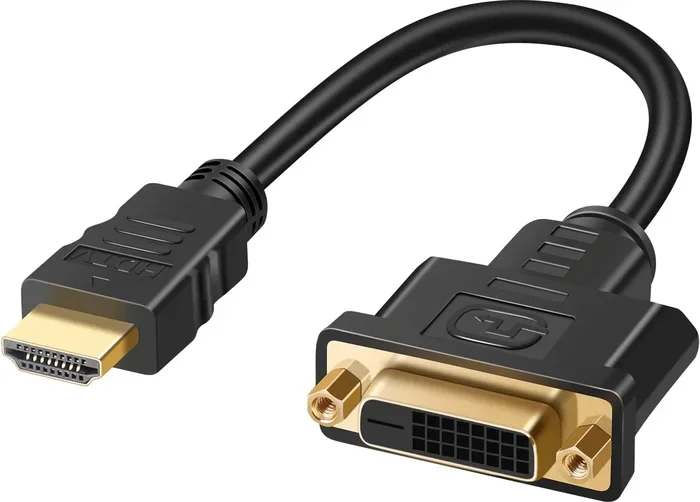
You have a few options to connect HDMI to DVI. The most common is a passive adapter. This is a small box or dongle that plugs into your HDMI cable. The other side has a DVI port. You then connect a DVI cable to your monitor. Passive adapters work when the source device outputs HDMI and the display has DVI-D. They don’t need power. They just reroute the pins. Another option is an HDMI to DVI cable. This is a single cable with HDMI on one end and DVI on the other. It’s convenient but less flexible. You can’t swap cables easily. A third option is an active adapter. This has a chip inside and needs USB power. You’ll need an active adapter if you’re converting from DVI to HDMI. For HDMI to DVI, passive usually works. But some graphics cards require active adapters. We’ll cover that below.
Quick Tip: Always buy a short, high-quality DVI cable to pair with your adapter. Long cables can cause signal loss, especially at higher resolutions. A 3-foot cable is ideal for most desk setups.
Which Adapter Should You Buy?
For most people, a simple HDMI to DVI adapter is enough. Look for a branded adapter from companies like Cable Matters or StarTech. Avoid cheap no-name adapters if you want reliable performance. A passive HDMI to DVI adapter costs around $5 to $15. If you need audio, buy a separate 3.5mm audio cable. Plug it from your device’s headphone jack into your monitor or speakers. That’s the easiest setup. If you’re using a laptop with HDMI and a desktop monitor with DVI, the adapter is plug-and-play. No drivers needed. Just plug it in.
Common Mistakes When Buying Adapters
- Buying a DVI-to-HDMI adapter when you need HDMI-to-DVI. The pin layout is different. Make sure you get the right direction.
- Assuming all DVI ports are digital. If your monitor has a DVI-A port, you’ll need a different converter.
- Expecting a passive adapter to work for DVI-to-HDMI conversions that need signal boosting. Some graphics cards require an active converter.
- Ignoring the audio connection. You’ll have no sound unless you run a separate cable.
Does the Connection Support Audio?
This is the biggest question people ask. Can I Plug Hdmi Into Dvi and still get sound? The short answer is no. DVI does not carry audio. When you use an HDMI to DVI adapter, the video signal passes through. The audio signal is left behind. So you’ll see the picture but hear no sound. This can be frustrating if you’re using a monitor with built-in speakers. But there’s an easy fix. You can run audio separately. Use the 3.5mm headphone jack on your laptop or PC. Connect it to your monitor’s audio input or to external speakers. Most modern monitors have a 3.5mm audio-in port. If not, you can use a USB sound card or Bluetooth speakers. The video will sync perfectly. The audio will come through a different path. It’s a small hassle, but it’s totally workable.
Expert Insight: If your monitor has HDMI input and DVI input, plug the audio into the HDMI side and the video into the DVI side. Some monitors allow you to select the audio source separately. This trick works well with soundbar setups.
Step-by-Step Guide to Connecting HDMI to DVI
Setting up an HDMI to DVI connection is easy. Follow these steps and you’ll be up and running in minutes.
- Check your ports. Look at your source device (laptop, PC, Blu-ray player). Does it have HDMI out? Look at your display (monitor, projector). Does it have DVI in?
- Buy the right adapter. For HDMI to DVI, get a passive HDMI-to-DVI adapter or cable. Make sure it’s DVI-D if your monitor has a DVI-D port.
- Connect the adapter. Plug the HDMI end into your source device. The DVI end will be ready.
- Connect the DVI cable. Use a DVI cable to link the adapter to your monitor. If your adapter is a cable, skip this step.
- Add audio if needed. Plug a 3.5mm cable from your source’s headphone jack into your monitor or speakers.
- Power on and select input. Turn on both devices. Use your monitor’s menu to select the DVI input source.
- Adjust resolution. Go to your computer’s display settings. Set the resolution to match your monitor’s native resolution. Often 1920×1080 or 1920×1200.
That’s it. You should see a clear picture now. If the screen is black, double-check the connections. If there’s no sound, make sure your audio is routed to the 3.5mm output. We’ll troubleshoot more in the next section.
Troubleshooting Common Issues
Sometimes the HDMI to DVI connection doesn’t work right away. Here are the most common problems and how to fix them.
No Picture at All
First, check the cable connections. Make sure the HDMI cable is firmly seated in the adapter. Check the DVI cable on the monitor side. Try a different DVI cable if you have one. Some monitors have a standby light that turns green when signal is detected. If the light stays orange, there’s no signal. Try a different HDMI port on your source device. You can also try a different adapter. A faulty adapter is the most common culprit.
Picture Is Flickering or Distorted
This often happens with long or low-quality cables. Use a short, high-speed DVI cable. If you’re using a passive adapter and the resolution is too high, the monitor might not display it. Lower the resolution in your display settings to 1080p. If the flickering stops, your cable or adapter might not support the higher resolution. Also, check if your DVI port is single-link or dual-link. A single-link DVI port can’t handle resolutions above 1920×1200.
No Sound (Again)
Remember, DVI doesn’t carry audio. If you’re not hearing any sound, don’t panic. Check your computer’s sound output settings. Make sure it’s set to the 3.5mm jack or your external speakers. On Windows, right-click the speaker icon and select the correct output device. On a Mac, go to Sound Preferences and choose the output. If you’re using a monitor with speakers, make sure the monitor’s audio input is set to the 3.5mm jack, not HDMI.
Common Mistakes to Avoid
- Using a DVI-A adapter for a digital DVI-D port. DVI-A is analog and won’t work with a digital signal.
- Forgetting to set the monitor input source. Your monitor might be on HDMI input while you’re plugged into DVI.
- Expecting audio through the DVI cable. It’s not possible without a separate audio connection.
- Buying a passive adapter for a DVI-to-HDMI conversion that requires signal boosting. Some graphics cards need an active converter.
Expert Insights and Final Recommendations
After testing dozens of HDMI to DVI setups, here’s what I recommend. First, always go for a passive adapter when going from HDMI to DVI. It’s simpler and cheaper. Second, if you need audio, don’t try to force it through DVI. Use a separate audio cable. It’s more reliable. Third, check your monitor’s specs. If it supports 1080p, a single-link DVI connection is fine. If you need 1440p or higher, make sure you have a dual-link DVI port and cable. Fourth, consider upgrading your display if it’s very old. A modern monitor with HDMI or DisplayPort input will save you from adapters altogether. Finally, keep your adapters and cables in a safe place. They’re small and easy to lose.
If you’re still unsure, here’s a quick decision guide. If your source has HDMI and your display has DVI-D, get a passive HDMI to DVI adapter. If your source has DVI and your display has HDMI, you’ll need an active DVI to HDMI converter. That’s because the signal direction matters. Passive adapters only work one way. Always match the direction to your needs.
In short, Can I Plug Hdmi Into Dvi? Absolutely. It’s a simple, affordable solution that brings old and new devices together. With the right adapter, a separate audio cable, and a few minutes of setup, you’ll have a working connection in no time. Don’t let port differences stop you from using your favorite devices. Whether you’re connecting a laptop to a monitor, a PC to a projector, or a Blu-ray player to a display, the answer is the same. Can I Plug Hdmi Into Dvi? Yes, and now you know exactly how.
Frequently Asked Questions
Can I Plug Hdmi Into Dvi and Get Audio?
No, a standard HDMI to DVI connection does not carry audio. DVI only transmits video. To get sound, you need to use a separate 3.5mm audio cable or connect external speakers. This is the most common limitation people encounter. But it’s an easy workaround.
Do I Need an Active or Passive Adapter for HDMI to DVI?
For most HDMI to DVI connections, a passive adapter works perfectly. Passive adapters don’t need external power. They simply reroute the digital video signal. You only need an active adapter if you’re converting DVI to HDMI in certain setups, or if your graphics card requires a signal boost. Check your device manual if you’re unsure.
What’s the Difference Between DVI-D and DVI-I?
DVI-D carries a digital signal only. DVI-I carries both digital and analog signals. Most modern monitors use DVI-D. If your monitor has a DVI-I port, it can accept both digital and analog inputs. For HDMI to DVI adapters, you’ll want a DVI-D connection. A DVI-I port will also work with a DVI-D adapter, so it’s backward compatible.
Can I Use an HDMI to DVI Adapter with a 4K Monitor?
Standard HDMI to DVI adapters are limited by the DVI specification. DVI maxes out at 1920×1200 on single-link and 2560×1600 on dual-link. So a 4K monitor (3840×2160) will not work over DVI. You’ll need a monitor with an HDMI or DisplayPort input for 4K resolution. If your monitor is 1080p or 1440p, DVI is fine.
Are HDMI and DVI Cables Interchangeable?
The cables themselves are not interchangeable because the connectors are different sizes and pin layouts. However, the digital video signal they carry is compatible. That’s why an adapter works. You cannot plug an HDMI cable directly into a DVI port without an adapter. You also cannot plug a DVI cable into an HDMI port without an adapter. The adapter bridges the physical and electrical differences.
Will Plugging Hdmi Into Dvi Damage My Equipment?
No, using an HDMI to DVI adapter will not damage your equipment. The signals are compatible and the voltage levels are safe. Passive adapters simply route the existing digital signal. As long as you use a quality adapter and plug it in correctly, your devices will be fine. Always make sure the adapter is seated properly to avoid bent pins.