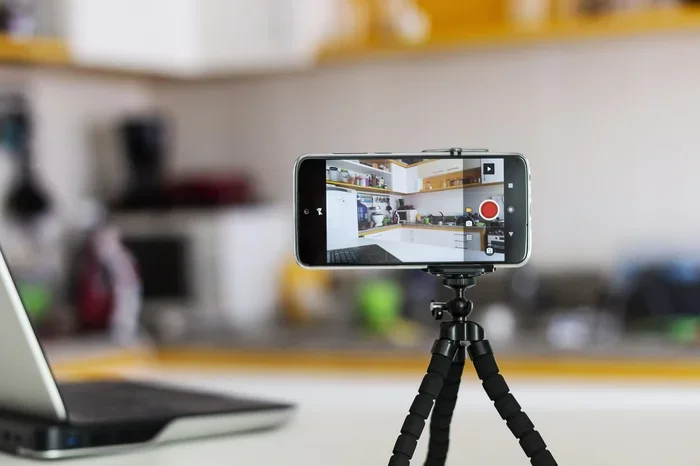
Can I Use My Phone Camera As A Webcam For Video Calls
Yes, you can use your phone camera as a webcam for video calls, and it is one of the easiest ways to upgrade your video quality today. Whether you have an iPhone or an Android device, a few simple steps can turn your smartphone into a powerful webcam for Zoom, Teams, and other platforms. This guide shows you exactly how to set it up, which apps work best, and how to get the clearest picture possible.
Can I Use My Phone Camera As A Webcam? The short answer is yes, and it is one of the simplest ways to improve your video calls today. Instead of relying on a blurry built-in laptop camera, you can plug in your smartphone and get stunning, high-resolution video. Whether you work from home, attend online classes, or stream content, your phone can become a powerful webcam with just a few steps. This guide walks you through every method, app, and tip you need to get started right away.
You do not need expensive equipment or advanced tech skills. A phone, a cable, and a free app are often all you need. Can I Use My Phone Camera As A Webcam for Zoom, Microsoft Teams, Google Meet, or OBS Studio? Absolutely. Let us dive into how this works and why so many people are making the switch to their phones for video conferencing.
Using your phone as a webcam opens up a world of possibilities. Your front-facing camera or rear camera likely has better lenses and sensors than most built-in webcams. This means sharper images, richer colors, and better performance in low light. Below, we cover everything from wired connections to wireless setups so you can find the method that works best for you.
Before we get into the details, here is a quick look at what this article covers. You will learn about the different ways to connect your phone, the best apps available, tips for better video quality, and how to troubleshoot common issues. By the end, you will have everything you need to turn your phone into a professional-grade webcam for video calls.
More people are working remotely and attending virtual meetings every day. The quality of your video feed can make a big difference in how you come across on screen. A poor camera can make you look unprofessional, while a sharp, clear image helps you look polished and confident. Many people do not realize that the camera sitting in their pocket is far more powerful than the tiny lens on their laptop. Can I Use My Phone Camera As A Webcam for better video calls? Yes, and the process is easier than you might think. Let us explore the different methods and find the best approach for your setup.
Key Takeaways
- Your phone camera can replace your built-in webcam and deliver much better video quality for calls and streams.
- Wired and wireless options are available, so you can choose the method that fits your setup best.
- Free apps like Camo, EpocCam, and Reincubate make the connection process simple and fast for any user.
- Lighting and positioning matter a lot for getting a professional-looking video feed on every call.
- Both iPhone and Android devices work as webcams with the right cables or apps and a little patience.
- Common issues like lag and audio sync problems can be fixed with simple troubleshooting steps you can do right now.
📑 Table of Contents
- Why Use Your Phone Camera As A Webcam
- How To Connect Your Phone To Your Computer
- Best Apps For Using Your Phone Camera As A Webcam
- Tips For Getting The Best Video Quality
- Phone Camera vs Built-in Webcam Comparison
- Common Problems And How To Fix Them
- Final Thoughts On Using Your Phone Camera As A Webcam
Why Use Your Phone Camera As A Webcam
There are many reasons to consider using your smartphone as a video input device. Built-in laptop cameras have improved over the years, but they still lag behind phone cameras in several key areas. Here is why making the switch is a smart move.
Better Image Quality
Phone cameras have larger sensors and better lenses. They capture more detail and handle lighting conditions much better. You get sharper images, true-to-life colors, and smoother motion. This is especially important for video conferencing where you want to look your best. A good phone camera webcam setup can rival expensive external cameras.
Flexibility And Adjustability
With a phone, you can position the camera anywhere. You can place it on a tripod mount, lean it against a book, or mount it on a stand. This gives you much more control over your framing and angle. You can also switch between the front and rear cameras easily. This flexibility is something a fixed built-in laptop camera simply cannot match.
Cost Savings
A good external webcam can cost anywhere from $50 to $200. If you already own a smartphone, you have a high-quality camera ready to go at no extra cost. This makes it a smart choice for budget-conscious users who still want professional-looking video. You save money and get better results at the same time.
Multiple Uses Beyond Video Calls
Your phone can also serve as a camera for streaming, recording tutorials, or creating content. The versatility of using your device as a video input device goes far beyond just meetings. You can switch between tasks seamlessly without buying additional equipment.
How To Connect Your Phone To Your Computer
Connecting your phone to your computer is the first step. There are two main methods: wired and wireless. Each has its own advantages depending on your needs and equipment. Let us break them down.
Wired Connection Using A USB Cable
A wired connection is the most reliable method. You simply plug your phone into your computer using a USB cable. This provides a stable video feed with minimal lag. Most modern computers recognize phones as webcam apps input sources when connected properly.
For iPhone users, you may need a Lightning to USB cable or a USB-C adapter. Android phones typically use a standard USB-C cable. Once connected, your computer should detect the phone as a camera source. A wired connection is ideal for users who prioritize stability and zero delay during important calls.
Wireless Connection For A Cleaner Setup
Wireless setups remove the need for cables entirely. Apps like Camo and EpocCam allow you to stream your phone’s camera over Wi-Fi. This is great if you want a clean desk setup without tangled cords. You can place your phone anywhere in the room and still get a solid video feed.
The trade-off is that wireless connections can sometimes experience slight delays or drops in quality. A strong Wi-Fi signal helps minimize these issues. If you have a reliable network, wireless streaming works very well for most video call software. It is a great option for users who value convenience and a clutter-free workspace.
Using An HDMI Capture Card
For the highest quality setup, you can use an HDMI capture card. This involves connecting your phone’s HDMI output to a capture card, which then plugs into your computer via USB. This method delivers excellent video resolution and is popular among streamers and content creators.
You will need a compatible adapter for your phone model. This setup works well for both iOS devices and Android smartphones. It does require a bit more setup, but the results are worth it for serious streamers and professionals who need the best possible image quality.
Best Apps For Using Your Phone Camera As A Webcam
Not all apps are created equal. Some are free, while others offer premium features. Here are the top options for turning your phone into a webcam that works seamlessly with your computer.
Camo By Reincubate
Camo is one of the most popular webcam apps available. It supports both iPhone and Android devices. The app lets you use your phone as a high-quality camera for Zoom, Teams, and other platforms. It offers features like background blur, virtual backgrounds, and multiple camera angles. You can even use the rear camera while the front camera stays free for other tasks.
The free version works well for basic needs. The paid version unlocks higher resolutions and additional features like chroma key green screen support. Camo is a great choice for most users who want a reliable and easy-to-use setup for their video conferencing needs.
EpocCam
EpocCam is another excellent option, especially for iPhone users. It works over Wi-Fi or USB and is compatible with macOS and Windows. The app is simple to set up and delivers solid video quality. It is a favorite among users who want a quick and straightforward wireless webcam alternative. The free version is functional, and the paid version removes watermarks and adds higher resolution support.
DroidCam For Android Users
DroidCam is a top pick for Android smartphone users. It connects via USB or Wi-Fi and works with most video conferencing platforms. The free version offers good quality, while the paid version adds higher resolution and no watermarks. DroidCam is lightweight and runs well even on older computers. It is a solid choice for users who want a dependable camera application without a steep learning curve.
iVCam
iVCam supports both iPhone and Android. It is known for its low latency and stable connection. The app works well for both casual calls and professional streaming. It is a solid option if you want a dependable camera application without a steep learning curve. The free version provides good quality, and the paid version unlocks additional resolution options and features.
Open Camera (Android Only)
Open Camera is a free, open-source app for Android users. It provides manual controls for exposure, white balance, and focus. While it does not have built-in streaming to PC, it pairs well with third-party tools like OBS Studio for advanced setups. It is a great option for tech-savvy users who want full control over their camera settings.
Tips For Getting The Best Video Quality
Setting up your phone as a webcam is only half the battle. How you position and light your setup makes a huge difference in the final result. Follow these practical tips to get the best possible image.
Lighting Is Everything
Good lighting can make a cheap camera look amazing. A ring light is an affordable and effective option. Place the light in front of you, slightly above eye level. Natural light from a window also works well, but avoid having a bright window behind you. That causes your face to look dark and shadowy.
Avoid harsh overhead lighting that creates unflattering shadows. Soft, even lighting helps your face look clear and natural on camera. If you can, position yourself so that the light source is in front of you, not behind. This simple change can transform your video quality instantly.
Positioning And Framing
Place your phone at eye level for the most natural look. Use a tripod mount or a phone holder to keep it steady. Frame yourself from the chest up for a professional appearance. Make sure there is some space between you and the background. A cluttered background distracts viewers and takes attention away from you.
Use Background Blur Or Virtual Backgrounds
Most video call software now supports background blur and virtual backgrounds. These features help hide messy rooms and keep the focus on you. You can enable these in Zoom, Teams, or through your webcam app settings. Some apps like Camo even offer custom virtual backgrounds that look very professional.
Check Your Internet Connection
A strong internet connection ensures smooth video. Use a wired Ethernet connection if possible. If you rely on Wi-Fi, make sure you are close to your router. A weak signal can cause lag, frozen frames, and poor audio sync. For the best results, dedicate your bandwidth to the video call by pausing downloads and streaming on other devices.
Keep Your Phone Charged And Cool
Using your phone as a camera for long calls can drain the battery fast and cause the phone to overheat. Plug your phone into a charger during calls. You can also reduce the frame rate or resolution in your app settings to save power. Keeping your phone cool prevents it from throttling performance during long sessions.
Phone Camera vs Built-in Webcam Comparison
How does a phone camera really compare to a standard built-in laptop camera? Let us look at the key differences side by side.
| Feature | Phone Camera | Built-in Laptop Webcam |
|---|---|---|
| Resolution | Up to 4K on most phones | Usually 720p or 1080p |
| Low Light Performance | Excellent with larger sensors | Often grainy and noisy |
| Lens Quality | Professional-grade glass | Small, fixed-focus lens |
| Flexibility | Can move and reposition easily | Fixed to the laptop lid |
| Setup Time | 5 to 15 minutes | Instant (already built in) |
| Cost | Free (uses existing phone) | Free (already built in) |
| Audio Quality | Good (use computer mic for calls) | Basic built-in mic |
As you can see, phone cameras offer a clear advantage in resolution and low-light performance. The only downside is the extra setup time required. But for most users, the quality boost is well worth it. Your phone’s front-facing camera and rear camera both outperform typical laptop webcams in almost every measurable way.
Common Problems And How To Fix Them
Even with a great setup, you might run into issues. Here are the most common problems and how to solve them quickly so you can get back to your calls.
Lag Or Delay In The Video Feed
Lag is the most common complaint when using a phone as a webcam. This usually happens with wireless connections. Try switching to a USB cable for a more stable feed. Also, close other apps on your phone that might be using bandwidth or processing power. Restart both your phone and computer if the issue persists.
Audio And Video Are Out Of Sync
If your audio and video are not matching up, check your app settings. Some webcam apps have a sync adjustment feature. Reducing the video resolution can also help. Make sure your computer’s audio drivers are up to date. A simple restart of the app often fixes minor sync issues.
Phone Not Being Recognized By The Computer
If your computer does not detect your phone, try a different cable or port. On iPhone, you may need to trust the computer when prompted. For Android, make sure you have selected the correct USB mode, often labeled “File Transfer” or “PTP mode.” Updating your phone’s drivers on Windows can also resolve this issue.
Poor Image Quality Or Blurry Video
Blur can come from several sources. Make sure your phone lens is clean. Check your lighting and avoid backlit situations. Also, ensure your video call software is set to use the highest quality input available. Sometimes simply tapping the screen to lock focus on your face makes a big difference.
Phone Battery Drains Quickly
Using your phone as a camera for long calls can drain the battery fast. Plug your phone into a charger during calls. You can also reduce the frame rate or resolution in your app settings to save power. Enabling battery saver mode on your phone can help extend usage time during long meetings.
Final Thoughts On Using Your Phone Camera As A Webcam
Can I Use My Phone Camera As A Webcam for better video calls? The answer is a resounding yes. Whether you choose a wired USB connection, a wireless app, or an HDMI capture card, your smartphone can deliver video quality that far surpasses most built-in webcams.
The process is straightforward, the apps are free or affordable, and the results speak for themselves. You do not need to spend hundreds of dollars on a dedicated webcam when the camera you already carry is more than capable. Can I Use My Phone Camera As A Webcam for professional meetings, online classes, or live streaming? Without a doubt.
Start with one of the apps mentioned in this guide, follow the setup tips, and experiment with lighting and positioning. You will notice an immediate improvement in how you appear on screen. Take a few minutes today to set up your phone as a webcam. Your future self will thank you the next time you join a video call and everyone comments on how clear and professional you look.
Frequently Asked Questions
Do I need any extra equipment to use my phone as a webcam?
In most cases, no. A USB cable and a free app are all you need for a basic setup. If you want wireless streaming, you just need a stable Wi-Fi connection. For the best quality, an HDMI capture card and tripod mount can help, but they are optional extras.
Will using my phone as a webcam drain the battery quickly?
It can, especially during long calls. Plugging your phone into a charger while using it as a webcam solves this problem. You can also lower the resolution or frame rate in your app settings to reduce battery consumption.
Can I use both my phone camera and laptop camera at the same time?
Yes, some video call software like Zoom allows you to select different camera sources. You can switch between your phone and laptop camera during a call. However, only one camera source can be active as the primary video feed at a time.
Is the video quality really better than a built-in webcam?
In most cases, yes. Phone cameras have larger sensors, better lenses, and higher resolution than typical built-in laptop webcams. The difference is especially noticeable in low-light conditions and when zooming in on your face during a call.
Which is better for streaming, a phone camera or a dedicated webcam?
A phone camera can match or exceed a dedicated webcam for streaming, especially when paired with an HDMI capture card and proper lighting. For most streamers, a phone setup offers better value and image quality than mid-range external webcams.
Can I use my phone camera as a webcam for OBS Studio?
Yes, you can. Apps like Camo and DroidCam work directly with OBS Studio as a video input device. You simply add the phone as a source in OBS and select the camera feed. This setup is popular among content creators who want high-quality video for live streams and recordings.