Can I Add Bluetooth To My Tv And Enjoy Wireless Audio
You can absolutely add Bluetooth to your TV and unlock the freedom of wireless audio. Whether your TV has built-in Bluetooth or not, there are simple solutions like Bluetooth transmitters, adapters, and soundbars that make it possible. This guide covers every method, from budget-friendly options to premium wireless setups. You will learn how to pair devices, reduce audio lag, and enjoy your favorite shows without annoying cables. By the end, you will know exactly which solution fits your TV and lifestyle best.
Have you ever wanted to listen to your TV without the clutter of wires? Maybe your TV speakers sound weak, or you want to watch late-night shows without waking the whole house. The good news is that you can add Bluetooth to your TV and enjoy wireless audio in almost every situation. Whether you own a budget TV or a premium smart TV, there is a Bluetooth solution waiting for you.
Adding Bluetooth to your TV opens up a world of possibilities. You can connect Bluetooth headphones, wireless speakers, and even soundbars without dealing with messy cables. But how exactly does it work? And what is the best method for your specific TV? This guide walks you through every option, from simple transmitters to built-in features, so you can make an informed decision.
Let us be clear about one thing right away. Adding Bluetooth to your TV is not as complicated as it might sound. Most solutions take less than five minutes to set up. You do not need to be a tech expert. Whether you are a casual viewer or a movie enthusiast, this guide will help you find the right path to wireless audio.
Key Takeaways
- Multiple Options Available: You can add Bluetooth to any TV using transmitters, adapters, soundbars, or by checking if your TV already has it built in.
- Bluetooth Transmitters Are the Go-To Solution: They work on almost any TV with an audio output and are affordable and easy to install.
- Audio Lag Is a Common Issue: You can fix wireless audio delay by using low-latency codecs like aptX or adjusting TV settings.
- Built-In Bluetooth Saves Money: Newer smart TVs often include Bluetooth, so check your settings before buying extra gear.
- Soundbars Offer the Best Experience: A Bluetooth soundbar improves both audio quality and wireless connectivity in one device.
- Pairing Is Simple: Most Bluetooth devices connect in just a few steps once you know the right process.
- Wireless Audio Enhances Your Setup: You can use Bluetooth headphones, speakers, or earbuds for private listening without disturbing others.
📑 Table of Contents
- How to Add Bluetooth to Your TV
- Understanding Bluetooth Audio Lag
- Pairing Your Bluetooth Devices to Your TV
- Comparing Bluetooth Solutions for TVs
- Expert Tips for the Best Wireless Audio Experience
- Common Mistakes to Avoid When Adding Bluetooth to Your TV
- Why Wireless Audio Makes Sense for Your TV
- Final Thoughts
How to Add Bluetooth to Your TV
There are several ways to bring Bluetooth to your TV. Some TVs already have it built in, while others need a small accessory. Let us explore each method so you can choose the one that works best for your setup.
Check If Your TV Already Has Bluetooth
Before you buy anything, check your TV settings first. Many modern smart TVs come with built-in Bluetooth already installed. This saves you money and time. Here is how to find out if your TV supports Bluetooth.
- Press the Home or Settings button on your TV remote.
- Navigate to the Sound or Audio settings menu.
- Look for an option called Bluetooth, Bluetooth Audio, or Connection Settings.
- If you see an option to search for devices, your TV has Bluetooth.
Not sure? You can also check your TV manual or search for your TV model online. Most brands like Samsung, LG, Sony, and TCL list Bluetooth support in their specifications. If your TV does not have Bluetooth, do not worry. The next methods work perfectly for older and newer TVs alike.
Use a Bluetooth Transmitter
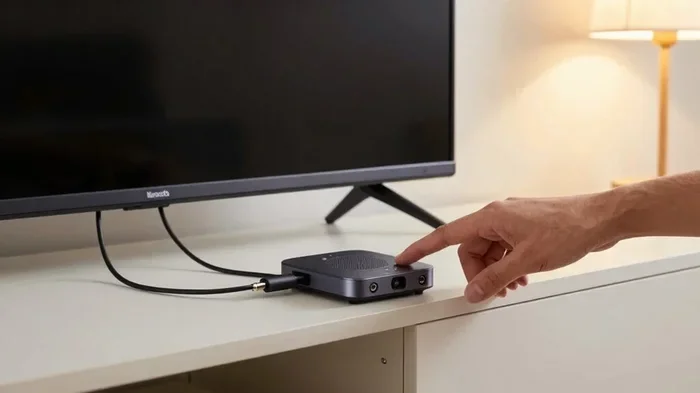
A Bluetooth transmitter is the most popular and affordable way to add wireless audio to any TV. This small device plugs into your TV’s audio output and sends sound to your Bluetooth headphones or speakers. Think of it as a bridge between your TV and your wireless devices.
Here is how a Bluetooth transmitter works in simple terms. You plug the transmitter into your TV using a 3.5mm cable, RCA cables, or an optical cable. Then, you pair your headphones or speakers to the transmitter. That is it. Your TV audio now streams wirelessly.
When shopping for a transmitter, look for these features.
- Low latency support to reduce audio delay.
- aptX or aptX Low Latency codec for better sound quality.
- Long Bluetooth range of at least 30 feet.
- Multiple connection options like 3.5mm, RCA, and optical ports.
- Built-in battery for portable use or USB-powered options.
Popular brands like 1Mii, Avantree, and TaoTronics make reliable transmitters that cost between $20 and $60. They are a simple fix that works with almost any TV.
Use a Bluetooth Adapter
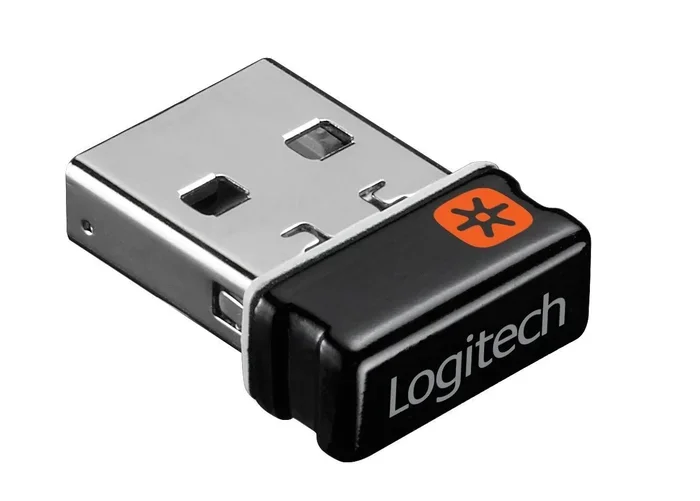
A Bluetooth adapter is similar to a transmitter but works a bit differently. While a transmitter sends audio from your TV to wireless devices, an adapter connects directly to your TV’s USB port or audio jack. Some adapters also act as a receiver, letting your TV connect to Bluetooth speakers.
Bluetooth adapters are great if your TV has a USB port available. They are plug-and-play devices that do not require extra cables in most cases. However, they may have fewer audio output options compared to transmitters.
Here are some tips for choosing the right adapter.
- Check if your TV has a USB port that supports power output.
- Make sure the adapter supports the Bluetooth version your devices need.
- Look for adapters with a 3.5mm audio output for wider compatibility.
- Read reviews to confirm the adapter works with your specific TV brand.
Get a Bluetooth Soundbar
If your TV speakers sound flat and you want better audio quality, a Bluetooth soundbar is an excellent choice. A soundbar not only adds Bluetooth connectivity but also dramatically improves your TV’s sound. It is a two-in-one solution that upgrades both wireless capability and audio performance.
Most Bluetooth soundbars connect to your TV using an HDMI cable or an optical cable. Once connected, the soundbar receives audio from your TV and also allows you to pair wireless devices directly. This means you can use the soundbar as a speaker for guests or connect your own headphones for private listening.
When choosing a soundbar, consider these factors.
- Audio quality: Look for soundbars with subwoofers or surround sound support.
- Bluetooth range: A range of 30 feet or more gives you flexibility.
- TV compatibility: Make sure the soundbar matches your TV’s inputs.
- Price range: You can find good Bluetooth soundbars starting around $50.
Use a Bluetooth Speaker
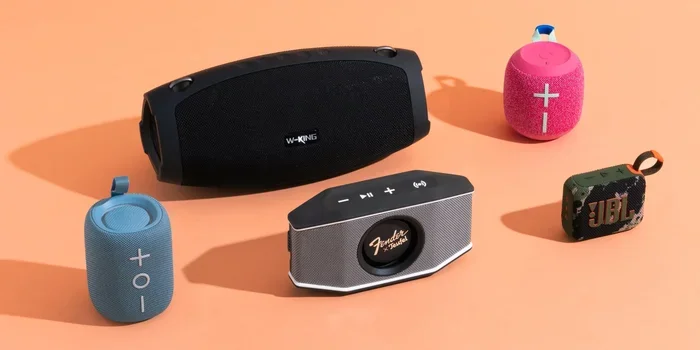
Another simple option is to connect a Bluetooth speaker to your TV. Portable Bluetooth speakers are affordable and easy to use. You just pair them the same way you would with headphones. This works well for casual viewing or when you want to move audio to a different room.
Keep in mind that most Bluetooth speakers have a smaller driver size, so the sound may not fill a large room. For the best experience, place the speaker close to your seating area. Some speakers also support stereo pairing, which gives you richer sound when you use two speakers together.
Understanding Bluetooth Audio Lag
One of the biggest concerns people have about wireless TV audio is audio lag. Also called latency, this is the delay between what you see on screen and what you hear. If the lips do not match the dialogue, it can be very frustrating.
What Causes Audio Lag?
Bluetooth audio lag happens because of the way wireless signals are processed. When your TV sends audio to a Bluetooth device, the signal needs to be encoded, transmitted, and decoded. This process takes a small amount of time. On older Bluetooth versions, this delay can be noticeable. On newer versions with low-latency codecs, the delay is almost unnoticeable.
How to Reduce or Eliminate Audio Delay
Good news. You can significantly reduce audio lag with the right equipment and settings. Here are the best ways to fix wireless audio delay.
- Use a transmitter with aptX Low Latency. This codec reduces delay to around 40 milliseconds, which is almost imperceptible to the human ear.
- Check your TV audio settings. Some TVs have a “Lip Sync” or “Audio Delay” setting you can adjust manually.
- Keep devices close together. Bluetooth range affects signal strength. Stay within 30 feet for the best performance.
- Avoid interference. Wi-Fi routers and other wireless devices can cause Bluetooth lag. Move your router away from your TV setup if possible.
- Update your firmware. Keep your Bluetooth transmitter, adapter, and TV software up to date for the best performance.
With these steps, most users experience smooth, lag-free wireless audio. The difference is night and day compared to using basic Bluetooth without low-latency support.
Pairing Your Bluetooth Devices to Your TV
Once you have chosen your method, the next step is pairing. The process is straightforward, but it helps to know exactly what to do. Here is a simple guide for pairing Bluetooth devices to your TV.
Pairing with a Bluetooth Transmitter
First, plug the transmitter into your TV’s audio output. Then, turn on the transmitter and put your headphones or speaker into pairing mode. On the transmitter, press the pairing button and wait for the LED light to flash. Once connected, you should hear audio through your wireless device. Most transmitters remember paired devices, so you only need to pair once.
Pairing with Built-In TV Bluetooth
If your TV has Bluetooth, go to Settings, then Sound, then Bluetooth. Turn on Bluetooth and select “Search for Devices.” Put your headphones or speaker in pairing mode. Select the device from the list on your TV screen. The connection should establish within a few seconds.
Troubleshooting Common Pairing Issues
Sometimes pairing does not work right away. Here are quick fixes for common problems.
- Device not showing up? Make sure both devices are in pairing mode and within close range.
- Audio keeps disconnecting? Move closer to the Bluetooth source and remove any physical obstacles.
- No sound at all? Check that the correct audio output is selected on your TV.
- Paired but audio is delayed? Adjust the audio sync settings on your TV or update your Bluetooth firmware.
Comparing Bluetooth Solutions for TVs
With so many options available, it can be hard to pick the right one. Here is a quick comparison of the most popular Bluetooth solutions for TVs.
| Solution | Price Range | Ease of Setup | Audio Quality | Best For |
|---|---|---|---|---|
| Bluetooth Transmitter | $20 – $60 | Very Easy | Good to Excellent | Adding Bluetooth to any TV |
| Bluetooth Adapter | $15 – $40 | Easy | Good | TVs with USB ports |
| Bluetooth Soundbar | $50 – $300+ | Easy | Excellent | Upgrading sound and adding Bluetooth |
| Built-In TV Bluetooth | Free | Very Easy | Good to Excellent | Newer smart TVs |
| Bluetooth Speaker | $15 – $80 | Very Easy | Fair to Good | Casual or portable use |
As you can see, each solution has its strengths. Your choice depends on your budget, TV model, and what you want to achieve. For most people, a Bluetooth transmitter offers the best balance of cost, ease, and performance.
Expert Tips for the Best Wireless Audio Experience
Getting Bluetooth working on your TV is only half the battle. To truly enjoy wireless audio, you need to optimize your setup. Here are some expert-backed tips that make a real difference.
Choose the Right Bluetooth Codec
Not all Bluetooth audio is created equal. The codec your device uses affects both sound quality and latency. aptX offers better sound quality, while aptX Low Latency reduces audio delay. If your transmitter and headphones both support the same codec, they will automatically use the best one available.
Position Your Transmitter Wisely
Where you place your Bluetooth transmitter matters more than you might think. Keep it in an open area, away from walls and metal objects. Placing it near the top of your TV stand gives it a clearer line of sight to your wireless devices. This simple change can improve both connection stability and audio quality.
Keep Your Bluetooth Devices Updated
Firmware updates for Bluetooth transmitters and adapters often include performance improvements and bug fixes. Check the manufacturer’s app or website periodically to make sure your devices are running the latest software. This small step can solve many audio issues.
Use High-Quality Headphones or Speakers
The quality of your wireless audio depends on both the transmitter and the receiving device. Cheap Bluetooth earbuds may sound okay for music but fall short for TV dialogue. Look for headphones or speakers with good mid-range performance, since TV audio relies heavily on clear vocals.
Common Mistakes to Avoid When Adding Bluetooth to Your TV
Even with the right equipment, some common mistakes can ruin your wireless audio experience. Here is what to watch out for.
- Ignoring audio output settings: If your TV is still set to output through its built-in speakers, Bluetooth devices will not receive any audio. Always switch the audio output to your Bluetooth transmitter or adapter.
- Using an outdated Bluetooth version: Older Bluetooth versions like 3.0 or 4.0 have more lag and weaker range. Aim for Bluetooth 5.0 or newer for the best experience.
- Overloading your Bluetooth channel: Too many wireless devices in the same area can cause interference. Keep your Wi-Fi router away from your TV setup if you notice connection issues.
- Not checking codec compatibility: If your transmitter supports aptX but your headphones do not, you will fall back to standard Bluetooth with more lag. Always check compatibility before buying.
- Placing the transmitter in a closed cabinet: Enclosed spaces block Bluetooth signals. Keep your transmitter in the open for a stronger, more stable connection.
Avoiding these mistakes ensures a smooth and enjoyable wireless audio setup every time.
Why Wireless Audio Makes Sense for Your TV
There are real, practical reasons why wireless audio has become so popular. First, it eliminates cable clutter. No more tangled wires running across your living room floor. Second, it gives you freedom of movement. You can listen to your TV from another room, your kitchen, or even your bedroom while the TV stays in the living room.
Third, wireless audio opens up options for private listening. If someone in your house wants to sleep while you watch a late-night movie, Bluetooth headphones let you enjoy the show without any noise. Fourth, modern Bluetooth codecs deliver surprisingly good sound quality. You do not have to sacrifice audio performance for wireless convenience anymore.
Finally, adding Bluetooth to your TV future-proofs your setup. As more devices move toward wireless connectivity, having Bluetooth on your TV means you are ready for whatever comes next. Whether it is a new pair of wireless earbuds, a portable speaker, or a next-generation soundbar, you will already be connected.
Final Thoughts
So, can you add Bluetooth to your TV? The answer is a resounding yes. No matter what kind of TV you own, there is a Bluetooth solution that fits your needs and budget. From simple transmitters that cost under $30 to premium soundbars that transform your entire audio experience, the options are endless.
Start by checking if your TV already has built-in Bluetooth. If not, grab a Bluetooth transmitter or adapter and you are good to go. Remember to choose low-latency options for the best experience, and always keep your devices updated for optimal performance.
Wireless audio has changed the way we watch TV. It is convenient, flexible, and surprisingly affordable. Once you make the switch, you will wonder how you ever watched TV with cables before. Take the leap today and enjoy the freedom of wireless audio on your TV. Your ears will thank you.
Frequently Asked Questions
Can I add Bluetooth to any TV?
Yes, you can add Bluetooth to almost any TV. If your TV has built-in Bluetooth, you are ready to go. If not, you can use a Bluetooth transmitter or adapter to add wireless capability. These devices work with TVs of all brands and ages, including older models that do not have smart features.
What is the best Bluetooth transmitter for TV?
The best Bluetooth transmitter depends on your budget and needs. Popular choices include the 1Mii B06 transmitter for low latency, the Avantree Oasis for premium sound quality, and the TaoTronics TT-BA07 for budget-friendly performance. Look for transmitters that support aptX Low Latency and offer multiple audio input options for the best results.
Does adding Bluetooth to my TV affect audio quality?
Not necessarily. With modern Bluetooth codecs like aptX and aptX Low Latency, wireless audio quality is very close to wired connections. The key is to use a quality transmitter or adapter and make sure your Bluetooth headphones or speakers support the same codec. Cheap Bluetooth devices may sound worse, but good ones deliver excellent audio.
Can I connect Bluetooth headphones to my TV?
Yes, you can connect Bluetooth headphones to your TV. If your TV has built-in Bluetooth, you can pair headphones directly. Otherwise, use a Bluetooth transmitter plugged into your TV’s audio output. This lets you watch TV privately without disturbing anyone in the room.
Why is there a delay when using Bluetooth with my TV?
Audio delay, or latency, happens because Bluetooth signals take a small amount of time to process. You can reduce this delay by using a transmitter with aptX Low Latency support, adjusting your TV’s audio sync settings, and keeping your devices close together. Most modern low-latency Bluetooth setups have delay so small that it is barely noticeable.
How far can Bluetooth reach from my TV?
Most Bluetooth devices have a range of about 30 feet in open spaces. Walls, furniture, and other obstacles can reduce this distance. For the best wireless experience, keep your Bluetooth headphones or speakers within 30 feet of your TV or transmitter. Some devices with Bluetooth 5.0 or newer may reach even farther.
=== CONCLUSION ===
Adding Bluetooth to your TV is one of the simplest and most rewarding upgrades you can make. It brings wireless audio freedom, better sound options, and more convenience to your daily viewing habits. Whether you choose a Bluetooth transmitter, adapter, soundbar, or discover that your TV already has built-in Bluetooth, the result is the same: a cleaner, more enjoyable entertainment setup.
Start with the method that fits your TV and budget. Follow the pairing steps, troubleshoot any issues using the tips above, and enjoy the seamless experience of wireless TV audio. You do not need expensive equipment or technical skills. You just need the right solution and a willingness to try. Your wireless audio journey starts today.