Are All Logitech Receivers Unifying and Work Together
Not all Logitech receivers are Unifying. Some Logitech devices use a standard USB receiver, while others rely on Bluetooth or the Unifying system. Understanding the difference helps you pair devices correctly and avoid frustrating connectivity issues. This guide walks you through every type of Logitech receiver, how they work, and how to make them all function together.
This is a comprehensive guide about Are All Logitech Receivers Unifying.
Key Takeaways
- Not all Logitech receivers are Unifying: Some devices use standard receivers, Bluetooth, or proprietary connectors.
- Unifying receivers support up to six devices: You can pair multiple keyboards, mice, and peripherals to one small USB dongle.
- You can identify a Unifying receiver by its shape: It is flat, compact, and often has a tiny Logitech Unifying logo on the side.
- Mixing Unifying and non-Unifying devices is possible: But they need separate receivers or a compatible setup.
- Logitech Options software is essential: It helps you manage, pair, and troubleshoot all your Logitech wireless devices.
- Bluetooth Logitech devices do not need a receiver: They connect directly to any compatible Bluetooth-enabled computer or tablet.
[FEATURED_IMAGE_PLACEHOLDER]
Are All Logitech Receivers Unifying? Here Is the Full Answer
If you own more than one Logitech wireless device, you have probably wondered about this. Are all Logitech receivers Unifying? The short answer is no. But the full answer is a bit more interesting. Logitech makes many different types of wireless devices. Each one uses a specific kind of receiver to talk to your computer. Some use the Unifying system. Some use Bluetooth. And some use a basic plug-and-play USB receiver. Knowing which one you have makes a huge difference. It affects how you set up your workspace. It affects how many devices you can connect. And it affects how well everything works together.
This guide breaks it all down. You will learn how to tell which receiver you have. You will learn how to pair your devices. And you will discover tips to get the best performance from your Logitech wireless setup. Whether you are a home user, a gamer, or someone who works in a busy office, this article has you covered. Let us dive in.
What Is a Logitech Unifying Receiver?
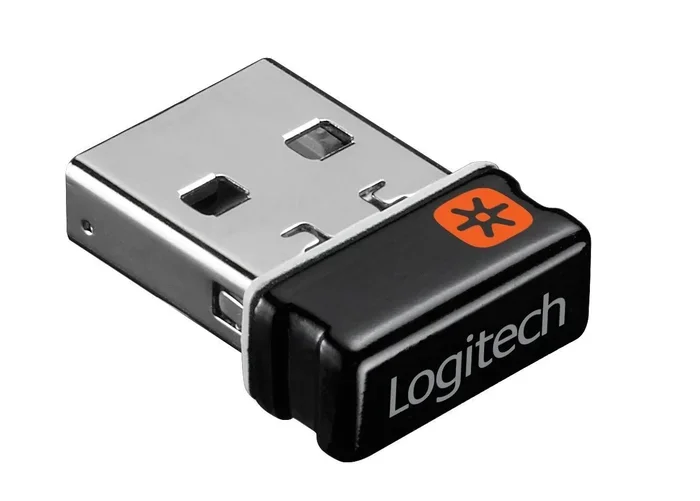
The Logitech Unifying receiver is a tiny USB dongle. It is about the size of a small coin. You plug it into any available USB port on your computer. Once it is plugged in, you can connect up to six Logitech devices to it. That includes keyboards, mice, trackpads, and even some speakers. All of these devices share one single receiver. This is what makes the Unifying system so popular.
The Unifying technology was introduced by Logitech several years ago. It was designed to simplify wireless connectivity. Instead of juggling multiple receivers, you use just one. This is especially helpful for people who use a laptop with an external keyboard and mouse. It is also great for multi-monitor setups or desk setups where space is tight. The Logitech Unifying receiver is compatible with a wide range of Logitech devices. But not every Logitech device supports it.
How Does the Unifying System Work?
The Unifying system uses a special radio frequency to communicate. This frequency is different from standard Bluetooth. It operates on a 2.4 GHz band. The receiver talks directly to the paired device. This creates a fast and stable connection. You do not need to install anything special in most cases. The device is recognized right away when you plug in the receiver.
However, to get the most out of the system, you should install Logitech Options software. This free software lets you customize your devices. You can create custom shortcuts. You can switch between multiple computers. You can even update the firmware on your devices. The software is easy to use and works on both Windows and Mac computers.
Do All Logitech Receivers Use Unifying Technology?
No, they do not. This is a common misconception. Many people assume that every Logitech wireless device uses a Unifying receiver. That is simply not true. Logitech uses three main types of wireless connectivity. Each one has its own strengths. Let us look at them one by one.
1. Unifying Receivers
These are the small, flat USB dongles we talked about earlier. They support up to six devices. You can add or remove devices using the Logitech Unifying software. These receivers are found in many Logitech keyboards and mice. Popular models include the MX Master series, the MX Keys keyboard, and many Logitech K and M series devices. If your receiver has the tiny Unifying logo on it, it is a Unifying receiver.
2. Bluetooth Connectivity
Some Logitech devices connect directly through Bluetooth. These devices do not need any USB receiver at all. You simply pair them with your computer, tablet, or phone through the Bluetooth settings. This is very convenient. It saves a USB port. It also works well with tablets and laptops that have limited ports. Many newer Logitech keyboards and mice now support Bluetooth. The Logitech K380 keyboard and the MX Keys Mini are great examples.
3. Standard USB Receivers (Non-Unifying)
Some older or simpler Logitech devices come with a basic USB receiver. These receivers are not Unifying. They are designed for one device only. You plug the receiver into USB, and the device connects. You cannot pair a second device to this receiver. These receivers are often bulkier than Unifying ones. They are commonly found in budget Logitech products or older models.
How to Tell Which Type of Receiver You Have
Figuring out which receiver you own is easier than you think. You do not need to be a tech expert. Just follow these simple steps.
- Look at the size and shape: A Unifying receiver is very small and flat. It is about half the size of a standard USB drive. A non-Unifying receiver is often larger and bulkier.
- Check for the logo: Many Unifying receivers have a tiny Unifying symbol on them. It looks like a little dot with curved lines around it.
- Check the device packaging: The box or manual will usually say if the device uses Unifying technology.
- Use the Logitech Options software: If you install the software, it will automatically detect your receiver type.
- Look up the model number: Visit the Logitech website and search for your device model. The product page will list the connection type.
If you are still unsure, plug the receiver into your computer. Open the Logitech Options software. It will tell you exactly what type of receiver you have and what devices are compatible with it. This is the fastest and most reliable way to find out.
Can Unifying Receivers Work with Non-Unifying Devices?
This is another common question. The answer depends on the situation. In most cases, a Unifying receiver cannot connect to a non-Unifying device. They use different wireless protocols. A Unifying receiver speaks the Unifying language. A standard receiver speaks a different language. They do not understand each other.
However, there is a workaround. Some newer Logitech devices support multiple connection types. For example, a keyboard might come with both a Unifying receiver and Bluetooth support. You can choose which one to use. This gives you flexibility. You can switch between devices easily.
Also, keep in mind that in professional environments, such as medical facilities and healthcare offices, computers are used in many specialized ways, including patient monitoring, imaging, and data management. In these settings, Logitech wireless devices with Unifying receivers are often preferred because they reduce cable clutter and allow seamless switching between multiple workstations. You can learn more about how computers are used across different fields on our 10 Ways Computers Are Used in Medicine page.
How Many Devices Can a Unifying Receiver Support?
A single Logitech Unifying receiver can support up to six devices. This is one of the biggest advantages of the system. You can connect two keyboards, three mice, and one trackpad to the same receiver. Or any other combination that adds up to six. This is perfect for a multi-computer setup. You can switch between a desktop and a laptop using the same receiver and peripherals.
Here is how it works in practice:
- Plug the Unifying receiver into your primary computer.
- Pair your first device, such as a keyboard.
- Pair your second device, such as a mouse.
- Continue pairing up to six devices total.
- Use the Logitech Options software to switch between connected devices.
Switching between devices is simple. You just press a button on the receiver or use the software. Your cursor moves to the other computer, and your keyboard starts typing on that machine. It feels almost magical. This feature is called Flow, and it is available through the Logitech Options software. It works seamlessly across Windows and Mac computers on the same network.
Quick Tips for Managing Multiple Devices
- Keep your receiver in a USB port that is always powered, such as a port on your monitor or docking station.
- Label your paired devices in the Logitech Options software so you know which is which.
- Keep the Logitech Options software updated for the best performance and new features.
- Place the receiver in a central location for the best signal strength to all connected devices.
Common Problems with Logitech Receivers and How to Fix Them
Even the best wireless devices can have issues sometimes. Logitech receivers are no exception. Here are the most common problems and how to solve them.
Receiver Not Recognized by the Computer
This is the most common issue. Your computer does not see the receiver when you plug it in. Try these steps:
- Try a different USB port. Some ports may not supply enough power.
- Remove the receiver and plug it back in after a few seconds.
- Restart your computer and try again.
- Update your USB drivers through your computer settings.
- Make sure the receiver is not damaged or bent.
Device Keeps Disconnecting
If your Logitech device connects and then disconnects randomly, there are a few possible causes:
- Low battery: Replace or recharge the device. Low power often causes connection drops.
- Interference: Other wireless devices nearby can cause interference. Move USB 3.0 devices away from the receiver.
- Distance: Stay within the recommended range, usually about 3 to 10 feet from the receiver.
- Software issues: Update the Logitech Options or Logitech Unifying software.
Paired Device Stops Working
Sometimes a paired device just stops responding. This can happen after a software update or a power surge. To fix it:
- Remove the device from the receiver in the Logitech Options software.
- Re-pair the device by following the pairing instructions.
- Reset the receiver by unplugging it and plugging it back in.
- Check for firmware updates for both the receiver and the device.
Can I Use a Unifying Receiver with a New Logitech Device?
Yes, you can. As long as the new device supports the Unifying system, you can pair it with an existing Unifying receiver. Open the Logitech Unifying software. Click on “Add Device.” Follow the on-screen instructions. The new device will be paired and ready to use. Just make sure you do not exceed the six-device limit.
What Happens If I Lose My Unifying Receiver?
Do not panic. You can buy a replacement Unifying receiver directly from Logitech. They are relatively inexpensive. Simply pair your devices with the new receiver using the Logitech Options software. All your custom settings and pairings are saved in the software, so you do not have to start from scratch.
Logitech Unifying vs. Bluetooth: Which Is Better?
Both Unifying and Bluetooth have their strengths. Here is a quick comparison to help you decide which is better for your needs.
| Feature | Logitech Unifying | Bluetooth |
|---|---|---|
| USB Port Required | Yes | No |
| Max Devices per Receiver | 6 | 1 per device |
| Connection Range | Up to 33 feet | Up to 30 feet |
| Latency | Very low | Low to moderate |
| Multi-Computer Support | Yes (with Flow) | Limited |
| Best For | Desktop setups, multi-device workflows | Tablets, laptops, clean desk setups |
For most desktop users, the Unifying system is the better choice. It offers lower latency, more device support, and better multi-computer features. For tablet users or people who want a cleaner desk, Bluetooth is the way to go. Many Logitech devices now offer both options. This gives you the best of both worlds.
Expert Insights on Logitech Receiver Compatibility
Logitech has been refining its wireless technology for over a decade. The Unifying system has become a standard in the industry. But it is important to remember that not all Logitech products use it. When shopping for new Logitech wireless devices, always check the product specifications. Look for the words “Unifying compatible” or “Bluetooth support.” This small step saves a lot of frustration later.
If you already have a collection of Logitech devices, the Logitech Options software is your best friend. It manages all your connections in one place. It lets you update firmware. It lets you customize buttons and shortcuts. And it helps you troubleshoot any connection issues. Keeping this software up to date ensures that all your devices work smoothly together.
One more thing to keep in mind: USB receiver extenders can be very helpful. If your receiver is buried inside your computer case or under a desk, the signal might be weak. A small USB extension cable moves the receiver to a better position. This improves connection stability and range. These extenders are cheap and easy to find online.
Final Thoughts on Logitech Receivers
So, are all Logitech receivers Unifying? No, they are not. But the good news is that Logitech makes it easy to figure out which type you have. Whether you use a Unifying receiver, a standard USB receiver, or Bluetooth, your Logitech devices are designed to work well. The key is knowing what you have and using the right tools to manage it.
The Logitech Unifying receiver remains one of the best wireless solutions on the market. It is compact, reliable, and supports multiple devices. If you are building a new workspace or upgrading your current one, look for Unifying-compatible devices. They will simplify your setup and reduce cable clutter. Your desk will look cleaner, and your workflow will be smoother.
Take a few minutes today to check your current receivers. Download the Logitech Options software. Explore your device settings. You might discover features you never knew existed. And if you ever run into issues, the troubleshooting steps in this guide should help you get back on track quickly.
Wireless technology keeps getting better. Logitech continues to innovate and improve its products. By understanding how your receivers work, you get the most value out of your investment. Happy computing!
Frequently Asked Questions
Can I use a Logitech Unifying receiver with any Logitech device?
No, only Logitech devices that are specifically marked as Unifying-compatible can connect to a Unifying receiver. Check the product packaging or the Logitech website to confirm compatibility before purchasing.
How do I know if my Logitech receiver is Bluetooth or Unifying?
Look at the size and shape of the receiver. A Unifying receiver is small and flat, often with a tiny Unifying logo. Bluetooth devices do not have a receiver at all. They connect directly through your computer’s Bluetooth settings.
Can I connect more than six devices to one Unifying receiver?
No, a single Logitech Unifying receiver supports a maximum of six devices. If you need to connect more, you will need additional Unifying receivers or a different setup.
Why does my Logitech receiver keep disconnecting from my device?
This is usually caused by low battery, wireless interference, or distance from the receiver. Try replacing the batteries, moving the receiver closer to the device, and removing other wireless devices that might be causing interference.
Is the Logitech Unifying receiver the same as the Logitech Bluetooth adapter?
No, they are different. The Unifying receiver uses a proprietary 2.4 GHz wireless protocol and supports up to six devices. A Bluetooth adapter connects to Bluetooth-enabled devices one at a time and does not require a USB receiver on the device side.
Can I use Logitech Options software on a Mac computer?
Yes, Logitech Options is available for both Windows and Mac computers. You can download it for free from the Logitech website. It works with most Unifying-compatible Logitech devices on both operating systems.