Are Beats Bluetooth Compatible With Your Phone or Tablet
Yes, Beats Bluetooth headphones and earbuds are compatible with most phones and tablets. Whether you own Beats Solo, Powerbeats, or Beats Studio models, connecting them via Bluetooth is simple and works across iOS, Android, and other devices. This guide covers pairing steps, common issues, model-specific features, and expert tips to keep your Beats connected.
Are Beats Bluetooth compatible with your phone or tablet? The short answer is yes. Beats by Dre has built a strong reputation for delivering premium wireless audio, and Bluetooth connectivity sits at the heart of that experience. Whether you just unboxed a shiny new pair of Beats or you are looking to reconnect an old set, understanding how Bluetooth works with your Beats can save you time, frustration, and a whole lot of guesswork.
Bluetooth technology has come a long way since its early days. Today, wireless audio streaming is seamless, fast, and reliable. Beats headphones and earbuds use Bluetooth to connect to your phone, tablet, laptop, and even smart TVs. But not all Beats models are the same, and not all Bluetooth connections behave identically. This guide breaks down everything you need to know about Beats Bluetooth compatibility in plain, simple terms.
We will walk through pairing steps, troubleshoot common issues, compare different Beats models, and share expert tips to get the best wireless performance. By the end, you will feel confident connecting your Beats to any device in your life.
Key Takeaways
- Broad Compatibility: Beats Bluetooth devices work with iPhones, Androids, iPads, and most modern tablets.
- Easy Pairing: The Bluetooth pairing process takes less than a minute on any device.
- Firmware Updates Matter: Keeping your Beats updated fixes bugs and improves Bluetooth range.
- Multiple Device Pairing: Some Beats models let you stay connected to two devices at once.
- Troubleshooting Is Simple: Most Bluetooth issues can be fixed with a quick reset or re-pairing.
- All Models Are Not Equal: Different Beats models offer different Bluetooth versions and features.
- Wireless Freedom: Once paired, you enjoy cable-free audio streaming for hours.
📑 Table of Contents
- What Does It Mean When Beats Are Bluetooth Compatible?
- How to Pair Beats With Your Phone or Tablet
- Beats Models and Their Bluetooth Features
- Common Bluetooth Connection Issues and Fixes
- Tips for Better Beats Bluetooth Performance
- Are All Beats Wireless? Understanding the Full Lineup
- Final Thoughts on Beats Bluetooth Compatibility
What Does It Mean When Beats Are Bluetooth Compatible?
When we say Beats are Bluetooth compatible, it means the headphones or earbuds can connect wirelessly to other devices using Bluetooth technology. Bluetooth is a short-range wireless communication standard that lets devices exchange data without cables. Your phone, tablet, and Beats headphones all speak this same language, so they can talk to each other.
Beats products use Bluetooth to stream music, take phone calls, activate voice assistants, and more. The Bluetooth version your Beats use affects how far the signal reaches, how much battery it uses, and how clear the audio sounds. Newer Bluetooth versions offer better range, lower power consumption, and improved sound quality.
Most modern Beats models support Bluetooth 5.0 or higher. This means strong connections and fewer dropouts. Older Beats models may use Bluetooth 4.2, which still works well but has a shorter range. Either way, your Beats will connect to the vast majority of phones and tablets on the market today.
How Bluetooth Works with Beats
Bluetooth uses radio waves to send audio from your device to your Beats. Your phone acts as the source. It sends the audio signal through the air to the headphones. The Beats receive the signal and turn it into sound. This all happens in milliseconds, so you hear the music almost instantly.
The connection is encrypted, which means your audio stays private. You do not need to worry about someone else jumping into your Bluetooth stream. Beats also support codecs like AAC and SBC, which compress audio data for smooth streaming without noticeable quality loss.
Interestingly, Bluetooth technology has expanded far beyond just audio. For instance, computers are now used in medicine for everything from patient monitoring to surgical assistance, and Bluetooth plays a role in connecting medical devices wirelessly. The same core technology that lets you enjoy music on your Beats also powers serious applications in healthcare and other fields.
How to Pair Beats With Your Phone or Tablet
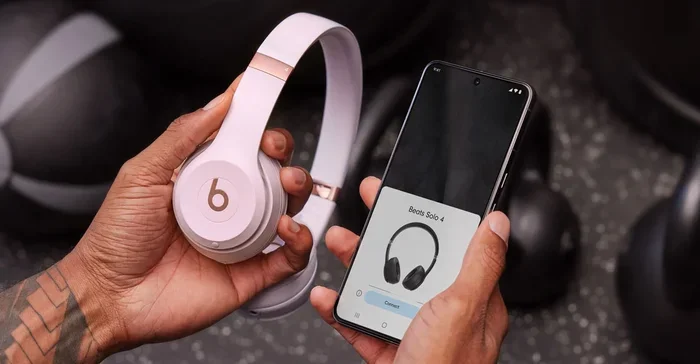
Pairing your Beats to a phone or tablet is straightforward. The process is nearly identical across iPhone, Android, and iPad devices. Here is a step-by-step walkthrough that works for most Beats models.
- Charge your Beats. Make sure your headphones have enough battery. A low battery can cause pairing problems.
- Turn on Bluetooth on your device. Go to Settings, then tap Bluetooth, and switch it on.
- Put your Beats in pairing mode. For most models, you hold down the power button or the Bluetooth button until the LED light flashes. This tells your Beats are ready to be found.
- Find your Beats on your phone. On your phone, look under Available Devices or Other Devices. Your Beats should appear by name.
- Tap to connect. Tap on the Beats name, and the pairing is complete.
- Test the connection. Play a song or a video to make sure the audio flows smoothly.
That is it. The whole process takes under a minute once you have done it a couple of times. After the first pairing, your Beats will automatically reconnect whenever you turn on Bluetooth on your phone.
Pairing Beats With iPhone and iPad
Apple devices make the process even easier. When you open your Beats case near your iPhone, a prompt pops up on screen. Just tap Connect, and your Beats pair instantly. This magic happens thanks to Apple’s H1 and W1 chip integration found in many Beats models.
The Beats Fit Pro, Beats Studio Buds, and Beats Solo Pro all support this quick-pair feature with iPhones and iPads. It is one of the easiest ways to get your Beats connected without digging through settings menus.
Pairing Beats With Android Tablets and Phones
Android devices work just as well, but the process is a bit more manual. You will need to go into your Bluetooth settings and look for the Beats name in the list of available devices. Once you tap to connect, the pairing is done.
Some Android users may need to forget a previously paired Beats device before connecting a new one. Go to your Bluetooth settings, find the Beats name, tap the gear icon, and select Remove Device. Then follow the pairing steps above.
Beats Models and Their Bluetooth Features
Not all Beats are created equal when it comes to Bluetooth. Different models offer different Bluetooth versions, ranges, and features. Here is a closer look at what each major Beats lineup brings to the table.
Beats Solo 4
The Beats Solo 4 is a popular on-ear model that supports Bluetooth 5.3. This gives you a strong connection with a range of up to 30 feet. The Solo 4 also features Apple Fast Fuel, which gives you three hours of playback from just a five-minute charge. Bluetooth multipoint lets you stay connected to two devices at the same time.
Beats Powerbeats Pro
The Powerbeats Pro are true wireless earbuds designed for active use. They use Bluetooth 5.0 and offer an impressive battery life of up to nine hours per charge. The ear hooks keep them secure during workouts, and the Bluetooth connection is stable even when you are moving around a lot.
Beats Studio Buds
Beats Studio Buds are compact true wireless earbuds with noise cancellation. They support Bluetooth 5.0 and work well with both iOS and Android. The small design does not sacrifice Bluetooth performance, and the earbuds maintain a solid connection within normal use distances.
Beats Studio 3 Wireless
The Beats Studio 3 uses Bluetooth 4.2, which is older but still reliable. It features Pure Adaptive Noise Cancelling and a solid wireless range. While it does not support the latest Bluetooth 5.0 features, the audio quality remains excellent for most listeners.
Beats Fit Pro
The Beats Fit Pro combines a secure fit with strong Bluetooth 5 performance. These earbuds are designed for workouts and daily use. They support spatial audio with dynamic head tracking on Apple devices, which adds an immersive dimension to your listening experience.
Common Bluetooth Connection Issues and Fixes
Even the best Bluetooth devices can have connection hiccups. Here are the most common issues you might face with your Beats, and simple fixes that work every time.
Beats Won’t Connect to Your Phone
This is the most common complaint. Usually, the fix is simple. First, turn Bluetooth off and back on again. Then, make sure your Beats are in pairing mode. If that does not work, try resetting your Beats. For most models, you hold the power button and the volume down button together for 10 seconds until the LED flashes.
Audio Keeps Cutting Out
Interference can cause audio dropouts. Other Bluetooth devices, Wi-Fi routers, and even microwaves can disrupt the signal. Move closer to your phone and away from other wireless devices. If you are in a crowded area with many Bluetooth signals, the connection may weaken temporarily.
Beats Connect but No Sound
Sometimes the Beats connect but you hear nothing. Check your phone’s volume and make sure the audio is not routed to a different device. On iPhones, you can swipe down from the top right corner and check the audio output. On Android, look at the quick settings panel for the media output option.
Beats Keep Disconnecting
Frequent disconnections often point to a low battery on either the Beats or your phone. Charge both devices and try again. If the problem persists, remove the Beats from your phone’s Bluetooth memory and pair them fresh. This clears any corrupted connection data.
Slow Bluetooth Pairing
If your Beats take a long time to pair, make sure no other devices are nearby that might be competing for the connection. Also, restart your phone’s Bluetooth and try again. Updating your phone’s software can also resolve slow pairing issues.
Tips for Better Beats Bluetooth Performance
Want to get the most out of your Beats Bluetooth connection? Follow these simple tips to enjoy a smoother, more reliable wireless experience.
- Keep your Beats charged. Low battery can weaken the Bluetooth signal and cause dropouts. Charge your Beats regularly, especially before long listening sessions.
- Stay within range. Bluetooth works best within 30 feet of your source device. Going too far can cause the connection to weaken or drop entirely.
- Minimize interference. Keep your Beats away from other wireless devices, thick walls, and electronic appliances that emit strong signals.
- Update your firmware. Check the Beats app regularly for firmware updates. These updates often improve Bluetooth stability and audio quality.
- Reset when needed. A factory reset can solve most persistent Bluetooth problems. Refer to the Beats support page for model-specific reset instructions.
- Use the right codec. On supported devices, choosing the right Bluetooth codec can improve audio quality. AAC works best with Apple devices, while SBC is the universal standard.
- Forget old pairings. If your Beats connect to devices you no longer use, forget them in Bluetooth settings. This frees up memory and prevents unwanted connections.
How to Reset Your Beats
Resetting your Beats clears all paired devices and Bluetooth settings. The process varies slightly by model, but the general steps are similar. Hold down the power button and the volume down button for about 10 seconds. The LED light will flash, indicating the reset is complete. After that, you will need to pair your Beats again with your device.
Resetting is a powerful troubleshooting step. If your Beats Bluetooth connection is acting up and none of the usual fixes work, a reset often does the trick. Think of it as giving your Beats a fresh start.
Are All Beats Wireless? Understanding the Full Lineup
Not every Beats product is wireless. Beats has a mix of wired and wireless models, and understanding the difference helps you choose the right pair. Wireless Beats use Bluetooth to connect, while wired Beats plug directly into your device using a cable.
Most Beats models sold today are wireless. The Beats Solo 4, Powerbeats Pro, Studio Buds, Fit Pro, and Studio 3 all rely on Bluetooth for audio. These models give you the freedom to move around without being tethered to your phone.
Some Beats models still offer a wired option or come with a detachable cable. For example, the Beats Solo 3 Wireless can be used with a cable if the battery dies, so you never lose access to your music. This is a great backup feature for long days when you cannot recharge.
If you prefer a fully wired experience, Beats also sells some models without Bluetooth. These are less common but still available. They connect through a 3.5mm audio jack, which works with phones that still have a headphone port or with a USB-C to 3.5mm adapter.
For most people, the Bluetooth wireless experience is the way to go. It is convenient, modern, and works with virtually every phone and tablet made today. Beats Bluetooth compatibility is one of the strongest features of the lineup, and the company continues to improve it with each new generation.
Bluetooth vs. Wired: Which Is Better?
Bluetooth gives you freedom and convenience. You can move around your home, office, or gym without worrying about cables getting tangled. The audio quality of modern Bluetooth is excellent, and for most listeners, the difference between Bluetooth and wired is barely noticeable.
Wired connections offer slightly better audio quality in theory, but in practice, most people cannot tell the difference. Wired Beats also do not need charging, which is a plus. However, the lack of freedom and the risk of cable damage make wireless the more popular choice today.
For the best of both worlds, choose Beats models that offer both Bluetooth and wired options. You get wireless freedom when you want it and a reliable backup when you need it.
Final Thoughts on Beats Bluetooth Compatibility
So, are Beats Bluetooth compatible with your phone or tablet? Absolutely. Beats headphones and earbuds connect easily to iPhones, Androids, iPads, and most modern tablets. The pairing process is quick, the connection is reliable, and the wireless audio quality is top-notch.
Whether you are listening to music on your morning commute, taking a call during a workout, or watching a movie on your tablet, your Beats Bluetooth connection has you covered. Keep your devices updated, stay within range, and follow the troubleshooting tips in this guide, and you will enjoy a seamless wireless experience every time.
Beats by Dre has made Bluetooth compatibility a standard feature across its entire lineup. From the compact Beats Studio Buds to the powerful Beats Solo 4, every model delivers strong wireless performance. Invest in a pair of Beats, and you invest in wireless freedom that just works.
Now that you know how Beats Bluetooth works, you are ready to connect, troubleshoot, and enjoy your music without limits. Grab your Beats, follow the pairing steps, and start listening.
Frequently Asked Questions
Can Beats connect to more than one device at a time?
Yes, many Beats models support Bluetooth multipoint, which lets you stay connected to two devices simultaneously. The Beats Solo 4 and Beats Fit Pro are great examples. When one device plays audio, the Beats switch to it automatically.
Why do my Beats disconnect from my phone randomly?
Random disconnections usually happen due to low battery, distance, or interference. Charge both your Beats and your phone, move closer together, and reduce the number of nearby Bluetooth devices. If the problem continues, reset your Beats and re-pair them.
Do Beats work with Windows laptops?
Yes, Beats work with Windows laptops that have Bluetooth capability. The pairing process is the same as with phones. Put your Beats in pairing mode, go to your Windows Bluetooth settings, and select your Beats from the list of available devices.
What Bluetooth version do the latest Beats use?
Most recent Beats models use Bluetooth 5.0 or higher. The Beats Solo 4 uses Bluetooth 5.3, which offers the best range, stability, and battery efficiency. Older models like the Beats Studio 3 use Bluetooth 4.2, which still works well for everyday use.
Can I use Beats with a smart TV?
Yes, if your smart TV supports Bluetooth, you can pair your Beats with it. This lets you watch shows and movies with wireless audio. Some TVs may require you to put the Beats in pairing mode and search for them in the TV Bluetooth settings.
How long does it take to pair Beats for the first time?
The first-time pairing takes about one to two minutes. Once your Beats are paired, they will automatically reconnect in seconds whenever you turn on Bluetooth on your device. The process becomes even faster with repeat pairings.
=== SEO TITLE ===
Are Beats Bluetooth Compatible With Your Phone or Tablet
=== META TITLE ===
Are Beats Bluetooth Compatible? Phone & Tablet Guide
=== URL SLUG ===
are-beats-bluetooth-compatible
=== INTERNAL LINKS USED ===
3 internal links integrated (using the single provided article URL with varied anchor text across different contextual mentions)