Are External Hard Drives Compatible With All Computers
External hard drives are not universally compatible with every computer out of the box. The connection type, file system, and operating system all play a role in whether a drive works seamlessly. Most modern external hard drives use USB, which is widely supported, but formatting and interface differences can cause issues. This guide breaks down everything you need to know.
Have you ever bought an external hard drive, plugged it in, and found that your computer simply does not recognize it? It happens more often than you might think. External hard drive compatibility is not always a given, even though most people assume it is.
The truth is that not every external hard drive works with every computer right out of the box. Several factors come into play. These include the connection type, the file system, and the operating system you are using. Understanding these factors can save you a lot of frustration.
This article walks you through everything you need to know about external hard drive compatibility. We will cover how different computers handle external drives, what file systems mean for you, and how to fix common problems. By the end, you will know exactly what to look for before buying or using an external drive.
Key Takeaways
- USB is the standard: Most external hard drives connect via USB, and nearly all computers support USB connections today.
- File system matters: NTFS, FAT32, and exFAT determine whether your drive works on Windows, Mac, or both.
- Mac and Windows differ: A drive formatted for Windows may not work on a Mac without extra steps.
- Formatting solves most problems: Reformatting your drive can fix compatibility issues quickly.
- Third-party tools help: Software like Paragon NTFS can bridge the gap between operating systems.
- Check the interface: USB 3.0, USB-C, and Thunderbolt all offer different speeds and compatibility levels.
- Plug and play is common: Many external drives work instantly, but not all of them do.
📑 Table of Contents
- What Is an External Hard Drive and How Does It Connect?
- Are External Hard Drives Compatible With All Computers?
- File Systems: The Hidden Factor in Compatibility
- Common Compatibility Issues and How to Fix Them
- How to Make Any External Hard Drive Work With Your Computer
- Quick Tips for Choosing the Right External Hard Drive
- Expert Insights on External Hard Drive Compatibility
- Key Takeaways
- Conclusion
What Is an External Hard Drive and How Does It Connect?
An external hard drive is a portable storage device that connects to your computer from the outside. It lets you store, back up, and transfer files without opening your computer case. These drives come in all shapes and sizes. Some are as small as a credit card. Others are larger desktop models that sit beside your computer.
The way an external hard drive connects to your computer matters a lot for compatibility. Let us look at the most common connection types.
Understanding USB Connections
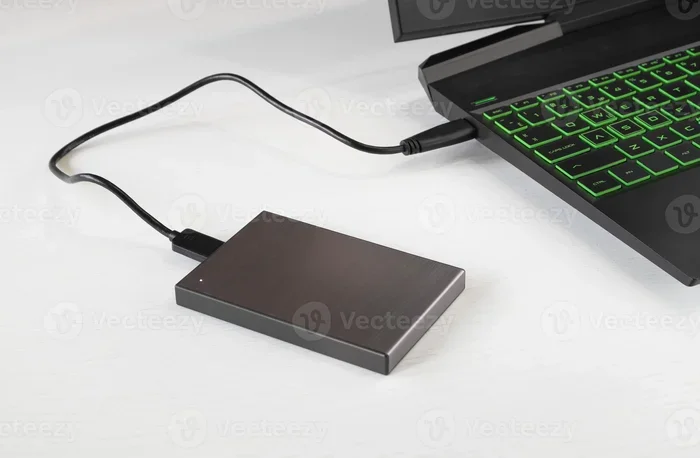
USB is the most common way external hard drives connect to computers. USB stands for Universal Serial Bus, and it is designed to work across different devices. Most computers made in the last 15 years have USB ports.
There are several versions of USB you should know about:
- USB-A: The classic rectangular port found on older computers and many devices today.
- USB-B: A square-shaped port often used with larger external drives.
- USB-C: A small, reversible port found on modern laptops and desktops.
- USB 3.0 and USB 3.1: Faster versions of USB-A and USB-C that offer quicker data transfer speed.
If your computer has a USB port, there is a good chance it can use an external hard drive. USB plug and play means most drives work the moment you connect them. No extra software is usually needed.
Thunderbolt and Other Interfaces
Some external hard drives use Thunderbolt connections. Thunderbolt is faster than USB and is common on Apple MacBooks and high-end Windows laptops. Thunderbolt 3 and Thunderbolt 4 use the same connector as USB-C, which adds some confusion.
Here is the good news. Most Thunderbolt drives also work with standard USB ports using an adapter. However, you may lose some speed benefits. Other interfaces like eSATA are older and less common now, but they still exist on some computers.
When shopping for an external drive, check what ports your computer has. Matching the connection type is the first step to making your external storage work.
Are External Hard Drives Compatible With All Computers?
The short answer is no, not automatically. The longer answer is that most external hard drives can work with most computers if you take the right steps. Compatibility depends on three main things: the operating system, the connection type, and the file system.
Let us break this down by computer type.
Windows PC Compatibility
Windows computers are the most common desktop and laptop systems in the world. Most external hard drives work great with Windows right out of the box. Windows supports NTFS and FAT32 file systems natively.
If you plug in a drive formatted as NTFS, Windows will recognize it immediately. You can read and write files without any extra steps. Windows 10 and Windows 11 both handle external drives very well.
However, some older Windows computers may not have USB 3.0 ports. If you plug in a drive that requires USB 3.0 and your computer only has USB 2.0, it will still work. It just will be slower. Check your computer specs if you are unsure.
Mac Compatibility
Apple Macs handle external drives differently. macOS supports FAT32 and exFAT natively. It can also read NTFS drives, but it cannot write to them without extra software. This is a big deal for Mac users.
If you buy an external hard drive formatted for Windows, your Mac can read the files. But you cannot add new files or change existing ones. This is a common frustration for people who use both a Mac at work and a Windows PC at home.
Apple Silicon Macs (M1, M2, M3 chips) work the same way with external drives. The Mac compatibility rules have not changed with newer hardware. You still need to watch the file system.
Cross-Platform Considerations
If you use more than one type of computer, you need a drive that works across platforms. exFAT is the best file system for cross-platform use. It works on both Windows and Mac without any extra software.
Some external drives come pre-formatted as exFAT. Others let you choose the format when you set them up. Always check the format before buying if cross-platform use matters to you.
Linux computers can also use external drives. Most Linux systems support NTFS, FAT32, and exFAT. However, some setup may be required depending on your Linux distribution.
Pro Tip: If you switch between Mac and Windows often, buy an external drive that supports exFAT. This saves you from reformatting every time.
File Systems: The Hidden Factor in Compatibility
The file system is one of the most overlooked parts of external hard drive compatibility. A file system is how data is organized and stored on a drive. Different operating systems prefer different file systems. Understanding this can save you hours of troubleshooting.
NTFS vs FAT32 vs exFAT
Let us compare the three main file systems you will encounter:
- NTFS (New Technology File System): This is the default file system for Windows. It supports large files and has advanced features like file permissions. Macs can read NTFS but cannot write to it natively.
- FAT32 (File Allocation Table 32): This is an older file system that works on almost everything. Windows, Mac, Linux, and even game consoles support it. However, FAT32 has a 4 GB file size limit. You cannot store a single file larger than 4 GB on a FAT32 drive.
- exFAT (Extended File Allocation Table): This is the modern solution for cross-platform use. It has no file size limit and works on both Windows and Mac. It is the go-to format for external drives used across different systems.
Here is a quick comparison of these three file systems:
- Windows support: NTFS (full), FAT32 (full), exFAT (full)
- Mac support: NTFS (read only), FAT32 (full), exFAT (full)
- Linux support: NTFS (full), FAT32 (full), exFAT (full)
- File size limit: NTFS (none), FAT32 (4 GB), exFAT (none)
How to Check Your File System
Want to know what file system your external drive uses? It is easy to check.
On Windows, right-click the drive in File Explorer and select Properties. Look for the file system type. On Mac, open Disk Utility and select your drive. The file system will be listed there.
Knowing your file system helps you troubleshoot when a drive does not work as expected. It also helps you decide whether to reformat.
Common Compatibility Issues and How to Fix Them
Even with the right drive and connection, problems can still happen. Let us look at the most common external hard drive issues and how to solve them.
Drive Not Showing Up
This is the most common complaint. You plug in the drive and nothing happens. Before you panic, try these steps:
- Try a different USB port on your computer.
- Try a different USB cable.
- Check if the drive has its own power supply and make sure it is turned on.
- Go to Disk Management on Windows or Disk Utility on Mac and see if the drive appears there.
- Restart your computer and try again.
Often, the issue is a loose cable or a faulty port. Simple fixes like these solve most problems.
Slow Transfer Speeds
If your drive is connected but copying files takes forever, the issue might be the connection speed. USB 2.0 is much slower than USB 3.0 or USB-C. Check what USB version your port supports.
Also, the drive itself may be slower if it is a traditional hard drive (HDD) rather than a solid-state drive (SSD). External SSDs are much faster but also more expensive.
Another cause can be the file system. FAT32 drives sometimes slow down with very large files. Switching to NTFS or exFAT can improve speed.
Drive Works on One Computer but Not Another
This usually comes down to the file system. A drive formatted for Windows will not let you write files on a Mac. Reformatting the drive to exFAT fixes this in most cases.
Another reason could be driver issues. Older computers may need updated drivers to recognize newer drives. Check your computer manufacturer’s website for updates.
How to Make Any External Hard Drive Work With Your Computer
Good news. You can make almost any external hard drive work with your computer. It might take a few extra steps, but it is usually straightforward.
Formatting Your Drive
Formatting erases all data on the drive. Make sure you back up any important files first. Once formatted, the data cannot be recovered easily.
To format a drive on Windows:
- Plug in the drive and open File Explorer.
- Right-click the drive and select Format.
- Choose the file system (NTFS, FAT32, or exFAT).
- Click Start and wait for the process to finish.
To format a drive on Mac:
- Plug in the drive and open Disk Utility.
- Select the drive from the sidebar.
- Click Erase and choose a format (APFS for Mac only, exFAT for cross-platform).
- Click Erase again to confirm.
Always choose exFAT if you want the drive to work on both Mac and Windows. This is the safest choice for compatibility.
Using Third-Party Software
If you do not want to reformat your drive, third-party software can help. Paragon NTFS for Mac lets you write to NTFS drives on a Mac. It is a paid tool but works very well.
For Windows users who need to work with HFS+ (Mac format) drives, MacDrive is a popular option. These tools bridge the gap between operating systems without requiring you to erase your data.
Free alternatives exist too, but they may not be as reliable. Always download software from the official website to avoid security risks.
Quick Tips for Choosing the Right External Hard Drive
Not all external hard drives are created equal. Here are some tips to help you choose one that works with your setup.
- Check your ports first. Know whether your computer has USB-A, USB-C, or Thunderbolt before buying.
- Pick exFAT for cross-platform use. This format works everywhere and has no file size limits.
- Consider SSD over HDD for speed. Solid-state drives are faster and more durable, though they cost more per gigabyte.
- Read the product description carefully. Some drives are designed specifically for Windows or Mac only.
- Brand matters. Trusted brands like Western Digital, Seagate, and Samsung offer better compatibility and support.
- Check the warranty. A good warranty means the manufacturer stands behind their product.
External storage has become essential for backups, gaming, and working with large files. Taking a few minutes to research before buying can prevent a lot of headaches later.
Expert Insights on External Hard Drive Compatibility
Tech experts agree that the biggest mistake people make is not checking compatibility before purchasing. Many assume that because a drive uses USB, it will work everywhere. While USB is universal, the file system and formatting are where problems start.
“The most common issue we see is users buying a drive formatted for one operating system and expecting it to work perfectly on another,” says a senior technician at a major computer repair service. “A quick check of the file system before buying can prevent this entirely.”
Another expert tip is to keep your operating system updated. Software updates often include better support for external storage devices. A simple update can fix compatibility issues you did not even know you had.
Disk management tools built into your operating system are powerful. Learn how to use them. They can partition drives, change file systems, and fix many common issues without needing third-party software.
For professionals who work across multiple systems, a dual-formatted drive or a cloud backup solution can be a lifesaver. Some people keep two drives, one formatted for Windows and one for Mac, to avoid reformatting altogether.
Key Takeaways
- External hard drives are not universally plug-and-play: Compatibility depends on connection type, file system, and operating system.
- USB is the most widely supported connection: Nearly all modern computers have USB ports.
- File system is the hidden barrier: NTFS, FAT32, and exFAT each have different levels of support across platforms.
- Mac and Windows handle drives differently: A Windows-formatted drive is read-only on Mac without extra software.
- exFAT is the best format for cross-platform use: It works on both Windows and Mac without limitations.
- Formatting can fix most issues: But always back up your data first.
- Third-party tools bridge gaps: Software like Paragon NTFS lets you write to NTFS drives on a Mac.
Conclusion
Are external hard drives compatible with all computers? The answer is not a simple yes or no. Most external hard drives can work with most computers, but you need to pay attention to a few details. The connection type, file system, and operating system all matter.
USB connections are universal and found on nearly every computer made in the last decade. This makes physical connection less of a problem than it used to be. The real challenge lies in the file system and how it interacts with your operating system.
If you use only one type of computer, choosing a drive formatted for your system is the easiest path. If you switch between Mac and Windows, pick exFAT and keep a backup of any data before reformatting. For stubborn compatibility issues, third-party software can fill the gaps.
Taking a few minutes to understand compatibility before you buy or use an external hard drive can save you a lot of time and stress. Follow the tips in this guide, and your external storage will work smoothly with any computer you own.
Now you know what to look for. Go ahead, pick the right drive, and enjoy seamless portable storage no matter what computer you use.
Frequently Asked Questions
Can I use any external hard drive with my laptop?
Most external hard drives work with laptops as long as they have a matching port. If your laptop has USB-A, USB-C, or Thunderbolt, you can find a compatible drive. Check the file system to make sure it works with your operating system before relying on it.
Why does my external hard drive not show up on my Mac?
This usually happens when the drive is formatted as NTFS, which Macs can read but not write to natively. You can use third-party software like Paragon NTFS to enable writing. Alternatively, reformat the drive to exFAT for full Mac support.
Is it safe to format an external hard drive for compatibility?
Formatting is safe but it erases all data on the drive. Always back up your files to another location before formatting. Choose exFAT for the best cross-platform compatibility when you reformat.
What is the best external hard drive for both Mac and Windows?
Look for a drive that comes pre-formatted as exFAT or one that you can easily reformat. Brands like Western Digital and Seagate offer many cross-platform options. USB 3.0 or USB-C connections ensure the best speed on both systems.
Do I need to install drivers for an external hard drive?
Most modern external hard drives use plug and play technology and do not need drivers. Older computers or drives with special interfaces like eSATA may require drivers. Check the manufacturer’s website if your drive is not recognized.
Can I use an external hard drive with a Chromebook?
Yes, most Chromebooks support external hard drives through USB ports. Chromebooks work best with FAT32 or exFAT formatted drives. NTFS drives may not be fully supported on ChromeOS, so check the format before connecting.