Can You Connect Usb And Hdmi Cables Without Confusion
You can connect USB and HDMI cables using the right adapter or converter. Whether you want to hook up a secondary display, stream content, or extend your screen, understanding the connection process saves time and frustration. This guide breaks down every method, adapter type, and common issue so you can get your setup running fast.
This is a comprehensive guide about Can You Connect Usb And Hdmi.
Key Takeaways
- USB and HDMI serve different purposes: USB handles data and power, while HDMI carries high-definition audio and video signals.
- You need an adapter: A direct USB-to-HDMI connection is not possible without a converter or adapter.
- USB Type-C is the most versatile: Many modern laptops and phones support USB-C to HDMI adapters for easy display output.
- Active adapters work better for high resolutions: They include built-in chips to convert signals properly.
- Check compatibility first: Not all USB ports support video output, so verify your device specs before buying an adapter.
- Troubleshooting is simple: Most connection issues resolve with a cable swap, driver update, or port change.
[FEATURED_IMAGE_PLACEHOLDER]
Can You Connect USB and HDMI Cables Without Confusion?
Have you ever stared at a pile of cables and wondered if you could plug a USB cable into an HDMI port? You are not alone. Many people face this confusion when setting up a second monitor, connecting a streaming stick, or hooking up a gaming console. The short answer is yes, you can connect USB and HDMI — but not directly. You need the right adapter, converter, or cable to bridge the gap between these two different connection types.
Understanding how USB and HDMI connections work together makes the process much simpler. USB cables are designed for data transfer and charging, while HDMI cables carry high-definition audio and video. When you want to display content from a USB-equipped device on an HDMI screen, you need a middleman. That middleman is usually an adapter or a active converter. This guide walks you through everything you need to know about connecting USB and HDMI cables without any confusion.
We will cover the basics, the different types of adapters, step-by-step setup instructions, and common problems you might face. By the end, you will feel confident making any USB-to-HDMI connection in your home or office.
Understanding USB and HDMI Basics
Before you dive into connecting these cables, it helps to understand what each one does. Both USB and HDMI are standard connection types, but they serve very different roles in your devices.
What Is USB?
USB stands for Universal Serial Bus. It is one of the most common connection types in the world. You use USB cables to charge phones, transfer files between computers, and connect keyboards, mice, and printers. USB cables come in several shapes and sizes, including USB-A, USB-B, Mini-USB, Micro-USB, and the newer USB Type-C.
USB cables primarily handle two jobs: data transfer and power delivery. Some USB cables can also carry video signals, but only under specific standards and with the right hardware. This is where things get tricky when you want to connect USB and HDMI.
What Is HDMI?
HDMI stands for High-Definition Multimedia Interface. It is the standard cable for sending high-quality audio and video from a source device to a display. You will find HDMI ports on TVs, monitors, projectors, and gaming consoles. HDMI cables carry uncompressed digital signals, which means you get crisp picture quality and clear sound all in one cable.
HDMI has gone through several versions over the years. The most common ones you will encounter are HDMI 1.4, HDMI 2.0, and HDMI 2.1. Each version supports different resolutions and refresh rates. Newer versions handle 4K and even 8K video, making them ideal for modern displays.
How Do USB and HDMI Differ?
The main difference comes down to what each cable was designed to do. USB is a data and power protocol, while HDMI is a multimedia signal protocol. USB moves files and charges devices. HDMI moves picture and sound. They use different connectors, different wires inside the cable, and different communication protocols. This is why you cannot simply plug one into the other and expect it to work.
Can You Connect USB and HDMI Directly?
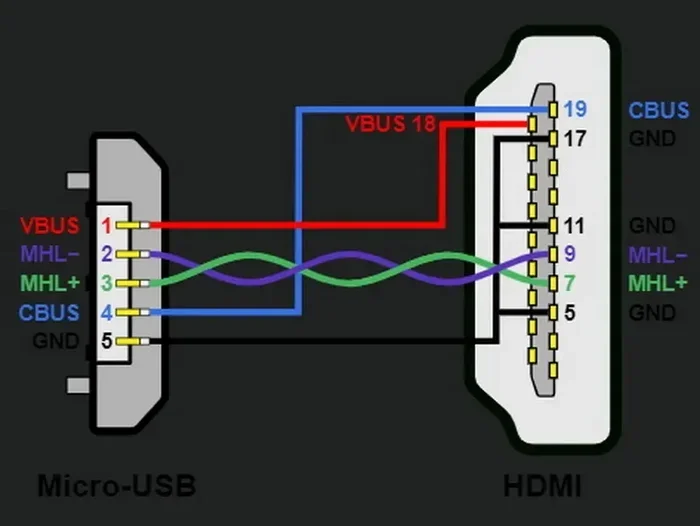
The honest answer is no. You cannot plug a USB cable directly into an HDMI port and expect a display signal. The two connectors have different shapes, different pin configurations, and different purposes. A USB port sends data and power, while an HDMI port expects a specific video and audio signal format.
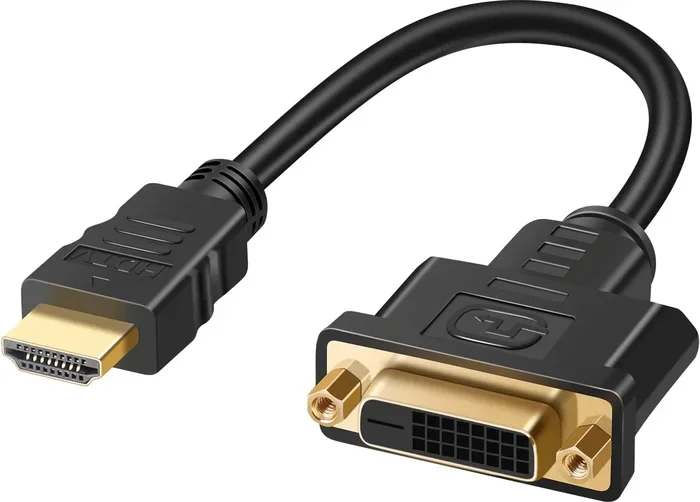
However, you can absolutely make the connection work with the right hardware. The bridge between USB and HDMI comes in the form of adapters, converter boxes, and specialized cables. These devices take the signal from a USB port and convert it into an HDMI signal that your display can understand.
When people ask can you connect USB and HDMI, they are usually trying to achieve one of these goals:
- Connect a laptop to an external monitor or TV.
- Set up a second screen for work or gaming.
- Hook up a streaming device like a Chromecast or Fire Stick.
- Mirror or extend a phone screen to a larger display.
- Use a USB device on a display with HDMI input.
Each of these scenarios requires a slightly different approach, which we will cover in the next section.
How to Connect USB and HDMI Using Adapters
Setting up a USB to HDMI connection is straightforward once you have the right adapter. Here is a simple step-by-step guide that works for most setups.
Step 1: Check Your Device Ports
Look at your source device. Does it have a USB-A port, a USB-C port, or both? Check your display or TV to confirm it has an HDMI input port. Knowing what ports you have on both ends helps you choose the correct adapter.
Step 2: Choose the Right Adapter
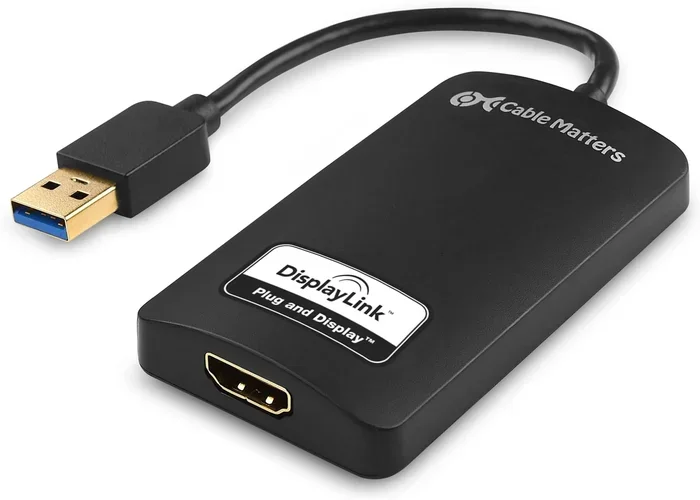
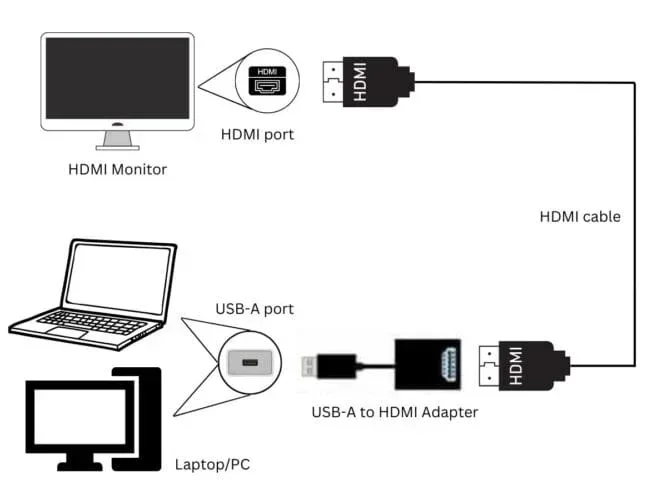
Match your adapter to your ports. If your laptop has USB-C and your monitor has HDMI, get a USB-C to HDMI adapter. If your device has a standard USB-A port, you will need a USB-A to HDMI adapter or a USB-A to HDMI converter box.
Step 3: Plug in the Adapter
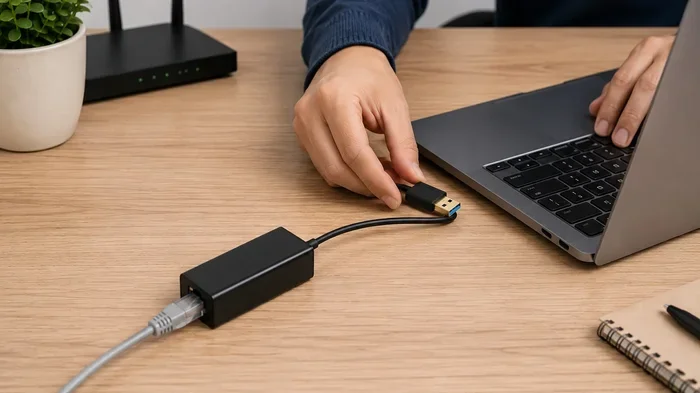
Connect the adapter to your source device’s USB port. Then plug the HDMI cable from the adapter into your TV or monitor. Make sure both connections are firm and secure.
Step 4: Switch the Display Input
On your TV or monitor, use the remote or buttons to switch to the correct HDMI input channel. Your device should now appear on screen.
Step 5: Adjust Display Settings
On your computer or device, go to display settings. Choose whether you want to mirror your screen, extend it, or show only on the external display. Adjust the resolution to match your monitor or TV for the best picture quality.
Types of USB to HDMI Adapters and Converters
Not all adapters are the same. Different devices need different types of adapters to make the USB and HDMI connection work properly. Here are the most common types you will encounter.
USB-A to HDMI Adapters
These adapters have a standard USB-A plug on one end and an HDMI output on the other. They work well with desktop computers and older laptops that have USB-A ports. Most USB-A to HDMI adapters are plug-and-play, meaning you do not need to install extra software. They support up to 1080p resolution on most models.
USB-C to HDMI Adapters
USB-C to HDMI adapters are the most popular type today. Many modern laptops, tablets, and smartphones use USB-C ports. These adapters are compact, reversible, and support higher resolutions including 4K. Look for adapters that support DisplayPort Alt Mode or Thunderbolt for the best results.
USB to HDMI Converter Boxes
Converter boxes are larger than simple adapters but offer more features. They usually have USB input on one side and HDMI output on the other. Some converter boxes include additional USB ports so you can connect peripherals while streaming video. These are great for permanent workstation setups.
Active vs Passive Adapters
An active adapter has built-in electronics that help convert the signal. A passive adapter simply reshapes the connection without any processing power. For high-resolution displays or longer cable runs, an active adapter performs much better. If you plan to output 4K video or use a USB hub with multiple devices, choose an active adapter for reliability.
When shopping, check the product specs carefully. Look for supported resolution, refresh rate, and whether the adapter works with your specific device operating system.
Common Problems When Connecting USB and HDMI
Even with the right adapter, you might run into issues. Here are the most common problems and how to fix them.
No Display Signal
If your screen stays blank after connecting everything, try these steps:
- Unplug the adapter and plug it back in firmly.
- Try a different USB port on your device.
- Test with a different HDMI cable.
- Check that your display is set to the correct input channel.
- Restart your source device.
Sometimes the simplest fix is the best one. A loose connection or a wrong input setting causes most no-signal issues.
Low Resolution or Fuzzy Picture
If your display looks blurry or the resolution is lower than expected, go to your display settings and manually select the recommended resolution. Also check that your adapter supports the resolution of your monitor or TV. Older adapters may not handle 4K or even 1080p at higher refresh rates.
Audio Issues
HDMI carries both video and audio, but sometimes the sound does not come through. Check your device sound settings and make sure HDMI is selected as the output device. On Windows, right-click the speaker icon and choose your HDMI display as the audio output.
Adapter Overheating
Some adapters get warm during use, especially active ones that process the signal. If your adapter feels too hot, give it a break and make sure it is placed in a well-ventilated area. Avoid stacking other devices on top of it. If overheating continues, consider replacing the adapter with a higher-quality model.
Expert Tips for a Seamless USB to HDMI Setup
Getting a great USB and HDMI connection is about more than just plugging things in. A few expert tips can make your setup smoother and more reliable.
Use High-Quality Cables and Adapters
Cheap cables and adapters often cause signal drops, low resolution, and connectivity problems. Invest in reputable brands that support the resolution and features you need. Look for adapters that are certified for your device type.
Keep Your Drivers Updated
On Windows and macOS, graphics drivers control how your device outputs video. Keeping these drivers up to date ensures the best compatibility with your USB-to-HDMI adapter. Check your device manufacturer’s website for the latest driver downloads.
Consider a USB Hub for Extra Ports
If you need to connect multiple USB devices while using a USB to HDMI adapter, a USB hub can help. It expands your port options without sacrificing display quality. Just make sure your hub has enough power to support all connected devices.
Label Your Cables
Cable management gets chaotic fast when you have multiple adapters and cables. Use simple cable labels or colored ties to identify which cable goes where. This saves you time and frustration every time you need to troubleshoot or rearrange your setup.
Secure Your Device Connections
When connecting external devices to your network or display setup, always consider the security implications. Just as you would protect your network with mac address filtering to control which devices can access your connection, you should also be mindful of who can plug into your USB ports. Unauthorized devices connected through USB can pose security risks, especially in shared or public spaces. Taking basic precautions helps keep your setup safe and your data protected.
For more on this topic, you can read about the advantage and disadvantage of mac address filtering to understand how to better secure your devices and network connections.
Check for Firmware Updates
Some advanced adapters and converter boxes receive firmware updates that improve compatibility and performance. Check the manufacturer’s website periodically for any available updates for your specific model.
Key Takeaways
- USB and HDMI serve different purposes: USB handles data and power, while HDMI carries high-definition audio and video signals.
- You need an adapter to connect them: A direct connection is not possible, but a USB-to-HDMI adapter or converter bridges the gap easily.
- USB Type-C adapters are the most versatile: They support high resolutions and work with most modern laptops, tablets, and phones.
- Active adapters outperform passive ones: They include processing chips that ensure stable signal conversion for better display quality.
- Most connection problems are easy to fix: Try reseating cables, switching ports, updating drivers, and checking display settings before assuming something is broken.
- Quality matters: Investing in a good adapter and cables saves you from headaches and delivers a much better viewing experience.
- Security is part of the setup: Be mindful of what devices connect to your USB ports and network, and consider protections like mac address filtering for added safety.
Frequently Asked Questions
Can I plug a USB cable directly into an HDMI port?
No, you cannot plug a USB cable directly into an HDMI port. The connectors are physically different, and the signals they carry are not compatible. You need an adapter or converter to bridge the connection between USB and HDMI.
Do I need special software to use a USB to HDMI adapter?
Most USB to HDMI adapters are plug-and-play and do not require any special software. However, you may need to install display drivers for your graphics card to ensure the best performance. Check your adapter manufacturer’s website for any recommended software or updates.
Can I use a USB to HDMI adapter for gaming?
Yes, you can use a USB to HDMI adapter for gaming, but the experience depends on the adapter quality and your device’s graphics capabilities. For smooth gaming, choose an active adapter that supports high refresh rates and resolutions. Keep in mind that USB connections may introduce slight latency compared to a direct HDMI connection from a dedicated graphics card.
What resolution can a USB to HDMI adapter support?
Most modern USB to HDMI adapters support resolutions up to 1080p or 4K. The exact resolution depends on the adapter model, your USB port version, and your device’s graphics capabilities. Always check the product specifications before purchasing to make sure it meets your needs.
Why does my USB to HDMI adapter keep disconnecting?
Frequent disconnections usually happen because of a loose connection, a faulty cable, or a USB port that is not supplying enough power. Try using a different USB port, a different HDMI cable, or a powered USB hub. Updating your device drivers can also resolve intermittent disconnection issues.
Is a USB-C to HDMI adapter the same as a Thunderbolt adapter?
Not exactly. USB-C to HDMI adapters work with any device that has a USB-C port supporting video output. Thunderbolt adapters use the USB-C connector but offer faster data transfer speeds and additional features. If your device supports Thunderbolt, a Thunderbolt adapter gives you more flexibility and better performance for demanding tasks.
Conclusion
Connecting USB and HDMI cables does not have to be confusing. With the right adapter and a basic understanding of how these connections work, you can set up an external display in minutes. Whether you are extending your workspace, streaming content to a TV, or connecting a gaming console, the process is simpler than it looks.
Remember to choose the correct adapter type for your ports, check for compatibility before you buy, and troubleshoot any issues with the simple steps outlined above. Quality cables and adapters make a real difference in your viewing experience, so invest in gear that matches your needs.
Now that you know exactly how to make the USB and HDMI connection work, you can set up your display with confidence. Try it out, enjoy your expanded screen, and share this guide with anyone who still thinks USB and HDMI cannot work together.
Frequently Asked Questions
What is Can You Connect Usb And Hdmi?
Can You Connect Usb And Hdmi is an important topic with many practical applications.