Can I Use Ethernet Cable To Extend USB Range and Speed
You can use an Ethernet cable to extend USB range with the right adapter or extender kit. This setup lets you connect USB devices far from your computer without losing signal quality. Whether you need to reach a printer across the room or a hard drive in another building, Ethernet USB extension solves distance problems. It works with USB 2.0, USB 3.0, and even USB-C connections in most cases. Read on to learn how this works, what gear you need, and how to avoid common pitfalls.
Have you ever wanted to place a USB device far from your computer but found the cable too short? Maybe your printer sits on the other side of the room, or your external hard drive is tucked away in a server closet. The distance problem is real, and it frustrates a lot of people. The good news is that you can use an Ethernet cable to extend USB range and get your devices working where you need them.
This guide walks you through everything you need to know. We will cover how this technology works, what gear you need, and how to set it up without headaches. By the end, you will know exactly whether extending USB with an Ethernet cable is the right move for your setup.
Key Takeaways
- Ethernet cables can extend USB range significantly using active adapters or extenders.
- USB over Ethernet works best with Cat5e or Cat6 cables for reliable signal transfer.
- Active USB extenders outperform passive cables when distances exceed 16 feet.
- Speed and power delivery depend on the extender type you choose.
- Common mistakes include using cheap passive cables and mismatched USB versions.
- Setting up a USB-over-Ethernet connection is simple with the right hardware and drivers.
- This solution is ideal for offices, studios, and home setups where devices sit far from the computer.
📑 Table of Contents
- What Is USB Extension Over Ethernet?
- How Does an Ethernet Cable Extend USB Range?
- Types of Ethernet-to-USB Extension Solutions
- Benefits of Using Ethernet Cable for USB Extension
- Common Mistakes to Avoid When Extending USB Over Ethernet
- Expert Tips for Getting the Best Results
- Quick Comparison Table
- When Should You Use Ethernet to Extend USB?
- Conclusion
What Is USB Extension Over Ethernet?
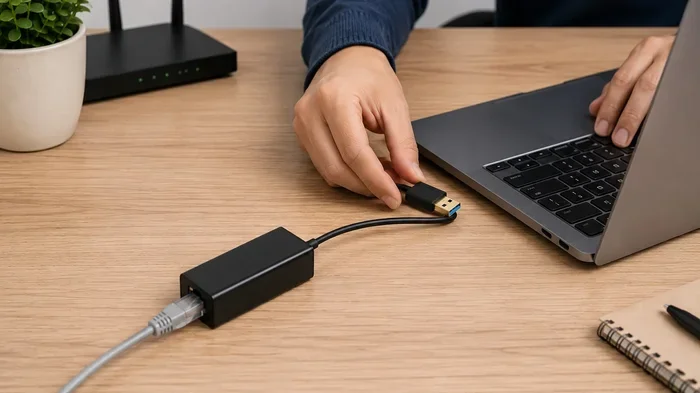
USB extension over Ethernet is a method that lets you connect USB devices to a computer using an Ethernet cable instead of a standard USB cable. The Ethernet cable carries the USB signal over longer distances. This means your device can sit much farther away from your PC or laptop.
Standard USB cables have a length limit. For USB 2.0, the maximum recommended length is about 16 feet (5 meters). For USB 3.0, the limit is even shorter at around 9 feet (3 meters). Beyond these distances, the signal weakens and data transfer becomes unreliable. An Ethernet cable can stretch this limit dramatically, often up to 150 feet or more depending on the extender you use.
How Does the Signal Travel?
The process works through a pair of devices called a transmitter and a receiver. You plug the USB device into the transmitter box. Then you connect an Ethernet cable from the transmitter to the receiver. Finally, you plug the receiver into your computer. The transmitter converts the USB signal into a format that can travel over Ethernet. The receiver converts it back at the other end. This whole process happens in real time, so you do not notice any delay in most cases.
The beauty of this setup is that it uses standard networking cable. Cat5e, Cat6, and Cat6a Ethernet cables are cheap, widely available, and designed for long runs. This makes USB over Ethernet a practical and affordable solution for many situations.
How Does an Ethernet Cable Extend USB Range?
The short answer is that an Ethernet cable extends USB range by converting and regenerating the signal. A plain USB cable carries electrical signals that degrade over distance. Once the signal drops below a certain threshold, your device stops working properly. An Ethernet extender solves this by boosting and reshaping the signal as it travels.
Active vs. Passive Extension
It is important to understand the difference between active and passive extension. A passive extension is just a longer cable. It does nothing to boost the signal. Active extension uses powered hardware to regenerate the USB signal, which is what makes long-distance connections possible.
When you use an Ethernet cable to extend USB, you are always using an active method. The transmitter and receiver boxes need power, usually through USB itself or a wall adapter. This power is what allows the signal to be cleaned up and sent further.
Distance Limits You Can Expect
Here are some general distance limits you can work with:
- Standard USB cable: Up to 16 feet for USB 2.0, up to 9 feet for USB 3.0
- Basic USB extender: Up to 33 feet (10 meters)
- Ethernet USB extender: Up to 165 feet (50 meters) with Cat5e
- Premium USB-over-Ethernet kit: Up to 330 feet (100 meters) or more
These numbers vary by product quality and cable type. Higher-quality Ethernet cables and better extender kits will give you more reliable results at longer distances.
Types of Ethernet-to-USB Extension Solutions
Not all USB extension solutions are the same. There are several types of products you can use to connect USB devices over Ethernet. Let us look at the main options.
USB-over-Ethernet Adapters
These are the most common solution. They come as a pair of small boxes. One box connects to your USB device, and the other plugs into your computer. You run a standard Ethernet cable between them. These adapters are plug-and-play in most cases, meaning you do not need to install special software.
Some adapters support USB 2.0 speeds, while others handle USB 3.0. If you need fast data transfer, look for a USB 3.0 Ethernet extender. They cost more but deliver much better performance for tasks like backing up large files or streaming video from a remote camera.
USB Network Adapters
A USB network adapter turns your USB device into a network device. Instead of extending a physical USB connection, this method shares the device over your local network. Other computers on the same network can then access the device remotely.
This approach works great for printers, scanners, and external storage. USB network sharing software like USB Network Gate or similar tools make this possible. The device does not need to be physically close to the computer that uses it.
KVM Extenders
KVM stands for Keyboard, Video, and Mouse. A KVM extender lets you control a remote computer from far away using Ethernet cable. Some KVM extenders also carry USB connections for peripherals. These are popular in office environments and server rooms where people need to access computers that are tucked away in racks or separate rooms.
DIY Solutions with Raspberry Pi or SBCs
For tech-savvy users, you can build your own USB-over-Ethernet bridge using a single-board computer like a Raspberry Pi. This approach gives you full control over the setup. However, it requires more technical knowledge and time. For most users, a ready-made extender kit is the better choice.
Benefits of Using Ethernet Cable for USB Extension
There are several reasons why people choose to extend USB over Ethernet. Let us look at the biggest advantages.
Longer Reach
The most obvious benefit is distance. Ethernet cables can run much farther than USB cables. A single Cat6 Ethernet cable can reach up to 330 feet without any signal loss. This makes it possible to place USB devices in completely different rooms or even buildings.
Better Signal Quality
Ethernet cables are designed for reliable data transmission. They have shielding that protects against interference from other electronic devices. This means fewer dropped signals and more stable connections compared to long USB cables, which are prone to interference.
Cost Effective
Ethernet cables and USB-over-Ethernet adapters are affordable. A good extender kit costs between 20 and 80 dollars. Compare that to running a new USB cable through walls or buying a longer USB cable that may not work well at long lengths. The Ethernet route is often cheaper and more reliable.
Flexibility and Scalability
Once you have the extender set up, you can easily move your USB device to a different location. Just unplug the Ethernet cable and plug it into a different room. You can also daisy-chain multiple extenders for even longer runs. This flexibility is great for changing office layouts or studio setups.
Support for Multiple Devices
Some advanced extender kits support multiple USB devices over a single Ethernet cable. You can connect several devices at the remote end and access them all from your computer. This is especially useful in shared workspaces or media production environments.
Common Mistakes to Avoid When Extending USB Over Ethernet
Setting up USB-over-Ethernet is not hard, but people do make mistakes that cause problems. Here are the most common ones to watch out for.
Using a Passive Extension Cable
A passive extension cable is just a longer USB cable with connectors on both ends. It does not boost the signal. For runs longer than 16 feet, a passive cable will not work reliably. Always use an active extender with a transmitter and receiver when going beyond the standard USB length.
Choosing the Wrong Ethernet Cable
Not all Ethernet cables are the same. A cheap, unshielded cable can introduce interference and cause data errors. Always use a shielded Cat5e or Cat6 cable for USB-over-Ethernet setups. Shielded cables have a foil or braid that protects the data signals inside.
Ignoring Power Requirements
Some USB devices need more power than others. External hard drives, for example, often need more power than a simple keyboard. If your extender does not provide enough power, the device may disconnect or fail to work. Look for extenders that support external power supplies if you are connecting power-hungry devices.
Mismatching USB Versions
If you have a USB 3.0 device, make sure your extender supports USB 3.0 speeds. Using a USB 2.0 extender with a USB 3.0 device will limit your speed to USB 2.0 levels. Check the specifications before you buy and match the USB version to your device.
Skipping Driver Installation
Some USB-over-Ethernet adapters need specific drivers to work properly. Do not just plug everything in and hope for the best. Visit the manufacturer’s website, download the latest drivers, and install them before connecting your devices. This small step can save you hours of troubleshooting.
Using Low-Quality Extenders
It is tempting to buy the cheapest extender you can find. But cheap extenders often have poor build quality, unreliable signal conversion, and weak support. Invest in a reputable brand with good reviews. Your connection will be more stable and last longer.
Expert Tips for Getting the Best Results
Here are some practical tips from experienced users and IT professionals to help you get the most out of your Ethernet USB extension setup.
Keep Your Ethernet Cable Runs Straight
Avoid sharp bends in your Ethernet cable. Bends can damage the internal wires and degrade the signal. Keep cable runs as straight as possible, with gentle curves if you need to change direction. A well-routed cable lasts longer and performs better.
Use a Powered USB Hub at the Remote End
If you are connecting multiple USB devices at the remote location, use a powered USB hub. This ensures each device gets the power it needs without overloading the extender. A powered hub also reduces the chance of signal conflicts between devices.
Test Your Setup Before Mounting
Before you wall-mount your extender or run cables through conduits, test the full setup on your desk first. Make sure the device is recognized, data transfers work, and there are no errors. Fixing problems on a desk is much easier than pulling cables out of a wall.
Label Both Ends of Your Cables
This sounds simple, but it makes a huge difference. Label the transmitter end and the receiver end of your Ethernet cable. If you ever need to troubleshoot or move things around, you will know exactly which cable goes where. Use color-coded labels for extra clarity.
Update Firmware and Drivers Regularly
Manufacturers sometimes release firmware updates that improve performance and fix bugs. Check the manufacturer’s website every few months for updates. Keeping your extender firmware and drivers current helps maintain a stable and fast connection.
Consider Your Environment
Ethernet cables near power lines or heavy machinery can pick up electromagnetic interference. Keep your Ethernet cable runs away from power cables where possible. If you must run them close together, use shielded cable and keep them at least a few inches apart. A clean signal path means fewer dropouts and faster transfers.
Quick Comparison Table
Here is a quick look at the main options for extending USB over Ethernet:
- USB-over-Ethernet Adapter: Best for point-to-point connections. Easy to set up. Supports up to 165 feet with Cat5e.
- USB Network Sharing Software: Best for sharing devices over a network. No extra hardware needed. Requires software installation.
- KVM Extender: Best for controlling remote computers with USB peripherals. More expensive but very reliable.
- DIY Raspberry Pi Solution: Best for tech enthusiasts who want full control. Requires technical skills and time.
When Should You Use Ethernet to Extend USB?
Not every situation calls for extending USB over Ethernet. Here are some scenarios where this approach really shines.
If you work from home and your printer is in another room, an Ethernet USB extender lets you print without dragging a long USB cable across the floor. If you are a musician with an audio interface on the other side of your studio, you can keep your computer in a separate control room and still use your gear. If you run a small office with shared peripherals, USB network sharing over Ethernet keeps things organized and accessible.
In short, any situation where distance between your USB device and computer is a problem can benefit from this approach. It is also useful when you want a clean, cable-free workspace without running long USB cables everywhere.
Conclusion
Using an Ethernet cable to extend USB range and speed is a practical, affordable, and reliable solution for many setups. Whether you need to reach a device across the room or in another building, the right extender kit gets the job done. The key is to choose the right type of extender, use quality Ethernet cable, and follow best practices for setup and placement.
Remember to avoid common mistakes like using passive cables for long runs, ignoring power requirements, and skipping driver installations. With the right approach, your USB devices can work anywhere Ethernet cable can reach. Give it a try, and you will wonder why you did not set this up sooner.
Frequently Asked Questions
Can I use any Ethernet cable to extend USB?
Most standard Ethernet cables like Cat5e and Cat6 work well for USB extension. However, shielded cables are recommended to reduce interference. Avoid very cheap, unshielded cables for best results. The cable quality directly affects signal reliability and speed.
Does extending USB over Ethernet reduce speed?
It can, depending on the extender you use. USB 2.0 extenders will limit you to USB 2.0 speeds. USB 3.0 extenders preserve higher transfer rates. Always match the extender’s USB version to your device for the best speed possible.
How far can I extend USB with an Ethernet cable?
With a quality Ethernet USB extender, you can typically reach up to 165 feet (50 meters) with Cat5e cable. Premium kits can extend up to 330 feet (100 meters) or more. The distance depends on the extender quality and cable type you use.
Do I need special drivers for USB-over-Ethernet extenders?
Many extenders are plug-and-play and do not require drivers. However, some models do need specific drivers for full functionality. Always check the manufacturer’s website for the latest drivers before setting up your connection.
Can I extend USB-C over Ethernet?
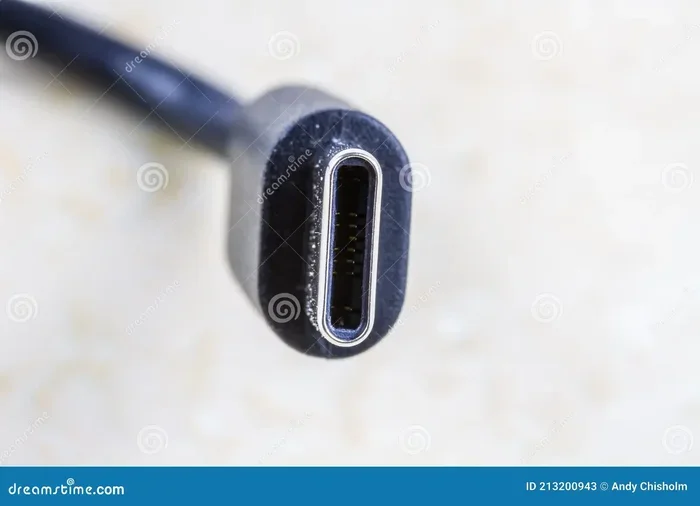
Yes, there are USB-C to Ethernet extenders available on the market. These work similarly to traditional USB extenders but support the newer USB-C connector. Make sure the extender supports USB-C and the speed standard you need.
Is extending USB over Ethernet safe for my devices?
Yes, it is safe when you use a quality extender from a reputable brand. The signal conversion process does not harm your USB devices. Just make sure your extender provides adequate power for your device to prevent disconnections or damage.