Can I Plug My Chromecast Directly Into My Tv Usb Port
Yes, you can plug your Chromecast into a TV USB port, but it depends on your TV model and the power output available. Not all TV USB ports provide enough wattage to keep your streaming device running reliably. This guide walks you through everything you need to know about setting up your Chromecast with a TV USB port the right way.
If you have a Chromecast sitting in a drawer and want to set it up, the first thing you might wonder is whether you can just plug it into the USB port on the back of your TV. It seems simple enough. One cable, one port, and you are streaming in minutes. But the truth is that the answer is not always straightforward. Some TV USB ports work perfectly with a Chromecast. Others simply do not provide enough power. And that can lead to frustrating problems.
In this guide, I will walk you through everything you need to know about using a TV USB port to power your Chromecast. We will cover which setups work, which ones do not, and how to get the best streaming experience. Whether you own a Chromecast with Google TV or an older model, this article has you covered.
Key Takeaways
- Chromecast can work with a TV USB port: Many modern TVs supply enough power through their USB ports to run a Chromecast.
- Power output varies by TV: Some TV USB ports deliver too little power, causing disconnects or boot loops.
- The included wall adapter is the safest option: It guarantees consistent power for your streaming device.
- HDMI-CEC and Wi-Fi matter too: A proper setup involves more than just plugging in the cable.
- Older TVs may lack compatible USB ports: Check your TV manual to confirm USB port specifications.
- Troubleshooting is simple: Most USB power issues have quick fixes you can try at home.
📑 Table of Contents
- Understanding How Chromecast Connects to Your TV
- Can You Plug Chromecast Directly Into a TV USB Port
- Chromecast Models and Their USB Power Requirements
- Common Problems When Using a TV USB Port for Chromecast
- Tips for the Best Chromecast Setup
- Expert Tips to Avoid Common Chromecast USB Mistakes
- Key Takeaways
- Conclusion
Understanding How Chromecast Connects to Your TV
Before we dive into USB power, let us talk about how a Chromecast actually connects to your television. Understanding the basics helps you figure out why the power source matters so much.
How a Chromecast Works
A Chromecast is a small streaming device that plugs into your TV. It connects to your home Wi-Fi network and lets you send content from your phone, tablet, or laptop straight to your television screen. The device itself needs two things to work: a video connection and a power source.
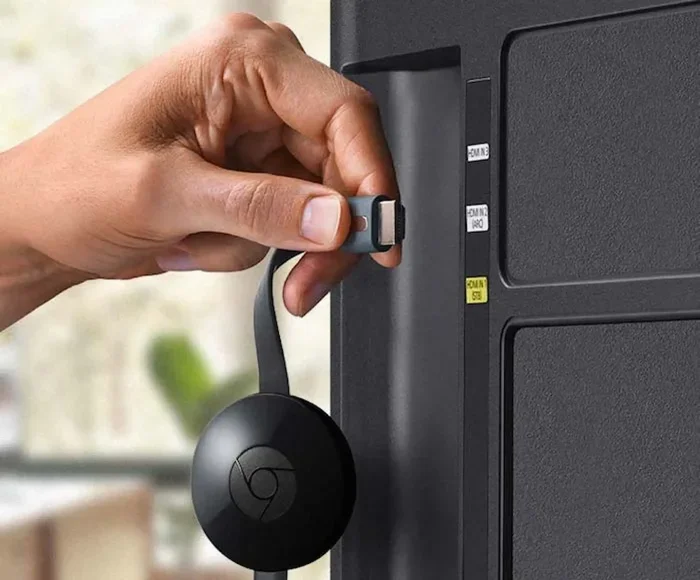
The video connection always goes through an HDMI port on your TV. That part is simple and universal. The power source is where things get tricky. You can power a Chromecast in two main ways:
- Wall power adapter: The small plug that comes in the box. You plug it into a wall outlet, and it connects to the Chromecast through a USB cable.
- TV USB port: You use the USB port already built into your television to supply power.
Both methods work in theory. But the real question is whether your TV USB port can deliver reliable power consistently.
What Is HDMI-CEC and Why Does It Matter
When you plug your Chromecast into the HDMI port, your TV may use something called HDMI-CEC. This stands for Consumer Electronics Control. It lets your TV remote control the Chromecast. Without it, you would need a separate remote or your phone every time you want to change settings. Most modern TVs support HDMI-CEC, but the feature goes by different names depending on the brand. Samsung calls it Anynet+. LG calls it SimpLink. Sony calls it BRAVIA Sync. Check your TV settings to make sure it is turned on.
Can You Plug Chromecast Directly Into a TV USB Port
This is the big question, and the short answer is yes, most of the time. But there are important caveats. Not every TV USB port is created equal, and not every Chromecast model draws the same amount of power.
How Much Power Does a Chromecast Need
A standard Chromecast uses about 1 to 2 watts of power. The newer Chromecast with Google TV uses slightly more, around 2 to 3 watts. Your TV USB port needs to supply enough current to keep the device running without interruptions.
Most TV USB ports are designed for low-power devices like a remote control or a USB light. They usually deliver around 0.5 to 1 amp of current. That might be enough for basic Chromecast models. But if you have the Chromecast with Google TV, it might need more power than a standard TV USB port can provide.
When TV USB Ports Work Great
Here are some situations where plugging your Chromecast into a TV USB port works perfectly fine:
- Your TV has a dedicated USB port with 1 amp or higher output. Many newer smart TVs include USB ports rated for streaming devices.
- You are using an older or basic Chromecast model. These devices draw very little power and are easy to supply through a TV USB port.
- Your TV stays powered on even when turned off. Some TVs keep their USB ports active in standby mode. This is called a “always-on USB” feature, and it is very useful for streaming devices.
When TV USB Ports Cause Problems
On the other hand, some setups lead to headaches. Here is what to watch out for:
- Your TV USB port delivers less than 0.5 amps. This is common on older or budget TVs. The Chromecast may keep restarting or fail to boot up.
- Your TV turns off USB power when the TV is off. If your TV USB port shuts down completely, you cannot use the Chromecast when the TV is off. Some people like to use their Chromecast independently, and this kills that capability.
- You experience Wi-Fi drops or freezing. Low power can cause the Chromecast to lose its Wi-Fi connection. This leads to buffering, stuttering, or the device going offline entirely.
Chromecast Models and Their USB Power Requirements
Not all Chromecast devices are the same. Each model has different power needs, and understanding these differences helps you choose the right setup.
Chromecast (1st and 2nd Generation)
The original Chromecast and the second generation are very small and use very little power. These older streaming sticks work almost always with a TV USB port. Even a low-powered USB port on an older TV should be enough. If you still have one of these models, you can safely try the TV USB port first before reaching for the wall adapter.
Chromecast (3rd Generation and Ultra)
The third-generation Chromecast and the Chromecast Ultra are a bit more powerful. They support 4K streaming and higher display resolutions. These models need a more reliable power source. While some TV USB ports handle them fine, others struggle. If you notice your 4K Chromecast buffering or disconnecting, the USB port on your TV is likely not providing enough current.
Chromecast with Google TV
The latest model, the Chromecast with Google TV, is essentially a mini computer. It has a remote control, an on-screen interface, and more processing power than earlier models. Because of this, it draws more power. Google officially recommends using the included wall power adapter for this device. While you can plug it into a TV USB port, the results vary widely depending on your TV.
| Chromecast Model | Power Draw | TV USB Compatible | Recommended Power Source |
|---|---|---|---|
| Chromecast 1st Gen | ~1 watt | Yes, almost always | TV USB or wall adapter |
| Chromecast 2nd Gen | ~1 watt | Yes, almost always | TV USB or wall adapter |
| Chromecast 3rd Gen | ~1.5 watts | Usually yes | Wall adapter preferred |
| Chromecast Ultra | ~2 watts | Depends on TV | Wall adapter recommended |
| Chromecast with Google TV | ~2.5 to 3 watts | Sometimes | Wall adapter required |
Common Problems When Using a TV USB Port for Chromecast
If you decide to power your Chromecast through your TV USB port, you might run into some common issues. Knowing what they are helps you troubleshoot faster.
Device Keeps Restarting
This is the most common problem. Your Chromecast boots up, shows the splash screen, and then restarts in a loop. The cause is almost always insufficient power from the TV USB port. The device tries to start, does not get enough current, and shuts down. Then it tries again, and the cycle repeats.
Wi-Fi Connection Drops Frequently
A Chromecast that keeps losing its Wi-Fi signal might not be a router problem. It could be a power problem. When the Chromecast does not receive stable power, its internal components behave unpredictably, including the Wi-Fi radio. If you are dealing with constant disconnects, try switching to the wall adapter and see if the problem goes away.
No Signal on the TV Screen
Sometimes you plug everything in and get a black screen. This can happen if the TV USB port is not providing enough power to keep the Chromecast active. It can also happen if your TV USB port is not compatible with the Chromecast’s power requirements. Try a different USB port on your TV if you have one available.
Audio and Video Sync Issues
Rare but possible. When a Chromecast receives inconsistent power, it can cause audio and video to fall out of sync. This is more common with 4K models that need steady power to process high-resolution content.
Tips for the Best Chromecast Setup
Getting the most out of your Chromecast is about more than just plugging in a cable. A few smart setup choices make a big difference in your streaming experience.
Use the Wall Adapter First
If you want zero hassle, use the wall adapter that came with your Chromecast. It is the most reliable power source. You plug it into any wall outlet, connect the USB cable to the Chromecast, and you are done. No guessing about whether your TV USB port is strong enough. No dealing with random restarts.
Check Your TV Manual for USB Port Specs
Not sure what your TV USB port can handle? Look up your TV model online or check the user manual. Search for the USB port specifications. You want to find the output current rating. If it says 1 amp or higher, you should be fine for most Chromecast models. If it says 0.5 amps or less, you are likely to run into problems.
Keep Your Chromecast Firmware Updated
Google regularly releases updates for Chromecast devices. These updates fix bugs, improve Wi-Fi stability, and sometimes address power management issues. Make sure your device is running the latest software. You can check for updates through the Google Home app on your phone.
Use a High-Quality HDMI Cable
Even though you are focused on the USB port, do not overlook the HDMI connection. A cheap or damaged HDMI cable can cause video quality problems, signal drops, and audio issues. Use the HDMI cable that came in the box or buy a certified high-speed HDMI cable. For 4K models, make sure the cable supports HDMI 2.0 or higher.
Position Your Chromecast Properly
Where you place your Chromecast inside the TV matters. If it is buried deep inside a TV stand with no airflow, it can overheat. Heat affects performance and can cause disconnects. Make sure the device has some breathing room. If your TV has a dedicated HDMI-CEC setting, enable it for the smoothest control experience.
Use the Google Home App for Easy Management
The Google Home app is your best friend when it comes to managing your Chromecast. You can check the device status, update software, adjust settings, and troubleshoot issues all from your phone. It also lets you see how much power your device is receiving and whether it is connected to a stable Wi-Fi network.
Expert Tips to Avoid Common Chromecast USB Mistakes
Here are a few things that even experienced users sometimes get wrong. Avoid these mistakes to keep your streaming setup running smoothly.
Do Not Use a USB Hub Without Power
Some people plug their Chromecast into a USB hub to free up TV USB ports. This works only if the hub has its own power supply. A passive USB hub with no power adapter will not give your Chromecast enough current. It will cause the same problems as a weak TV USB port.
Do Not Ignore the LED Indicator
Your Chromecast has a small LED light that tells you its status. If the light blinks or stays solid white, the device is working. If it blinks red or orange, it is likely having power issues. If it does not light up at all, the power source is probably not working.
Do Not Assume All USB Ports Are the Same
Your TV might have multiple USB ports, and they may not all deliver the same power. The port behind the panel might be different from the one on the side. Test each port if you are unsure. Some TVs label their USB ports with power ratings. Look for those labels.
Key Takeaways
- You can plug your Chromecast into a TV USB port in most cases, but the results depend on your TV and Chromecast model.
- Older Chromecast models work well with TV USB ports because they need very little power.
- The Chromecast with Google TV draws more power and benefits greatly from using the wall adapter.
- Watch for signs of low power like restarting loops, Wi-Fi drops, and no signal on screen.
- Always check your TV USB port specifications before relying on it as your sole power source.
- The wall adapter is the safest and most reliable option for a consistent streaming experience.
Conclusion
So, can you plug your Chromecast directly into your TV USB port? Yes, you can, and in many cases it works just fine. But it is not a one-size-fits-all answer. Your TV model, your Chromecast model, and the USB port specifications all play a role. The best approach is to check your TV USB port output, understand your Chromecast power needs, and test the setup before committing to it.
If you run into any issues, do not worry. Switching to the wall adapter is always a reliable fix. And once your Chromecast is powered correctly, you can enjoy smooth streaming, crisp video quality, and a hassle-free entertainment experience. The goal is simple, you want to sit back and watch your favorite shows without dealing with technical problems. A little knowledge about power goes a long way toward making that happen.
Take a few minutes to check your setup today. You might save yourself hours of frustration tomorrow. Happy streaming.