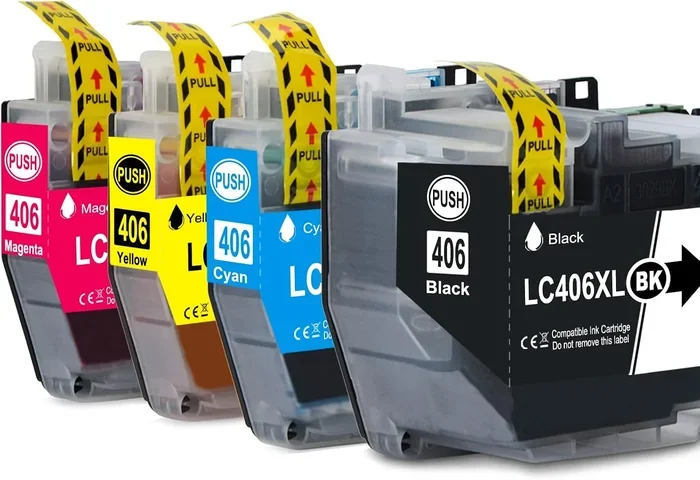
Can I Just Replace Black Ink In My Brother Printer
Yes, you can replace just the black ink in your Brother printer. Most Brother printers use individual ink cartridges, so swapping out the black one is simple and cost-effective. This guide walks you through the process, covers common problems, and shares tips to keep your printer running smoothly.
You are staring at your Brother printer. The black ink is almost empty. You have a document to print, a report to finish, and no time to waste. The question is simple: can I just replace black ink in my Brother printer? The answer is a confident yes.
Brother printers are designed with convenience in mind. Most models use individual ink cartridges, meaning you swap out only the color you need. This saves you money, reduces waste, and keeps your printer running without unnecessary delays. In this guide, we will walk you through every step of the process.
Whether you own a Brother HL series, a Brother MFC model, or a Brother inkjet all-in-one, the replacement process is nearly identical. We will cover everything from buying the right cartridge to fixing common errors. By the end, you will feel confident handling the job yourself.
Replacing black ink is one of the most common printer maintenance tasks. It takes just a few minutes, and you do not need any special tools or technical skills. Let us dive in and get your printer back to producing crisp, clean black text.
Key Takeaways
- Individual Cartridge System: Brother printers typically use separate cartridges for each color, allowing you to replace only the black ink.
- Easy Replacement Process: Replacing black ink involves a few simple steps that anyone can follow.
- Cost Savings: Using individual cartridges saves money compared to replacing a full set of colors.
- Common Issues Exist: Error messages and chip recognition problems can occur, but they are easy to fix.
- Genuine vs Compatible: Both genuine Brother and third-party cartridges work, but quality varies.
- Maintenance Matters: Regular cleaning and proper storage extend cartridge life and print quality.
📑 Table of Contents
Understanding Brother Printer Ink Systems
Before you replace the black ink cartridge, it helps to understand how your Brother printer handles ink. Brother uses a few different ink systems depending on the model. Knowing which one you have makes the replacement process smoother.
Individual Cartridge vs. Combined Cartridge
Most Brother inkjet printers use individual cartridges. This means each color has its own separate unit. Black ink lives in its own cartridge, cyan in another, and so on. This design is a big advantage because you can replace just one color.
Some older or budget models use a combined cartridge system. In this setup, all colors share one housing. If you run out of black, you must replace the entire cartridge even if the other colors are still full. However, most modern Brother printers use the individual system.
How Ink Levels Are Monitored
Brother printers track ink levels through tiny chips on each cartridge. These chips communicate with the printer’s software. When the black ink runs low, the printer displays a warning on the screen or in the Brother Printer Utility on your computer.
The ink level monitoring system is not always 100% accurate. Sometimes the printer reports empty when there is still ink left. Conversely, it may show full shortly after you install a new cartridge. Understanding this helps you avoid unnecessary panic.
Interestingly, the technology behind ink monitoring is part of a broader trend in computing. If you are curious about how technology shapes different industries, you might enjoy learning about how computers are used in medicine and other fields.
How to Replace Black Ink in Your Brother Printer
Now for the main event. Replacing the black ink cartridge in your Brother printer is straightforward. Follow these steps carefully, and you will be back to printing in no time.
Step 1: Gather Your Supplies
Before you start, make sure you have everything ready. Here is what you need:
- The correct black ink cartridge for your Brother model
- A soft, lint-free cloth or paper towel
- A flat, stable surface to work on
- Your printer powered on
Check your printer model number before buying a cartridge. You can find this number on a label at the back or bottom of the printer. Common Brother black cartridge numbers include LC-1000B, LC-3213BK, and LC-223BK. Always match the cartridge number to your specific model.
Step 2: Open the Printer Access Panel
Turn on your Brother printer if it is not already on. Open the front access panel by gently pulling it toward you. The print head carriage will move to the center of the printer. Wait for it to stop moving before proceeding.
Do not force the panel open. If it does not slide easily, check for any paper jams or obstructions. Clearing those first prevents damage to the internal components.
Step 3: Remove the Empty Black Cartridge
Look for the black cartridge holder. It is usually on the left side of the carriage. Press the small release tab or button on the old cartridge. The cartridge will pop up slightly. Pull it straight out gently.
Be careful not to touch the copper contacts or the ink nozzle area. Oils from your fingers can cause printing problems. If you accidentally touch these parts, wipe them clean with a dry, lint-free cloth.
Step 4: Install the New Black Cartridge
Take the new black ink cartridge out of its packaging. Remove any protective tape or plastic covers. Hold the cartridge at a slight angle and slide it into the empty slot. Push it gently until it clicks into place.
Make sure the cartridge is seated firmly. A loose cartridge can cause error messages or poor print quality. Once it clicks, close the front access panel.
Step 5: Run a Test Print
Your printer may automatically initiate a calibration cycle. If not, you can run one manually from the printer menu or the Brother software on your computer. Print a test page to confirm the black ink is working correctly.
If the test print looks faded or streaky, do not worry. Try running the print head cleaning cycle once or twice. This clears any dried ink or air bubbles from the nozzle.
Common Problems When Replacing Black Ink
Even with a simple process, things can go wrong. Here are the most common issues you might face when replacing black ink in a Brother printer, along with easy fixes.
Error Messages After Replacement
You install the new cartridge, but the printer displays an error. The screen might say “Ink Empty” or “Unable to Recognize Cartridge.” This is frustrating but usually easy to solve.
First, remove the cartridge and check for any remaining tape or packaging material. Sometimes a small piece of plastic blocks the chip contacts. Wipe the copper contacts with a dry cloth and reinsert the cartridge firmly.
If the error persists, try turning the printer off, unplugging it for 30 seconds, and plugging it back in. This resets the printer’s communication system and often clears the error.
Printer Refuses to Print in Black
You have a new black cartridge installed, but the printer only prints in color or produces blank pages. This usually happens for one of two reasons.
The first reason is a clogged print head. Dust, dried ink, or air bubbles can block the black nozzle. Run the print head cleaning utility from your computer or the printer’s control panel. You may need to run it two or three times for best results.
The second reason is incorrect cartridge installation. Double-check that the black cartridge is in the correct slot. Color cartridges and black cartridges have different shapes and chip positions. Putting the wrong cartridge in the wrong slot causes the printer to reject it.
Ink Level Still Shows Empty After Replacement
Sometimes the printer still shows the black ink as empty even after you install a new cartridge. This is usually a chip recognition issue.
Try removing the cartridge and reinserting it. If that does not work, reset the ink level counter through the Brother Printer Utility software. On some models, you can press and hold the “Go” or “Stop” button for a few seconds to trigger a reset.
For a more permanent fix, consider using genuine Brother cartridges. Third-party or compatible cartridges sometimes have chips that the printer does not recognize immediately. Genuine Brother cartridges are guaranteed to work with your specific printer model.
Genuine vs Compatible Black Ink Cartridges
When shopping for black ink, you will see two main options: genuine Brother cartridges and compatible or third-party cartridges. Both have pros and cons.
| Feature | Genuine Brother Cartridges | Compatible Cartridges |
|---|---|---|
| Price | Higher cost | Lower cost |
| Quality | Consistent, reliable | Varies by brand |
| Warranty | Fully supported | May void warranty |
| Page Yield | Accurate page count | Sometimes overstated |
| Chip Compatibility | Always recognized | Sometimes not recognized |
Genuine Brother cartridges are the safest choice. They deliver consistent print quality and are fully supported by Brother customer service. If you use your printer for important documents or professional work, genuine cartridges are worth the investment.
Compatible cartridges can save you a significant amount of money. Many third-party brands offer high-quality alternatives at a fraction of the price. If you go this route, buy from reputable sellers with good reviews. Avoid the cheapest options, as they often have poor ink quality and unreliable chips.
Tips to Make Your Black Ink Last Longer
Black ink cartridges can be expensive, and nobody wants to replace them too often. Here are some practical tips to extend the life of your black ink.
Use Draft Mode for Everyday Printing
Not every document needs high-quality output. For internal drafts, emails, or notes, switch your printer to draft mode. This uses significantly less ink per page and can double or even triple the life of your black cartridge.
You can set draft mode in your printer preferences on your computer. On Windows, go to File > Print > Printer Properties > Quality. On Mac, go to File > Print > Show Details > Quality & Media.
Print in Black and White When Possible
Brother printers sometimes use color ink even when printing black text. This happens when the printer is set to “Best Quality” or when color printing is the default setting. Change your default settings to print in black and white only for text documents.
In the printer properties, look for the “Grayscale” or “Black Only” option. This ensures the printer uses only the black cartridge and avoids wasting color ink unnecessarily.
Keep the Printer Clean
Dust and debris can clog the print head and cause the black ink to dry out faster. Keep your printer covered when not in use, especially if it sits in a dusty room or near a window.
Run the print head cleaning cycle once a month if you use the printer regularly. This prevents buildup and keeps the nozzles clear. It is a small habit that pays off in the long run.
Store Cartridges Properly
If you buy black ink cartridges in bulk, store them properly. Keep them in a cool, dry place away from direct sunlight. Avoid storing them in very hot or very cold environments. Proper storage keeps the ink fresh and prevents it from drying out inside the cartridge.
Use High-Yield Cartridges When Available
Many Brother printer models offer high-yield black ink cartridges. These cost more upfront but print significantly more pages. Over time, high-yield cartridges are often cheaper per page than standard cartridges. Check if a high-yield option exists for your Brother model.
When to Seek Professional Help
Most black ink replacement issues are simple to fix at home. But some situations call for professional support. Here are signs that you should contact Brother support or a repair technician.
- The printer displays a hardware error that does not go away after resetting
- Print quality remains poor even after multiple cleaning cycles
- The print head carriage moves but makes grinding or clicking noises
- Ink leaks inside the printer after cartridge replacement
- The printer will not recognize any cartridges, genuine or compatible
These issues could indicate a deeper problem with the print head, the carriage mechanism, or the printer’s internal electronics. Brother offers warranty support for most printers within the first year of purchase. Contacting their customer service team is always a good first step.
It is also worth noting that proper printer maintenance contributes to overall office health and productivity. Just as technology plays a vital role in fields like healthcare, keeping your office equipment in good shape supports your daily workflow. For more on how technology impacts various sectors, explore the many ways computers are used in medicine and other industries.
Key Takeaways
- Yes, You Can Replace Just Black Ink: Most Brother printers use individual cartridges, making single-color replacement simple and affordable.
- Follow the Steps Carefully: Open the panel, remove the old cartridge, install the new one, and run a test print.
- Troubleshoot Common Errors: Chip recognition issues, clogged print heads, and incorrect installation are the top culprits for post-replacement problems.
- Choose Cartridges Wisely: Genuine Brother cartridges offer reliability, while compatible cartridges offer savings. Pick based on your needs and budget.
- Extend Cartridge Life: Use draft mode, print in grayscale, keep the printer clean, and store cartridges properly.
- Seek Help When Needed: Persistent errors, hardware noises, or ink leaks warrant professional attention.
Frequently Asked Questions
Can I replace just the black ink cartridge in my Brother printer?
Yes, absolutely. Most Brother printers use individual ink cartridges, so you can replace only the black one without touching the other colors. This saves you money and reduces waste. Just make sure you buy the correct black cartridge for your specific Brother model.
Why does my Brother printer say the black ink is empty right after I replace it?
This usually happens because the printer’s chip has not recognized the new cartridge yet. Remove the cartridge, wipe the copper contacts with a dry cloth, and reinsert it firmly. If the problem continues, try resetting the printer by turning it off, unplugging it for 30 seconds, and plugging it back in.
Can I use a compatible or third-party black ink cartridge with my Brother printer?
Yes, you can use compatible cartridges with most Brother printers. However, compatible cartridges vary in quality. Some work perfectly, while others may cause error messages or lower print quality. Stick to reputable brands and read user reviews before purchasing.
How do I make my black ink cartridge last longer?
You can extend your black ink life by using draft mode for everyday prints, switching to grayscale or black-only printing, running print head cleaning regularly, and storing unused cartridges in a cool, dry place. These small habits add up to significant ink savings over time.
What should I do if my Brother printer won’t print black even after replacing the cartridge?
First, check that the cartridge is installed in the correct slot and seated firmly. Then run the print head cleaning utility through your computer or the printer’s menu. If the problem persists, remove the cartridge and check for dried ink or debris on the nozzle. If none of these steps work, contact Brother customer support for further assistance.
Is it worth buying high-yield black ink cartridges for my Brother printer?
Yes, high-yield cartridges are usually worth the extra upfront cost. They print significantly more pages per cartridge, which lowers the cost per page. If you print frequently, high-yield cartridges save you both money and the hassle of replacing cartridges often.
=== CONCLUSION ===
Replacing black ink in your Brother printer is simple, fast, and something you can do yourself in minutes. Whether you are a home user printing homework or a professional handling daily documents, knowing how to swap out the black cartridge keeps you productive and saves money.
Remember to buy the right cartridge for your model, follow the replacement steps carefully, and troubleshoot any errors calmly. With the right approach, your Brother printer will keep delivering sharp, professional-quality black text for years to come.
Take care of your ink cartridges, and they will take care of your printing needs. Happy printing!