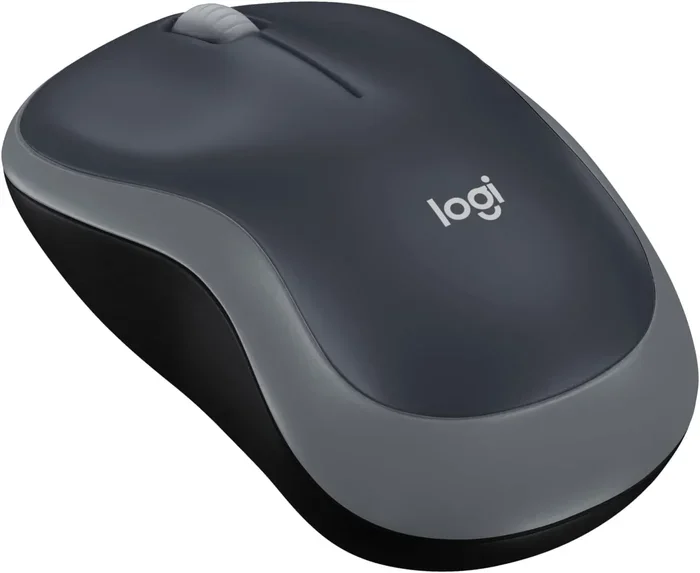
Can I Use My Logitech Mouse Without the USB Receiver
Yes, you can use your Logitech mouse without the USB receiver in many cases. Many modern Logitech wireless mice support Bluetooth connectivity, allowing you to pair them directly with your computer or laptop. You can also use the Logitech Unifying receiver as a replacement, or connect via the Logitech Options software to keep your wireless mouse working seamlessly even when the original dongle is lost or damaged.
Have you ever plugged in your Logitech wireless mouse only to realize the tiny USB receiver is missing? Maybe it fell behind the desk, or your pet chewed it up. It is a frustrating moment. You want to get back to work or your favorite game, but the little dongle seems irreplaceable.
The good news is that you may not need that small USB receiver at all. Many Logitech wireless mice can work without it. In this article, we will explore every option available to you. Whether you have a Logitech Bluetooth mouse or an older model, there is likely a solution waiting for you.
Key Takeaways
- Bluetooth Support: Many newer Logitech wireless mice can connect directly via Bluetooth, eliminating the need for the USB receiver entirely.
- Logitech Unifying Receiver: You can purchase a compatible Unifying receiver to replace a lost or damaged original dongle.
- Logitech Options Software: This software helps manage wireless mouse settings and can assist with reconnection and pairing.
- Model Compatibility Matters: Not all Logitech mice work without the original USB receiver — older models may not support Bluetooth.
- Quick Workarounds Exist: Simple solutions like Bluetooth pairing or USB adapters can get your mouse running fast.
- Gaming Mice May Differ: Some Logitech gaming mice require the proprietary USB receiver for full functionality.
📑 Table of Contents
- Can I Use My Logitech Mouse Without the USB Receiver?
- Which Logitech Mice Work Without a USB Receiver?
- How to Connect Your Logitech Mouse Without the USB Receiver
- Logitech Options Software: A Helpful Tool
- Common Problems When Using a Logitech Mouse Without the USB Receiver
- Quick Tips for Using Your Logitech Mouse Without the Receiver
- Can You Replace a Lost Logitech USB Receiver?
- Expert Insights on Wireless Mouse Connectivity
- Final Thoughts
Can I Use My Logitech Mouse Without the USB Receiver?
The short answer is yes. The longer answer depends on your specific Logitech mouse model and its features. Modern Logitech wireless mice come with different connectivity options. Some rely solely on the USB receiver. Others support Bluetooth wireless technology. And a few can use both methods at the same time.
Understanding which type of mouse you have is the first step. Check the model number on the bottom of your mouse or in the original packaging. Once you know the model, you can determine whether a receiver-free connection is possible.
How Logitech Wireless Mice Connect
Logitech wireless mice use two main connection methods. The first is the proprietary USB receiver. This small dongle plugs into a USB port and communicates with the mouse using a dedicated wireless signal. The second method is Bluetooth. Bluetooth lets your mouse connect directly to any device that supports it, without needing any extra hardware.
Some mice also support both methods simultaneously. This gives you flexibility. You can switch between the USB receiver and Bluetooth depending on the device you are using.
Here is a quick breakdown of how these connections work:
- USB Receiver: Plugs into a USB port. Provides a dedicated, low-latency connection. Works with most Logitech wireless mice.
- Bluetooth: Connects wirelessly to any Bluetooth-enabled device. No extra hardware needed. Common in newer Logitech models.
- Dual Mode: Supports both USB receiver and Bluetooth. Offers maximum flexibility.
Which Logitech Mice Work Without a USB Receiver?
Not every Logitech mouse can connect without the USB receiver. The ability to go receiver-free depends on the mouse model and its technology. Here is what you need to know.
Logitech Mice With Built-In Bluetooth
Many newer Logitech wireless mice come with Bluetooth built in. These mice can pair directly with your laptop, tablet, or desktop computer. You simply go into your device Bluetooth settings, put the mouse in pairing mode, and connect.Popular Logitech Bluetooth mice include the MX Master 3, MX Anywhere 3, and M720 Triathlon. These models are designed for flexibility. They let you switch between multiple devices and do not always need the USB receiver.
If you own one of these models, you are in luck. You can use your Logitech mouse without the USB receiver in most situations.
Older Logitech Models
Older Logitech wireless mice may not have Bluetooth support. Models released before Bluetooth became standard often rely only on the USB receiver. If your mouse is from several years ago, check the specifications online before assuming it works without the dongle.
Some older models may work with a third-party Bluetooth adapter, but this is not always reliable. The best approach is to confirm your model supports Bluetooth natively.
Logitech Gaming Mice
Logitech gaming mice, such as those in the G Pro or G502 series, often require the USB receiver for full performance. These mice use proprietary wireless technology for ultra-low latency. Bluetooth may introduce slight delays that gamers cannot afford.
If you are a serious gamer, check whether your gaming mouse can switch to Bluetooth mode. Some newer gaming models do support it, but many still depend on the USB receiver for optimal performance.
How to Connect Your Logitech Mouse Without the USB Receiver
If your Logitech mouse supports Bluetooth, the connection process is straightforward. Follow these steps to get your mouse working again.
Step-by-Step Bluetooth Pairing
- Turn on your Logitech mouse. Make sure it has fresh batteries or a full charge.
- Put the mouse in pairing mode. This usually involves holding down the Bluetooth button or a specific pairing switch on the bottom of the mouse.
- Open Bluetooth settings on your device. On Windows, go to Settings > Bluetooth & Devices. On Mac, open System Preferences > Bluetooth.
- Select your Logitech mouse from the list. Click Connect and wait for the pairing to complete.
- Test the mouse. Move it around and check that the cursor responds smoothly.
Once paired, your Logitech mouse should work just like it did with the USB receiver. You will not notice a difference in most everyday tasks.
Using the Logitech Unifying Receiver
If your mouse does not support Bluetooth, you still have an option. The Logitech Unifying receiver is a small USB dongle that can connect to multiple Logitech devices. You can buy a Unifying receiver separately and pair it with a compatible mouse.
This is a great solution if you lost your original receiver. The Unifying receiver is small, affordable, and widely available. Just make sure your mouse model is compatible with the Unifying system before purchasing one.
Logitech Options Software: A Helpful Tool
The Logitech Options software is a free application that helps you manage your Logitech wireless devices. It works with many Logitech mice and keyboards. This software can be a lifesaver when you are trying to use your mouse without the USB receiver.
With Logitech Options, you can:
- Customize buttons and gestures on your mouse.
- Switch between connected devices easily.
- Update firmware for better performance.
- Troubleshoot connection issues.
The software does not replace the USB receiver for mice that need it. But for Bluetooth-enabled models, it enhances the experience. You can fine-tune your mouse settings and get the most out of your wireless connection.
Downloading and Installing Logitech Options
Visit the Logitech website and search for Logitech Options. Download the version compatible with your operating system. Install it, and the software should detect your Logitech mouse automatically if it is already paired via Bluetooth.
If your mouse does not appear, try turning off the Bluetooth connection on your device and then turning it back on. Sometimes a simple refresh is all it takes.
Common Problems When Using a Logitech Mouse Without the USB Receiver
Going receiver-free is not always perfect. Here are some common issues you might face and how to fix them.
Connection Drops
Bluetooth connections can sometimes drop, especially if you are far from your device. To reduce this, keep your mouse within 30 feet of the connected device. Also, make sure there are no major obstacles between the mouse and the device.
Paired but Not Working
If your mouse pairs but does not respond, try turning Bluetooth off and back on. You can also restart your device. Sometimes the Bluetooth stack needs a fresh start to recognize the mouse properly.
Battery Drain
Bluetooth can drain your mouse battery faster than a USB receiver connection. If you notice your battery life dropping, consider switching back to the USB receiver when you are near your desk. Or keep a charging cable handy.
Latency or Lag
Bluetooth has slightly higher latency than a USB receiver. For most tasks like browsing, typing, and office work, this difference is unnoticeable. But for fast-paced gaming or precise design work, the USB receiver may provide a smoother experience.
Quick Tips for Using Your Logitech Mouse Without the Receiver
Here are some practical tips to make your receiver-free experience smooth and hassle-free.
- Keep your mouse charged. Bluetooth uses more power than a USB receiver connection. A full charge goes a long way.
- Store your original receiver safely. If you still have it, keep it in a small case or attached to your laptop bag.
- Use a Logitech Unifying receiver as a backup. It is a cheap and reliable replacement.
- Update your mouse firmware. Logitech regularly releases updates that improve Bluetooth performance.
- Check for interference. Other wireless devices nearby can disrupt your Bluetooth connection. Keep your mouse away from Wi-Fi routers and other Bluetooth devices.
- Use the Logitech Options app. It gives you better control over your mouse settings and connection management.
Can You Replace a Lost Logitech USB Receiver?
If you have lost your USB receiver, you do not necessarily need to buy a whole new mouse. Logitech offers replacement Unifying receivers on their website. You can also find them on popular online marketplaces.
The Logitech Unifying receiver costs around $10 to $20. It is a small investment that can save you from buying a new mouse. Simply plug it in, download the Logitech Unifying software, and pair your mouse following the on-screen instructions.
Keep in mind that the Unifying receiver works only with Logitech devices that support the Unifying system. Check the compatibility list on the Logitech website before making a purchase.
Expert Insights on Wireless Mouse Connectivity
Wireless mouse technology has come a long way. Today, Bluetooth is fast, stable, and reliable enough for most users. Logitech has invested heavily in improving their wireless protocols. Their newer mice offer connection speeds that rival traditional USB receiver setups.
According to Logitech, their Unifying technology can support up to six devices on a single receiver. This makes it a convenient option for users with multiple Logitech peripherals. The Bluetooth range has also improved significantly, with some models offering up to 30 feet of reliable connectivity.
For the average user, using a Logitech mouse without the USB receiver is a perfectly viable option. The experience is smooth, and the convenience of going dongle-free is hard to beat.
Final Thoughts
So, can you use your Logitech mouse without the USB receiver? In most cases, yes. If your mouse supports Bluetooth, you can pair it directly with your device and ditch the receiver altogether. If your mouse does not support Bluetooth, a Logitech Unifying receiver is a reliable and affordable replacement.
Always check your mouse model before making any changes. Understanding your mouse capabilities helps you choose the best connection method. Whether you are working from home, gaming, or creating content, your Logitech wireless mouse can keep up with you — with or without the original USB receiver.
The next time you lose that tiny dongle, do not panic. You have options. Your mouse can still work beautifully, and you might even enjoy the freedom of a receiver-free setup.
Frequently Asked Questions
Can all Logitech wireless mice connect via Bluetooth?
No, not all Logitech wireless mice support Bluetooth. Newer models like the MX Master 3 and M720 Triathlon include Bluetooth. Older or more basic models may only work with the USB receiver. Always check your specific model before assuming Bluetooth is available.
Is it safe to use a Logitech mouse without the USB receiver?
Yes, it is completely safe. Using Bluetooth or a replacement Unifying receiver does not harm your mouse or your device. The connection is just as stable and secure as the original USB receiver setup.
How do I know if my Logitech mouse supports Bluetooth?
Check the product specifications on the Logitech website or the original packaging. Look for Bluetooth in the connectivity options. You can also check the bottom of your mouse for a Bluetooth symbol or button.
Can I use a Logitech gaming mouse without the USB receiver?
Some Logitech gaming mice support Bluetooth, but many rely on proprietary wireless technology through the USB receiver for the lowest latency. Check your specific gaming mouse model to see if it offers a Bluetooth mode.
Where can I buy a replacement Logitech Unifying receiver?
You can purchase a Logitech Unifying receiver directly from the Logitech website, Amazon, or other electronics retailers. They are affordable and easy to set up with the Logitech Unifying software.
Does using Bluetooth drain the mouse battery faster?
Yes, Bluetooth can use slightly more battery than a USB receiver connection. However, modern Logitech mice are designed to handle this efficiently. Keeping your mouse charged and turning off Bluetooth when not in use helps extend battery life.