How Do I Add Bluetooth To My PC Build Step By Step Guide
Adding Bluetooth to your PC build is easier than most people think. You can use a USB Bluetooth dongle, a PCIe Bluetooth card, or a Bluetooth adapter to get wireless connectivity on your desktop or laptop. This guide walks you through every step, from choosing the right hardware to pairing your devices and fixing common issues.
Adding Bluetooth to a PC build opens up a world of wireless possibilities. You can connect headphones, speakers, keyboards, mice, and even your phone without pulling out a single cable. Whether you are building a new desktop or upgrading an older machine, this guide shows you exactly how to do it.
Many people assume Bluetooth comes built into every computer. That is not always true. Older desktops and some budget builds leave you without any wireless capability. The good news is that adding Bluetooth is straightforward, affordable, and takes just a few minutes. You do not need to be a tech expert to get it done.
This article covers everything you need to know. We will look at the different hardware options, how to install them, how to set up drivers, and how to pair your devices. By the end, you will have full wireless connectivity on your PC build. Let us get started.
Key Takeaways
- USB Bluetooth dongles are the simplest and most affordable way to add wireless capability to any PC build.
- PCIe Bluetooth cards offer better range and stability for users who want a permanent internal solution.
- Installing the correct driver is essential for Bluetooth to work properly on Windows or Linux systems.
- Bluetooth 5.0 and newer provide faster speeds, longer range, and lower power consumption than older versions.
- Pairing issues are common but can usually be fixed with a few simple troubleshooting steps.
- Your PC build matters — older desktops without built-in Wi-Fi may need a combo Wi-Fi and Bluetooth card.
📑 Table of Contents
- Why You Need Bluetooth On Your PC Build
- Choose The Right Bluetooth Method For Your PC
- How To Install A USB Bluetooth Adapter
- Installing Bluetooth Drivers And Software
- Pairing Devices And Testing Your Connection
- Troubleshooting Common Bluetooth Issues On Your PC
- Optimizing Your Bluetooth Setup For Best Performance
Why You Need Bluetooth On Your PC Build
Bluetooth has become a core part of how we use computers. It lets you go wireless with peripherals, audio devices, and even file transfers. If your PC build does not have Bluetooth, you are missing out on convenience and flexibility.
Here are some of the main reasons you should add Bluetooth to your setup:
- Wireless audio: Connect Bluetooth headphones, speakers, or earbuds to your PC for gaming, music, or calls.
- Wireless peripherals: Use a Bluetooth keyboard, mouse, or controller without dealing with USB receivers.
- File sharing: Transfer files between your PC and your phone or tablet wirelessly.
- Cleaner workspace: Fewer cables means a tidier desk and less clutter.
- Flexibility: Move around your room while staying connected to your PC.
Even if you already use a wired mouse and keyboard, Bluetooth adds value. It is incredibly useful for guests who want to connect their devices, for streaming audio to a Bluetooth speaker in another room, or for using wireless headphones during late-night gaming sessions.
If you have ever wondered how to connect your phone to a projector or how to make old speakers wireless, Bluetooth is the answer. It is a versatile technology that makes your PC build much more functional.
Choose The Right Bluetooth Method For Your PC
Not all Bluetooth solutions are the same. There are three main ways to add Bluetooth to a PC build. Each has its own advantages depending on your needs, budget, and how much work you want to do.
USB Bluetooth Dongle
A USB Bluetooth dongle is the most popular option. It is a small plug-and-play device that you insert into any available USB port. Most dongles cost between $10 and $30, making them the cheapest and easiest solution.
The great thing about a USB Bluetooth dongle is that it works with almost any PC. You do not need to open your case or mess with internal components. Just plug it in, install the driver, and you are good to go.
If you want to learn more about how USB Bluetooth devices work across different setups, you can check out how a USB Bluetooth dongle works on different devices for additional insights.
PCIe Bluetooth Card
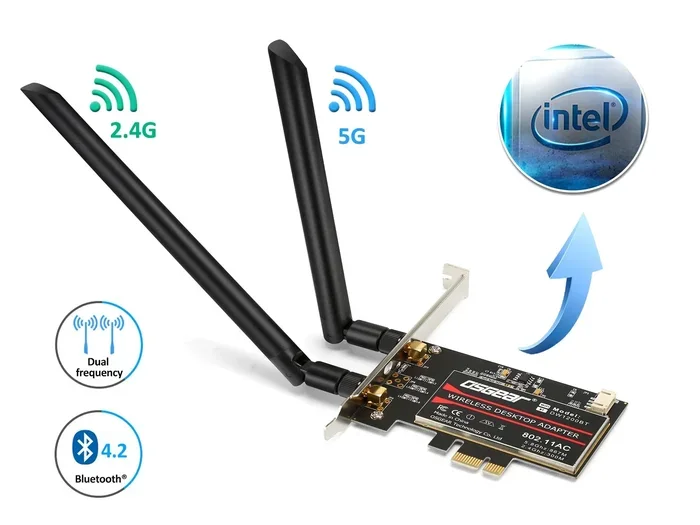
A PCIe Bluetooth card installs inside your PC case on an available motherboard slot. This option is better for users who want a permanent, internal solution with stronger signal quality.
PCIe cards generally offer better range and more stable connections than USB dongles. They also tend to have better antenna designs, which helps with wireless interference. If you are building a gaming PC or a home office machine where wireless reliability matters, a PCIe card is a solid choice.
The downside is that you need an available PCIe slot on your motherboard. Older or smaller cases may not have one. Also, installation requires opening your PC case and working with internal components.
Wi-Fi Card With Built-In Bluetooth
Many modern Wi-Fi cards come with Bluetooth built in. This is a great option if you need both wireless networking and Bluetooth on your PC build. You get two features from one card, which saves a PCIe slot and a USB port.
These combo cards are especially useful for desktops that do not have Wi-Fi or Bluetooth at all. You replace your old network card with a single combo card and get both wireless internet and Bluetooth connectivity.
| Method | Price Range | Ease of Installation | Signal Quality | Best For |
|---|---|---|---|---|
| USB Bluetooth Dongle | $10 – $30 | Very Easy | Good | Quick add-on, portability |
| PCIe Bluetooth Card | $25 – $60 | Moderate | Excellent | Permanent internal setup |
| Wi-Fi + Bluetooth Combo Card | $30 – $70 | Moderate | Excellent | Full wireless replacement |
When choosing your method, consider what you already have. If your PC build has plenty of USB ports, a dongle is the fastest route. If you want a cleaner internal setup, go with a PCIe card or combo Wi-Fi card.
How To Install A USB Bluetooth Adapter
Installing a USB Bluetooth adapter is the simplest method. Here is a step-by-step walkthrough that anyone can follow.
Step 1: Plug in the dongle. Find an available USB port on your computer. A USB 3.0 port is ideal because it provides more power and better data transfer speeds. If you only have USB 2.0 ports, Bluetooth will still work, but you may see slightly slower performance.
Step 2: Wait for Windows to recognize it. Windows 10 and Windows 11 usually detect new USB devices automatically. You may see a notification that says a new device is being installed. Give it a minute or two.
Step 3: Install the driver. Some dongles work right out of the box with generic Windows drivers. Others require you to install a specific driver from the manufacturer’s website. Check the included manual or visit the brand’s support page to download the latest driver.
Step 4: Enable Bluetooth in settings. Go to Settings > Bluetooth & devices on Windows 11, or Settings > Devices > Bluetooth & other devices on Windows 10. Make sure the toggle is turned on.
Step 5: Put your device in pairing mode. Most Bluetooth devices need to be in pairing mode before they can connect. This usually involves holding down a button on the device until a light starts blinking.
Step 6: Click “Add device” and pair. In your Bluetooth settings, click “Add device” and select your device from the list. Follow any on-screen prompts to complete the pairing.
That is it. You are now connected wirelessly. The whole process takes less than five minutes with most USB adapters.
If you have ever set up a wireless connection for a printer or connected headphones to a TV, the process is very similar. The key is making sure both devices are in pairing mode and that your PC Bluetooth is turned on.
Installing Bluetooth Drivers And Software
Drivers are the software that lets your operating system talk to your Bluetooth hardware. Without the right driver, your Bluetooth adapter will not work properly. Installing the correct driver is one of the most important steps in the entire process.
Windows Automatic Driver Installation
Windows 10 and Windows 11 are pretty good at installing drivers automatically. When you plug in a USB Bluetooth dongle, Windows will often download and install a compatible driver in the background. You can check this by going to Device Manager and looking under the “Bluetooth” section.
If you see your Bluetooth adapter listed there with no yellow warning icon, the driver is installed correctly. If you see a yellow triangle, the driver needs attention.
Manual Driver Installation
Sometimes Windows does not install the right driver automatically. In that case, you need to install it manually. Here is how:
- Go to the manufacturer’s website for your Bluetooth adapter.
- Find the “Support” or “Downloads” section.
- Search for your specific adapter model.
- Download the latest driver for your operating system.
- Run the installer and follow the on-screen instructions.
- Restart your computer when prompted.
Common Bluetooth adapter brands include TP-Link, ASUS, Intel, and Realtek. Each has its own driver package, so make sure you download the correct one for your hardware.
Updating Bluetooth Drivers
Even after installation, it is a good idea to keep your drivers up to date. Updated drivers fix bugs, improve performance, and add support for new Bluetooth codecs. You can update drivers through Device Manager by right-clicking your Bluetooth adapter and selecting “Update driver.”
You can also use Windows Update to check for driver updates. Go to Settings > Windows Update > Advanced options > Optional updates. Bluetooth drivers sometimes appear there.
Bluetooth Driver Troubleshooting
If Bluetooth is not showing up in your settings, try these steps:
- Restart your computer and plug the adapter into a different USB port.
- Open Device Manager and check for any error messages under Bluetooth.
- Uninstall the Bluetooth driver and reinstall it from the manufacturer’s website.
- Run the Windows Bluetooth troubleshooter by going to Settings > System > Troubleshoot > Other troubleshooters.
Most Bluetooth issues are driver-related. Once you get the right driver installed, everything usually works smoothly.
Pairing Devices And Testing Your Connection
Now that your Bluetooth adapter is installed and working, it is time to pair your devices. This is where the wireless magic happens.
Here is a quick list of devices you can pair with your newly Bluetooth-enabled PC:
- Wireless headphones and earbuds: Great for gaming, watching videos, or listening to music without wires.
- Bluetooth speakers: Turn any room into your personal audio space.
- Wireless keyboard and mouse: Free up your desk from cable clutter.
- Game controllers: Connect Xbox, PlayStation, or generic Bluetooth controllers for gaming.
- Smartphones: Transfer files, sync notifications, or use your phone as a hotspot.
- Printers: Many modern printers support Bluetooth printing directly from your PC.
The pairing process is generally the same across all devices. Turn on Bluetooth on both your PC and the peripheral. Put the peripheral into pairing mode. Click “Add device” on your PC. Wait for the connection to establish. Done.
One thing to keep in mind is Bluetooth range. Most Bluetooth 5.0 adapters have a range of about 30 to 40 feet in open space. Walls and obstacles can reduce this. If you are using Bluetooth headphones, stay within a reasonable distance from your PC for the best experience.
You can also improve your Bluetooth connection by keeping your adapter away from USB hubs and other wireless devices that might cause interference. A direct USB port on the back of your desktop is usually the best spot.
If you are interested in making older speakers wireless, you might want to explore how to make old speakers Bluetooth capable. The same principles apply whether you are adding Bluetooth to a PC or to a speaker setup.
Troubleshooting Common Bluetooth Issues On Your PC
Bluetooth technology is reliable, but it is not perfect. From time to time, you may run into connection problems. Here are the most common issues and how to fix them.
Bluetooth Not Showing Up In Settings
If Bluetooth does not appear in your Windows settings, the adapter may not be recognized. First, check if the dongle is properly plugged in. Try a different USB port. Then open Device Manager and look for any unrecognized devices. If you see your Bluetooth adapter listed with an error, uninstall it and reinstall the driver.
Devices Won’t Pair
Pairing failures happen more often than you might think. The most common cause is that the device is not in pairing mode. Check the manufacturer’s instructions for your specific device. Also make sure Bluetooth is turned on and visible on both ends. Sometimes restarting both devices fixes the problem instantly.
Audio Cutting Out Or Lagging
If your Bluetooth audio keeps cutting out or has a noticeable delay, try these fixes:
- Move closer to your PC to reduce the distance between devices.
- Remove obstacles like walls or furniture between your PC and the Bluetooth device.
- Switch to a different USB port, preferably a USB 3.0 port directly on the motherboard.
- Check for driver updates for your Bluetooth adapter.
- Reduce wireless interference by turning off other nearby wireless devices temporarily.
Bluetooth Keeps Disconnecting
Frequent disconnections are usually caused by power management settings. Windows sometimes turns off Bluetooth adapters to save power. To fix this, go to Device Manager, find your Bluetooth adapter, right-click it, select Properties, go to the Power Management tab, and uncheck “Allow the computer to turn off this device to save power.”
Another common cause is outdated drivers. Always keep your Bluetooth drivers updated to the latest version from the manufacturer’s website.
Slow File Transfer Speeds
Bluetooth file transfers are not known for being fast. If you need to transfer large files, consider using a different method like a direct cable or cloud storage. Bluetooth is best suited for small files, audio streaming, and peripheral connections rather than bulk data transfers.
Remember that Bluetooth technology has improved a lot over the years. Bluetooth 5.0 and newer offer much better speed and range than older versions. If you are buying a new adapter, look for one that supports Bluetooth 5.0 or higher for the best experience.
Optimizing Your Bluetooth Setup For Best Performance
Once your Bluetooth is working, there are a few things you can do to get the best performance from it.
First, keep your drivers updated. Manufacturers regularly release driver updates that improve stability and performance. Check for updates every few months.
Second, position your adapter well. A USB Bluetooth dongle works best when plugged directly into the back of your desktop. Avoid USB hubs or extension cables, as they can weaken the signal.
Third, manage your connected devices. Most Bluetooth adapters can handle multiple connections at once, but too many devices can strain the adapter. Disconnect devices you are not actively using to keep things running smoothly.
Fourth, be aware of Bluetooth codecs. Modern Bluetooth supports different audio codecs like aptX and LDAC that deliver better sound quality. Check if your headphones and adapter support the same codec for the best audio experience.
Finally, if you are building a PC and want to future-proof your setup, consider getting a Wi-Fi card with built-in Bluetooth. This way, you have both wireless networking and Bluetooth covered in one card, and you do not need to worry about a separate adapter ever again.
Adding Bluetooth to your PC build is one of the most rewarding upgrades you can make. It takes minutes to set up and it transforms how you interact with your computer every day. Whether you are connecting wireless headphones for a late-night gaming session or sharing files with your phone, Bluetooth makes it all seamless.
The process is the same whether you are using a USB dongle, a PCIe card, or a combo Wi-Fi adapter. Plug it in, install the driver, and pair your devices. That is all there is to it. With the right hardware and a properly installed driver, your PC build will have full wireless capability in no time.
So go ahead and add Bluetooth to your PC build today. Once you experience the convenience of wireless peripherals and audio, you will wonder how you ever lived without it.
Frequently Asked Questions
Can I add Bluetooth to any desktop PC?
Yes, you can add Bluetooth to virtually any desktop PC. You just need a compatible Bluetooth adapter, such as a USB Bluetooth dongle or a PCIe Bluetooth card. As long as your PC has an available USB port or PCIe slot, you can add wireless capability regardless of how old or new your system is.
Do I need to install drivers for a USB Bluetooth adapter?
Most modern USB Bluetooth adapters work with generic Windows drivers and do not require manual installation. However, installing the manufacturer’s driver ensures the best performance, stability, and access to the latest features. It is always a good idea to check the manufacturer’s website for updates.
What is the difference between Bluetooth 4.0 and Bluetooth 5.0?
Bluetooth 5.0 offers faster data transfer speeds, longer range, and lower power consumption compared to Bluetooth 4.0. If you are buying a new adapter, Bluetooth 5.0 or newer is the way to go. You will get a more reliable wireless connection and better audio quality with compatible devices.
Can I use a Bluetooth adapter with a laptop that already has Wi-Fi?
Yes, you can use a Bluetooth adapter with any laptop, even if it already has built-in Wi-Fi. The Bluetooth adapter works independently of your Wi-Fi card. Just plug it into a USB port, install the driver, and start pairing your devices. It is a great way to add Bluetooth to older laptops that lack it.
Why does my Bluetooth keep disconnecting from my PC?
Bluetooth disconnections are usually caused by power management settings, outdated drivers, or interference from other wireless devices. Try disabling power-saving mode for your Bluetooth adapter in Device Manager, updating your drivers, and moving closer to your PC. These steps resolve most disconnection issues.
Is a USB Bluetooth dongle as good as a built-in Bluetooth module?
For most users, a USB Bluetooth dongle works just as well as a built-in module. The difference is mainly in convenience and aesthetics. A dongle is easy to plug in and move between PCs, while a built-in module is permanent and hidden inside the case. Both provide reliable Bluetooth connectivity when properly set up.
=== CONCLUSION ===
Adding Bluetooth to your PC build is a simple upgrade that makes a big difference. Whether you choose a USB Bluetooth dongle, a PCIe card, or a combo Wi-Fi adapter, the process is straightforward and affordable. You get wireless connectivity for headphones, speakers, keyboards, mice, and more without spending hours on complicated setups.
Pick the right hardware for your needs, install the correct driver, and follow the pairing steps. If you run into issues, the troubleshooting tips in this guide will help you get back on track quickly. With Bluetooth enabled, your PC build becomes more versatile and convenient. Enjoy the freedom of going wireless today.