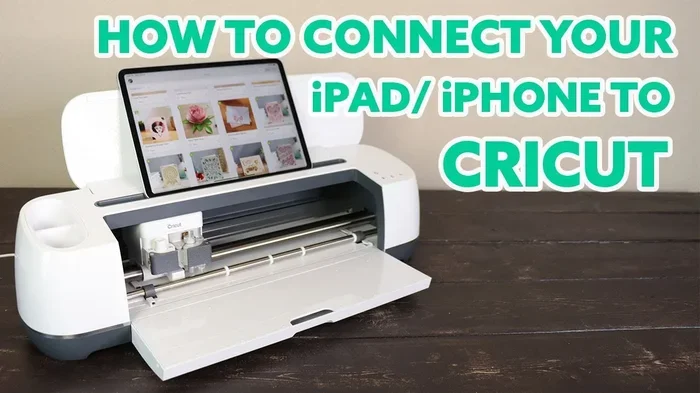
Can I Bluetooth My Cricut To My Phone With These Steps
Yes, you can Bluetooth your Cricut machine to your phone and unlock a whole new level of crafting convenience. The Bluetooth connection lets you send designs wirelessly from your phone to your cutting machine using the Cricut Design Space app. In this guide, we walk you through every step of the Bluetooth pairing process, share troubleshooting tips, and answer the most common questions. Whether you own a Cricut Joy, Cricut Maker, or another model, you will find clear, simple instructions that work.
Have you ever wanted to cut a project directly from your phone without being tied to a computer? The good news is that you can Bluetooth your Cricut to your phone and enjoy the freedom of wireless crafting. This simple connection opens up a world of possibilities for crafters of all skill levels. In this article, we will walk you through every step of the process. You will learn how to pair your devices, fix common issues, and get the most out of your wireless setup.
Many crafters wonder whether their Cricut machine supports Bluetooth connectivity. The answer is yes for most models released in recent years. From the compact Cricut Joy to the powerful Cricut Maker, these machines come with built-in wireless capabilities. All you need is your phone, the Cricut Design Space app, and a few minutes of your time. Let us dive into the details and get your phone connection up and running.
Key Takeaways
- Bluetooth pairing is possible: Most modern Cricut machines support wireless phone connections.
- The Design Space app is essential: You need it on your phone to manage designs and send them to your machine.
- Follow these simple steps: Turn on Bluetooth, pair the devices, and connect through the app.
- Troubleshooting is easy: Common issues like signal loss or pairing failures have straightforward fixes.
- Keep your devices updated: Software updates prevent most connection problems.
- Distance matters: Stay within Bluetooth range for a stable wireless connection.
📑 Table of Contents
- Understanding Bluetooth on Your Cricut Machine
- Step-by-Step Guide to Bluetooth Your Cricut to Your Phone
- Common Bluetooth Issues and How to Fix Them
- Tips for the Best Wireless Crafting Experience
- Comparing Bluetooth vs. USB Connection for Cricut
- Expert Insights on Bluetooth Crafting
- Key Takeaways
- Conclusion
- FAQs
Understanding Bluetooth on Your Cricut Machine
Before you start the pairing process, it helps to understand what Bluetooth connectivity means for your Cricut machine. Bluetooth is a short-range wireless technology that lets devices communicate with each other. When you Bluetooth pair your phone to your Cricut, you create a direct wireless link. This link lets you send designs, start cuts, and monitor progress right from your phone.
Not all Cricut machines have the same Bluetooth capabilities. Some models rely on USB cables or Wi-Fi connections. Here is a quick look at which machines support Bluetooth device pairing.
Which Cricut Machines Support Bluetooth?
- Cricut Joy: This compact machine has built-in Bluetooth for wireless phone connections.
- Cricut Maker: The Maker supports both Bluetooth and Wi-Fi for flexible connectivity.
- Cricut Explore Air 2: This popular model offers wireless Bluetooth pairing options.
- Cricut Explore 3: The latest Explore model features improved wireless connection technology.
- Cricut Maker 3: This top-tier machine includes seamless Bluetooth enabled functionality.
If your machine is not on this list, do not worry. You can still use your Cricut with a computer or USB connection. But for the best mobile crafting experience, a Bluetooth compatible machine is the way to go.
What You Need Before You Start
Getting ready for Bluetooth setup is quick and easy. Here is a simple checklist of what you need before you begin.
- A Bluetooth enabled smartphone or tablet
- The Cricut Design Space app downloaded from your app store
- A fully charged or plugged-in Cricut machine
- A stable Bluetooth signal with no major obstacles
- The latest firmware and app updates installed
Taking a few minutes to prepare will save you a lot of frustration later. Make sure your phone’s Bluetooth settings are accessible and your machine is powered on. With everything in place, you are ready to move to the next step.
Step-by-Step Guide to Bluetooth Your Cricut to Your Phone
Now comes the fun part. Let us walk through the Bluetooth pairing process step by step. Follow these instructions carefully and your devices will be connected in no time.
Step 1: Turn on Bluetooth on Your Phone
First, open your phone’s Bluetooth settings. On an iPhone, swipe down from the top right corner and tap the Bluetooth icon. On Android, swipe down from the top and look for the Bluetooth quick-toggle. Make sure Bluetooth is turned on. Your phone will start scanning for nearby devices automatically.
Keep your phone close to your Cricut machine during this process. The Bluetooth range is typically about 30 feet, but walls and other electronics can weaken the signal. A clear line of sight between the two devices works best.
Step 2: Power On Your Cricut Machine
Press the power button on your Cricut machine and wait for it to fully start up. You will see the home screen or a welcome message on the machine’s display. Make sure your machine is not in sleep mode or powered off.
Some models have a dedicated Bluetooth button or a Bluetooth icon on the screen when the wireless connection is active. If you see this icon, it means your machine is ready to be discovered by other devices.
Step 3: Open Cricut Design Space on Your Phone
Launch the Cricut Design Space app on your phone. If you have not installed it yet, download it from the Apple App Store or Google Play Store. Sign in with your Cricut account or create a new one if needed.
Once the app is open, tap on “New Project” or any existing project to enter the design workspace. The app will guide you through the connection process from here.
Step 4: Connect Your Phone to Your Cricut
In the Design Space app, look for the “Connect” or “Bluetooth” icon. This is usually found in the bottom toolbar or the top menu. Tap on it and the app will start searching for available Cricut machines nearby.
Your machine should appear in the list of available devices. Tap on its name to select it. The app will now attempt to establish a wireless connection. You may see a pairing request on both your phone and your Cricut machine. Accept the pairing on both devices.
Within a few seconds, you should see a confirmation that the devices are connected. The Bluetooth signal indicator on your machine will show a solid or blinking light to confirm the active link.
Step 5: Test the Connection
Now that your devices are paired, it is time to test the phone connection. Choose a simple design in the app and press the “Make It” button. The app should send the design to your Cricut machine wirelessly.
Watch your machine as it begins cutting. If the design appears on the screen and the machine starts cutting correctly, your Bluetooth setup is working perfectly. If nothing happens, do not panic. Move on to the troubleshooting section below.
Common Bluetooth Issues and How to Fix Them
Even with the best Bluetooth connectivity, you may run into hiccups along the way. These issues are common and easy to fix. Here are the most frequent problems crafters face and how to solve them.
Bluetooth Not Working or Not Showing Up
If your Cricut machine does not appear in the Design Space app, the first thing to check is your Bluetooth settings. Make sure Bluetooth is turned on and that your phone is actively scanning. Sometimes restarting both devices clears up the issue quickly.
Another common cause is that your machine is already connected to another device. Bluetooth disconnect from any other paired device and try again. Also, make sure your machine is within the Bluetooth range and not blocked by thick walls or metal objects.
Connection Keeps Dropping
A wireless connection that keeps dropping can be frustrating. This often happens when your phone is too far from the machine or when other wireless devices are causing interference. Move your phone closer to the Cricut and reduce the number of active Bluetooth devices nearby.
Updating your app and machine firmware can also stabilize the Bluetooth signal. Check for updates in your app store and on your machine’s settings menu. Keeping everything current is one of the best ways to prevent connection drops.
Paired but Design Won’t Send
Sometimes the devices show as paired but the design fails to send. This is usually a software issue rather than a Bluetooth pairing problem. Try closing the Design Space app completely and reopening it. You can also restart your Cricut machine and phone to refresh the connection.
Clearing the app cache on your phone can help too. On Android, go to Settings, then Apps, find Cricut Design Space, and select “Clear Cache.” On iPhone, uninstall and reinstall the app. These simple steps often resolve stubborn Bluetooth not working situations.
Tips for the Best Wireless Crafting Experience
Once you have your phone connection working, you will want to keep it running smoothly. Here are some expert tips to get the most out of your wireless cutting machine.
Keep Your Devices Close
The closer your phone is to your Cricut, the stronger the Bluetooth signal. Try to keep them within 10 to 15 feet of each other for the most reliable connection. This is especially important during long cutting projects.
Update Regularly
Software updates bring new features and fix bugs. Make it a habit to check for updates to both the Design Space app and your Cricut machine’s firmware. Updates often improve Bluetooth connectivity and overall performance.
Use a Dedicated Phone for Crafting
If possible, use one phone or tablet specifically for your Cricut projects. This reduces the chances of Bluetooth disconnect caused by other apps or devices competing for the wireless signal. A dedicated device keeps your crafting sessions smooth and uninterrupted.
Restart Before Big Projects
Before starting an important project, restart both your phone and your Cricut machine. This clears any temporary glitches and ensures a fresh wireless connection. It takes just a minute but can save you from unexpected problems mid-project.
Check Your Phone Battery
Bluetooth connections use more battery power than standard phone use. Make sure your phone is charged or plugged in before a long crafting session. A low battery can cause the Bluetooth signal to weaken or drop unexpectedly.
Comparing Bluetooth vs. USB Connection for Cricut
You might be wondering whether Bluetooth connectivity is better than a USB cable connection. Both have their advantages. Here is a quick comparison to help you decide which method works best for you.
| Feature | Bluetooth | USB Cable |
|---|---|---|
| Wireless freedom | Yes | No |
| Setup ease | Quick and simple | Requires cable |
| Distance from computer | Up to 30 feet | Limited by cable length |
| Stability | Good, but can fluctuate | Very stable |
| Mobile crafting | Excellent | Not possible |
| Speed | Good | Slightly faster |
For most crafters, Bluetooth connectivity is the preferred choice. It offers the freedom to move around your workspace and craft from anywhere in the room. USB connections are great for very large projects or when you need the most stable link possible. Many crafters use both methods depending on the project.
Expert Insights on Bluetooth Crafting
Experienced crafters know that a strong Bluetooth connection makes all the difference. Here are some insights from seasoned Cricut users.
Start simple. If you are new to wireless crafting, begin with a small project. This lets you get comfortable with the Bluetooth pairing process without the pressure of a complex design. Once you feel confident, you can tackle bigger and more intricate projects.
Keep your phone in airplane mode with Bluetooth on. This reduces interference from cellular signals and Wi-Fi. Many crafters swear by this trick for a more stable wireless connection. It is a small change that can make a big difference.
Do not ignore error messages. If the Design Space app shows an error, read it carefully. Most error messages give you specific guidance on what to do next. Ignoring them can lead to wasted materials and wasted time.
Key Takeaways
- Bluetooth pairing is straightforward: Follow the simple steps and your phone and Cricut will connect quickly.
- The Design Space app is your main tool: Use it to manage designs, send them to your machine, and monitor progress.
- Keep devices updated: Regular updates prevent most Bluetooth connectivity issues.
- Stay within range: A clear, close connection gives you the best wireless cutting machine experience.
- Restart when in doubt: A simple restart of both devices fixes most connection problems.
- Bluetooth vs. USB: Both have benefits. Choose based on your project needs and workspace setup.
Conclusion
Can I Bluetooth my Cricut to my phone? Absolutely yes. The process is simple, fast, and incredibly convenient. With just a few steps, you can send designs from your phone to your Cricut machine without any wires or cables. The Bluetooth connection gives you the freedom to craft anywhere in your home or workspace.
Remember that every crafter runs into Bluetooth troubleshooting situations from time to time. The key is to stay patient and follow the fixes we shared above. Keep your devices updated, stay within range, and restart when needed. These small habits will keep your wireless connection strong and reliable.
Now that you know how to Bluetooth pair your Cricut with your phone, it is time to put this knowledge into action. Open the Design Space app, follow the steps, and start creating. Your wireless crafting journey begins today. Happy cutting!
FAQs
Can I Bluetooth my Cricut to my phone if I do not have Wi-Fi?
Yes, you can. Bluetooth connectivity does not require Wi-Fi. Your phone and Cricut machine connect directly through a wireless link. However, you will need an internet connection when initially downloading the Design Space app or accessing cloud-stored designs.
Why does my Cricut keep disconnecting from my phone via Bluetooth?
Bluetooth disconnect issues are usually caused by distance, interference, or outdated software. Move your phone closer to the machine, reduce other active Bluetooth devices nearby, and make sure both your app and machine firmware are up to date. Restarting both devices often solves the problem quickly.
Which Cricut models support Bluetooth phone connections?
Most modern Cricut machines support Bluetooth enabled phone connections. The Cricut Joy, Cricut Maker, Cricut Explore Air 2, Cricut Explore 3, and Cricut Maker 3 all offer wireless Bluetooth pairing capabilities. Check your specific model’s manual if you are unsure.
How far can my phone be from my Cricut machine for a stable Bluetooth connection?
The Bluetooth range is typically about 30 feet in open space. However, walls, furniture, and other electronics can weaken the Bluetooth signal. For the most reliable phone connection, keep your devices within 10 to 15 feet of each other with a clear path between them.
Do I need the Cricut Design Space app to use Bluetooth with my phone?
Yes, the Design Space app is essential for Bluetooth connectivity with your Cricut machine. It serves as the bridge between your phone and the cutting machine. You cannot send designs or start cuts without the app. Download it from your device’s app store before you begin the pairing process.
Can I use Bluetooth with multiple Cricut machines at the same time?
Typically, you can only connect to one Cricut machine at a time through Bluetooth on your phone. If you need to switch between machines, disconnect the current one and pair the new device through the Design Space app. This keeps your wireless connection stable and prevents signal conflicts.