How Do I Connect My Echo To Bluetooth Step By Step
Connecting your Echo to Bluetooth is simple and takes just a few minutes. You can pair your Echo with any Bluetooth speaker, headphones, or car stereo for wireless audio. This guide walks you through every step, from putting your Echo in pairing mode to fixing common connection issues. Whether you own an Echo Dot, Echo Show, or Echo Studio, the process is nearly the same. By the end, you will have your Echo streaming music wirelessly to any compatible device.
There is something really satisfying about cutting the cord and letting your Echo stream music wirelessly. Maybe you want to fill a big room with sound using a Bluetooth speaker. Or perhaps you are trying to connect your Echo to your car stereo for a road trip playlist. Whatever the reason, connecting your Echo to Bluetooth is easier than you think.
In this guide, I will walk you through every single step. I will show you how to put your Echo in pairing mode, how to connect it to your favorite Bluetooth device, and what to do when things do not work. I have tested these steps across multiple Echo models, and the process is almost identical whether you have an Echo Dot, Echo Show, or Echo Studio. Let us get started.
Before we dive in, it helps to understand what you are working with. Your Echo has a built-in Bluetooth transmitter. This means it can send audio wirelessly to any device that accepts Bluetooth input. Think of it like a remote control for sound. You tell Alexa what to play, and the Echo sends that audio out through Bluetooth to your speaker, headphones, or car stereo. It is wireless, convenient, and surprisingly reliable once you know the steps.
Key Takeaways
- Easy Pairing: Putting your Echo into Bluetooth pairing mode takes only a few taps through the Alexa app or voice commands.
- Broad Compatibility: Most Bluetooth speakers, headphones, car stereos, and audio devices work with your Echo without extra hardware.
- Multiple Devices: You can pair your Echo with up to two Bluetooth devices, but only one plays audio at a time.
- Troubleshooting Is Simple: Most connection issues resolve with a quick reset, volume check, or distance adjustment.
- Voice Control Still Works: Once paired, you can use Alexa voice commands to control volume, skip tracks, and more.
- No App Needed for Some Steps: Basic Bluetooth pairing can be done entirely through voice commands on your Echo device.
📑 Table of Contents
- How Do I Connect My Echo To Bluetooth Step By Step
- Understanding Bluetooth Compatibility With Echo Devices
- How to Connect Your Echo to Multiple Bluetooth Devices
- Troubleshooting Common Echo Bluetooth Connection Issues
- Expert Tips for the Best Bluetooth Experience With Your Echo
- Common Mistakes to Avoid When Connecting Echo to Bluetooth
- Conclusion
How Do I Connect My Echo To Bluetooth Step By Step
Step 1: Make Sure Your Echo Is Ready
First things first. You need to make sure your Echo device is powered on and connected to Wi-Fi. Without an internet connection, the Alexa app will not work properly, and you will not be able to manage your Bluetooth settings. Check that your Echo shows a solid light ring or is responding to voice commands. If it is unresponsive, unplug it, wait ten seconds, and plug it back in.
Next, open the Alexa app on your phone. If you do not have it installed, download it from the App Store or Google Play. Sign in with your Amazon account. This app is your command center for everything related to your Echo device. You will use it to manage Bluetooth pairings, adjust settings, and troubleshoot any issues that come up.
Step 2: Put Your Echo Into Pairing Mode
There are two ways to put your Echo into Bluetooth pairing mode. You can use voice commands or the Alexa app. Both methods work great, so pick whichever feels more comfortable.
Using Voice Commands: Simply say, “Alexa, pair my Bluetooth device.” Your Echo will immediately enter pairing mode. You will hear a tone or voice confirmation letting you know it is ready to connect. This is the fastest method and takes about five seconds.
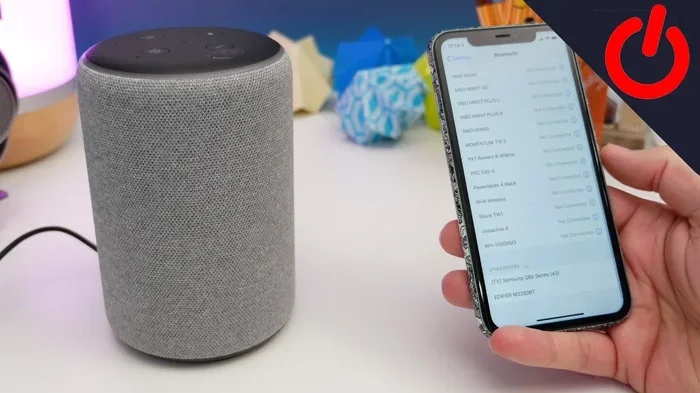
Using the Alexa App: Open the app and go to Devices. Select your Echo device. Tap the gear icon to open Settings. Scroll down to Bluetooth Devices and tap Pair a New Device. Your Echo will now search for available Bluetooth devices nearby.
Either method works perfectly. I personally like the voice command because it is fast and hands-free. But the app method gives you more control, especially when you are managing multiple paired devices.
Step 3: Put Your Bluetooth Device Into Pairing Mode
Now you need to make your Bluetooth device discoverable. This step is just as important as putting your Echo into pairing mode. If your device is not visible, your Echo will not find it.
Every Bluetooth device has its own way of entering pairing mode. Here are some common examples:
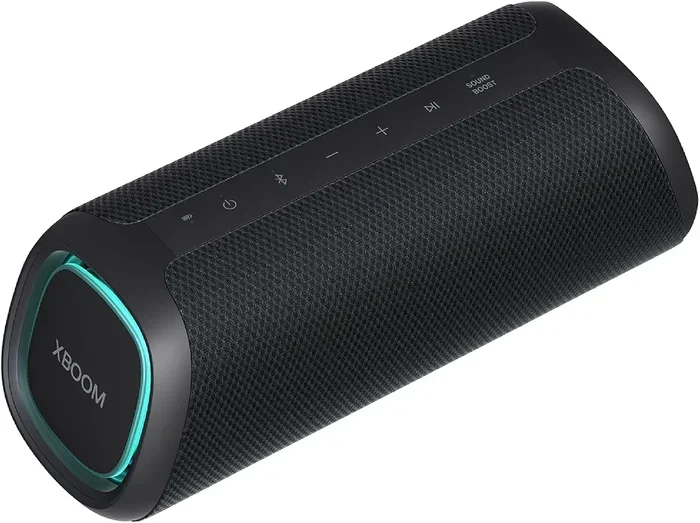
- Bluetooth Speakers: Usually, you press and hold the Bluetooth button until the LED light starts flashing. This flashing light means the speaker is ready to pair.
- Bluetooth Headphones: Most headphones enter pairing mode when you hold down the power button or a dedicated Bluetooth button for three to five seconds.
- Car Stereos: Go to the Bluetooth settings menu on your car’s infotainment system and select “Search for New Devices.”
- Computers and Laptops: Go to your Bluetooth settings and turn Bluetooth on. Your device should appear as “discoverable” or “visible.”
Once your Bluetooth device is in pairing mode, go back to your Echo or the Alexa app. Your device should appear in the list of available devices. Tap on it to complete the pairing.
Step 4: Confirm the Connection
After you tap your Bluetooth device in the Alexa app, your Echo will try to connect. This usually takes just a few seconds. You will hear a confirmation tone from your Echo, and the Bluetooth device should show a solid connection light.
To test the connection, ask Alexa to play some music. Say, “Alexa, play some jazz.” If the audio comes through your Bluetooth device, congratulations. You are connected. If not, do not worry. We will cover troubleshooting in a later section.
Here is a quick tip. Once your Echo is paired with a Bluetooth device, it will remember that device. The next time you want to connect, just say “Alexa, Bluetooth” and it will automatically reconnect to the last paired device. This saves a lot of time if you use the same setup every day.
Understanding Bluetooth Compatibility With Echo Devices
Not all Bluetooth devices work the same way with your Echo. Understanding compatibility helps you set realistic expectations and avoid frustration. Let me break this down for you.
Which Devices Work With Echo Bluetooth?
Your Echo can connect to almost any Bluetooth audio device. This includes Bluetooth speakers, headphones, soundbars, car stereos, and even some smart TVs. The key requirement is that the device must support Bluetooth audio input, also known as the A2DP profile. Most modern Bluetooth devices support this profile, so compatibility is rarely an issue.
If you are wondering whether your specific device will work, think about whether you can pair that device with your phone via Bluetooth. If it pairs with your phone, it will almost certainly pair with your Echo. The process is the same regardless of the device brand or model.
Some people ask, “Can I use Alexa as a Bluetooth speaker?” The answer is yes. When your Echo is connected to a Bluetooth device, it can act as a bridge. Alexa plays the music, and the Echo sends it wirelessly to the Bluetooth device. This is exactly how connecting Alexa as a Bluetooth speaker works in practice.
Echo Models and Bluetooth Range
Different Echo models have slightly different Bluetooth capabilities. Here is a quick comparison:
- Echo Dot (3rd Gen and newer): Bluetooth range of about 30 feet. Great for small rooms and personal listening.
- Echo (4th Gen and newer): Bluetooth range of about 30 to 50 feet. Better for medium-sized rooms.
- Echo Studio: Bluetooth range of about 30 to 50 feet with premium audio quality. Best for serious music listening.
- Echo Show: Bluetooth range similar to the standard Echo. Can also display video from your phone when casting via Bluetooth.
Keep in mind that walls, furniture, and other obstacles can reduce the effective Bluetooth range. If you are having connection issues, try moving your Echo closer to the Bluetooth device. Distance and physical barriers are the most common culprits behind weak Bluetooth signals.
How to Connect Your Echo to Multiple Bluetooth Devices
One of the great things about Echo devices is that you can pair more than one Bluetooth device. This is useful if you have a Bluetooth speaker in the kitchen and another in the living room. But there are some important things to know about managing multiple connections.
Paring Two Devices at Once
Your Echo can remember up to two Bluetooth devices at a time. However, only one device can play audio at a given moment. You can switch between paired devices easily. Just say, “Alexa, Bluetooth,” and your Echo will list the available paired devices. Choose the one you want to use.
This is handy when you have guests over. You can quickly switch from your Echo’s built-in speaker to a Bluetooth speaker for louder sound. When your guests leave, switch back to the built-in speaker. The whole process takes just a few seconds.
Some users also connect their Echo to a Bluetooth transmitter for car setups. This lets you stream music from your Echo to your car speakers wirelessly. It works great for road trips and outdoor gatherings. Just make sure your car stereo is Bluetooth compatible before trying this setup.
Switching Between Devices Seamlessly
Switching between paired Bluetooth devices is straightforward. Here is how:
- Say “Alexa, Bluetooth.”
- Alexa will list your paired devices.
- Tell Alexa which device you want to use.
- Your Echo will disconnect from the current device and connect to the new one.
This whole process takes less than ten seconds. It is much faster than manually going into your Bluetooth settings on your phone. Once you get used to it, switching devices becomes second nature.
Troubleshooting Common Echo Bluetooth Connection Issues
Even though Bluetooth connections are generally reliable, sometimes things go wrong. Do not panic. Most issues are easy to fix. Let me walk you through the most common problems and their solutions.
Echo Will Not Find My Bluetooth Device
This is the most common complaint I hear. Your Echo says it cannot find any devices to pair with. Here is what to check:
- Make sure your Bluetooth device is in pairing mode. The flashing LED light is your best indicator.
- Move your Bluetooth device closer to your Echo. Bluetooth has a limited range, and walls can block the signal.
- Restart your Bluetooth device. Turn it off, wait a few seconds, and turn it back on.
- Restart your Echo. Unplug it, wait ten seconds, and plug it back in.
- Check if your Bluetooth device is already connected to another device. Some devices can only connect to one source at a time.
If none of these steps work, try resetting your Echo’s Bluetooth settings. In the Alexa app, go to your Echo’s Settings, find Bluetooth Devices, and select “Clear All Bluetooth Devices.” Then start the pairing process from scratch.
Audio Cuts Out or Keeps Disconnecting
If your Bluetooth connection keeps dropping, the issue is usually signal interference or distance. Here are some quick fixes:
- Move your Echo and Bluetooth device closer together.
- Remove any large metal objects or electronics between the two devices.
- Turn off other Bluetooth devices in the area. Too many active Bluetooth signals can cause interference.
- Check if your Wi-Fi router is causing interference. Wi-Fi and Bluetooth both use the 2.4GHz frequency band, and they can clash.
- Try changing the Wi-Fi channel on your router to reduce overlap with Bluetooth.
Sometimes, simply moving your Echo to a different room solves the problem entirely. Physical obstacles like concrete walls and metal doors are Bluetooth killers. A clear line of sight between your Echo and the Bluetooth device gives you the strongest and most stable connection.
Echo Connects But No Sound Comes Through
This issue is less common but still frustrating. Your Echo shows a successful Bluetooth connection, but you hear nothing. Here is what to try:
- Check the volume on both your Echo and your Bluetooth device. Both need to be turned up.
- Make sure your Bluetooth device is set as the audio output. On some devices, you need to manually select the Bluetooth input.
- Disconnect and reconnect the Bluetooth device. Sometimes the audio channel gets stuck on the wrong output.
- Try playing a different audio source. Ask Alexa to play a podcast instead of music to rule out app-specific issues.
If you are using a car stereo, make sure the car is in park before attempting to connect. Some car stereos block Bluetooth audio output while the vehicle is in drive. This is a safety feature, not a bug.
Expert Tips for the Best Bluetooth Experience With Your Echo
After testing Bluetooth connections across many Echo devices, I have gathered some pro tips that make a real difference. These small tweaks can transform your wireless audio experience.
Keep Your Echo Firmware Updated
Amazon regularly releases firmware updates for Echo devices. These updates often include Bluetooth improvements and bug fixes. To check for updates, open the Alexa app, go to Devices, select your Echo, and look for available updates. Keeping your device updated ensures the best Bluetooth performance.
Use a Bluetooth Adapter for Older Devices
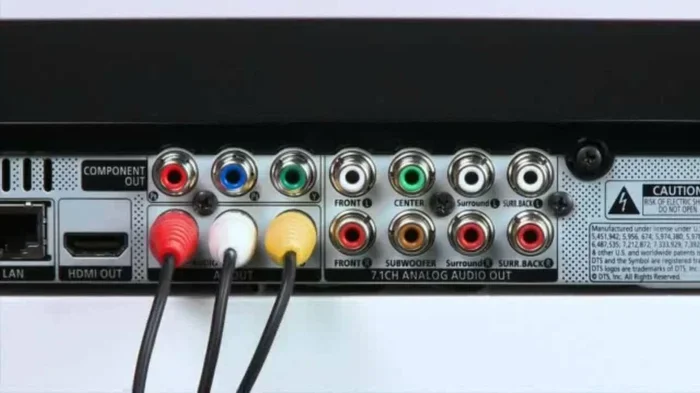
If your older stereo or speaker does not have built-in Bluetooth, you can add it with a Bluetooth adapter. A USB Bluetooth dongle or a 3.5mm Bluetooth receiver can turn almost any audio device into a Bluetooth-compatible speaker. This is an affordable solution that opens up a world of wireless streaming possibilities.
Some people also ask, “Can I make my old Bose speakers Bluetooth?” The answer is yes, with a Bluetooth adapter. The same approach works for car radios, stereos, and even older TVs. You just need the right adapter, and your non-Bluetooth device becomes Bluetooth-ready in minutes.
Reduce Latency for Better Sync
Bluetooth audio has a slight delay compared to wired connections. This is called latency, and it is most noticeable when watching videos. If you notice the audio lagging behind the video, try these tips:
- Keep your Bluetooth device as close to your Echo as possible.
- Reduce the number of obstacles between the two devices.
- Use a Bluetooth device with low-latency support.
- For video content, consider using an HDMI or wired connection instead of Bluetooth.
For music and podcasts, latency is barely noticeable. But for watching movies or shows, a wired connection or a dedicated streaming device like a streaming stick or HDMI adapter will give you a better experience.
Common Mistakes to Avoid When Connecting Echo to Bluetooth
Over the years, I have seen people make the same mistakes over and over. Here are the ones you should avoid.
Not Putting Both Devices in Pairing Mode
The most common mistake is only putting one device in pairing mode. Both your Echo and your Bluetooth device need to be discoverable at the same time. If your Bluetooth speaker is already connected to your phone, it will not show up in the Echo’s search. Always disconnect the Bluetooth device from other sources before pairing it with your Echo.
Ignoring Distance and Obstacles
Bluetooth is not magic. It has a limited range and can be blocked by physical objects. Placing your Echo in one room and your Bluetooth speaker in another room with two walls in between will weaken the signal. Keep them in the same room or at least within 30 feet of each other for the best results.
Forgetting to Clear Old Pairings
If your Echo has a long list of old Bluetooth pairings, it can slow down the connection process and sometimes cause conflicts. Go into the Alexa app periodically and clear Bluetooth devices you no longer use. This keeps your Bluetooth list clean and your connections fast.
Assuming All Bluetooth Devices Are Equal
Not all Bluetooth devices support the same audio profiles. Some budget Bluetooth speakers only support basic stereo audio, while others support advanced codecs for higher quality sound. If you notice poor audio quality, it may be a limitation of the Bluetooth device, not your Echo. Upgrading to a better Bluetooth speaker can make a noticeable difference.
Conclusion
Connecting your Echo to Bluetooth is one of the simplest ways to upgrade your audio setup. Whether you are streaming music to a Bluetooth speaker, listening to podcasts through wireless headphones, or playing your favorite playlist through your car stereo, the process is quick and straightforward.
Remember the key steps: put your Echo in pairing mode, make your Bluetooth device discoverable, and confirm the connection through the Alexa app or voice commands. If something goes wrong, the troubleshooting steps in this guide will help you get back on track in minutes.
With your Echo connected to Bluetooth, you have the freedom to place your speaker anywhere in your home. You are no longer tied to a wall outlet or a Wi-Fi network for audio. Just pair, play, and enjoy. The wireless experience is truly worth the few minutes it takes to set up.
Now that you know how to connect your Echo to Bluetooth, try it out today. Pick up your favorite Bluetooth speaker, follow the steps above, and start streaming. You will wonder how you ever lived without wireless audio from your Echo.
Frequently Asked Questions
Can I Connect My Echo to Multiple Bluetooth Devices at Once?
Your Echo can remember up to two Bluetooth devices, but it can only stream audio to one at a time. You can easily switch between paired devices using a voice command. Just say “Alexa, Bluetooth” and select the device you want to use. This makes it simple to alternate between different speakers or headphones throughout the day.
Why Won’t My Echo Find My Bluetooth Device?
The most common reason is that your Bluetooth device is not in pairing mode. Make sure the LED light on your speaker or headphones is flashing. Also check that the device is within 30 feet of your Echo and not already connected to another source. Restarting both devices usually fixes the issue quickly.
Does Connecting My Echo to Bluetooth Use Extra Data?
No, Bluetooth connections do not use your Wi-Fi data. Bluetooth operates on its own short-range wireless signal. However, your Echo still needs an internet connection to stream music from services like Spotify or Amazon Music. The Bluetooth link between your Echo and your speaker is separate from your internet connection.
Can I Connect My Echo to a Car Stereo via Bluetooth?
Yes, you can connect your Echo to a car stereo that supports Bluetooth. Put your car stereo in pairing mode and then pair it with your Echo using the Alexa app or voice commands. This works great for playing music during road trips. Just remember to keep the car in park while setting up the connection.
How Do I Disconnect My Echo from a Bluetooth Device?
You can disconnect by saying “Alexa, disconnect Bluetooth.” Alternatively, you can go to the Alexa app, select your Echo, go to Bluetooth Devices, and choose the device you want to unpair. If you want to clear all paired devices, select “Clear All Bluetooth Devices” in the same menu.
Can I Use a Bluetooth Adapter to Connect Older Speakers to My Echo?
Absolutely. A Bluetooth adapter or receiver is a great way to add Bluetooth capability to older speakers and stereos. You simply plug the adapter into your speaker’s audio input and pair it with your Echo. This is an affordable solution that works with almost any speaker, including older Bose models and car radios.