How Do I Connect My Insignia Bluetooth Speaker Easily
Connecting your Insignia Bluetooth speaker is simple and takes just a few minutes. This guide walks you through the pairing process, troubleshooting tips, and common fixes so you can start enjoying wireless audio right away. Whether you own the Insignia NS-PA310 or another model, you will find clear, easy-to-follow instructions inside.
Key Takeaways
- Pairing is fast: Most Insignia Bluetooth speakers connect in under two minutes using simple steps.
- Troubleshooting is easy: A quick reset or firmware update fixes most connection issues.
- Multiple devices work: You can pair your speaker with phones, tablets, laptops, and more.
- Range matters: Stay within 30 feet for the best Bluetooth audio streaming experience.
- Maintenance helps: Keeping your speaker charged and updated prevents most problems.
- Advanced features exist: Some models support NFC pairing and multi-device connections.
📑 Table of Contents
- How Do I Connect My Insignia Bluetooth Speaker Easily
- Step-by-Step Pairing Guide
- Troubleshooting Common Connection Issues
- How to Reset Your Insignia Bluetooth Speaker
- Connecting Multiple Devices to Your Insignia Speaker
- Tips for the Best Wireless Audio Experience
- Common Mistakes to Avoid
- Expert Insights on Bluetooth Speaker Connectivity
- Where to Find More Help for Your Insignia Speaker
- Conclusion
How Do I Connect My Insignia Bluetooth Speaker Easily
Setting up a Bluetooth speaker should feel easy. It should not feel like a puzzle. Yet many people get stuck the first time they try to pair their Insignia Bluetooth speaker. This guide removes the confusion. You will learn exactly how to connect your speaker to any device in just a few simple steps.
Whether you just bought a new Insignia wireless speaker or you are trying to reconnect an old one, this article covers everything. We will walk through pairing, troubleshooting, and pro tips that make your wireless audio experience better. No technical jargon. No confusing manuals. Just clear, friendly advice that works.
By the end of this guide, you will know how to pair your Insignia speaker with confidence. You will also know what to do when things do not work. That alone saves hours of frustration. Let us get started.
Why Connect Your Insignia Speaker Wirelessly
Wireless Bluetooth audio streaming changes how you listen to music. You do not need cables. You do not need to sit next to your phone. You can move freely around your room, your backyard, or even your kitchen. This kind of wireless home audio freedom is what makes Bluetooth speakers so popular.
Insignia makes reliable speakers at great prices. Their Bluetooth speakers offer solid sound quality and easy connectivity. Many models support Bluetooth 5.0, which means a stronger signal and better range. You get clean audio without interruptions.
Some people also use their Insignia speaker for wireless music streaming during parties, workouts, or quiet evenings at home. The versatility is a big reason these speakers sell so well. Once you set it up once, you will use it every single day.
Step-by-Step Pairing Guide
The speaker pairing process for Insignia devices is straightforward. Follow these steps carefully and you will be listening to music in no time.
Step 1: Charge Your Speaker Fully
Before you do anything else, make sure your Insignia Bluetooth speaker has enough charge. A low battery can cause pairing problems. Plug in your speaker and let it charge for at least two hours if it is completely dead. A fully charged speaker also gives you longer playtime.
Most Insignia models come with a USB charging cable. You can plug it into any standard USB port or wall adapter. The LED light on the speaker will usually turn solid or stop flashing when it is fully charged.
Step 2: Turn on Bluetooth on Your Device
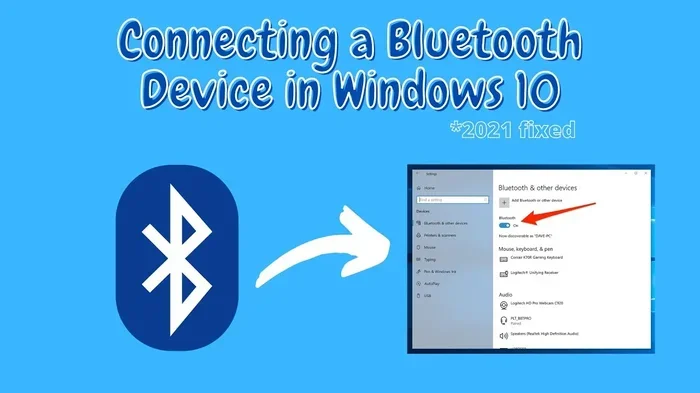
Next, open the Bluetooth settings on your phone, tablet, or laptop. On an iPhone, swipe down from the top right corner and tap the Bluetooth icon. On an Android device, go to Settings and then Connections. On a Windows laptop, click the network icon in your taskbar.
Make sure Bluetooth is turned on. Your device will start scanning for nearby Bluetooth compatible devices. This is exactly what we need.
Step 3: Put Your Speaker in Pairing Mode
Now it is time to make your Insignia speaker discoverable. Press and hold the Bluetooth button on your speaker. You will usually see a flashing LED light. That flashing light means the speaker is ready to pair. Some models also say “Pairing” out loud.
If you are not sure which button to press, check the manual that came with your specific Insignia model. The pairing button is often clearly marked with the Bluetooth symbol.
Step 4: Select Your Speaker from the Device List
Go back to your phone or laptop. Look for the name of your Insignia speaker in the list of available devices. It might show up as “Insignia Speaker” or a model number like “NS-PA310.” Tap on it to connect.
Within a few seconds, you should hear a confirmation tone from the speaker. The LED light will usually stop flashing and stay solid. That means your Bluetooth connection is established. You are now ready to play music.
Step 5: Test the Connection
Play a song or a video on your device. If the sound comes through your Insignia speaker, you are all set. Adjust the volume on both your device and the speaker to get the best sound. Bluetooth audio streaming works best when both devices are within 30 feet of each other.
Troubleshooting Common Connection Issues
Sometimes things do not go smoothly. That is completely normal. Even with the best wireless speaker setup, you might run into hiccups. Here are the most common problems and how to fix them.
Speaker Not Showing Up on Your Device
If your Insignia speaker does not appear in the Bluetooth list, try these fixes. First, make sure the speaker is in pairing mode. The flashing LED light is your clue. Second, turn Bluetooth off and back on your phone or laptop. Third, move closer to the speaker. Bluetooth range can be affected by walls and other electronics.
Another quick fix is to restart your device. Sometimes a simple reboot clears up connection problems. This works surprisingly often.
Connection Keeps Dropping
A dropping connection can be annoying. This usually happens when you move too far from the speaker. Stay within the recommended Bluetooth range of about 30 feet. Also, keep your speaker away from other wireless devices that might cause interference. Microwaves, baby monitors, and even Wi-Fi routers can sometimes disrupt the Bluetooth signal.
If the problem continues, try resetting your speaker. Most Insignia models have a reset button or a reset procedure in the manual. A reset clears old pairings and gives you a fresh start.
Audio Quality Is Poor or Scratchy
If your sound is crackling or cutting out, the issue is usually signal strength. Move your device closer to the speaker. Remove any physical obstacles between the two. Also check if your speaker battery is low. A low battery can reduce audio quality significantly.
Another common cause is connecting too many devices at once. Keep your speaker paired with only one device at a time for the best speaker connectivity experience.
How to Reset Your Insignia Bluetooth Speaker
A reset is one of the most effective fixes for Bluetooth troubleshooting. It clears all saved pairings and refreshes the speaker’s connection settings. Here is how to do it.
For most Insignia speakers, you hold down the power button and the Bluetooth button together for about 10 seconds. The speaker will turn off and then back on. When it restarts, it is reset and ready to pair again.
If this does not work for your specific model, check the user manual or visit the Insignia support website. Different models have slightly different reset procedures. But the basic idea is the same. You are clearing the speaker’s memory so it can start fresh.
Resetting is also helpful when you want to connect your speaker to a brand new device. It wipes out old pairings that might be causing conflicts. Think of it as giving your speaker a clean slate.
Connecting Multiple Devices to Your Insignia Speaker
One great thing about Bluetooth speakers is that you can connect more than one device. You might pair your phone for music and your tablet for movies. Here is how to manage multiple connections.
First, disconnect the current device from your speaker. Go into the Bluetooth settings on that device and forget the speaker. Then follow the normal pairing steps with your new device. Your Insignia speaker can remember multiple paired devices, so switching between them is usually quick.
Keep in mind that only one device can stream audio at a time. If someone else wants to play music, you will need to pause your device first. This is just how wireless audio sharing works with most Bluetooth speakers.
Some Insignia models also support NFC pairing. NFC stands for Near Field Communication. You simply tap your NFC-enabled phone against the speaker, and it connects instantly. Check your model to see if it has this feature. It makes the speaker pairing process even faster.
Tips for the Best Wireless Audio Experience
Want to get the most out of your Insignia Bluetooth speaker? These practical tips will help you enjoy better sound and fewer connection problems.
Keep Your Speaker Firmware Updated
Insignia occasionally releases firmware updates for their speakers. These updates improve Bluetooth connectivity and fix bugs. Check the Insignia app or website to see if an update is available for your model. Updating takes just a few minutes and can solve mysterious connection issues.
Place Your Speaker in an Open Area
Bluetooth signals travel best when there are no obstacles. Place your speaker on a table or shelf in an open room. Avoid putting it inside a closet or behind heavy furniture. The more open space around your speaker, the stronger and clearer your wireless music streaming will be.
Keep Your Devices Charged
A low battery on either your speaker or your phone can affect performance. Make sure both devices have enough charge before you start listening. This is especially important for long listening sessions.
Use Your Speaker for the Right Occasion
Insignia Bluetooth speakers work great indoors and outdoors. Take one to the backyard for a barbecue or to the bathroom for some tunes while you get ready. The wireless speaker setup gives you freedom wherever you go. Just remember that water and electronics do not always mix well.
Common Mistakes to Avoid
Even experienced users make mistakes when setting up Bluetooth speakers. Here are a few to watch out for.
- Skipping the charge: A low battery causes pairing failures. Always charge your speaker fully first.
- Forgetting to turn on Bluetooth: It sounds obvious, but it happens to everyone. Double check that Bluetooth is on.
- Staying too far away: The Bluetooth range is about 30 feet. Going beyond that causes dropouts.
- Not resetting when stuck: A reset fixes more problems than people realize. Try it before giving up.
- Pairing with too many devices: This can confuse the speaker. Keep your pairings organized.
Avoiding these simple mistakes will save you time and frustration. Most Bluetooth connection problems have quick and easy fixes.
Expert Insights on Bluetooth Speaker Connectivity
Bluetooth technology has improved a lot over the years. Modern Bluetooth 5.0 speakers like many Insignia models offer much better range and stability than older versions. The signal is stronger and uses less power, which means longer battery life for your speaker.
One thing many people do not realize is that Bluetooth audio streaming quality depends on both the speaker and the source device. If your phone has an older Bluetooth chip, it might not take full advantage of your Insignia speaker’s capabilities. Keeping both devices updated helps ensure the best possible sound.
Another expert tip is to minimize interference. Your wireless speaker setup will perform better in a less crowded wireless environment. If you have many devices competing for the same Wi-Fi and Bluetooth space, you might notice weaker connections. Moving your speaker closer to your source device or switching to a less crowded Wi-Fi channel can help a lot.
Finally, remember that Bluetooth speakers are designed for convenience. You do not need to be a tech expert to use one. If something does not work, a quick reset or a firmware update almost always solves the problem. Patience and a little know-how go a long way with speaker connectivity.
Where to Find More Help for Your Insignia Speaker
If you still have questions about your Insignia Bluetooth speaker, you are not alone. Insignia has a helpful support website with manuals, FAQs, and contact options. You can also find user forums where other owners share tips and solutions.
For broader Bluetooth advice, check out our guide on using Alexa as a Bluetooth speaker. It covers similar pairing concepts that apply to many Bluetooth devices. Also, if you want to learn about using Bluetooth with other home devices, our article on making old Bose speakers Bluetooth offers helpful general Bluetooth pairing tips.
And if you are curious about Bluetooth capabilities across different devices, you might enjoy reading about connecting your phone to your TV. It explores how different connection methods work, which gives you a better understanding of how Bluetooth fits into the bigger picture of wireless connectivity.
Conclusion
Connecting your Insignia Bluetooth speaker does not have to be complicated. With the steps in this guide, you can pair your speaker quickly and enjoy wireless audio in just a few minutes. Charge your speaker, turn on Bluetooth, put your speaker in pairing mode, and select it from your device. That is really all there is to it.
When problems pop up, remember that most fixes are simple. A reset, a firmware update, or moving closer to the speaker solves the vast majority of issues. Keep your devices charged and your speaker updated for the best experience.
The beauty of a Bluetooth speaker is the freedom it gives you. You can listen to music anywhere in your home, take it outside, or bring it on trips. Once you set up your Insignia speaker, you will wonder how you ever lived without it. Now go enjoy your wireless music streaming and make the most of your Insignia speaker.
Frequently Asked Questions
How long does it take to connect an Insignia Bluetooth speaker?
The speaker pairing process usually takes less than two minutes. Once your speaker is charged and in pairing mode, you simply select it from your device’s Bluetooth list. The connection happens almost instantly.
Why won’t my Insignia speaker connect to my phone?
This is usually caused by a low battery, Bluetooth being turned off, or the speaker not being in pairing mode. Try charging your speaker fully, turning Bluetooth off and back on, and resetting the speaker if needed. Most connection problems have simple solutions.
Can I connect my Insignia speaker to a laptop or tablet?
Yes, absolutely. Any device with Bluetooth capability can connect to your Insignia speaker. This includes laptops, tablets, smartphones, and even some smart TVs. The pairing process is the same across all devices.
What is the Bluetooth range for Insignia speakers?
Most Insignia Bluetooth speakers work within a range of about 30 feet. Staying within this distance gives you the best Bluetooth audio streaming experience. Walls and other obstacles can reduce the effective range.
How do I disconnect my Insignia speaker from a device?
Go to your device’s Bluetooth settings and find your Insignia speaker. Tap on it and select “Forget” or “Disconnect.” The speaker will stop playing audio from that device. You can then pair it with a different device if you want.
Can I use my Insignia speaker while it is charging?
Yes, you can use your Insignia speaker while it is plugged in. Charging does not stop you from playing music. In fact, using the speaker while charging ensures you never run out of battery during long listening sessions.