Can I Use Pocket Wifi On My Smart Tv Without A Cable
Yes, you can absolutely use pocket WiFi on your smart TV without a cable. A pocket WiFi device creates a portable hotspot that lets your smart TV connect to the internet wirelessly. This guide walks you through setup, speed expectations, and practical tips to get your smart TV streaming without any wires.
Streaming your favorite shows on a big screen feels amazing. But what happens when your home internet goes down or you are somewhere without Wi-Fi? This is where a pocket WiFi device comes in handy. Many people wonder whether they can use pocket WiFi on a smart TV without running a cable. The short answer is yes. You absolutely can. In this guide, we will walk you through everything you need to know about using a portable hotspot with your smart TV. We will cover setup steps, speed expectations, limitations, and expert tips to make your experience smooth. Let us dive right in.
A pocket WiFi is a small, battery-powered device that creates a mobile hotspot. It connects to cellular networks just like your phone does. Then it broadcasts a Wi-Fi signal that other devices can pick up. Think of it as a tiny router you can carry in your pocket. These devices are popular among travelers, remote workers, and anyone who needs internet on the go. But can they work with a smart TV? Yes, they can. And the process is simpler than most people think.
Key Takeaways
- Easy Setup: Connecting pocket WiFi to a smart TV is simple and takes just a few minutes.
- No Cables Needed: Enjoy wireless internet on your TV anywhere there is cellular coverage.
- Portable Freedom: Take your internet connection with you for streaming on the go or at temporary locations.
- Speed Matters: Your streaming quality depends on the pocket WiFi signal strength and data plan.
- Watch Data Limits: Streaming video uses a lot of data, so choose a plan with enough allowance.
- Works with Most Smart TVs: Nearly all modern smart TVs have built-in WiFi receivers that support hotspot connections.
📑 Table of Contents
- What Is a Pocket WiFi and How Does It Work?
- Can You Connect Pocket WiFi to a Smart TV?
- How to Set Up Pocket WiFi on Your Smart TV
- Benefits of Using Pocket WiFi on a Smart TV
- Limitations and Things to Watch Out For
- Pocket WiFi vs Other Ways to Get Internet on Your Smart TV
- Expert Tips for Best Performance
- Common Mistakes to Avoid
- Final Thoughts
What Is a Pocket WiFi and How Does It Work?
How a Pocket WiFi Device Connects to the Internet
A pocket WiFi device, also called a mobile hotspot or portable router, uses a SIM card to access cellular data. It then turns that data into a Wi-Fi signal. Your smart TV can connect to this signal just like it connects to your home router. The device acts as a bridge between the cellular network and your TV. It is a very handy tool for wireless internet on the go.
Most pocket WiFi devices support 4G LTE or 5G connections. This means they can deliver fast enough speeds for HD and even 4K streaming. The key factor is your cellular coverage in the area. If you have a strong signal, your smart TV will get a solid connection. You can also check the internal components of devices like these on the 5 Components That Are Found On The Motherboard to understand how the WiFi chip and processor work together inside such devices.
Types of Pocket WiFi Devices
Not all pocket WiFi devices are the same. Here are the main types you might encounter:
- Dedicated Pocket WiFi Units: These are standalone devices made specifically for creating hotspots. Brands like Huawei, Netgear, and TP-Link make popular models.
- Smartphone Hotspot: You can also use your phone as a hotspot. This is the most common and free option, though it drains your phone battery quickly.
- USB Wi-Fi Dongles: These plug directly into a TV or laptop and use a SIM card for data. They are less common but useful in certain setups.
For smart TV use, a dedicated pocket WiFi unit works best. It is independent of your phone, has better battery life, and often delivers stronger signals. However, using your phone as a hotspot is a perfectly fine option for short-term use.
Can You Connect Pocket WiFi to a Smart TV?
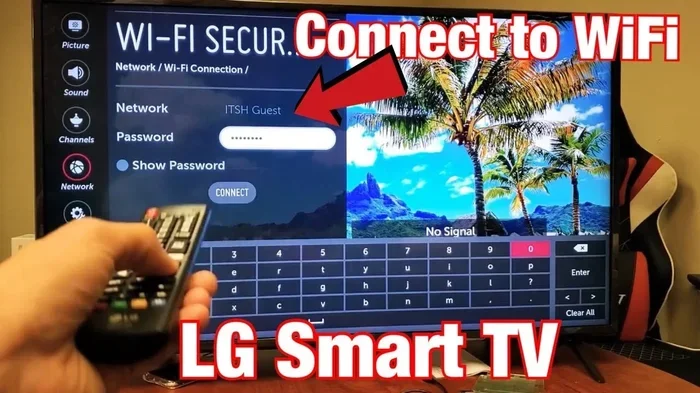
The short answer is yes. Almost every modern smart TV has built-in Wi-Fi capabilities. This means it can connect to any wireless network, including a pocket WiFi hotspot. Whether you own a Samsung, LG, Sony, TCL, or Vizio TV, the process is basically the same. You go into the network settings, find the pocket WiFi network name, enter the password, and connect.
What Smart TVs Support Pocket WiFi Connections
Most smart TVs manufactured after 2015 support Wi-Fi connectivity. Here is a quick breakdown:
- Samsung Smart TVs: All models from 2015 onward support Wi-Fi and can connect to a pocket WiFi hotspot easily.
- LG Smart TVs: LG webOS TVs connect to any standard Wi-Fi network, including mobile hotspots.
- Sony Smart TVs: Sony Android TVs and Google TVs handle pocket WiFi connections without any issues.
- Roku TVs: Roku-powered TVs can connect to pocket WiFi just like any other Wi-Fi network.
- Fire TV Stick / Cube: If your TV does not have built-in Wi-Fi, you can use a Fire TV Stick to add wireless connectivity and connect to a pocket WiFi hotspot.
The internal wireless adapter in your smart TV is what makes this possible. This adapter is a small chip on the TV’s board that handles all wireless communication. If you are curious about what components make up these boards, you can explore the 5 Components That Are Found On The Motherboard to learn more about the hardware inside your devices.
How to Set Up Pocket WiFi on Your Smart TV
Setting up a pocket WiFi connection on your smart TV is straightforward. Follow these steps and you will be streaming in minutes.
Step 1: Turn On Your Pocket WiFi Device
Power on your pocket WiFi device. Make sure it has a SIM card inserted and that it has an active data plan. Wait for the device to fully boot up. You will see LED lights indicating that the hotspot is active and ready to use.
Step 2: Find the Network Name and Password
Check the label on your pocket WiFi device or the manual for the default network name (SSID) and password. Some devices let you change these through a web interface. If you have changed them already, make sure you know the updated credentials.
Step 3: Go to Your Smart TV Network Settings
On your smart TV remote, press the Home or Settings button. Navigate to Network Settings or Connections. Select Wi-Fi or Wireless Network. Your TV will start scanning for available networks.
Step 4: Select Your Pocket WiFi Network
Find your pocket WiFi network name in the list of available networks. Select it and enter the password when prompted. Make sure you type the password correctly, as it is case-sensitive.
Step 5: Test the Connection
Once connected, your TV should show a Wi-Fi icon in the corner of the screen. Open a streaming app like Netflix, YouTube, or Hulu to test the connection. If the content loads and plays smoothly, you are all set.
Some users also use a WiFi dongle or a dedicated WiFi adapter for TV to improve reception. These small USB devices plug into your TV and can boost signal strength. They are especially useful if your pocket WiFi is far away from the TV.
Benefits of Using Pocket WiFi on a Smart TV
1. No Cables or Fixed Internet Required
The biggest advantage is freedom from cables. You do not need a landline internet connection or an ethernet cable running to your TV. A pocket WiFi device gives you a clean wireless setup. This is perfect for apartments, RVs, boats, or temporary living situations where running cables is not an option.
2. Portability and Flexibility
You can take your pocket WiFi device anywhere. Camping trips, hotel rooms, offices, or friend’s houses, you can set up your smart TV for streaming wherever you go. This level of flexibility is unmatched by traditional home internet setups.
3. Easy to Set Up and Use
As we showed above, the setup process is simple. You do not need any technical expertise. Most pocket WiFi devices work right out of the box. Just power them on and connect your TV.
4. Multiple Device Support
A single pocket WiFi device can support multiple devices at once. Your smart TV, phone, tablet, and laptop can all connect to the same hotspot. This makes it a great solution for households with several devices that need internet access.
5. No Contract or Installation Fees
Many pocket WiFi plans are pay-as-you-go or month-to-month. There are no installation fees, no contracts, and no technician visits. You buy the device, activate a data plan, and you are good to go.
Limitations and Things to Watch Out For
Data Caps and Usage
Streaming video uses a lot of data. HD streaming uses about 3 GB per hour, and 4K streaming can use up to 7 GB per hour. If your pocket WiFi plan has a limited data cap, you could run out quickly. Always check your data allowance before committing to a plan. Consider plans with unlimited or high data caps for heavy streaming.
Speed Variations
Pocket WiFi speeds depend on your cellular coverage. In areas with weak signals, you may experience buffering or low resolution. If you are in a rural area or a building with thick walls, the signal might not be strong enough for smooth streaming. Try to position your pocket WiFi device close to your TV for the best results.
Latency and Connection Stability
Cellular connections can sometimes be less stable than home broadband. You might experience brief interruptions, especially during peak hours when network traffic is high. For most streaming needs, this is not a major issue. But for live sports or competitive gaming on your TV, it could be a concern.
Battery Life of the Pocket WiFi Device
Most pocket WiFi devices can run for 4 to 10 hours on a single charge. If you plan to stream for long periods, keep the device plugged into a power source. Some models come with external battery packs that extend usage time significantly.
Pocket WiFi vs Other Ways to Get Internet on Your Smart TV
There are several ways to connect your smart TV to the internet. Here is how pocket WiFi compares to other options:
| Method | Pros | Cons |
|---|---|---|
| Pocket WiFi | Portable, no cables, works anywhere | Data caps, speed depends on signal |
| Home Wi-Fi Router | Fast, stable, unlimited data | Fixed location, requires home internet |
| Ethernet Cable | Fastest and most stable | Needs a cable, not portable |
| Mobile Hotspot (Phone) | Free (uses existing plan), no extra device | Drains phone battery, slower than dedicated devices |
| Satellite Internet | Works in remote areas | Expensive, high latency, bulky equipment |
As you can see, pocket WiFi offers the best balance of portability and convenience. It is not the fastest option, but for most streaming needs, it works excellently. If you want the best of both worlds, consider using a pocket WiFi device as a backup for your home internet. This way, you are never without a connection.
Expert Tips for Best Performance
Here are some practical tips to get the most out of your pocket WiFi with your smart TV:
- Place the device near a window: Cellular signals work best with a clear line of sight to a cell tower. Positioning your pocket WiFi near a window can improve signal strength.
- Keep the device cool: Pocket WiFi devices can overheat during long use. Keep them in a well-ventilated area to maintain performance.
- Use a 5GHz band if available: Some pocket WiFi devices support dual-band frequencies. The 5GHz band is faster but has a shorter range. Try it if your TV is close to the device.
- Lower streaming resolution if needed: If your connection is weak, switch from 4K to HD or even SD. This reduces data usage and prevents buffering.
- Update your device firmware: Keeping your pocket WiFi firmware up to date can improve performance and fix bugs.
- Use a WiFi repeater if needed: If your TV is far from the pocket WiFi device, a small WiFi repeater can boost the signal and give you a more stable connection.
Common Mistakes to Avoid
Here are some common errors people make when using pocket WiFi with a smart TV:
- Ignoring data limits: Streaming video eats data fast. Always monitor your usage to avoid overage charges.
- Placing the device too far away: Distance weakens the signal. Keep the pocket WiFi within 10 to 15 feet of your TV for the best performance.
- Using an old or outdated device: Older pocket WiFi models may not support modern speeds or security protocols. Invest in a newer model if possible.
- Forgetting to secure the network: Always set a strong password on your pocket WiFi. An open hotspot is a security risk and your neighbors might steal your bandwidth.
- Not checking coverage maps: Before buying a data plan, check the carrier’s coverage map for your area. A plan is useless if there is no signal where you need it.
Final Thoughts
Using a pocket WiFi on your smart TV without a cable is not only possible, it is also incredibly convenient. Whether you are traveling, living in a temporary space, or simply want a cable-free setup, a portable hotspot gives you the freedom to stream on the big screen anywhere. The setup process is simple, the devices are affordable, and the results are impressive. Just keep an eye on your data usage and signal strength, and you will enjoy a seamless streaming experience.
If you are new to pocket WiFi, start with a basic plan and a reliable device. Test the connection with your TV before committing to a long-term plan. With the right setup, your smart TV becomes a truly wireless entertainment center. Say goodbye to cables and hello to streaming freedom. Your living room just became a whole lot more flexible.
Frequently Asked Questions
Can any smart TV connect to a pocket WiFi hotspot?
Yes, almost all smart TVs made after 2015 can connect to a pocket WiFi hotspot. They just need built-in Wi-Fi, which is standard on nearly every modern TV. If your TV does not have Wi-Fi, you can use a streaming device like a Fire TV Stick or Roku to add wireless connectivity.
Does using pocket WiFi on a smart TV slow down the internet?
Not really. The speed depends on the pocket WiFi device and your cellular signal strength. A good pocket WiFi unit with a strong signal will deliver fast enough speeds for HD and 4K streaming on your smart TV.
How much data do I need for streaming on a smart TV with pocket WiFi?
HD streaming uses about 3 GB per hour, and 4K streaming uses up to 7 GB per hour. For a few hours of daily streaming, a plan with at least 50 GB of data per month should work well. Always check your data usage to avoid extra charges.
Can I use my phone as a pocket WiFi for my smart TV?
Yes, you can use your phone’s mobile hotspot feature to connect your smart TV to the internet. However, this drains your phone battery quickly and may slow down your phone’s performance. A dedicated pocket WiFi device is a better option for regular use.
Is pocket WiFi safe to use with a smart TV?
Yes, it is safe. Just make sure you set a strong password on your pocket WiFi network. This prevents unauthorized users from accessing your connection and keeps your data secure while streaming.
What is the range of a pocket WiFi device?
Most pocket WiFi devices have a range of about 30 to 50 feet indoors. For the best performance with your smart TV, keep the device within 10 to 15 feet of the TV. Walls and obstacles can reduce the effective range.
=== CONCLUSION ===
Using a pocket WiFi on your smart TV without a cable is a game changer. It gives you wireless streaming freedom wherever you go. The setup is quick, the devices are affordable, and the experience is surprisingly smooth. Just remember to watch your data usage, keep the device close to your TV, and choose a plan that fits your streaming habits.
Whether you are at home, on the road, or at a vacation spot, a pocket WiFi device turns your smart TV into a portable entertainment hub. No cables, no fixed internet, no hassle. Just pure streaming freedom. Give it a try and enjoy your favorite shows without being tied down to a wall socket.