Can You Add Bluetooth To A Computer That Doesnt Have It
Yes, you can absolutely add Bluetooth to a computer that doesnt have it. Whether you use a USB Bluetooth dongle, a PCIe card, or check your motherboard, the process is simple and affordable. This guide covers every method, setup steps, and troubleshooting tips to get your PC wirelessly connected in minutes.
Have you ever wanted to connect wireless headphones or a Bluetooth speaker to your PC, only to realize your computer has no Bluetooth support? You are not alone. Many desktop computers and older laptops come without built-in wireless capabilities. The good news is that Can You Add Bluetooth To A Computer That Doesnt Have It has a straightforward answer. Yes, you can. And it is much easier and cheaper than most people think.
In this guide, we will walk you through every method to add wireless connectivity to your PC. We will cover USB adapters, PCIe cards, and even how to check if your motherboard already has Bluetooth hiding inside. By the end, you will know exactly what to buy, how to install it, and how to get all your favorite wireless devices working in no time.
Whether you want to use a wireless mouse, connect wireless headphones, or share files between devices, this article has you covered. Let us dive in and explore your options.
Key Takeaways
- USB Bluetooth adapters are the easiest and most affordable way to add wireless connectivity to any PC.
- You can check if your computer already has Bluetooth hidden in Device Manager or your motherboard specs.
- PCIe Bluetooth cards offer better range and speed than USB dongles for desktop users.
- Pairing Bluetooth devices like headphones, speakers, and mice takes just a few clicks once the adapter is installed.
- Common issues like driver problems and interference are easy to fix with simple troubleshooting steps.
- Bluetooth 5.0 and 5.3 adapters provide the best range, speed, and stability for modern wireless devices.
- Adding Bluetooth does not require advanced technical skills or expensive hardware.
📑 Table of Contents
- Understanding Bluetooth and How It Works
- How to Check If Your Computer Already Has Bluetooth
- Methods to Add Bluetooth to Your Computer
- Step-by-Step Setup Guide for USB Bluetooth Adapters
- Common Bluetooth Problems and How to Fix Them
- How to Choose the Right Bluetooth Adapter
- Expert Insights on Adding Bluetooth to Older PCs
- Key Takeaways
- Conclusion
Understanding Bluetooth and How It Works
Before you buy anything, it helps to understand what Bluetooth actually is. Bluetooth is a short-range wireless technology that lets devices talk to each other without cables. It uses radio waves to send data between devices over short distances.
Most Bluetooth connections work within a range of about 30 feet. Newer versions like Bluetooth 5.0 and Bluetooth 5.3 can reach much farther. The technology has improved a lot over the years. Today, Bluetooth is used for wireless headphones, speakers, keyboards, mice, game controllers, and even file transfers between phones and computers.
Bluetooth Versions Explained
Not all Bluetooth is the same. Different versions offer different speeds and ranges. Here is a quick look at what you need to know:
- Bluetooth 4.0: Basic speeds. Good for simple peripherals like keyboards and mice.
- Bluetooth 4.2: Slightly faster. Common in older laptops and devices.
- Bluetooth 5.0: Double the speed and four times the range of Bluetooth 4.0. Great for audio devices.
- Bluetooth 5.3: The latest version. Offers the best stability, lower power use, and improved wireless performance.
When shopping for an adapter, always look for Bluetooth 5.0 or higher. You will get a much better experience. The wireless technology inside these newer adapters makes a real difference in daily use.
How to Check If Your Computer Already Has Bluetooth
Before you spend money, check if your computer already supports Bluetooth. Many modern motherboards include Bluetooth even if there is no visible antenna or switch. You might be surprised to find out you already have it.
Method 1: Check Device Manager on Windows
Open Device Manager by right-clicking the Start button and selecting Device Manager. Look for a category called Bluetooth. If you see it with devices listed, your PC already supports Bluetooth. If the category is missing or shows a yellow warning icon, you may need to install a driver or add hardware.
Method 2: Check Your Motherboard Specifications
If Device Manager does not show Bluetooth, check your motherboard manual or the manufacturer website. Many desktop motherboards have Bluetooth built into the chipset. The components found on the motherboard often include wireless capabilities that users overlook. Look for terms like “Bluetooth” or “Wi-Fi + Bluetooth” in the specs.
Method 3: Use the Settings App
On Windows 10 or 11, go to Settings, then Devices, then Bluetooth & Other Devices. If you see a toggle for Bluetooth, your PC supports it. If the option is grayed out or missing, your computer likely does not have Bluetooth hardware installed.
Methods to Add Bluetooth to Your Computer
Now that you know your PC needs Bluetooth, let us look at the different ways to add it. Each method has its pros and cons. Your choice depends on your budget, your PC type, and what you plan to do.
USB Bluetooth Adapter (Dongle)
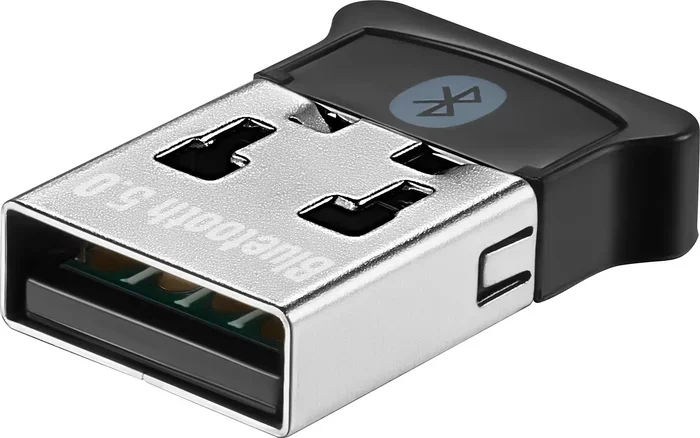
A USB Bluetooth adapter is the most popular and easiest option. It is a small USB stick that plugs into any available USB port. Once plugged in, Windows usually recognizes it automatically and installs the driver.
Pros:
- Plug and play setup
- Very affordable (often under $15)
- Works on laptops and desktops
- No opening your computer case required
- Portable and easy to move between devices
Cons:
- Uses a USB port
- Slightly shorter range than internal cards
- Can stick out and get in the way
A USB Bluetooth dongle is the best choice for most people. It takes about two minutes to set up. You plug it in, install the driver if needed, and you are ready to pair your wireless headphones or wireless speaker.
PCIe Bluetooth Card
For desktop users who want a permanent and powerful solution, a PCIe Bluetooth card is a great option. This card slides into an open PCIe slot on your motherboard. It provides a stronger signal and better range than a USB adapter.
Pros:
- Better wireless range and signal strength
- Does not use a USB port
- More stable connection
- Often includes Bluetooth 5.0 or higher
Cons:
- Requires opening your PC case
- More expensive than USB adapters
- Not portable
- Needs an available PCIe slot
If you use your desktop for wireless streaming or connect multiple Bluetooth peripherals daily, a PCIe card is worth the investment. The connection is more reliable and the range is noticeably better.
Bluetooth Motherboard or Wi-Fi Card Combo
Some modern Wi-Fi cards come with Bluetooth built in. If your computer does not have Bluetooth but has an empty M.2 slot or a compatible Wi-Fi card slot, you can replace or add a Wi-Fi + Bluetooth combo card. This is common in laptops and mini PCs.
This method is especially useful if you also need better Wi-Fi. You get both wireless technologies in one upgrade. Check your computer manual to see if this option is available for your model.
USB Hub with Built-in Bluetooth
If you are running low on USB ports, consider a USB hub that includes Bluetooth. These hubs add multiple USB ports and Bluetooth capability in one device. They are a neat solution for users with limited port availability.
Step-by-Step Setup Guide for USB Bluetooth Adapters
Let us walk through the setup process. This is the most common method and works for almost every computer.
- Buy a compatible Bluetooth adapter. Look for Bluetooth 5.0 or higher. Make sure it is compatible with your operating system.
- Plug the adapter into a USB port. Use a USB 3.0 port if available for the best performance.
- Wait for Windows to install the driver. Most adapters are plug and play on Windows 10 and 11.
- Open Settings and go to Bluetooth & Other Devices. Turn on the Bluetooth toggle.
- Put your device in pairing mode. This usually means holding down a button on the device until a light flashes.
- Click Add Device and select your Bluetooth device. Follow any on-screen prompts.
- Test the connection. Play audio or move your wireless mouse to confirm it works.
That is it. In less than five minutes, your computer will be wirelessly connected. The whole process is simple and does not require any technical expertise.
Common Bluetooth Problems and How to Fix Them
Sometimes things do not go smoothly. Bluetooth can be finicky at times. Here are the most common issues and how to solve them.
Bluetooth Not Showing Up in Settings
If Bluetooth does not appear in your settings, the adapter may not be recognized. Try plugging it into a different USB port. You can also open Device Manager and look for unrecognized devices. Right-click and update the driver. If that does not work, download the latest driver from the adapter manufacturer website.
Poor Connection or Frequent Disconnects
Wireless interference can cause dropouts. Keep your Bluetooth adapter away from USB 3.0 devices that might cause interference. Also, stay within the recommended range of 30 feet. Walls and metal objects can weaken the signal. A USB extension cable can help position the adapter in a better spot.
Device Not Pairing
Make sure the device you are trying to connect is in pairing mode. Some devices only stay in pairing mode for a short time. Also, remove old pairings from your Bluetooth list and try again. Restarting both devices often fixes pairing issues too.
Audio Lag or Stuttering
If you experience audio delays, try using a Bluetooth adapter that supports aptX or LDAC codecs. These provide better audio quality over Bluetooth. Also, make sure your Bluetooth driver is up to date. Outdated drivers are a common cause of audio problems.
Quick Tips for Better Bluetooth Performance
- Always use the latest Bluetooth driver
- Keep your adapter away from USB 3.0 ports if you experience interference
- Stay within 30 feet of the connected device
- Restart your computer if Bluetooth acts up
- Update Windows to the latest version
How to Choose the Right Bluetooth Adapter
Not all Bluetooth adapters are the same. Here is what to look for when buying one.
| Feature | What to Look For |
|---|---|
| Bluetooth Version | Bluetooth 5.0 or higher for best performance |
| Range | At least 30 feet for reliable use |
| Codec Support | aptX, LDAC, or AAC for audio devices |
| USB Version | USB 3.0 for faster data transfer |
| Compatibility | Windows 10/11, macOS, or Linux support |
| Price Range | $10 to $40 for most quality adapters |
For most users, a Bluetooth 5.0 USB adapter priced between $10 and $25 will do the job perfectly. If you need audio streaming or file transfers, invest in one that supports high-quality codecs. The wireless peripheral market has grown a lot, and having a good Bluetooth adapter makes everything smoother.
Expert Insights on Adding Bluetooth to Older PCs
Adding Bluetooth to an older computer is one of the most satisfying upgrades you can do. It brings your PC into the modern wireless era without spending a fortune. Many users assume their old desktop is stuck in the past, but a simple $15 adapter changes everything.
Expert Tip: If your computer has USB 2.0 ports only, a Bluetooth adapter will still work. However, you may experience slower data transfer speeds. For the best experience, use a USB 3.0 port whenever possible. The difference in speed is noticeable, especially when transferring files between devices.
Another tip from experienced users is to keep your Bluetooth adapter plugged into the same USB port every time. Windows remembers the driver settings for specific ports, and changing ports can sometimes cause the adapter to stop working temporarily.
Key Takeaways
- Adding Bluetooth to a PC without it is simple and affordable. A USB adapter costs less than $20 and takes minutes to set up.
- Check your PC first. You might already have Bluetooth built in but just need to enable it or update a driver.
- USB adapters are the easiest option for most users. They require no technical skills and work instantly.
- PCIe cards are better for desktop users who want strong, stable connections. They offer superior range and reliability.
- Bluetooth 5.0 or higher is the standard to look for. It provides better speed, range, and battery efficiency.
- Most common Bluetooth problems have simple fixes. Driver updates, repositioning the adapter, and restarting devices solve most issues.
- You do not need to be a tech expert. Anyone can add Bluetooth to their computer with the right adapter and a few minutes of time.
Conclusion
The answer to Can You Add Bluetooth To A Computer That Doesnt Have It is a resounding yes. You have several easy and affordable options to choose from. Whether you pick a USB Bluetooth dongle, a PCIe card, or a Wi-Fi combo card, you can bring wireless connectivity to any PC in under ten minutes.
Bluetooth technology has become essential in our daily lives. From wireless headphones to smart keyboards, the ability to connect without cables makes everything more convenient. Adding Bluetooth to your computer opens up a world of possibilities. You can connect your wireless headphones for late-night gaming, pair a Bluetooth speaker for movie nights, or transfer files wirelessly between your phone and PC.
Do not let the lack of built-in Bluetooth hold you back. The solutions are simple, the hardware is inexpensive, and the setup is beginner-friendly. Pick the method that fits your needs, follow the steps in this guide, and enjoy the freedom of wireless connectivity on your computer today.
Start with a USB adapter if you are new to this. It is the fastest and easiest way to get started. Once you experience the convenience of wireless peripherals, you will wonder how you ever lived without it.
Frequently Asked Questions
Can I add Bluetooth to any computer?
Yes, almost any computer can get Bluetooth. You just need a compatible adapter. USB adapters work with nearly all desktops and laptops. Even very old computers can benefit from a simple Bluetooth dongle.
How much does a Bluetooth adapter cost?
Most USB Bluetooth adapters cost between $10 and $25. Higher-end PCIe cards may cost $30 to $50. You can get a great Bluetooth 5.0 adapter for under $20 that handles all everyday tasks perfectly.
Is it hard to install Bluetooth on a computer?
Not at all. USB adapters are plug and play. Just insert them into a USB port and Windows handles the rest. PCIe cards require opening your PC case, but the installation process is still straightforward for beginners.
What is the difference between Bluetooth and Wi-Fi?
Bluetooth connects devices over short distances for peripherals like headphones and mice. Wi-Fi connects your computer to the internet. Some adapters combine both technologies in one device for added convenience.
Can I use Bluetooth on a laptop without built-in support?
Yes. Laptop users can use a USB Bluetooth adapter just like desktop users. It is a great solution for older laptops that lost their Bluetooth capability after a system update or hardware change.
Does adding Bluetooth slow down my computer?
No. Bluetooth adapters use very little system resources. They do not affect your computer performance. A USB Bluetooth dongle uses minimal power and does not slow down your PC at all.