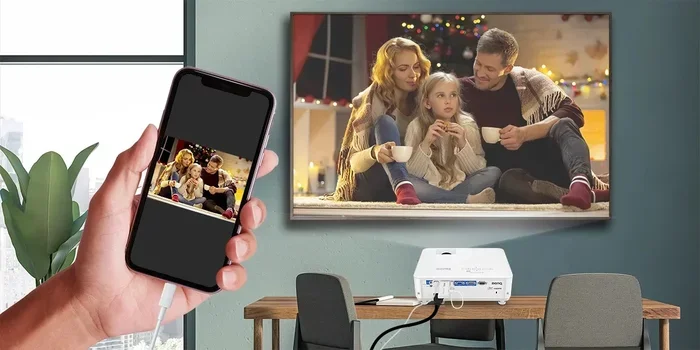
Can I Connect My Phone Directly To Projector At Home
Yes, you can connect your phone directly to a projector using simple cables or wireless tech. This guide walks you through every method for home use, from HDMI adapters to screen mirroring. You will leave with a clear plan to turn any wall into a big screen.
Ever wanted to watch your favorite show on a wall that is ten feet wide? Can I connect my phone directly to projector at home? The answer is a loud yes. You do not need a fancy smart projector to pull this off. A simple cable or a wireless link can turn your phone into a remote control for a giant screen. This guide will show you exactly how. We will cover wired and wireless methods, gear you need, and quick fixes for common problems. By the end, you will know the best way to connect your phone directly to a projector for movies, gaming, and presentations.
Think about movie night. You can stream from Netflix, show family photos, or even cast a mobile game onto a big white wall. The experience feels like a mini cinema. Many people ask, can I connect my phone directly to projector because they are tired of squinting at a small screen. The good news is that modern phones and projectors speak the same language. You just need the right bridge. That bridge could be a tiny adapter or a wireless signal. We will break it all down in simple steps.
Key Takeaways
- Wired and wireless options exist: You can use an HDMI adapter or rely on WiFi Direct, Miracast, or AirPlay.
- No special projector is always needed: Most modern projectors support screen mirroring or accept a simple cable.
- Setup takes minutes: With the right adapter, you can mirror your phone screen in under five minutes.
- Check compatibility first: Not all phones and projectors play nice together, so verify ports and protocols.
- Audio matters: You may need a separate audio cable or Bluetooth speaker for sound.
- Gaming and movies shine on a big screen: Direct connection cuts lag and boosts your home theater feel.
📑 Table of Contents
How to Connect Your Phone to a Projector Directly
There are two main paths to connect your phone directly to a projector. You can go wired or go wireless. Each has its perks. Wired connections give you a rock-solid link with no lag. Wireless connections offer freedom of movement and fewer cables on the floor. Your choice depends on your projector model, your phone type, and what you plan to watch.
Wired Connection Methods
A wired link is the most reliable way to connect your phone directly to a projector. You plug one end into your phone and the other into the projector. The image appears instantly. No buffering, no delay. This method works great for gaming and video calls where timing matters.
Here are the most common wired setups:
- HDMI adapter with USB-C: If your phone has a USB-C port, you need a USB-C to HDMI adapter. Plug the adapter into your phone, then run an HDMI cable from the adapter to the projector.
- Lightning to HDMI for iPhones: Apple users need a Lightning to HDMI adapter, often called an Apple Digital AV Adapter. This official Apple cable works flawlessly with most projectors.
- MHL cables: Mobile High-Definition Link is an older standard. Some Android phones still support MHL. You use a special MHL cable that goes from phone to HDMI. Check your phone specs to see if it has MHL support.
Quick Tip: Always buy a high-quality adapter. Cheap ones can cause flickering or no signal at all. Look for brands that match your phone model exactly.
Wireless Projection Options
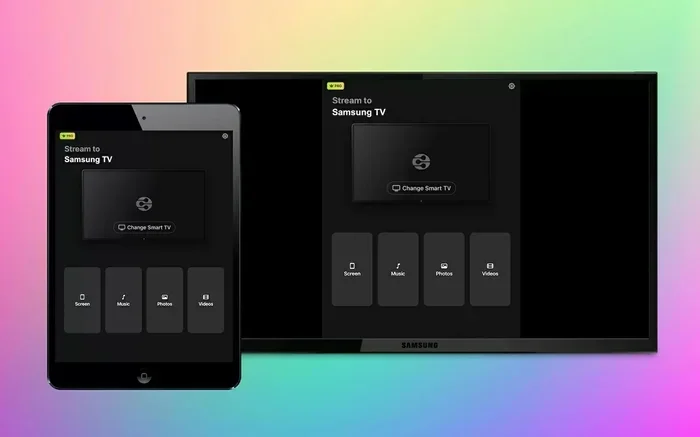
Wireless projection lets you connect your phone directly to projector without any cable. You use built-in features like WiFi Direct, Miracast, or AirPlay. The projector receives the signal over the air. This is perfect for living room movie nights where you want to move freely.
Most wireless projectors made after 2018 support screen mirroring. You do not need a special app in many cases. Your phone and projector just need to be on the same WiFi network. Then you can cast your phone screen to the projector with a few taps.
Here are the top wireless methods:
- Miracast: This is a universal standard for Android and Windows phones. Many projectors have Miracast built in. You go to your phone’s screen mirroring settings and pick the projector.
- AirPlay: If you have an iPhone and an Apple TV or an AirPlay-enabled projector, you can stream wirelessly. Just open the Control Center and tap Screen Mirroring.
- Chromecast built-in: Some projectors have Google Cast. You open a supported app on your phone, tap the cast icon, and the video jumps to the projector.
- WiFi Direct: This creates a direct link between phone and projector without a router. It works even if you have no WiFi. Great for outdoor movie nights.
Expert Insight: Wireless is super convenient, but it can suffer from slight delays. If you are playing a fast-paced game, a wired HDMI connection will feel smoother. For Netflix or YouTube, wireless is totally fine.
What You Need for a Wired Connection
Before you buy anything, check the ports on your phone and your projector. This saves you from buying the wrong gear. Here is a simple list of what you might need to connect your phone directly to a projector with a cable.
Gear Checklist:
- Phone: Any smartphone with a USB-C or Lightning port. Most phones made after 2016 work.
- Adapter: USB-C to HDMI or Lightning to HDMI. Make sure it supports video output, not just charging.
- HDMI Cable: A standard High-Speed HDMI cable. You do not need a fancy 8K cable for a projector. A basic one works great.
- Projector with HDMI Input: Nearly all modern projectors have at least one HDMI port. If yours is older, you may need a VGA adapter, but that is rare now.
- Power Source: Some adapters draw power from your phone. You might need a USB power bank or a wall charger to keep your phone alive during long movies.
Common Mistake: People buy a USB-C adapter that only charges the phone. Always check the box for “supports video output” or “MHL compatible.” If it does not say that, it will not send a picture to the projector.
Quick Tips for a Clean Setup
- Use a short HDMI cable. Long cables can weaken the signal.
- Keep your phone cool. Streaming to a big screen can heat it up. Remove the case if needed.
- Turn off Bluetooth on your phone if you hear audio crackling. It can interfere with the HDMI signal on some adapters.
Wireless Projection: The Cord-Free Way
Wireless screen mirroring is the go-to choice for most families. You do not have to run cables across the room. You just tap “cast” and your phone screen appears on the wall. This section explains how to connect your phone directly to projector without a single wire.
Setting Up WiFi Direct and Miracast
WiFi Direct creates a direct link between your phone and projector. It does not need a home WiFi network. This is handy when you are at a friend’s house or outdoors. Miracast is the protocol that makes this work on most Android devices.
Steps to use Miracast:
- Turn on your projector and switch to the Miracast or Screen Mirroring input mode.
- On your Android phone, open Settings and tap “Connected Devices” or “Cast.”
- Turn on Screen Mirroring. Your phone will scan for available devices.
- Select your projector from the list.
- A PIN may appear on the projector screen. Enter it on your phone to pair.
- Your phone screen is now mirrored on the wall.
Quick Tip: If your projector does not have Miracast built in, you can buy a Miracast dongle. Plug it into the projector’s HDMI port, and it acts as a wireless receiver. These dongles cost under $30 and work with almost any projector.
AirPlay and Chromecast for Apple and Google Users
iPhone users have AirPlay, which is built into iOS. You just need an AirPlay-compatible projector or an Apple TV connected to the projector. To use AirPlay, open Control Center, tap Screen Mirroring, and choose your device. The video starts streaming instantly.
For Android and Chromecast users, the process is similar. Many smart projectors now have Google Cast built in. Open a supported app like YouTube, tap the cast icon, and pick your projector. The app streams directly to the projector, which uses less battery on your phone than full mirroring.
Expert Insight: Full mirroring uses more phone battery because it sends every pixel in real time. Casting an app like YouTube or Netflix is more efficient because the projector handles the video decoding. Use casting when you can for longer battery life.
Troubleshooting Common Connection Issues
Even with the right gear, you might run into hiccups. Do not panic. Most problems are easy to fix. Here are the most common issues and how to solve them when you try to connect your phone directly to projector.
No Signal or Black Screen
- Check the cable: Unplug the HDMI cable and plug it back in. Make sure it clicks firmly into both the adapter and the projector.
- Switch projector input: Use the projector remote to change the input source to HDMI. Many projectors have multiple HDMI ports, so pick the right one.
- Restart both devices: Turn off the projector and your phone. Wait ten seconds, then power them back on. This resets the connection.
Audio Not Working
- Make sure the projector volume is turned up.
- Check your phone’s volume and ensure it is not muted.
- If you are using an adapter, some models pass audio through HDMI automatically. Others need you to enable audio output in your phone settings.
- For wireless mirroring, the audio should come from the projector’s built-in speakers. If not, check the projector’s audio settings.
Lag or Delay in the Image
- Wireless mirroring can have a slight delay. This is normal.
- If you are gaming, switch to a wired HDMI connection for zero lag.
- For wireless, make sure your phone and projector are close. Walls and furniture can weaken the signal.
- Reduce the resolution on your phone if the stream stutters. Lower resolution means less data to send wirelessly.
Common Mistake: People try to mirror a phone screen while using a VPN or screen recording app. These can block the projection. Turn off VPNs and background apps before casting.
Tips for the Best Viewing Experience
Once you connect your phone directly to projector, you want the best picture and sound possible. A few small tweaks make a huge difference. Here are practical tips to elevate your home theater setup.
- Darken the room: Projectors work best in dim light. Close curtains or blinds to boost contrast and colors.
- Use the right throw distance: Check your projector’s manual for the ideal distance from the wall. Too close and the image is small and blurry. Too far and it spills off the edge.
- Turn on keystone correction: If the image is tilted, use the projector’s keystone setting to straighten it. Most projectors have a button or menu option for this.
- Pair with a Bluetooth speaker: Built-in projector speakers are often weak. Connect a Bluetooth speaker for richer sound. This is perfect for movie nights.
- Keep your phone plugged in: Screen mirroring drains battery fast. Plug your phone into a charger so you can watch the whole movie without interruption.
- Use a high-quality source: Stream from Netflix, Disney+, or YouTube in HD or 4K for the sharpest picture. Low-resolution videos will look blurry on a big wall.
Quick Tips for Gaming
Playing mobile games on a projector is a blast. To reduce input lag, use a wired HDMI connection. Turn off any battery saver mode on your phone. Some games have a “cast” or “mirror” mode in the settings. Use that for a smoother experience.
Expert Insights: Setting Up a Home Theater
A home theater is more than just a projector and a phone. It is about the whole experience. Start with a white wall or a pull-down projector screen. A screen reflects light better than a plain wall, giving you a brighter and sharper image. Position the projector at eye level when seated. This avoids neck strain during long movies. Finally, invest in a soundbar or a simple surround sound system. Audio is half the experience. When your phone is connected directly to the projector, you control everything from your pocket. You can pause, rewind, and adjust volume with ease. That convenience is what makes a home theater truly fun.
Conclusion
Can I connect my phone directly to projector at home? Absolutely, and now you know how. Whether you choose a simple HDMI adapter or a wireless Miracast connection, the process is easier than you think. You do not need expensive gear to turn a blank wall into a theater-sized screen. Start with what you have. Grab the right adapter, download a casting app if needed, and test it out. Once you see your phone’s content on a big wall, you will wonder how you ever watched on a tiny screen. The key is to pick the method that fits your projector and your phone. Wired for reliability, wireless for convenience. Both work great. So grab some popcorn, dim the lights, and enjoy your favorite shows on the biggest canvas in your home.
Take action tonight. Try connecting your phone to your projector. You will be amazed at how simple it is. Share this guide with friends who are still watching from a phone screen. Big-screen fun is just one cable or one tap away. Happy watching!
Frequently Asked Questions
Can I connect my phone directly to projector without WiFi?
Yes, you can use a wired HDMI adapter to connect your phone directly to projector without WiFi. This gives you a stable, lag-free connection. Wireless methods like WiFi Direct also work without a home router, but they still use a direct wireless signal.
What kind of adapter do I need to connect my phone to a projector?
If your phone has USB-C, get a USB-C to HDMI adapter. If you have an iPhone, you need a Lightning to HDMI adapter. Make sure the adapter supports video output, not just charging. These adapters are widely available and affordable.
Does connecting my phone to a projector drain the battery fast?
Yes, screen mirroring can drain your battery quickly because it is constantly sending video data. To save battery, plug your phone into a charger while projecting. Use casting instead of full mirroring when possible, as it uses less power.
Can I use Bluetooth to connect my phone to a projector?
Bluetooth is mainly for audio, not video. You can pair Bluetooth speakers with your projector for better sound, but Bluetooth will not send your phone screen to the projector. For video, use HDMI or WiFi-based screen mirroring like Miracast or AirPlay.
Why is there a delay when I wirelessly mirror my phone to a projector?
Wireless mirroring has a slight delay because the video signal travels through the air. This is normal and usually not noticeable for movies. For fast-paced gaming, use a wired HDMI connection to eliminate any lag completely.
Can older projectors work with modern phones?
Yes, if your older projector has an HDMI port, you can use an HDMI adapter to connect your phone directly to projector. If it only has VGA, you can buy a USB-C to VGA adapter, but the image quality will be lower. Check your projector’s ports first.