Can HDMI Be Used For Projector Everything You Need To Know
Yes, HDMI can absolutely be used for a projector. It is one of the most popular and reliable ways to connect a projector to a source device. HDMI delivers high-quality audio and video through a single cable, making setup simple and hassle-free. This guide covers everything you need to know about using HDMI with your projector.
Have you ever wondered whether HDMI can be used for a projector? The short answer is yes. But there is a lot more to know than just plugging in a cable and hoping for the best. Whether you are setting up a home theater, giving a presentation at work, or teaching in a classroom, understanding how HDMI works with projectors can make a huge difference.
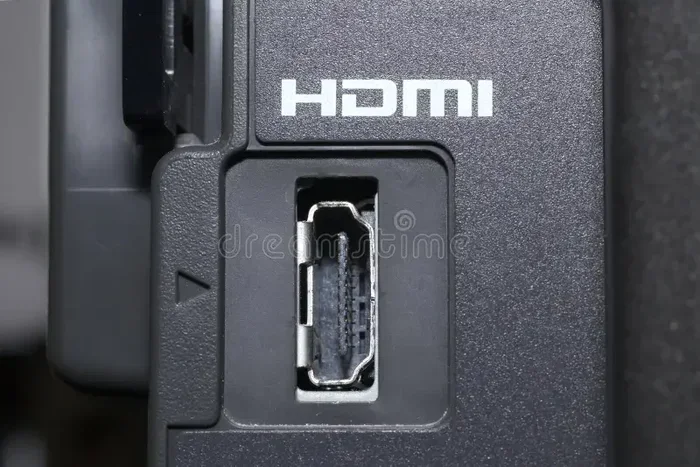
HDMI stands for High Definition Multimedia Interface. It is the most common digital connection standard used today. It carries both audio and video signals through one single cable. This makes it incredibly convenient compared to older connection types that needed separate cables for sound and picture. Most projectors made in the last decade support HDMI input, and many modern laptops, gaming consoles, and streaming devices use HDMI as their primary output.
In this guide, we will walk you through everything you need to know. From choosing the right cable to troubleshooting common problems, you will find practical advice that actually works. We will also explore how HDMI projectors compare to other connection types and share tips that will help you get the best picture quality every time.
Key Takeaways
- HDMI is fully compatible with most modern projectors and provides excellent audio and video quality.
- Different HDMI cable versions support different resolutions, so choosing the right one matters.
- Common HDMI projector problems like no signal or poor quality are usually easy to fix.
- HDMI adapters and converters can help connect older devices to newer projectors.
- Wireless HDMI options exist for those who want a cable-free setup.
- HDMI ARC and eARC features can enhance audio when using compatible projectors.
- Always check your projector’s HDMI specifications before purchasing cables or devices.
📑 Table of Contents
- What Is HDMI and How Does It Work with Projectors?
- Can HDMI Be Used For Projector: Compatibility Guide
- Setting Up HDMI on Your Projector: Step-by-Step
- HDMI vs Other Connection Types for Projectors
- Common HDMI Projector Problems and How to Fix Them
- Best HDMI Cables for Projectors
- Expert Insights and Pro Tips
- Key Takeaways
- Conclusion
What Is HDMI and How Does It Work with Projectors?
HDMI is a digital connection standard that transmits uncompressed video and audio data. It was introduced in 2003 and has gone through several versions since then. Each new version brings better bandwidth, which means support for higher resolutions and refresh rates. When you connect a device to a projector using HDMI, the signal flows directly from the source to the display without needing to be converted.
How HDMI Carries Both Audio and Video
One of the biggest advantages of HDMI is that it handles audio and video in one cable. Older connection types like VGA required a separate audio cable. With HDMI, you just plug one cable into your laptop or streaming stick and into the projector. The sound and picture travel together. This is why HDMI projector setups are so popular for home theaters and business presentations alike.
HDMI Versions and What They Mean for Projectors
Not all HDMI cables are the same. Different versions support different features. Here is a quick look at the main versions you will encounter:
- HDMI 1.4: Supports 1080p resolution and 3D content. This is the minimum you want for most projector use.
- HDMI 2.0: Supports 4K resolution at 60Hz. Great for high-quality home theater setups.
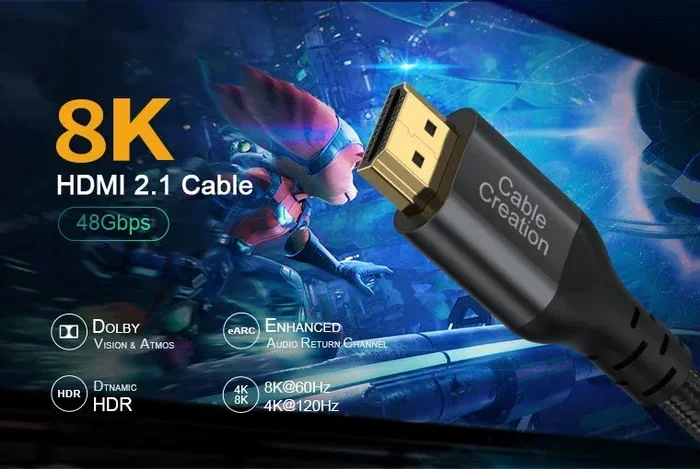
- HDMI 2.1: Supports 4K at 120Hz and even 8K. This is the latest standard and is ideal for gaming and premium displays.
When shopping for cables, look for the version number printed on the cable or its packaging. Most modern projectors work well with HDMI 2.0 cables. If you are buying a new projector, aim for one that supports at least HDMI 2.0 for the best experience.
Can HDMI Be Used For Projector: Compatibility Guide
Not every projector uses HDMI, and not every device outputs HDMI. Let us break down the compatibility factors so you know exactly what to expect.
Types of Projectors That Support HDMI
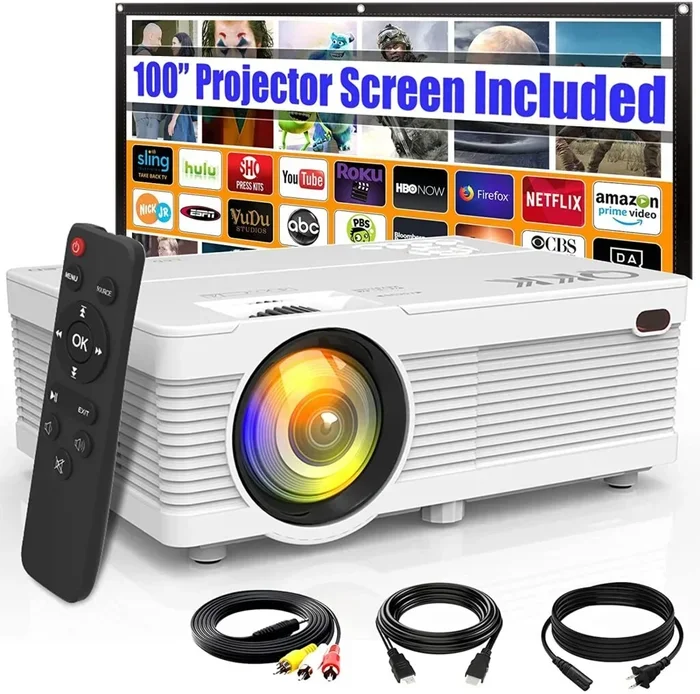
The vast majority of modern projectors come with at least one HDMI port. This includes home theater projectors, business projectors, and portable projectors. Even many budget-friendly models now include HDMI input. However, very old or specialty projectors may only have VGA or composite inputs. If you are buying a projector and want to use HDMI, always check the specifications before you purchase.
Interestingly, HDMI connections are also widely used in medical settings. For example, medical display systems in hospitals often rely on digital connections like HDMI for imaging and diagnostics. You can learn more about how computers are used in medicine and how digital connections play a role in those environments by reading our detailed guide on 10 Ways Computers Are Used In Medicine.
Devices That Output HDMI Signals
Most devices you already own likely support HDMI output. Here are some common examples:
- Laptops and desktops: Most computers made after 2012 include an HDMI output port.
- Streaming devices: Roku, Amazon Fire Stick, Apple TV, and Chromecast with Google TV all use HDMI.
- Gaming consoles: PlayStation, Xbox, and Nintendo Switch all connect via HDMI.
- Blu-ray players: Nearly all modern Blu-ray and 4K Blu-ray players use HDMI.
- Cameras: Many digital cameras and camcorders have mini or micro HDMI outputs.
If your device has an HDMI output and your projector has an HDMI input, you are good to go. The connection should be straightforward.
What If Your Device Does Not Have HDMI?
Some older laptops only have VGA or USB-C ports. Some tablets use micro HDMI or USB-C with DisplayPort Alt Mode. In these cases, you have options:
- USB-C to HDMI adapters: These are affordable and widely available. They let you connect a USB-C device to an HDMI projector.
- VGA to HDMI converters: These convert an older VGA signal to HDMI. They work but may not carry audio.
- Mini HDMI to HDMI cables: Many cameras use a smaller HDMI connector. A simple adapter cable solves this problem.
The key takeaway is that HDMI projector compatibility is very high in today’s market. You will almost always find a way to connect your device.
Setting Up HDMI on Your Projector: Step-by-Step
Setting up an HDMI connection to your projector is simple. Follow these steps and you will be watching or presenting in minutes.
Step 1: Gather Your Equipment
Before you start, make sure you have everything you need:
- Your projector
- A source device (laptop, streaming stick, gaming console, etc.)
- An HDMI cable of the right length
- Any adapters if needed (USB-C to HDMI, etc.)
Pro tip: Buy an HDMI cable that is long enough to reach from your source device to the projector without stretching or bending it sharply. A cable that is too short can cause strain on the connectors.
Step 2: Connect the Cable
Plug one end of the HDMI cable into the HDMI output port on your source device. Plug the other end into the HDMI input port on your projector. Make sure both connections are firm and secure. A loose connection is one of the most common reasons for no signal issues.
Step 3: Select the Correct Input
Turn on your projector and use the remote or control panel to select the right HDMI input. Most projectors label their HDMI ports as HDMI 1, HDMI 2, and so on. Choose the port where you plugged in the cable. If you are unsure, try each input one at a time.
Step 4: Adjust Display Settings
On your source device, go to the display settings. Make sure the output is set to mirror or extend to the external display. If the picture looks off, adjust the resolution to match your projector’s native resolution. Most projectors are 1080p or 4K. Setting the correct resolution ensures the sharpest possible image.
Quick Tips for a Smooth Setup
- Turn on your source device before the projector. This helps the projector detect the signal faster.
- Use an HDMI cable that is certified. Look for the HDMI Premium Certified label for the best quality.
- Keep cable runs short when possible. Longer cables can lead to signal loss.
- Use a cable protector if routing cables along floors or walls. This prevents damage and extends cable life.
HDMI vs Other Connection Types for Projectors
HDMI is not the only way to connect a projector. Let us compare it to other common options so you can understand why HDMI is usually the best choice.
HDMI vs VGA
VGA is an older analog connection standard. It was the go-to option for projectors for many years. However, VGA only carries video signals. You need a separate cable for audio. VGA also does not support high resolutions well. The image quality degrades at higher resolutions and the analog signal is more prone to interference. HDMI delivers a much clearer and sharper picture because it is a digital connection.
HDMI vs USB
Some projectors now offer USB connections for media playback or charging. However, USB does not typically carry video signals the way HDMI does. USB connections are useful for reading files from a flash drive, but they are not a replacement for HDMI when it comes to streaming or presenting from a computer.
HDMI vs Wireless Options
Wireless options like Wi-Fi Direct, Miracast, and Bluetooth are becoming more popular. These let you project without cables. However, wireless connections can suffer from lag, lower resolution, and interference. HDMI provides a stable, high-quality, and lag-free connection that wireless options still struggle to match. For presentations, gaming, and movie watching, HDMI remains the gold standard.
| Feature | HDMI | VGA | USB | Wireless |
|---|---|---|---|---|
| Carries Audio | Yes | No | No | Sometimes |
| Max Resolution | 4K / 8K | 1080p (limited) | Varies | Varies |
| Signal Type | Digital | Analog | Digital | Wireless |
| Ease of Setup | Very Easy | Moderate | Easy | Easy but variable |
| Lag / Latency | None | None | None | Noticeable |
| Cable Required | Yes | Yes | Yes | No |
Common HDMI Projector Problems and How to Fix Them
Even with a great setup, you may run into issues. Here are the most common problems and their solutions.
No Signal on the Projector
This is the most common HDMI issue. If your projector shows no signal, try these steps:
- Check that both ends of the HDMI cable are firmly plugged in.
- Make sure the projector is set to the correct HDMI input.
- Try a different HDMI port on the projector if available.
- Test the cable with another device to rule out a bad cable.
- Restart both the source device and the projector.
Sometimes the simplest fix is just unplugging and replugging the cable. This resets the handshake between the devices.
Poor Picture Quality or Flickering
If your image looks blurry, flickers, or has strange colors, the problem is often the cable or resolution settings. Try these solutions:
- Replace the HDMI cable. Cheap or damaged cables often cause picture issues.
- Lower the resolution on your source device. If your projector only supports 1080p, setting your laptop to 4K can cause problems.
- Move the cable away from power cords. Electromagnetic interference from power cables can degrade the HDMI signal.
- Use a shorter cable. Longer HDMI cables are more prone to signal loss.
No Audio Through the Projector
HDMI should carry audio automatically. If you are getting video but no sound, check these things:
- Go to your source device’s sound settings and make sure HDMI is selected as the output.
- Check the projector’s volume and make sure it is not muted.
- Try a different HDMI cable. Some cheap cables do not transmit audio properly.
- On Windows, go to Sound Settings and set the HDMI output as the default playback device.
HDMI Port Not Working on the Projector
If the HDMI port itself seems dead, try these steps:
- Clean the HDMI port gently with compressed air to remove dust.
- Test with a different HDMI cable to rule out a cable issue.
- Check if the projector firmware needs an update.
- If the port is physically damaged, you may need professional repair or to use an alternative input.
For more information on how digital connections are used in various fields including healthcare and diagnostics, you can explore our article on 10 Ways Computers Are Used In Medicine to see how HDMI and similar digital interfaces support critical systems.
Best HDMI Cables for Projectors
Not all HDMI cables are created equal. Here are some tips for choosing the right one for your projector setup.
What to Look For in an HDMI Cable
- Version support: Make sure the cable supports HDMI 2.0 or higher for 4K content.
- Bandwidth rating: Higher bandwidth means better support for high resolutions and refresh rates.
- Cable length: Choose a length that fits your setup without excess. Up to 15 feet is ideal for most uses.
- Build quality: Look for braided cables or those with shielding for durability and interference protection.
- Certification: HDMI Premium Certified cables ensure they meet official standards.
Top Picks for Different Needs
- Best overall: A standard HDMI 2.0 cable from a reputable brand. These work great for most home and office setups.
- Best for long runs: Look for active HDMI cables or HDMI signal boosters if you need to run the cable more than 25 feet.
- Best for 4K gaming: Choose an HDMI 2.1 cable that supports 4K at 120Hz for the smoothest gaming experience.
- Best budget option: A basic HDMI 1.4 cable works well for 1080p projectors and everyday use.
You do not need to spend a fortune on an HDMI cable. A mid-range cable that supports the right version will serve you well for years.
Expert Insights and Pro Tips
Here are some insider tips that can take your HDMI projector setup to the next level.
Use an HDMI Switch for Multiple Devices
If you have multiple devices you want to connect to your projector, an HDMI switch is a game changer. Instead of unplugging and replugging cables every time, you simply connect all your devices to the switch and use the switch to select which device to display. This is especially helpful in conference rooms and home theater setups.
Consider an HDMI Extender for Long Distances
Standard HDMI cables work well up to about 15 to 25 feet. If you need to run the cable farther than that, consider an HDMI extender. These devices use CAT5e or CAT6 cables to carry the HDMI signal over longer distances. They are affordable and easy to set up.
Update Your Projector Firmware
Many people forget about firmware updates. Projector manufacturers release updates that can improve HDMI compatibility, fix bugs, and add new features. Check your projector’s settings or manufacturer website periodically for updates.
Use High-Speed HDMI for Gaming
If you plan to game on your projector, make sure you use a high-speed HDMI cable. Standard cables may not handle the data rates required for smooth gaming at high resolutions. An HDMI 2.1 cable is ideal for next-gen gaming consoles and PCs.
Key Takeaways
- HDMI is the best and most widely supported connection for modern projectors. It delivers high-quality audio and video through a single cable.
- Always check your projector’s HDMI version to ensure it supports the resolution you need.
- Compatibility is rarely an issue because most devices and projectors made in the last decade support HDMI.
- Common problems like no signal or poor quality are usually solved by reseating cables, adjusting settings, or replacing the cable.
- HDMI adapters and converters make it easy to connect devices that do not have standard HDMI outputs.
- Investing in a good quality HDMI cable is one of the simplest ways to improve your projector experience.
- Wireless options exist but cannot yet match HDMI for reliability, quality, and zero latency.
Conclusion
The answer to the question can HDMI be used for projector is a resounding yes. HDMI is the standard connection method for modern projectors, and for good reason. It delivers excellent picture and sound quality through a single simple cable. Whether you are setting up a home theater, giving a business presentation, or connecting a gaming console, HDMI makes it all easy and reliable.
By choosing the right HDMI cable, understanding your projector’s specifications, and following the setup tips in this guide, you can enjoy a seamless and high-quality viewing experience every time. Remember to check your HDMI version, use certified cables, and do not be afraid to troubleshoot if something goes wrong. Most issues have simple solutions.
HDMI has revolutionized the way we connect devices to projectors. It replaced the messy web of analog cables and made setup something anyone can do in minutes. As technology continues to evolve, HDMI standards will keep improving, offering even better performance in the years to come. For now, HDMI remains the go-to choice for anyone who wants the best projector experience.
So go ahead, grab an HDMI cable, connect your device, and enjoy the big picture. With the right setup, your projector can deliver an experience that rivals any television or commercial display.
Frequently Asked Questions
Can I use any HDMI cable with my projector?
Most HDMI cables will work with your projector, but it is best to use a cable that matches your projector’s supported HDMI version. For 1080p projectors, an HDMI 1.4 cable is sufficient. For 4K projectors, choose an HDMI 2.0 or higher cable to get the full resolution and refresh rate benefits.
Why does my projector say no signal when I connect HDMI?
A no signal message usually means the projector is not detecting the input. Check that the cable is firmly plugged into both devices. Make sure the projector is set to the correct HDMI input. Try a different HDMI port or cable if the problem continues. Restarting both devices often resolves the issue as well.
Can I connect a laptop to a projector using HDMI?
Yes, most laptops made after 2012 have an HDMI output port. Simply connect one end of an HDMI cable to your laptop and the other to the projector. Then select the correct HDMI input on the projector and adjust your laptop display settings to mirror or extend the screen.
Does HDMI carry audio to a projector?
Yes, HDMI carries both audio and video signals through the same cable. This is one of the biggest advantages of using HDMI over older connection types like VGA. Just make sure your projector has built-in speakers or is connected to an external audio system for sound output.
What is the maximum HDMI cable length for a projector?
Standard HDMI cables work well up to about 15 to 25 feet. Beyond that, the signal can weaken. If you need a longer cable run, consider using an HDMI extender or an active HDMI cable that boosts the signal over longer distances. These solutions keep the picture and sound quality strong.
Can I use a wireless HDMI connection with a projector?
Yes, wireless HDMI transmitters and receivers are available. They let you send the HDMI signal from your source device to the projector without a physical cable. However, wireless connections may introduce slight latency and can be affected by interference. For the most reliable and highest quality experience, a wired HDMI connection is still the best choice.