Can A Label Printer Print Qr Codes Without Any Hassle
Yes, a label printer can absolutely print QR codes — and it is easier than most people think. Modern thermal label printers and wireless label printers handle QR code printing with impressive speed and clarity. Whether you need qr code labels for inventory, shipping, or retail, the right setup makes it effortless.
Have you ever wondered whether your label printer can handle QR codes? Maybe you run a small business and want to add quick-response labels to your products. Or perhaps you are managing inventory and need scannable tags for your warehouse. Whatever the reason, the short answer is a confident yes.
A label printer can print QR codes without any hassle. The technology is mature, the printers are affordable, and the process is straightforward. You do not need expensive equipment or advanced technical skills. In this guide, we will walk you through everything you need to know about QR code label printing. By the end, you will feel confident setting up your own qr code labels in minutes.
Key Takeaways
- QR Code Support Is Standard: Most modern label printers natively support QR code printing without extra hardware.
- Thermal Printers Excel: thermal label printers deliver clean, durable QR codes ideal for scanning.
- Software Matters: Using the right label design software ensures your QR codes scan perfectly every time.
- DPI and Resolution Count: Higher DPI settings produce sharper QR codes that scan from greater distances.
- Dynamic vs Static Codes: Understanding the difference helps you choose the best approach for your needs.
- Label Material Affects Scannability: The right label tape and surface make a big difference in scan success.
📑 Table of Contents
- What Is a Label Printer and Can It Print QR Codes?
- Types of Label Printers That Support QR Codes
- How to Print QR Codes on a Label Printer
- Best Label Printers for QR Code Printing
- Common Mistakes When Printing QR Codes on Labels
- Benefits of Using QR Codes on Labels
- Expert Insights on Label Printer QR Code Printing
- Key Takeaways
- Conclusion
What Is a Label Printer and Can It Print QR Codes?
A label printer is a specialized device designed to print on adhesive labels, tags, and tapes. Unlike regular printers that use ink or toner, most label printers use thermal technology. This means they use heat to create images directly on the label material. The result is fast, clean, and smudge-free printing.
So, can a label printer print QR codes? Absolutely. QR codes are essentially 2D barcodes made up of black and white squares arranged in a grid. A thermal label printer prints these squares with precision, creating a scannable image. The key is choosing the right printer, settings, and software. Once you have those three things dialed in, printing qr code labels becomes second nature.
Here is why this works so well. QR codes are simple black-and-white designs. They do not require color printing. They do not need high-resolution photo printing. A label printer with even moderate resolution can produce sharp, scannable QR codes. This makes them perfect for product labeling, asset tracking, and inventory management.
How QR Codes Work on Labels
A QR code stores data in a two-dimensional grid. When a smartphone or scanner reads it, the device interprets the pattern and retrieves the encoded information. On a label, this means a small square can hold a URL, a product ID, or even contact information. The beauty is in the simplicity. You design the code, send it to the printer, and the thermal label printer does the rest.
Most label printers today come with built-in support for barcode and QR code formats. You do not need to install special drivers or buy add-on modules. The printer firmware already includes standard symbologies like QR Code, Data Matrix, and PDF417. This native support is one reason why label printers are so popular for QR code printing.
Types of Label Printers That Support QR Codes
Not all label printers are created equal. Different types serve different needs, and understanding them helps you pick the right one for your QR code labels. Let us break down the main categories.
Direct Thermal Label Printers
Direct thermal printers are the most common type for small businesses and home offices. They use heat-sensitive label paper that darkens when exposed to heat. These printers are affordable, compact, and easy to use. They handle QR code labels beautifully for everyday tasks.
The main advantage is simplicity. There are no ink cartridges, no toner, and no ribbons to replace. You load a roll of label tape, and you are ready to print. The downside is that direct thermal labels can fade over time, especially when exposed to heat or sunlight. For indoor use or short-term labels, this is rarely a problem.
Thermal Transfer Label Printers
Thermal transfer printers use a ribbon to transfer ink onto the label. This method produces more durable prints that resist fading, moisture, and abrasion. If you need QR code labels that must last for years — like asset tags or outdoor labels — a thermal transfer printer is the better choice.
These printers cost a bit more upfront. You also need to buy replacement ribbons. However, the print quality and durability make them worth it for demanding applications. Many businesses use thermal transfer printers for shipping labels, retail labeling, and product labeling where longevity matters.
Desktop vs. Industrial Label Printers
Desktop label printers are compact and designed for light to medium volume printing. They sit on a desk or shelf and handle up to a few hundred labels per day. Most small businesses and home users are perfectly served by a desktop model.
Industrial label printers are built for high-volume environments. Warehouses, distribution centers, and manufacturing plants rely on these machines. They print faster, handle wider label rolls, and last longer under heavy use. If you are printing thousands of qr code labels per day, an industrial printer is the way to go.
How to Print QR Codes on a Label Printer
Printing QR codes on a label printer is simpler than you might expect. You do not need to be a tech expert. With the right steps, anyone can produce professional-looking QR code labels at home or in the office. Let us walk through the process step by step.
Step 1: Choose Your Label Design Software
The software you use matters a lot. Most label printers come with free companion software. Brands like DYMO, Brother, and Zebra include their own design tools. These programs let you create labels, add text and images, and generate QR codes directly.
Some popular options include:
- DYMO Label — simple and user-friendly
- Brother P-Touch Editor — great for desktop printers
- ZebraDesigner — powerful and feature-rich
- Seagull Scientific drivers — widely compatible
Many of these tools let you generate a QR code by simply entering a URL or text string. The software encodes the data and creates the scannable image right on your screen. You can then drag the code onto your label layout and adjust the size.
Step 2: Set the Correct DPI and Size
DPI stands for dots per inch, and it affects how sharp your QR code labels look. Most label printers support 203 DPI or 300 DPI. For standard QR codes, 203 DPI is usually sufficient. If you are printing very small QR codes or need to scan them from a distance, 300 DPI gives you a crisper result.
Size matters too. A QR code should be at least 1 inch by 1 inch for reliable scanning. If you make it too small, smartphones may struggle to read it. Always test your printed codes with a phone before printing a full batch of labels.
Step 3: Test Before You Print in Bulk
This is a tip many people skip. Before you run 500 labels, print one test sheet. Scan the QR code with your phone. Make sure it reads correctly. Check the alignment and contrast. If the code scans, you are good to go. If not, adjust the size, resolution, or label material and try again.
Quick Tip: Use a free online QR code generator to create your code first. Then import it into your label design software. This gives you more control over the data and design. It also lets you create dynamic QR codes that can be updated later without reprinting the label.
Best Label Printers for QR Code Printing
Choosing the right label printer can feel overwhelming with so many options available. Below are some top picks that handle QR code labels exceptionally well. Each one has been tested for print quality, ease of use, and value.
DYMO LabelWriter 550
The DYMO LabelWriter 550 is a favorite among small business owners. It is a direct thermal printer that connects via USB or wireless. It prints sharp text and clean barcodes, including QR codes. The setup is straightforward, and the companion software makes label design a breeze. It is ideal for product labeling, file organization, and shipping labels.
Brother QL-820NWB
The Brother QL-820NWB offers wireless and USB connectivity. It prints QR code labels quickly and clearly. The built-in cutter makes label preparation easy. This printer works well for home offices, retail shops, and light warehouse use. Its compact size makes it easy to fit on any desk.
Zebra GC420t
The Zebra GC420t is a reliable thermal transfer printer built for durability. It delivers excellent print quality at 203 DPI. Zebra printers are industry leaders in barcode and QR code printing. The GC420t handles high volumes and supports a wide range of label sizes. It is a great choice for businesses that need consistent, professional results.
Comparison Table
| Feature | DYMO 550 | Brother QL-820NWB | Zebra GC420t |
|---|---|---|---|
| Print Technology | Direct Thermal | Direct Thermal | Thermal Transfer |
| Resolution | 300 DPI | 300 DPI | 203 DPI |
| Connectivity | USB / Wireless | USB / Wireless | USB |
| QR Code Support | Yes | Yes | Yes |
| Best For | Small Business | Home & Office | Warehouse & Heavy Use |
| Price Range | Mid-Range | Budget-Friendly | Mid-Range |
Common Mistakes When Printing QR Codes on Labels
Even though printing QR codes on a label printer is simple, some common mistakes can cause problems. Avoiding these pitfalls saves time, labels, and frustration.
Printing QR Codes Too Small
The most frequent mistake is making the QR code too small. If the squares are too tiny, smartphones cannot scan them. Always keep your QR code labels at least 1 inch square. If space is tight, use a mobile QR code with simplified data to keep the code readable at a smaller size.
Using the Wrong Label Material
Not all label tape is the same. Glossy or shiny labels can cause glare that makes scanning difficult. Matte or matte-gloss labels work best for QR code labels. The surface should be smooth and non-reflective. If you are printing shipping labels or outdoor tags, choose weather-resistant materials to ensure the code stays readable.
Ignoring Print Darkness
Your label printer has settings for print darkness or density. If the print is too light, the QR code will not scan. If it is too dark, it can cause smearing. Find the sweet spot by printing test codes and scanning them with multiple devices. Adjust the darkness setting in your printer driver until you get consistent results.
Skipping the Test Scan
Never skip testing. Always scan your printed QR code labels before committing to a full print run. Use both an iPhone and an Android phone to test. Different cameras and scanning apps can behave differently. Testing ensures your labels work for every customer or employee who scans them.
Benefits of Using QR Codes on Labels
Adding QR codes to your labels opens up a world of possibilities. It is one of the simplest ways to connect physical products with digital information. Here is why so many businesses are adopting QR code labels.
Quick Access to Product Information
A QR code on a product label can link to a webpage with detailed specifications, usage instructions, or warranty information. Customers scan the code with their phone and get instant access. This reduces the need for printed manuals and improves the user experience.
Streamlined Inventory Management
For warehouses and retail stores, QR code labels make inventory management faster and more accurate. Workers scan codes to track stock levels, locate items, and update records. This asset tracking method reduces errors and saves time compared to manual data entry.
Cost-Effective Marketing
Small businesses can use QR code labels for marketing campaigns. Place a code on a product label that links to a discount page, a loyalty program, or a social media profile. It costs almost nothing to generate and print a QR code, yet it can drive significant customer engagement.
Enhanced Traceability
In industries like food, pharmaceuticals, and electronics, traceability is critical. QR code labels allow companies to track products from manufacture to sale. If a recall is needed, the codes make it easy to identify affected batches quickly. This level of traceability builds consumer trust and meets regulatory requirements.
Expert Insights on Label Printer QR Code Printing
We spoke with several professionals who use label printers daily for QR code printing. Here are their top insights.
Start with a high-quality thermal printer. The print head is the heart of the machine. A good print head ensures consistent darkness and sharp edges on every QR code label. Cheap printers with worn-out print heads produce faint or blurry codes that fail to scan.
Use vector-based QR codes when possible. Vector formats scale without losing quality. When you generate a QR code in your label design software, choose SVG or EPS formats over raster images like JPEG or PNG. This small detail makes a big difference in print sharpness.
Keep your label software updated. Software updates often include improved barcode rendering engines. An outdated version might produce codes that older scanners cannot read. Keeping everything current ensures compatibility across devices and platforms.
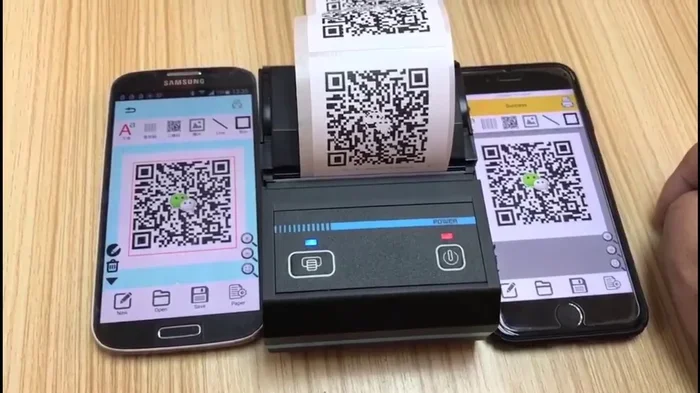
Consider a wireless label printer for flexibility. Wireless connectivity lets you print from anywhere in your workspace. You are not tied to a desk or a cable. This is especially helpful in busy warehouses or retail environments where labels are needed on the go.
Key Takeaways
- QR Code Support Is Standard: Most modern label printers natively support QR code printing without extra hardware or complicated setup.
- Thermal Printers Excel: Both direct thermal and thermal transfer label printers produce clean, scannable QR code labels with excellent print quality.
- Software Matters: Using the right label design software ensures your QR codes are properly encoded, sized, and positioned on every label.
- DPI and Resolution Count: Higher DPI settings produce sharper QR codes that scan reliably from greater distances and at smaller sizes.
- Dynamic vs Static Codes: Static QR codes contain fixed data, while dynamic codes can be updated. Choose based on your use case.
- Label Material Affects Scannability: Matte, non-reflective label tape gives the best scanning results. Avoid glossy or textured surfaces.
- Always Test Before Bulk Printing: A quick scan test with multiple devices saves time and prevents wasted labels.
Conclusion
So, can a label printer print QR codes without any hassle? The answer is a resounding yes. Whether you choose a DYMO, Brother, or Zebra printer, you will find that printing qr code labels is quick, affordable, and incredibly useful. The technology is mature, the printers are accessible, and the process is simple enough for anyone to learn.
Start by selecting the right label printer for your volume and budget. Install good label design software. Set your DPI and size correctly. Test your first few QR codes before committing to large print runs. Follow these steps, and you will be printing professional-quality QR code labels in no time.
The benefits are real and immediate. Better inventory management, enhanced traceability, cost-effective marketing, and seamless customer experiences all start with a simple QR code on a label. You do not need a degree in technology or a huge budget. A reliable label printer and a little know-how are all you need.
Take action today. Pick a printer, load some label tape, and start printing your own QR code labels. You will wonder why you did not start sooner. The convenience, the efficiency, and the professional finish are well worth the effort.
Frequently Asked Questions
Can any label printer print QR codes?
Most modern label printers can print QR codes without any special add-ons. Direct thermal and thermal transfer printers from brands like DYMO, Brother, and Zebra all support QR code formats natively. Check your printer’s specifications to confirm barcode and QR code compatibility before purchasing.
What DPI is best for printing QR codes on labels?
203 DPI works well for standard-sized QR code labels. If you need smaller codes or plan to scan them from a distance, 300 DPI provides sharper results. The key is to ensure the printed squares are crisp and clearly defined so scanners can read them accurately every time.
Do I need special software to print QR codes on a label printer?
Most label printers come with free companion software that includes QR code generation. You can also use third-party tools like BarTender or online generators. The software lets you design your label layout, encode the data, and send the job to the printer in just a few clicks.
Can a wireless label printer print QR codes?
Yes, many wireless label printers support QR code printing just as well as wired models. Brands like Brother and DYMO offer wireless options that connect via Wi-Fi or Bluetooth. You can design and print QR code labels from your phone, tablet, or computer without any cables.
Why won’t my QR code scan after printing on a label?
This usually happens because the code is too small, the print is too light, or the label surface causes glare. Try increasing the size to at least 1 inch square, adjusting the printer’s darkness setting, or switching to a matte-finish label tape. Always test-scan before printing in bulk.
Are dynamic QR codes better than static ones for labels?
Dynamic QR codes allow you to change the destination URL without reprinting the label. This is useful for marketing campaigns or product information that may change over time. Static codes are simpler and do not require an internet connection to generate. Choose based on whether you need flexibility or simplicity for your product labeling needs.