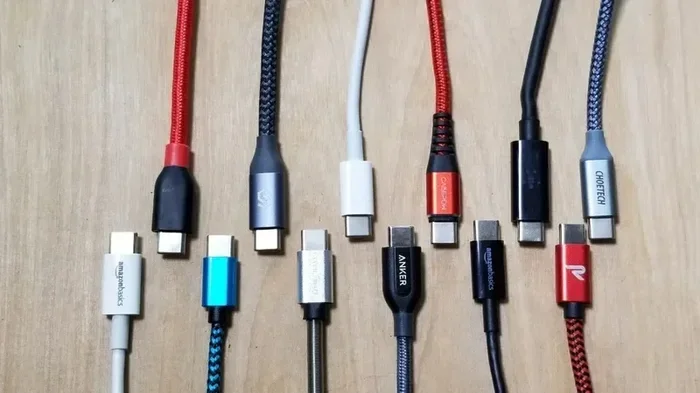
Are There 2 Different Usb C Cables Or Are They the Same
Yes, there are 2 different USB-C cables, and they are not the same. Some USB-C cables are designed only for charging, while others support fast data transfer and video output. Choosing the wrong cable can slow down your device or even damage it. Understanding the differences helps you avoid frustration and get the most from your gear.
You have probably picked up a USB-C cable and wondered if it was the same as the one your friend uses. They look identical. They plug in the same way. But they might not work the same way at all.
The truth is that there are 2 different USB-C cables, and they serve very different purposes. One might charge your phone in minutes. The other might only handle basic data transfer at slow speeds. This guide breaks down exactly what makes them different and how you can tell them apart.
Whether you are buying a replacement cable or trying to understand why your current one is not working right, this article has you covered. Let us dive into the world of USB-C cables and clear up the confusion once and for all.
Key Takeaways
- Not all USB-C cables are equal: They serve different purposes like charging, data transfer, and video output.
- USB-C cable standards matter: USB 3.2, Thunderbolt 3, Thunderbolt 4, and USB4 all offer different speeds and capabilities.
- Check the specs before buying: Look at wattage, data speed, and protocol support to match your needs.
- Cheap cables can be risky: Low-quality USB-C cables may not deliver promised speeds or could harm your device.
- USB Power Delivery changes everything: USB-PD allows faster and safer charging across compatible devices.
📑 Table of Contents
- What Makes USB-C Cables Different From Each Other
- USB-C Cable Standards and What They Mean
- USB Power Delivery: Why It Changes Everything
- How to Tell If Your USB-C Cable Is Different
- Common Mistakes People Make With USB-C Cables
- Expert Insights: What Professionals Look For
- Quick Tips: Choosing the Right USB-C Cable
- How USB-C Cables Connect to Your Devices
- Conclusion
What Makes USB-C Cables Different From Each Other
At first glance, every USB-C cable looks the same. The small, reversible connector is identical across all of them. But underneath the plastic shell, the differences are huge. These differences determine what the cable can do and how well it performs.
The two main categories of USB-C cables are charging-only cables and multifunction cables. Charging-only cables carry power from a wall adapter to your device. They do not transfer data. Multifunction cables handle both power and data, and some even carry video signals to external displays.
Charging-Only USB-C Cables
These cables are simple. They have wires inside that carry electrical current. That is it. You will often find them bundled with power banks, wall chargers, or accessories that do not need data transfer.
Charging-only cables are fine if you just want to juice up your phone or tablet. They are usually cheaper too. But they will not help you move files between devices or connect to a monitor.
Multifunction USB-C Cables
Multifunction cables are the heavy lifters. They carry power, data, and sometimes video all at the same time. These are the cables you want if you use your laptop with an external monitor or transfer large files between devices.
Inside these cables, you will find more wires packed tightly together. The extra wires allow for faster data speeds and higher power delivery. This is why multifunction cables cost more and are often thicker than charging-only ones.
USB-C Cable Standards and What They Mean
Not every USB-C cable follows the same standard. A standard is basically a set of rules that tells you what the cable can handle. Different standards mean different speeds, power levels, and features.
Here are the most common USB-C cable standards you will come across:
- USB 2.0 over USB-C: This is the slowest option. It charges your device and transfers data at up to 480 Mbps. It is fine for basic tasks but not for large file transfers.
- USB 3.2 Gen 1 (USB-C): Offers data speeds up to 5 Gbps. Great for backing up files and connecting external hard drives.
- USB 3.2 Gen 2 (USB-C): Doubles the speed to 10 Gbps. This is the sweet spot for most users who need fast data transfer.
- Thunderbolt 3 (USB-C): Delivers 40 Gbps data speeds and up to 100 watts of power. It also supports dual 4K displays or a single 5K display.
- Thunderbolt 4 (USB-C): The latest standard. It matches Thunderbolt 3 speeds but adds stricter requirements for compatibility and security.
- USB4 (USB-C): Based on the Thunderbolt protocol. It offers 40 Gbps speeds and is becoming the new universal standard.
As you can see, not all USB-C cables are built the same. The standard printed on the cable or its packaging tells you exactly what you are getting.
How to Read Cable Labels
Most good USB-C cables have markings on the connector or the cable itself. Look for labels like “USB 3.2,” “Thunderbolt 4,” or “USB4.” These markings confirm the cable meets a specific standard.
If a cable has no label at all, be cautious. Unmarked cables are often low quality and may not perform as advertised. Always check the USB-C cable specifications before making a purchase.
USB Power Delivery: Why It Changes Everything
USB Power Delivery, also known as USB-PD, is a game changer. It is a charging protocol that allows USB-C cables to deliver much more power than older standards. With USB-PD, you can charge laptops, tablets, and even some desktop computers through a single cable.
USB-PD supports up to 240 watts of power with the latest specifications. This means a single USB-C cable can run a large monitor and charge a laptop at the same time. No more carrying multiple chargers.
But here is the catch. Not every USB-C cable supports USB-PD. Charging-only cables usually do not. You need a cable that explicitly supports the USB-PD protocol to take advantage of fast and safe charging.
Wattage Matters
Different devices need different amounts of power. A smartwatch might need just 5 watts. A phone might need 18 watts. A gaming laptop could need 100 watts or more.
Using a cable that cannot handle the required wattage leads to slow charging. In some cases, the device may not charge at all. Always match your cable to your device’s power needs.
| Device Type | Typical Power Need | Recommended USB-C Cable |
|---|---|---|
| Smartphone | 5W – 18W | USB 3.2 or USB-PD cable |
| Tablet | 18W – 30W | USB-PD supported cable |
| Laptop | 30W – 100W | USB-PD or Thunderbolt cable |
| Gaming Laptop | 60W – 240W | USB-PD 240W compliant cable |
| External Monitor | Varies | Thunderbolt 3/4 or USB4 cable |
As the table shows, the right cable makes a big difference. Take a moment to check what your device needs before you buy.
How to Tell If Your USB-C Cable Is Different
Now that you know the differences, how do you actually tell one cable from another? You do not need to be a tech expert. A few simple checks will do the trick.
Check the Cable Markings
Run your fingers along the cable and look for small text printed on the connector or the cable body. Brands like Anker, Belkin, and Cable Matters print clear labels. You might see “56k ohm resistor,” “Thunderbolt,” or “USB 3.2” written on it.
The 56k ohm resistor is a key indicator. It means the cable is designed for proper USB Power Delivery and will not overcharge your device. Cables without this resistor may only support basic charging.
Test the Data Speed
If you are unsure whether your cable transfers data, plug it into two computers and try copying a large file. If the transfer is slow, your cable might only support USB 2.0 speeds.
You can also use free tools like CrystalDiskMark or USB Test Tool to check the actual data speed of your cable. This is a quick and reliable way to verify what your cable can do.
Look at the Cable Thickness
Generally, thicker cables carry more power and support faster data transfer. A thin, flimsy cable is likely a basic charging-only cable. A thick, sturdy cable with a braided exterior is usually a multifunction cable.
Of course, there are exceptions. Some high-quality cables are thin but still support fast speeds. Always check the specs rather than relying on thickness alone.
Use the Right Adapter
Sometimes the cable is fine, but the USB-C adapter or dongle is the problem. A cheap adapter can limit the speed of even the best cable. Invest in adapters from reputable brands to get the full performance of your cable.
Common Mistakes People Make With USB-C Cables
Even tech-savvy people make mistakes when it comes to USB-C cables. Here are the most common ones and how to avoid them.
Assuming All USB-C Cables Are the Same
This is the biggest mistake. Just because two cables have the same connector does not mean they do the same thing. One might charge at 100 watts while the other only charges at 5 watts.
Always read the product description before buying. Look for details about data speed, power delivery, and supported protocols.
Buying the Cheapest Option
We get it. Nobody wants to spend too much on a cable. But cheap, unbranded cables can be dangerous. They may not handle the power they claim to support, which can damage your device or even cause overheating.
Spend a little extra on cables from trusted brands. Your devices will thank you.
Ignoring Cable Length
Longer cables can lose signal strength, especially with high-speed data transfer. If you need a cable longer than 6 feet, look for one that is specifically rated for high-speed data and high wattage.
Shorter cables generally perform better. Keep this in mind when setting up your workspace.
Using Old Cables With New Devices
USB-C technology has evolved fast. A cable that worked perfectly with your old phone might not support the speeds your new laptop needs. Always check compatibility before using an older cable with a newer device.
Expert Insights: What Professionals Look For
We asked a few tech professionals what they look for when choosing a USB-C cable. Here is what they had to say.
Look for the Thunderbolt logo if you need maximum performance. Thunderbolt 3 and Thunderbolt 4 cables are tested to meet strict standards. They work reliably with laptops, docks, and external GPUs.
Do not overlook USB-PD certification. A USB-PD certified cable has been tested for safety and performance. It will deliver the power your device needs without any guesswork.
Buy from authorized sellers. Counterfeit USB-C cables are everywhere online. They look real but perform poorly. Stick to official brand stores or authorized retailers to avoid fakes.
Professionals also recommend keeping a spare cable in your bag at all times. You never know when you will need to charge your device or connect to a display. A good USB-C cable is as essential as your phone itself.
Quick Tips: Choosing the Right USB-C Cable
- Identify your needs first. Do you need charging only, data transfer, or video output? This determines the cable type.
- Check the wattage rating. Make sure the cable supports the power level your device requires.
- Look for USB-PD support. This ensures safe and fast charging across compatible devices.
- Choose the right length. Six feet or less is ideal for most setups.
- Buy from reputable brands. Anker, Belkin, Cable Matters, and OWC are reliable choices.
- Test your cables regularly. A cable that worked yesterday might not work today. Test for data speed and charging performance periodically.
- Read reviews before buying. Real user feedback helps you spot problems before they happen.
Following these tips will save you time, money, and a lot of frustration. The right cable makes everything smoother.
How USB-C Cables Connect to Your Devices
The USB-C connector has become the standard port on most modern devices. Laptops, phones, tablets, and even some desktop computers now use USB-C as their primary connection point. This universal design is one of the biggest reasons USB-C cables are so popular.
Inside your device, the USB-C port connects to the motherboard. The motherboard handles all the data and power routing. Understanding how these components work together helps you troubleshoot connection issues.
For example, if your USB-C cable is not transferring data, the problem might not be the cable at all. It could be a faulty port on the motherboard or a driver issue. Knowing the basics of components that are found on the motherboard can help you diagnose these problems more effectively.
USB-C cables also play a role in specialized fields. In medical settings, computers are used for patient monitoring, imaging, and data analysis. USB-C cables connect these devices to main systems, making reliable connections critical. Having the right cable ensures that sensitive medical equipment works without interruption.
The versatility of USB-C is what makes it so powerful. One cable can replace a dozen different cables you used to carry around. But only if you choose the right one for your specific needs.
Conclusion
So, are there 2 different USB-C cables? Absolutely. The difference between a basic charging cable and a full-featured multifunction cable is significant. One handles power. The other handles power, data, and video all at once.
Understanding USB-C cable differences saves you time, money, and prevents potential damage to your devices. Always check the specifications, look for proper certifications, and buy from trusted brands.
The next time you reach for a USB-C cable, you will know exactly what you are getting. And that small bit of knowledge can make a huge difference in how your devices perform every single day. Choose wisely, and your devices will reward you with faster speeds, safer charging, and fewer headaches.
Frequently Asked Questions
Can I use any USB-C cable to charge my laptop?
Not all USB-C cables can charge a laptop. Laptops need cables that support USB Power Delivery and sufficient wattage. Check your laptop’s charging requirements and buy a cable that meets or exceeds them. Using an incompatible cable may result in very slow charging or no charging at all.
Why do some USB-C cables cost more than others?
Higher-priced cables support faster data speeds, higher wattage, and additional features like video output. They also tend to use better materials and have stricter quality controls. A cheap cable might only support basic charging, while an expensive one handles everything from data transfer to 4K video output.
Is Thunderbolt the same as USB-C?
No. Thunderbolt is a protocol that uses the USB-C connector. Thunderbolt 3 and Thunderbolt 4 cables use the USB-C shape but offer much faster speeds and more features than standard USB-C cables. All Thunderbolt cables are USB-C, but not all USB-C cables are Thunderbolt.
How can I tell if my USB-C cable supports data transfer?
Check the cable for markings like “USB 3.2,” “Thunderbolt,” or “USB4.” You can also test it by connecting two computers and copying a file. If the transfer is fast, the cable supports data. If it is very slow, it might only be a charging cable.
Can a bad USB-C cable damage my device?
Yes, in rare cases. Low-quality cables that do not meet safety standards can overheat, deliver too much or too little power, or cause short circuits. Always buy cables from reputable brands and look for USB-PD certification to ensure safe operation.
What is the difference between USB 3.2 and USB4 over USB-C?
USB 3.2 offers data speeds up to 10 or 20 Gbps depending on the generation. USB4 is based on the Thunderbolt protocol and offers speeds up to 40 Gbps. USB4 also supports features like multiple display outputs and higher power delivery, making it more versatile than USB 3.2.
=== CONCLUSION ===
Are there 2 different USB-C cables? Yes, and now you know exactly how they differ. From charging-only cables to full-featured Thunderbolt and USB4 options, each cable serves a specific purpose. The key is matching the right cable to your needs.
Take a moment today to check the cables you use every day. Are they the right ones? A small upgrade can unlock faster speeds, safer charging, and a much better experience with your devices. Share this guide with a friend who is still confused about USB-C cables. Knowledge is power, and the right cable makes all the difference.