Can I Connect To Apple TV Without WiFi And How To Do It
Yes, you can connect Apple TV without WiFi using several methods including an Ethernet cable, a personal hotspot, or by downloading content beforehand. Whether your internet is down or you want a more stable connection, these workarounds let you keep streaming and mirroring your screen. This guide walks you through every option with clear, easy-to-follow steps.
Have you ever been in a situation where you want to use your Apple TV but there is no WiFi available? Maybe your internet is down, or you are at a cabin in the woods with no signal. Whatever the reason, you might be wondering if you can still enjoy your favorite shows and movies. The good news is that yes, you can connect Apple TV without WiFi. There are several practical ways to make this work, and I am going to walk you through each one.
In this guide, I will cover every method you can use. From plugging in a cable to using your phone as a hotspot, you will find clear steps that anyone can follow. You will also learn how to watch downloaded content and mirror your screen without needing a traditional wireless network. Let us dive in and get your Apple TV working, no matter what.
Key Takeaways
- Wired Ethernet Connection: You can plug Apple TV directly into your router using an Ethernet cable for a stable internet link.
- Personal Hotspot Method: Your iPhone or iPad can share its cellular data with Apple TV through a Wi-Fi hotspot.
- Offline Content Playback: Downloaded movies, shows, and music play without any internet connection at all.
- Screen Mirroring Without WiFi: AirPlay can work over a direct peer-to-peer connection in some situations.
- Digital AV Adapter Option: You can use Apple’s adapter to connect your device directly to the TV via HDMI.
- Apple TV Remote Setup: The remote can pair with your device using Bluetooth even without a full network setup.
📑 Table of Contents
- Can I Connect To Apple TV Without WiFi: The Short Answer
- Method 1: Use an Ethernet Cable for a Wired Connection
- Method 2: Share Your Phone’s Hotspot With Apple TV
- Method 3: Watch Downloaded Content Offline
- Method 4: Screen Mirroring Without WiFi Using AirPlay
- Method 5: Use a Digital AV Adapter for Direct Connection
- Comparison Table: WiFi-Free Connection Methods
- Common Mistakes to Avoid
- Expert Insights on Using Apple TV Without WiFi
- Frequently Asked Questions
- Conclusion
Can I Connect To Apple TV Without WiFi: The Short Answer
The short answer is absolutely yes. Connecting Apple TV without WiFi is possible through multiple methods. Apple TV is designed to be flexible, and you are not stuck if your wireless network is unavailable. You can use a wired connection, share your phone’s data, or simply enjoy content you have already downloaded. Each method has its own benefits, and I will explain them all in detail below.
Before we go further, it helps to understand what Apple TV needs to work at a basic level. The device needs a way to receive data. That data can come from the internet through WiFi or Ethernet. It can also come from a local device connected directly. Or it can come from content already stored on the device. Understanding this helps you choose the right method for your situation.
Method 1: Use an Ethernet Cable for a Wired Connection
Why a Wired Connection Works Great
One of the simplest ways to get your Apple TV online without WiFi is to use an Ethernet cable. This gives you a direct, wired connection to your router or modem. The result is a stable and fast internet link. Many people prefer this method because it eliminates wireless interference and keeps the connection steady.
Here is what you need to know. Not all Apple TV models have an Ethernet port built in. The Apple TV 4K and the HD model (3rd and 4th generation) do not have a port on the device itself. However, you can use an adapter. Apple sells a Lightning to Gigabit Ethernet adapter for newer models. For older models, you can use a USB-to-Ethernet adapter that fits the Apple TV’s USB port.
Step-by-Step Setup for Wired Connection
Follow these steps to set up a wired connection on your Apple TV:
- Plug one end of the Ethernet cable into your router or modem.
- Connect the other end to the appropriate adapter for your Apple TV model.
- Plug the adapter into the USB port on your Apple TV.
- Go to Settings on your Apple TV.
- Select Network.
- Choose Ethernet as your connection type.
- Your Apple TV should automatically detect the connection.
Once connected, you can browse the internet, stream content, and use all apps normally. The wired connection is often faster and more reliable than WiFi. This makes it a great choice for streaming without WiFi in your home.
Quick Tips for Wired Connections
- Use a high-quality Ethernet cable for the best speeds.
- Keep the cable length reasonable to avoid signal loss.
- Restart your Apple TV after connecting for the first time.
- Check your router settings if the connection does not appear right away.
Method 2: Share Your Phone’s Hotspot With Apple TV
How a Personal Hotspot Works
If you have a smartphone with cellular data, you can turn it into a personal hotspot. This means your Apple TV connects to your phone’s data instead of a WiFi network. This is one of the most popular ways to use Apple TV without WiFi when you are away from home.
The process is straightforward. Your phone creates a small wireless network that Apple TV can join. The data you use comes from your cellular plan. So make sure you have enough data available. Streaming video uses a lot of data, so keep an eye on your usage.
Setting Up a Hotspot for Apple TV
Here is how to set up your phone as a hotspot for your Apple TV:
- Open Settings on your iPhone or iPad.
- Tap Personal Hotspot.
- Turn on Allow Others to Join.
- Set a Wi-Fi password for the hotspot.
- On your Apple TV, go to Settings.
- Select Network.
- Find your phone’s hotspot name in the list.
- Enter the password and connect.
Once connected, your Apple TV will use your phone’s cellular data. You can now stream content from apps like Netflix, YouTube, and Disney Plus. The quality of your stream depends on your cellular signal strength and data speed.
Things to Keep in Mind
- Hotspot data can be used up quickly when streaming video.
- A strong cellular signal gives you the best streaming quality.
- Some carriers may charge extra for hotspot data usage.
- Keep your phone plugged in since the hotspot drains battery fast.
Method 3: Watch Downloaded Content Offline
Download Before You Go Offline
This is one of the easiest methods and does not require any connection at all. You can download movies, TV shows, and music to your Apple TV while you still have WiFi. Then, when you are somewhere without internet, you can watch or listen to that content offline. It is perfect for trips, flights, or areas with poor signal.
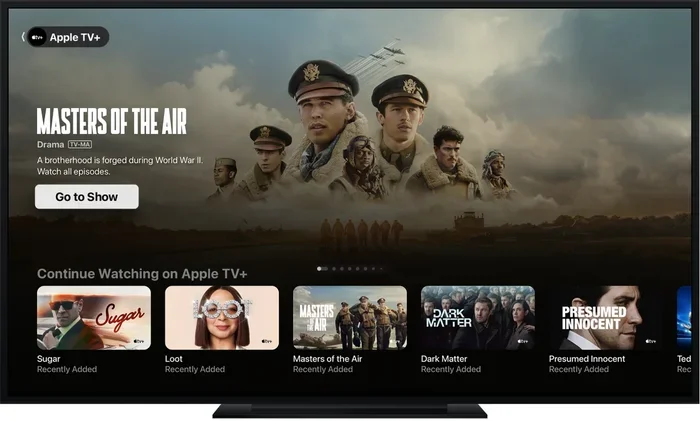
Most major streaming apps support downloading. Netflix, Disney Plus, Apple TV+, and HBO Max all let you save content to your device. The process is simple. Find the show or movie you want, look for the download icon, and tap it. The content saves to your Apple TV’s storage.
How to Download Content on Apple TV
Follow these steps to download content for offline viewing:
- Open the streaming app on your Apple TV while connected to WiFi.
- Browse to the movie or show you want.
- Look for the download icon, which looks like a downward arrow.
- Tap the icon to start the download.
- Wait for the download to finish.
- Go to your Downloads or Library section to find the content.
When you want to watch, simply open the app and select the downloaded title. You do not need WiFi at all for this. This method is perfect for Apple TV without internet situations where you just want to relax and watch something.
Managing Your Downloads
- Delete old downloads to free up storage space.
- Check storage in Settings to see how much space you have.
- Set downloads to auto-delete after you finish watching.
- Download content the night before you need it.
Method 4: Screen Mirroring Without WiFi Using AirPlay
Peer-to-Peer AirPlay Connection
AirPlay is Apple’s screen mirroring technology. It lets you display your iPhone, iPad, or Mac screen on your Apple TV. Normally, AirPlay requires both devices to be on the same WiFi network. But there is a special feature called Peer-to-Peer AirPlay that works without WiFi.
With Peer-to-Peer AirPlay, your iPhone and Apple TV communicate directly with each other. They create a small, temporary network between the two devices. This means you can mirror your screen even when there is no router or internet connection available.
How to Use Peer-to-Peer AirPlay
Here is how to mirror your screen without WiFi:
- Make sure Bluetooth is turned on both your iPhone and Apple TV.
- Open Control Center on your iPhone.
- Tap the Screen Mirroring button.
- Select your Apple TV from the list.
- If asked, enter the AirPlay code displayed on your TV.
- Your iPhone screen will now appear on your Apple TV.
This is great for showing photos, sharing presentations, or playing games on a bigger screen. The connection is direct between the two devices, so it does not need WiFi. Keep in mind that the quality of the mirror depends on how close the devices are to each other.
Limitations of Peer-to-Peer AirPlay
- Both devices need Bluetooth enabled.
- The connection range is shorter than WiFi.
- Video quality may be lower than a standard AirPlay connection.
- Not all apps support screen mirroring this way.
Method 5: Use a Digital AV Adapter for Direct Connection
What Is a Digital AV Adapter?
Apple sells a Digital AV Adapter that lets you connect your iOS device directly to your TV through HDMI. This is a great option if you want to show content from your iPhone or iPad on a bigger screen without using WiFi at all. The adapter plugs into the charging port of your Apple device and outputs video and audio through an HDMI cable.
This method is not technically connecting Apple TV without WiFi. Instead, it bypasses Apple TV entirely and uses your phone as the source. But many people use this setup when they want a simple way to display content on a TV without any network connection.
Setting Up the Digital AV Adapter
Follow these simple steps:
- Plug the Digital AV Adapter into your iPhone or iPad.
- Connect an HDMI cable to the adapter.
- Plug the other end of the HDMI cable into your TV.
- Switch your TV to the correct HDMI input.
- Your phone’s screen will now display on your TV.
You can now play videos, show photos, or use any app on your phone and see it on the big screen. No WiFi needed. This is a quick and easy solution for impromptu presentations or movie nights where internet is not available.
Comparison Table: WiFi-Free Connection Methods
| Method | Best For | Needs Internet? | Ease of Setup |
|---|---|---|---|
| Ethernet Cable | Stable home connection without WiFi | Yes (via router) | Easy |
| Personal Hotspot | On-the-go streaming | Uses cellular data | Moderate |
| Downloaded Content | Offline viewing | No | Very Easy |
| Peer-to-Peer AirPlay | Screen mirroring | No | Easy |
| Digital AV Adapter | Direct phone-to-TV display | No | Very Easy |
Each method serves a different purpose. Choose the one that fits your situation best. If you want to stream from the internet, use Ethernet or a hotspot. If you just want to watch saved content, download beforehand. For screen sharing, Peer-to-Peer AirPlay works well.
Common Mistakes to Avoid
When trying to use Apple TV without WiFi, people often make a few common mistakes. Avoiding these will save you time and frustration.
- Forgetting to download content before going offline. Always download what you want to watch while you still have a connection.
- Using a weak cellular hotspot. A poor signal leads to buffering and low-quality streams. Find a spot with strong coverage.
- Not checking your data plan. Streaming video uses a lot of data. Make sure your plan can handle it.
- Ignoring Bluetooth requirements for AirPlay. Peer-to-Peer AirPlay needs Bluetooth on both devices. Turn it on before you try.
- Using the wrong adapter. Make sure you buy the correct adapter for your Apple TV model. Check Apple’s website for compatibility.
- Not restarting your device after setup. A simple restart can fix connection issues. Always try it first.
Expert Insights on Using Apple TV Without WiFi
According to Apple support specialists, the most reliable method for using Apple TV without WiFi is the Ethernet connection. It provides the most stable experience and supports all features including app streaming and updates. If Ethernet is not possible, downloading content ahead of time is the next best option because it requires zero internet during playback.
Tech experts also recommend keeping your Apple TV software updated whenever you do have WiFi access. Updates fix bugs and improve performance for all connection methods. They also suggest using a 5GHz WiFi network for hotspot connections when available, as it provides faster speeds for streaming.
Another expert tip is to manage your storage regularly. Offline content takes up space. If your Apple TV runs low on storage, downloads will fail or apps may not work properly. A quick check in Settings under Storage can help you stay on top of this.
Frequently Asked Questions
Can I use Apple TV without any internet connection at all?
Yes, you can use Apple TV without any internet if you have downloaded content beforehand. Downloaded movies, shows, and music will play without a connection. You can also use screen mirroring via Bluetooth with Peer-to-Peer AirPlay. Some apps may not work fully offline, but media you have saved will play just fine.
Do I need special equipment to connect Apple TV without WiFi?
It depends on the method you choose. For Ethernet, you need an appropriate adapter and cable. For a hotspot, you just need your phone. For downloaded content, you need no extra equipment at all. Peer-to-Peer AirPlay only requires Bluetooth to be enabled. Most methods use equipment you already own.
Can I stream Netflix without WiFi on Apple TV?
Yes, you can stream Netflix without WiFi if you use a personal hotspot from your phone. Your Apple TV connects to your phone’s data network and streams through that. You can also download Netflix content while on WiFi and watch it later without any connection. Both methods work well for offline Netflix viewing.
Does screen mirroring work without WiFi on Apple TV?
Yes, Peer-to-Peer AirPlay allows screen mirroring without WiFi. Both your iPhone and Apple TV need Bluetooth turned on. They create a direct connection between the two devices. This works well for photos, presentations, and some video content. The range is shorter than WiFi, so keep your devices close together.
How much data does streaming use on a hotspot connection?
Streaming video uses about 1 GB per hour for standard definition and up to 3 GB per hour for high definition. 4K content uses even more, around 7 GB per hour. If you are using a hotspot, keep these numbers in mind. Downloading content while on WiFi and watching offline is a great way to save data.
Can I update my Apple TV without WiFi?
No, software updates require an internet connection. You should update your Apple TV whenever you have WiFi access. Updates include important security patches and new features. They also improve performance for all connection methods, including wired and hotspot setups. Plan to connect to WiFi regularly to keep your device up to date.
Conclusion
Connecting Apple TV without WiFi is completely doable, and there are multiple ways to make it work. Whether you plug in an Ethernet cable, share your phone’s hotspot, download content ahead of time, use Peer-to-Peer AirPlay, or connect through a Digital AV Adapter, you have options. Each method fits a different situation, so pick the one that works best for you.
The key is to plan ahead. Download your content before you lose your connection. Keep the right adapters on hand. And remember that your phone can be a powerful tool for getting your Apple TV online when WiFi is not available. With these methods in your toolkit, you will never be stuck without entertainment.
Try these tips today and see how easy it is to enjoy your Apple TV no matter where you are or what your internet situation looks like. You will be glad you took a few minutes to learn these simple methods. Happy streaming!