Can You Connect A Ps5 Controller To Any Pc In Seconds
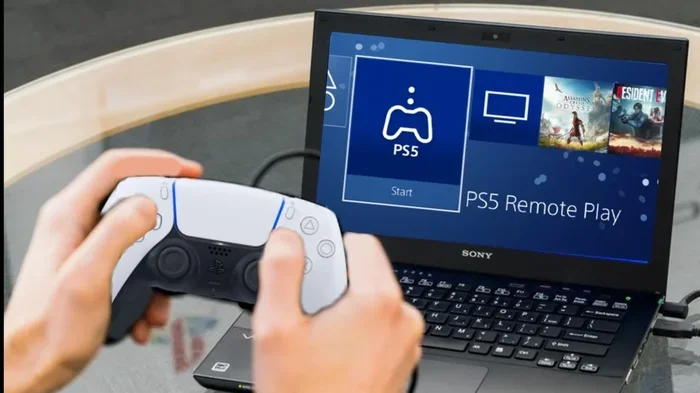
Yes, you can connect a PS5 controller to any PC using Bluetooth or a USB cable. The DualSense wireless controller works with Windows PCs, Steam, and most PC games. Whether you want a wireless gaming experience or a stable wired setup, this guide shows you every step. You will learn pairing methods, driver setup, and how to fix common issues fast.
So you just got a PS5 controller and want to use it on your PC. Maybe you are tired of your current setup. Maybe you heard the DualSense controller is amazing. Or maybe you just want to know if it works with your computer.
The short answer is yes. You can connect a PS5 controller to any PC in seconds. But the full story is a little more interesting. There are different ways to pair it. There are things you need to know about compatibility. And there are a few tricks that make the experience way better.
This guide walks you through everything. From the first connection to advanced setup tips. By the end, you will be gaming on your PC with the DualSense controller like a pro. Let us get into it.
Key Takeaways
- Universal Compatibility: The PS5 controller connects to any Windows PC, whether you use Bluetooth or a USB cable.
- Two Easy Methods: You can pair the DualSense controller wirelessly or plug it in with a USB-C cable for instant setup.
- Steam Support: Steam natively supports the PS5 controller, making it one of the best PC gaming accessories available.
- Driver Installation: Windows usually installs drivers automatically, but manual steps may be needed for full functionality.
- Common Issues Are Fixable: Most connection problems stem from Bluetooth settings, firmware, or missing drivers.
- Better Than Xbox for Some Games: The DualSense offers adaptive triggers and haptic feedback that enhance PC gaming.
📑 Table of Contents
- Can You Connect A Ps5 Controller To Any Pc
- What You Need Before Connecting
- How To Connect The Ps5 Controller To Your Pc
- Setting Up The Controller For Steam
- Comparison: Ps5 Controller Vs Xbox Controller For Pc
- Troubleshooting Common Connection Issues
- Advanced Tips For The Best Experience
- Is The Ps5 Controller Worth It For Pc Gaming
- Final Thoughts
Can You Connect A Ps5 Controller To Any Pc
The short answer is absolutely yes. The PlayStation 5 DualSense controller works with virtually any Windows PC. You do not need a special motherboard. You do not need a gaming laptop. Any Windows computer from the last several years can pair with this wireless controller.
Apple Mac users can also connect the DualSense, though the experience is a bit different. Linux users have options too, but they require a little more tinkering. For this guide, we focus on Windows PCs because that is where most gamers play.
The PS5 controller uses Bluetooth 5.1 technology. This means it connects to any PC with Bluetooth capability. Almost every modern laptop and desktop has Bluetooth built in. If your PC does not, a simple Bluetooth dongle solves the problem.
What Makes The DualSense Controller Special For PC Gaming
The DualSense controller is not just another gaming peripheral. It has features that set it apart from other controllers. These features make PC gaming more immersive and fun.
Here is what makes the PS5 controller stand out:
- Adaptive Triggers: The L2 and R2 buttons change resistance during gameplay. This creates realistic sensations like pulling a bowstring or braking a car.
- Haptic Feedback: Instead of rumble motors, the DualSense uses voice coil actuators. These provide precise, detailed vibrations that feel incredibly real.
- Built-In Microphone: The controller has a mic jack and a speaker. You can chat without a headset in a pinch.
- Touchpad: The touchpad supports multi-touch inputs. Some PC games use this for extra controls.
- USB-C Charging: The controller charges with a standard USB-C cable. No proprietary charger needed.
These features make the DualSense one of the best PC gaming accessories you can buy. It works great as an input device for both casual and competitive gaming.
What You Need Before Connecting
Before you start pairing, make sure you have everything ready. The setup is simple, but a few things help the process go smoothly.
Hardware Requirements
Here is what you need on your end:
- A Windows PC with Bluetooth 4.0 or newer
- A PS5 DualSense controller (obviously)
- A USB-C cable for wired connections
- A Bluetooth adapter if your PC does not have built-in Bluetooth
- The latest version of Steam (optional but recommended)
Most modern PCs meet these requirements easily. Even older computers from around 2016 or newer usually have Bluetooth support. If you are unsure, you can check your PC’s Bluetooth status in the settings menu.
Software Requirements
The software side is just as important. Here are the programs and drivers you should have:
- Windows 10 or Windows 11: These operating systems have native Bluetooth support for the DualSense controller
- Steam: The Steam platform provides the best controller configuration tools
- DS4Windows: This free tool helps with advanced controller mapping and customization
- Latest USB drivers: Windows Update usually handles this automatically
You do not need all of these right away. But having them ready helps if you run into issues. Think of them as your backup toolkit for controller pairing.
How To Connect The Ps5 Controller To Your Pc
Now for the fun part. Connecting the DualSense to your PC is straightforward. There are two main methods. You can go wireless using Bluetooth. Or you can plug in with a USB-C cable. Both work great. Let us walk through each one step by step.
Method 1: Bluetooth Connection (Wireless)
The wireless method gives you freedom of movement. No cables cluttering your desk. No range limits from a cord. Here is how to set it up.
Step 1: Put your PC in pairing mode. Go to Settings, then Bluetooth and devices. Make sure Bluetooth is turned on. Click Add device and select Bluetooth.
Step 2: Put the DualSense controller in pairing mode. Hold down the PS button and the Create button at the same time. The touchpad will start flashing white. This means the controller is ready to be found.
Step 3: Select the controller from your PC’s Bluetooth device list. It should show up as Wireless Controller or something similar.
Step 4: Wait for the connection to establish. The touchpad light will stop flashing and stay solid. That means you are connected.
Step 5: Test the controller. Open a game or the Steam Big Picture mode to make sure everything works. Move the analog sticks and press the buttons.
That is it. Your PS5 controller is now connected wirelessly. The connection range is about 10 to 15 feet. Keep your controller within that range for the best experience.
Method 2: USB-C Cable (Wired Connection)
The wired method is faster and more reliable. If you are setting up for the first time, we recommend this approach. It also works great for competitive gaming where every millisecond counts.
Step 1: Grab a USB-C cable. Any good quality USB-C cable works. Avoid cheap cables that might not transfer data properly.
Step 2: Plug one end into your PS5 controller. The port is right under the touchpad.
Step 3: Plug the other end into your PC. Any USB-A or USB-C port works.
Step 4: Windows should recognize the controller automatically. You will see a notification that a new device is connected.
Step 5: Open Steam or your game and test the controller. The DualSense should work immediately in most cases.
The wired connection has zero input lag. It also charges the controller while you play. This is a great option for long gaming sessions.
Setting Up The Controller For Steam
Steam is the biggest PC gaming platform. It has excellent support for the PS5 controller. Setting it up in Steam is simple and unlocks extra features.
Enabling Steam Input
Steam Input is the feature that makes the DualSense work seamlessly with PC games. Here is how to turn it on:
- Open Steam and go to Settings
- Click on the Controller tab
- Find Steam Input and toggle it on
- Save your settings
Once Steam Input is enabled, most games will automatically recognize the DualSense. You can customize button mappings, sensitivity, and more in the controller settings.
Configuring Controller Settings In Steam
Steam lets you fine-tune how your controller works. This is especially useful for games that do not natively support controllers.
- Button Mapping: Remap any button to any input. Want to use the touchpad as a jump button? Easy.
- Trigger Sensitivity: Adjust how far you need to press the triggers for in-game actions.
- Analog Stick Dead Zones: Set the dead zone to prevent stick drift from causing unwanted movement.
- Haptic Feedback: Adjust the intensity of the haptic feedback to your preference.
- Controller Themes: Change the touchpad light color to match your setup.
These settings make the DualSense feel like a native PC controller. You get the full PlayStation experience on your computer.
Comparison: Ps5 Controller Vs Xbox Controller For Pc
People often ask how the PS5 controller compares to the Xbox controller for PC gaming. Both are excellent. Both have their strengths. Here is a side-by-side look.
| Feature | PS5 DualSense | Xbox Wireless Controller |
|---|---|---|
| Connection | Bluetooth 5.1 + USB-C | Bluetooth + Xbox Wireless |
| PC Compatibility | Excellent via Steam | Native Windows support |
| Haptic Feedback | Advanced haptic motors | Traditional rumble motors |
| Adaptive Triggers | Yes | No |
| Touchpad | Yes | No |
| Battery Life | Approximately 8-12 hours | Approximately 30-40 hours |
| Price | Around $69.99 | Around $59.99 |
| Build Quality | Premium, slightly larger | Ergonomic, comfortable |
| PC Game Support | Growing rapidly | Widely supported |
The Xbox controller has better battery life and native Windows support. But the DualSense offers features that no Xbox controller can match. If you care about immersion and feedback, the PS5 controller wins for many gamers.
For the best of both worlds, some gamers own both controllers. The Xbox controller for competitive titles. The DualSense for single-player story games where the haptic feedback really shines.
Troubleshooting Common Connection Issues
Sometimes things do not work the first time. That is normal. Connection issues are usually easy to fix. Here are the most common problems and their solutions.
Controller Not Showing Up In Bluetooth
If your PC does not detect the DualSense, try these steps:
- Make sure the controller is in pairing mode. Hold PS + Create buttons until the light bar flashes
- Restart your PC’s Bluetooth adapter. Turn Bluetooth off and back on
- Remove old Bluetooth connections that might be interfering
- Update your Windows Bluetooth drivers through Device Manager
- Move the controller closer to your PC during pairing
Sometimes a simple restart of both devices fixes the problem. Turn off the controller and your PC. Wait 30 seconds. Turn them back on and try again.
Controller Connected But Not Working In Games
This is a common issue. The controller connects to Windows but games do not recognize it. Here is what to do:
- Make sure Steam Input is enabled in Steam settings
- Check that the controller is set as the default input device in the game
- Try using DS4Windows to remap the controller inputs
- Update the controller firmware by connecting via USB and using the PlayStation Accessories app
- Restart Steam and the game completely
DS4Windows is a powerful tool. It lets you see exactly what inputs the controller is sending. You can test every button and stick. This helps you identify if a specific input is not registering.
Controller Disconnects During Gaming
Wireless disconnection is frustrating but fixable. Here are the most common causes:
- Distance: You are too far from the PC. Stay within 10-15 feet
- Interference: Other Bluetooth devices or USB 3.0 ports can cause interference. Try moving the controller closer or using a different USB port
- Low Battery: A low battery causes the controller to disconnect. Charge it fully before gaming
- Outdated Drivers: Old Bluetooth drivers can cause instability. Update them through Windows Update
- Firmware: Update the controller firmware using a USB connection and the PlayStation Accessories app
If disconnections persist, the wired USB-C connection is the most stable option. You eliminate Bluetooth interference entirely. For competitive gaming or streaming, wired is the way to go.
Advanced Tips For The Best Experience
Once you have the basic setup working, these tips take your experience to the next level.
Use A Wireless Adapter For Better Performance
The DualSense controller works best with a wireless adapter. The official PlayStation Wireless Adapter gives you the lowest latency and most stable connection. It plugs into a USB port and connects to the controller instantly.
This adapter is especially useful if you have multiple Bluetooth devices competing for bandwidth. It also extends the effective range beyond what standard Bluetooth offers.
Customize Your Controller With DS4Windows
DS4Windows is a free program that opens up tons of customization options. Here is what you can do with it:
- Map the DualSense inputs to act like an Xbox controller for games that do not support it natively
- Adjust the touchpad sensitivity
- Create profiles for different games
- Enable gyro aiming for motion-controlled gameplay
- Change the light bar color and brightness
DS4Windows essentially makes the DualSense invisible to games. The game thinks it is an Xbox controller. This solves most compatibility issues instantly.
Keep Your Controller Firmware Updated
Sony regularly releases firmware updates for the DualSense controller. These updates fix bugs and improve performance. To update your controller firmware:
- Connect the controller to your PC via USB-C
- Open the PlayStation Accessories app (available on the Microsoft Store)
- The app will check for firmware updates automatically
- Follow the on-screen prompts to install any updates
Keeping your controller updated ensures the best performance and compatibility. It only takes a couple of minutes and prevents many potential issues.
Battery Life Tips
The DualSense battery lasts 8 to 12 hours depending on usage. Haptic feedback and adaptive triggers drain the battery faster. Here are some tips to extend battery life:
- Reduce haptic feedback intensity in Steam settings
- Turn off the touchpad light when not needed
- Use the controller in wired mode while charging
- Invest in a good USB-C rechargeable battery pack
For long gaming sessions, keep a USB-C cable handy. You can play while charging and never worry about the battery dying mid-game.
Is The Ps5 Controller Worth It For Pc Gaming
This is a fair question. The DualSense controller costs around $70. The Xbox Wireless Controller costs about $60. Is the PS5 controller worth the extra money for PC gaming?
For most gamers, the answer is yes. The haptic feedback and adaptive triggers add a layer of immersion that no other controller offers. When you feel the rain in a racing game or the tension in a bowstring pull, you understand why the DualSense is special.
The controller also works with PC game streaming services like GeForce Now and Xbox Cloud Gaming. This makes it a versatile gaming peripheral that works across platforms.
If you already own a PS5 controller, there is no reason not to use it on your PC. It is one of the best gaming accessories you can add to your setup. The connection process takes seconds, and the experience is fantastic.
Final Thoughts
Connecting a PS5 controller to any PC is simple, fast, and incredibly rewarding. Whether you choose Bluetooth or USB-C, the DualSense controller delivers a premium gaming experience on your computer.
The process takes less than a minute for most people. Once connected, you can customize every aspect of the controller through Steam and DS4Windows. The adaptive triggers and haptic feedback make PC games feel more alive than ever before.
If you have been wondering whether the PS5 controller works with your PC, the answer is a definitive yes. Grab your controller, follow the steps in this guide, and start gaming. You will wonder how you ever played without it.
The PS5 controller is one of the best input devices for PC gaming today. It bridges the gap between console and PC gaming beautifully. Give it a try. Your gaming sessions will never be the same.
Frequently Asked Questions
Can I Connect A Ps5 Controller To A Pc Without Bluetooth?
Yes, you can use a USB-C cable to connect the DualSense controller to any PC. The wired connection does not require Bluetooth at all. Simply plug the controller into your PC and it will be recognized immediately. This is actually the most reliable method for a stable connection.
Does The Ps5 Controller Work On Windows 11?
Absolutely. Windows 11 has native support for the PS5 DualSense controller. You can connect it via Bluetooth or USB-C without installing any special drivers. Windows 10 also works great with the DualSense controller.
Can I Use The Ps5 Controller On Steam?
Yes, Steam fully supports the PS5 controller. You just need to enable Steam Input in the controller settings. Once enabled, the DualSense works with almost every game on Steam, including games that do not officially support PlayStation controllers.
Why Does My Ps5 Controller Keep Disconnecting From My Pc?
Disconnections usually happen due to Bluetooth interference, low battery, or outdated drivers. Stay within 10-15 feet of your PC and make sure the controller is fully charged. Updating your Windows Bluetooth drivers and the controller firmware also helps prevent disconnections.
Is DS4Windows Safe To Use On A Pc?
Yes, DS4Windows is a safe and free tool used by millions of PC gamers. It allows you to customize the DualSense controller and makes it work with games that do not natively support it. Always download it from the official GitHub repository to ensure you get the safe, legitimate version.
Can I Use The Ps5 Controller On A Pc Without Steam?
Yes, you can use the PS5 controller on a PC without Steam. Windows recognizes the DualSense as a standard game controller. However, Steam provides the best configuration tools and game compatibility. Without Steam, you may need DS4Windows for games that do not support the controller natively.
=== CONCLUSION ===
Connecting a PS5 controller to any PC is easier than you think. The DualSense wireless controller works with virtually every Windows computer. You can pair it through Bluetooth in seconds or plug it in with a USB-C cable for instant setup.
The key is to follow the right steps. Enable Bluetooth on your PC. Put the controller in pairing mode. Connect through Steam for the best experience. And keep your drivers and firmware updated for smooth performance.
Whether you are a casual gamer or a competitive player, the PS5 controller brings something special to PC gaming. The haptic feedback and adaptive triggers create an immersive experience that truly sets it apart from other controllers.
Now that you know how to connect and set up your DualSense controller, there is nothing stopping you. Grab your controller, fire up your favorite PC game, and enjoy. The best gaming experiences are the ones that feel right in your hands.