Can You Connect To A Smart Board With Bluetooth Wirelessly
Yes, you can connect to a smart board with Bluetooth wirelessly in most cases. Many modern interactive smart boards come with built-in Bluetooth, allowing you to cast your screen, share files, and present content without any cables. Whether you are using a laptop, tablet, or phone, wireless smart board Bluetooth pairing is simple, fast, and increasingly reliable.
Can you connect to a smart board with Bluetooth wirelessly? The short answer is yes. Most modern smart boards come with built-in Bluetooth support, and connecting your device is usually a quick and painless process. Whether you are in a classroom, a boardroom, or at home, wireless smart board Bluetooth pairing gives you the freedom to share content without fumbling with cables.
Smart boards have changed the way we teach, present, and collaborate. They replaced old chalkboards and static projectors with interactive, digital displays that do so much more. And now, with Bluetooth enabled smart board technology, the need for wires is disappearing too. You can cast your screen, share documents, and even control the board from across the room.
In this guide, we will walk you through everything you need to know about connecting to a smart board with Bluetooth. We will cover how it works, step-by-step setup instructions, benefits, common problems, and expert tips to make your wireless experience smooth. Let us dive in.
Key Takeaways
- Bluetooth connectivity is standard on most new smart boards: The majority of interactive displays made in the last few years include Bluetooth 5.0 or higher for wireless connections.
- Wireless smart board setup is quick and easy: You can pair your phone, laptop, or tablet to a smart board in just a few minutes following simple steps.
- Bluetooth offers real benefits over cables: No tangled wires, more freedom to move around, and faster setup for presentations and classrooms.
- Range and stability matter: Bluetooth typically works within 30 feet, and interference can cause connection drops.
- Alternative wireless options exist: Wi-Fi casting, HDMI, and USB-C are other ways to connect if Bluetooth is not available or not working.
- Troubleshooting is straightforward: Most Bluetooth connection issues can be solved by restarting devices, updating firmware, or resetting the Bluetooth module.
📑 Table of Contents
- What Is a Smart Board and How Does Bluetooth Work on It?
- How To Connect Your Device to a Smart Board via Bluetooth
- Benefits of Using Bluetooth With Your Smart Board
- Bluetooth vs. Other Connection Methods for Smart Boards
- Common Bluetooth Connection Problems and How To Fix Them
- Best Practices for Wireless Smart Board Use
- Future of Bluetooth in Smart Boards
- Conclusion
What Is a Smart Board and How Does Bluetooth Work on It?
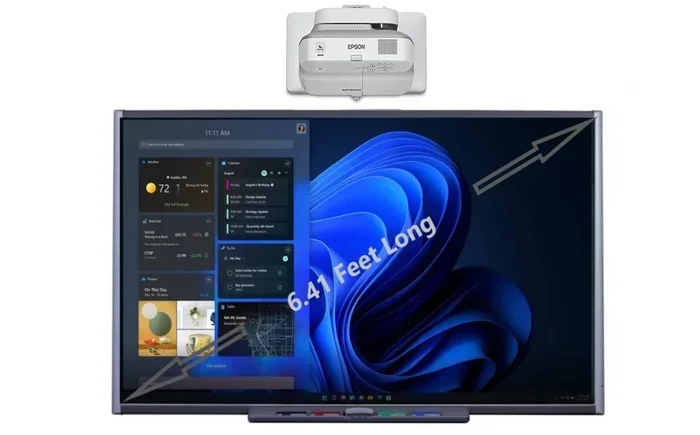
A smart board is an interactive display that lets you touch, write, and interact with digital content. Think of it as a giant tablet mounted on a wall. People use smart boards in schools, offices, and training rooms for presentations, lessons, brainstorming sessions, and video calls.
Now, Bluetooth connectivity on a smart board works just like Bluetooth on your phone or laptop. It uses short-range radio waves to send data between devices without any physical cables. When your smart board has Bluetooth built in, it acts like a wireless hub that other devices can connect to.
Most smart boards today use Bluetooth 5.0 or newer. This version offers a stronger signal, faster data transfer, and a longer range compared to older Bluetooth versions. You can typically connect within 30 feet of the board, though walls and other obstacles may reduce that distance.
Types of Smart Boards With Bluetooth
Not all smart boards are the same. Here are the main types that support Bluetooth wireless smart board connections:
- Interactive Flat Panel Displays: These are the most common type found in classrooms and offices. They usually come with Bluetooth 5.0 and Wi-Fi built in.
- Portable Smart Boards: Smaller, lightweight boards that you can carry around. Many of these rely heavily on Bluetooth for connectivity since they often lack HDMI ports.
- Smart Whiteboards With Built-In Computers: Some boards have a computer module built right into the display. These boards use Bluetooth for peripherals like keyboards, mice, and speakers.
- Budget-Friendly Smart Boards: Entry-level models may have limited Bluetooth features. Always check the specifications before buying if wireless connectivity matters to you.
When shopping for a smart board, look for Bluetooth enabled smart board models that support the latest Bluetooth version. This ensures the best performance and compatibility with your devices.
How To Connect Your Device to a Smart Board via Bluetooth
Setting up a smart board Bluetooth connection is straightforward. The exact steps may vary slightly depending on the brand and model of your smart board, but the general process is the same across most devices.
Step-by-Step Bluetooth Pairing Guide
- Turn on the smart board and make sure it is fully powered up. Wait for the home screen to load completely.
- Open the Bluetooth settings on the smart board. This is usually found in the Settings menu or a quick-access panel on the home screen.
- Enable Bluetooth on the smart board if it is not already turned on. You should see a Bluetooth icon appear in the status bar.
- Put your device in pairing mode. On your phone, laptop, or tablet, go to Bluetooth settings and turn Bluetooth on. Make sure your device is set to be discoverable.
- Search for available devices on the smart board. Your device name should appear in the list of available Bluetooth devices.
- Tap on your device name to initiate the pairing process. Some boards may ask you to confirm a PIN code on both devices.
- Wait for the connection to establish. Once paired, you should see a confirmation message on both the smart board and your device.
- Test the connection by trying to cast a screen or share a file. If it works, you are all set.
Quick Tips for Smooth Bluetooth Pairing
- Keep your device within 10 to 15 feet of the smart board during the initial pairing process for the best results.
- Make sure no other Bluetooth devices are interfering with the connection.
- If the smart board does not detect your device, try turning Bluetooth off and on again on both devices.
- Restart both the smart board and your device if pairing fails multiple times.
Connecting Specific Devices
Connecting a laptop to a smart board via Bluetooth is one of the most common use cases. Windows laptops, MacBooks, and Chromebooks all support Bluetooth connections to smart boards. On Windows, go to Settings > Devices > Bluetooth & other devices and follow the pairing steps. On a Mac, click the Bluetooth icon in the menu bar and select the smart board from the list.
Connecting a phone or tablet works similarly. Both Android and iOS devices support Bluetooth screen mirroring to smart boards. Some smart board brands also have dedicated apps that make the process even easier. For example, certain brands offer apps that let you cast your screen, annotate over content, and control the board from your phone.
Connecting multiple devices is another great feature. Many smart boards allow you to pair several devices at the same time. This is perfect for classrooms or meeting rooms where multiple people need to share content during a session.
Benefits of Using Bluetooth With Your Smart Board
Why should you bother with wireless smart board Bluetooth when cables work just fine? There are many real benefits that make Bluetooth a game-changer for how people use smart boards.
1. Freedom of Movement
With Bluetooth, you are not tied to one spot. You can walk around the room while controlling the smart board from your device. This is especially useful in classrooms where teachers move around to engage with students. In meetings, it lets the presenter interact naturally with the audience instead of standing behind a desk.
2. Quick and Easy Setup
Plugging in cables takes time. You have to find the right port, use the right adapter, and deal with tangled wires. Bluetooth smart board setup eliminates all of that. A few taps and your device is connected. This saves valuable time, especially in fast-paced environments like classrooms and boardrooms.
3. Cleaner, Tangle-Free Setup
Let us be honest. Cables are messy. They trip people, take up space, and look terrible. A wireless smart board Bluetooth setup keeps your workspace clean and professional. No cables means no clutter, which is especially important in shared spaces like conference rooms and training facilities.
4. Supports Multiple Users
Many smart boards let multiple devices connect at the same time via Bluetooth. This means several people can share their screens or contribute content during a session. It is a fantastic feature for group work, brainstorming, and collaborative learning.
5. Works with Peripherals Too
Bluetooth on a smart board is not just for screen mirroring. You can also connect wireless keyboards, mice, presenters, and even speakers to the board. This turns your smart board into a complete wireless presentation hub.
Expert Insight
According to AV technology experts, Bluetooth 5.0 and newer versions offer significantly improved range and stability compared to older versions. If you are buying a new smart board, look for one with at least Bluetooth 5.0 to get the best wireless smart board experience. Brands like Samsung, Promethean, and SMART Technologies are leading the way in Bluetooth-enabled interactive displays.
Bluetooth vs. Other Connection Methods for Smart Boards
While Bluetooth is great, it is not the only way to connect to a smart board. Let us compare Bluetooth with other common connection methods so you can understand when to use each one.
Comparison Table: Bluetooth vs. Other Smart Board Connections
| Connection Method | Wireless? | Max Range | Speed | Best For |
|---|---|---|---|---|
| Bluetooth | Yes | Up to 30 feet | Moderate | Screen mirroring, peripherals, quick sharing |
| Wi-Fi Casting | Yes | Depends on network | High | Streaming video, large file sharing |
| HDMI Cable | No | Up to 50 feet (with active cable) | Very High | High-resolution display, stable connection |
| USB-C | No | Up to 6 feet | Very High | Charging and data transfer, direct connection |
| Screen Mirroring Apps (via Wi-Fi) | Yes | Depends on network | High | Wireless casting with annotations |
Each connection method has its strengths. Bluetooth is best for quick, easy wireless sharing of screens and files. Wi-Fi casting is better for streaming video or sharing large files because it offers higher bandwidth. HDMI and USB-C provide the most stable and highest-quality connections, but they require cables.
In most cases, a Bluetooth enabled smart board works perfectly for everyday tasks like presenting slides, sharing documents, and annotating content. For demanding tasks like playing high-definition video, you may want to use Wi-Fi casting or an HDMI cable instead.
When to Use Bluetooth vs. Other Methods
- Use Bluetooth when: You need a quick connection, you are moving around the room, or you want to share content from a phone or tablet without cables.
- Use Wi-Fi casting when: You are streaming video, sharing large files, or need a higher bandwidth connection for smooth performance.
- Use HDMI or USB-C when: You need the most stable and highest-quality connection, or when presenting in a large room where wireless signals may be unreliable.
Common Bluetooth Connection Problems and How To Fix Them
Even though Bluetooth smart board wireless technology is reliable, you may run into issues from time to time. Here are the most common problems and how to solve them.
Problem 1: Smart Board Does Not Detect My Device
This is the most common Bluetooth issue. If the smart board is not finding your device, try these steps:
- Make sure Bluetooth is turned on on both devices.
- Restart Bluetooth on both the smart board and your device.
- Move your device closer to the smart board.
- Check if your device is in pairing mode and discoverable.
- Remove any previously paired devices from the smart board’s Bluetooth list and try again.
Problem 2: Connection Keeps Dropping
An unstable connection can be frustrating. Here is what to do:
- Check for interference from other Bluetooth devices or Wi-Fi routers.
- Make sure you are within the Bluetooth range (usually 30 feet).
- Update the smart board firmware to the latest version.
- Reduce the number of wireless devices operating in the same area.
- Restart both devices and reconnect.
Problem 3: Screen Mirroring Is Laggy or Delayed
If your screen is not mirroring smoothly, try these fixes:
- Close unnecessary apps on both devices to free up processing power.
- Make sure your smart board firmware is up to date.
- Switch to a less crowded Wi-Fi channel if you are using Wi-Fi-assisted Bluetooth.
- Lower the screen resolution or frame rate on your device before casting.
Problem 4: Audio Is Not Working Through Bluetooth
If you can see the screen but cannot hear the audio:
- Check that the audio output on your device is set to the smart board.
- Make sure the smart board volume is turned up.
- Re-pair the Bluetooth connection and test again.
- Some smart boards require you to select the Bluetooth audio output separately from the video output.
Common Mistakes to Avoid
- Not updating firmware: Outdated smart board software can cause Bluetooth issues. Always keep your board updated.
- Pairing too many devices: Some smart boards struggle when too many devices are connected at once. Disconnect devices you are not using.
- Ignoring interference: Microwaves, wireless cameras, and other Bluetooth devices can interfere with the signal. Keep these away from the smart board.
- Forgetting to turn Bluetooth off when done: Leaving Bluetooth on drains battery and can cause accidental connections.
Best Practices for Wireless Smart Board Use
To get the most out of your Bluetooth enabled smart board, follow these best practices for a smooth and reliable wireless experience.
1. Keep Firmware Updated
Smart board manufacturers regularly release firmware updates that improve Bluetooth performance, fix bugs, and add new features. Check for updates at least once a month to keep your board running at its best.
2. Use a Dedicated Wi-Fi Network
If you are using Wi-Fi-assisted Bluetooth or screen mirroring apps, make sure you are on a dedicated network. Sharing a network with too many users can slow down your connection and cause lag.
3. Position the Smart Board Strategically
Place the smart board in a central location with minimal obstructions. Walls, furniture, and electronic devices can weaken the Bluetooth signal. The clearer the line of sight between your device and the board, the better the connection will be.
4. Limit the Number of Connected Devices
While many smart boards support multiple Bluetooth connections, connecting too many devices at once can reduce performance. Only keep the devices you are actively using connected.
5. Use a Bluetooth Range Extender if Needed
If your room is large and the Bluetooth signal is weak, consider using a Bluetooth range extender or repeater. These affordable devices boost the signal and extend the range, giving you reliable connectivity even in large spaces.
6. Test Before Important Presentations
Always test your Bluetooth connection before a big meeting or class. Do not wait until you are standing in front of an audience to discover that the connection is not working. A quick five-minute test can save you from an awkward situation.
Pro Tip from the Field
AV integrators recommend keeping a backup connection method ready. If Bluetooth fails during an important presentation, having an HDMI cable or a screen mirroring app as a backup can save the day. Wireless smart board Bluetooth is incredibly convenient, but a backup plan never hurts.
Future of Bluetooth in Smart Boards
The future of Bluetooth connectivity on smart boards looks very promising. As technology evolves, we can expect even better wireless experiences. Bluetooth 6.0 and beyond will offer faster speeds, longer ranges, and lower power consumption. This means smoother screen mirroring, better audio quality, and more reliable connections.
Some manufacturers are already experimenting with Bluetooth mesh networking for smart boards. This technology allows multiple smart boards in the same room to connect and share content seamlessly. Imagine being able to cast your screen from one smart board to another with a single tap.
Artificial intelligence is also playing a role. Future smart boards may use AI to optimize Bluetooth connections automatically, reducing interference and improving stability without any user input. The goal is to make wireless connectivity so seamless that cables become a thing of the past.
As more schools and businesses adopt wireless smart board technology, the demand for better Bluetooth solutions will only grow. Manufacturers are investing heavily in research and development to meet this demand. The next generation of smart boards will be even more connected, intuitive, and easy to use.
Conclusion
So, can you connect to a smart board with Bluetooth wirelessly? Absolutely. The answer is a resounding yes. Bluetooth smart board wireless connectivity is now standard on most modern interactive displays, and it makes sharing content easier than ever. Whether you are presenting in a meeting, teaching a class, or collaborating with a team, Bluetooth gives you the freedom to connect without cables.
Setting up a smart board Bluetooth connection is quick and straightforward. Most devices can be paired in just a few minutes. And with the benefits of wireless freedom, cleaner setups, and multi-device support, it is easy to see why Bluetooth has become such an important feature on smart boards.
Of course, Bluetooth is not perfect. Range limitations, interference, and occasional connection drops can happen. But with the troubleshooting tips and best practices covered in this guide, you will be well-equipped to handle any issues that come up.
Wireless smart board Bluetooth technology is only going to get better. As Bluetooth versions improve and new features emerge, the wireless experience will become even more seamless. For now, if your smart board supports Bluetooth, take advantage of it. It is one of the best ways to make your presentations, lessons, and collaborations more efficient and more enjoyable.
Go ahead, connect your device, and experience the freedom of a wireless smart board Bluetooth setup. You will wonder how you ever managed with cables.
Frequently Asked Questions
Can all smart boards connect via Bluetooth?
Most modern smart boards support Bluetooth, but not all of them do. Budget models or older boards may lack Bluetooth functionality. Always check the specifications of the smart board before purchasing if wireless connectivity is important to you. Look for Bluetooth enabled smart board models to ensure wireless compatibility.
How far can I be from a smart board when using Bluetooth?
Bluetooth typically works within a range of about 30 feet. However, walls, furniture, and other electronic devices can reduce this distance. For the best results, stay within 10 to 15 feet of the smart board during use. Using a Bluetooth range extender can help if you need more distance.
Can I connect multiple devices to a smart board via Bluetooth at the same time?
Yes, many smart boards support multiple Bluetooth connections simultaneously. This is great for classrooms and meeting rooms where several people need to share content. However, connecting too many devices at once may reduce performance. Check your specific smart board model for the maximum number of supported connections.
Is Bluetooth or Wi-Fi better for smart board screen mirroring?
It depends on what you need. Bluetooth is great for quick, simple screen mirroring and sharing documents. Wi-Fi casting offers higher bandwidth and is better for streaming video or sharing large files. Many users use both methods depending on the task at hand.
Why does my Bluetooth connection to the smart board keep dropping?
Bluetooth connection drops can happen due to interference from other wireless devices, being too far from the smart board, or outdated firmware. Try moving closer to the board, reducing interference, and updating the smart board software. Restarting both devices often fixes the issue as well.
Do I need any special app to connect to a smart board via Bluetooth?
Some smart board brands require a dedicated app for Bluetooth screen mirroring and control. Others support native Bluetooth connections without any additional software. Check the user manual or manufacturer’s website for your specific smart board model to find out if an app is needed.